Table of Contents >> Show >> Hide
- What Is HDDExpert, Exactly?
- Why Monitoring Drive Health Still Matters
- What HDDExpert Does Well
- How To Use HDDExpert Without Overthinking Every Number
- Understanding The Most Important Warning Signs
- Health Versus Performance: Where HDDExpert Helps, And Where It Does Not
- Best Practices If HDDExpert Shows A Warning
- Common Mistakes People Make With Drive Monitoring
- Is HDDExpert Worth Using?
- Real-World Experiences Monitoring Hard Drives And SSDs With HDDExpert
- Conclusion
Storage drives are like housecats: quiet most of the time, occasionally dramatic, and fully capable of ruining your day without warning. One minute your PC boots like a champ, and the next minute it moves like it is carrying groceries up a mountain. That is exactly why drive health monitoring matters. If you wait until your hard drive clicks like a nervous typewriter or your SSD decides to vanish into the digital afterlife, you are already late to the party.
HDDExpert is one of those small Windows utilities that tries to make drive monitoring less mysterious. Instead of dumping raw S.M.A.R.T. data in your lap and wishing you luck, it translates drive health information into something normal humans can actually read. For anyone who wants a quick look at a hard drive or SSD without diving into enterprise-grade tools or command-line gymnastics, that simplicity is the main appeal.
In this guide, we will look at what HDDExpert does, where it shines, where it does not, how to interpret its warnings, and how to use it as part of a smarter storage-maintenance routine. Because “my drive looked fine yesterday” is not the kind of sentence anyone enjoys saying out loud.
What Is HDDExpert, Exactly?
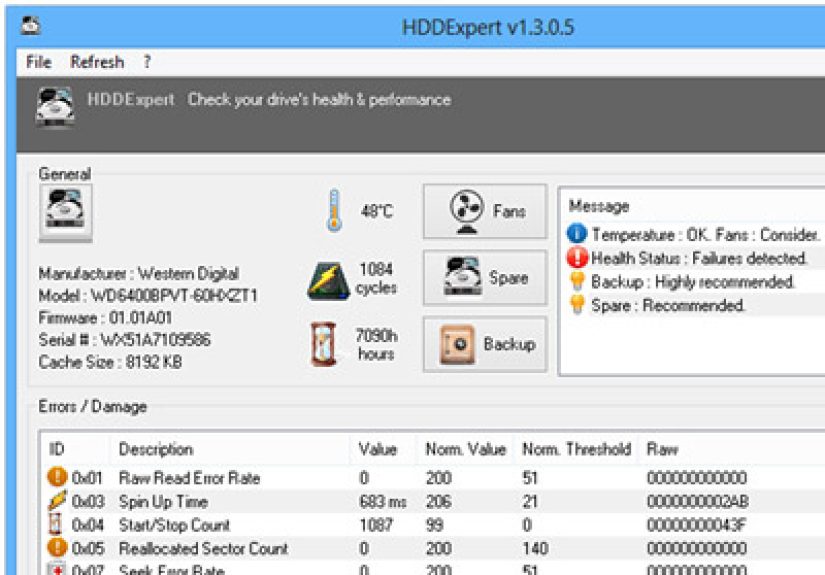
HDDExpert is a lightweight Windows utility built to monitor the health and basic condition of storage drives. It reads S.M.A.R.T. information from supported HDDs and SSDs, then presents that information in a friendlier way than many old-school diagnostic tools. It is meant to answer the question most people actually care about: Is my drive healthy, getting hot, or quietly preparing betrayal?
The tool is especially handy because it focuses on the everyday signs users can understand. Instead of showing only cryptic values, HDDExpert surfaces practical details such as drive model, capacity, temperature, power-on hours, power cycles, firmware information, and health-related warnings. It may also suggest maintenance actions, such as creating backups, improving airflow, or planning for a replacement drive if the numbers start looking moody.
That is important because S.M.A.R.T., while useful, is not exactly famous for being chatty in plain English. Most drives collect internal health statistics, but the raw numbers vary by manufacturer and can be hard to interpret. HDDExpert acts like a translator standing between you and a pile of storage telemetry, saying, “What your drive means is: maybe back up those photos before lunch.”
Why Monitoring Drive Health Still Matters
Modern storage is faster and more reliable than the clunky relics many of us grew up with, but no drive lasts forever. Traditional hard drives have moving parts, which means wear, vibration, heat, and mechanical failure remain real risks. SSDs do not have spinning platters or read heads, but they are not immortal either. Flash memory wears over time, firmware issues can cause trouble, overheating hurts performance, and electrical failures can arrive with all the courtesy of a falling piano.
This is where health monitoring becomes valuable. A tool like HDDExpert does not repair a dying drive, but it can give you an earlier heads-up. That matters because the best moment to back up your files is before the drive starts making existential choices.
There is one huge caveat, though: S.M.A.R.T. is helpful, not magical. Some failing drives show clear warning signs. Others fail with all the grace of a lightbulb. In other words, good health status does not mean “invincible,” and a warning does not always mean “funeral tomorrow.” Think of HDDExpert as an early-warning assistant, not a fortune teller wearing a lab coat.
What HDDExpert Does Well
It makes S.M.A.R.T. data readable
The biggest advantage of HDDExpert is readability. Plenty of drive tools can show S.M.A.R.T. attributes, but not all of them explain what those values mean in a way that feels useful to ordinary users. HDDExpert tries to convert that technical soup into visible health and temperature indicators, plus practical advice.
It is fast and lightweight
Not everyone wants a giant utility suite with dashboards, cloud sync, background services, and enough panels to launch a moon mission. HDDExpert is more like the compact flashlight in your desk drawer. You open it, check the drives, see whether anything looks wrong, and move on with your day.
It helps with maintenance decisions
One of the more useful parts of HDDExpert is that it points you toward action. If a drive is overheating, the lesson is not “interesting number.” The lesson is “fix your airflow.” If health indicators are deteriorating, the message becomes “back up immediately and start shopping for a replacement.” That practical angle makes it more helpful than a tool that only dumps data on your screen and leaves you to emotionally process it alone.
How To Use HDDExpert Without Overthinking Every Number
Using HDDExpert is straightforward. Launch the app, let it detect available drives, then review each drive one by one. If you have both an SSD and a secondary hard drive, do not assume the boot drive is the only one worth checking. External drives, older archive drives, and storage used for backups deserve attention too. Ironically, people often ignore the drive that stores their backups until the day the backup also needs a backup.
Start with the basics:
- Health status: This is your big-picture indicator. If it looks poor or cautionary, treat it seriously.
- Temperature: A drive that runs too hot may suffer reduced reliability or throttled performance.
- Power-on hours: This tells you how long the drive has been in service. It is not a death clock, but age matters.
- Power cycles: Repeated starts and stops can contribute to wear, especially on older mechanical drives.
- Error-related attributes: Reallocated sectors, pending sectors, or other damage-related counters deserve attention.
If you are looking at an SSD, you may also see values related to remaining life, wear level, media condition, or vendor-specific health indicators. These can be useful, but they are not always standardized across brands. That means you should care more about the trend and the tool’s warning state than about obsessing over one lonely raw value at 2:14 a.m.
Understanding The Most Important Warning Signs
Temperature problems
Heat is a storage drive’s clingy enemy. Hard drives hate sustained high temperatures, and SSDs can throttle under thermal stress. If HDDExpert shows a drive running unusually hot, check airflow, fan performance, dust buildup, laptop vent blockage, and whether the drive is trapped in a case with the ventilation strategy of a brick.
Reallocated or pending sectors
On hard drives, these values often deserve serious attention. Reallocated sectors can indicate that the drive has already encountered bad areas and moved data elsewhere. A few isolated events do not always spell doom, but growing counts are a giant blinking sign that says, “Please stop procrastinating and make a backup.”
Power-on age and wear
A drive with years of use is not automatically doomed, but older drives need more skepticism. If an aging HDD also shows warnings, strange noises, file-access delays, or temperature spikes, that is usually your cue to prepare for retirement, not therapy.
SSD health looks good, but performance feels bad
This is a common trap. An SSD can report decent health while the system still feels sluggish. In many cases, the issue is not immediate failure but poor conditions: the drive is nearly full, TRIM is not being run properly, the firmware is outdated, or the slowdown is caused by software, startup bloat, or background tasks. HDDExpert can help you notice the storage side of the story, but it is not the entire plot.
Health Versus Performance: Where HDDExpert Helps, And Where It Does Not
The title and marketing around HDDExpert mention both health and performance, but let us be honest: its strongest role is monitoring health-related status through S.M.A.R.T. data and environmental clues. It is not a full synthetic benchmarking tool designed to measure sustained sequential reads, random writes, queue depth behavior, or controller-level performance under heavy workloads.
So if you want to know whether a drive is getting sick, HDDExpert is useful. If you want to compare whether Drive A is 600 MB/s faster than Drive B, or whether a new NVMe upgrade is delivering the speeds printed on the box in suspiciously heroic font, you will want a dedicated benchmark tool.
The smartest workflow is to use HDDExpert for quick monitoring and combine it with other checks when needed:
- Use built-in Windows optimization tools for routine drive maintenance.
- Use manufacturer utilities for firmware updates and deeper diagnostics.
- Use benchmark tools only when you truly need to measure performance.
- Use backup software before you start “testing things” like a weekend IT cowboy.
Best Practices If HDDExpert Shows A Warning
1. Back up first, investigate second
If a drive shows a serious health warning, do not begin with deep philosophical reflection. Back up your important files first. Photos, projects, invoices, game saves, schoolwork, and anything else you would ugly-cry over should be copied immediately.
2. Improve cooling
High temperature warnings should send you toward airflow fixes. Clean dust, verify fans, avoid blocking vents, and make sure the drive is not cooking in a cramped enclosure. For desktops, better case airflow can help. For laptops, using the machine on a blanket is basically a heat-management joke with a bad ending.
3. Keep SSD free space healthy
SSDs need room to breathe. When they get packed too full, performance and housekeeping efficiency can suffer. Leave reasonable free space, avoid stuffing the drive to the brim, and let Windows run its optimization tasks properly.
4. Let Windows do its job
Windows handles HDD and SSD optimization differently. Hard drives are defragmented; SSDs are trimmed. That matters because SSD maintenance is not about classic defrag routines. It is about helping the drive clean up unused blocks efficiently so it can maintain speed and reduce unnecessary work.
5. Check vendor tools and firmware
If HDDExpert raises concerns on a branded SSD or HDD, the next stop should often be the manufacturer’s own diagnostic utility. Vendor tools can sometimes provide deeper tests, firmware information, or device-specific health data that generic tools cannot. Firmware updates should be approached carefully, but they can matter when a manufacturer has issued a stability or performance fix.
Common Mistakes People Make With Drive Monitoring
Mistake one: treating “Good” as “I never need backups again.” No. A healthy drive can still fail suddenly.
Mistake two: ignoring rising warnings because the PC still boots. Many failing drives remain usable right up until they decide not to.
Mistake three: confusing file-system issues with hardware health. A logical disk problem can sometimes be repaired. A physically failing drive is a different animal.
Mistake four: benchmarking obsessively. Constant stress tests and pointless tuning experiments are not a hobby your SSD asked for.
Mistake five: replacing every drive at the first weird number without looking at trends, temperature, age, and overall behavior. Monitoring tools are for informed decisions, not panic speedruns.
Is HDDExpert Worth Using?
Yes, if you want a simple, readable snapshot of drive health without wading through overly technical menus. HDDExpert is especially useful for home users, small-office systems, family PCs, older laptops, and anyone who wants a quick warning system for storage issues. It is not the only tool you will ever need, but it is the kind of tool that earns a place in your maintenance toolkit because it reduces friction.
The biggest selling point is not that it performs miracles. It does not. The real value is that it encourages earlier action. A plain-language health tool can nudge people into making backups, improving cooling, checking firmware, and replacing questionable drives before disaster strikes. That alone makes it more useful than a lot of flashy utilities that are technically impressive and practically ignored.
If your goal is simple storage awareness, HDDExpert does the job well. If your goal is forensic analysis, enterprise diagnostics, or performance testing down to the decimal point, you will need extra tools. But for day-to-day drive monitoring, it is a solid first line of defense.
Real-World Experiences Monitoring Hard Drives And SSDs With HDDExpert
In real-world use, tools like HDDExpert tend to be most valuable in boring situations, which is actually a compliment. The best drive warning is the one that saves your files before anything dramatic happens. For example, on an older family desktop with a mechanical hard drive, HDDExpert can be the first thing that turns a vague complaint like “the computer feels weird” into a clear direction. You open the app, notice the temperature is high and the health indicators are no longer cheerful, and suddenly the mystery is gone. The drive is not just “acting slow.” It is waving a tiny emergency flag.
Another common experience happens with dusty desktop towers and aging laptops. A user may think the storage is dying because apps are stuttering and file transfers feel sluggish. Then HDDExpert shows the drive temperature is uncomfortably high. After cleaning the vents, improving airflow, and checking the case fans, performance often becomes more stable. It is not magic. It is just that storage hardware tends to prefer not being roasted alive.
SSDs create a different kind of experience. They usually do not give you the classic old-drive drama. No clicking. No grinding. No theatrical pause before boot. Instead, the machine may feel fine until something subtle changes. Maybe file copies slow down, maybe the system hangs briefly during updates, or maybe the drive remains “healthy” but the PC feels cramped because the SSD is almost full. In those cases, HDDExpert is useful as a quick checkpoint. If the health looks okay, temperature is normal, and there are no alarming wear indicators, you can widen the investigation. Perhaps the problem is free space, startup bloat, firmware, or background software instead of immediate hardware failure.
People also tend to appreciate HDDExpert most when handling multiple drives. A desktop with one boot SSD, one large HDD for media, and one external backup drive can turn storage monitoring into a scavenger hunt. HDDExpert simplifies that by showing each drive’s basic condition in one place. That makes it easier to catch the forgotten secondary drive that has been running hot for months or the old archive disk that has quietly accumulated ugly error indicators while nobody was looking.
There is also a psychological benefit: the app lowers the barrier to checking storage health. Many users never open advanced diagnostic tools because they look intimidating. HDDExpert feels more approachable, which means it actually gets used. And a simple tool that gets opened once a month is usually more helpful than a powerful one buried in a downloads folder under “Stuff I Will Totally Learn Later.”
Of course, experience also teaches humility. Sometimes HDDExpert warns you early and saves the day. Other times a drive fails faster than your monitoring routine can catch it. That is why experienced users treat the app as one layer in a larger strategy. The winning combination is simple: monitor health, keep backups current, maintain cooling, leave SSDs breathing room, and avoid ignoring strange behavior. HDDExpert fits nicely into that routine because it helps turn invisible storage problems into visible ones. And when your data is involved, visibility is not just nice. It is survival with a user interface.
Conclusion
HDDExpert is not a miracle worker, a benchmark monster, or a replacement for backups. What it is, however, is useful. It gives you a straightforward way to watch over HDD and SSD health, understand S.M.A.R.T.-based warnings, spot temperature issues, and make smarter decisions before small symptoms become big disasters. For everyday Windows users, that combination of simplicity and practical value is hard to argue with.
If you install it, use it the right way: check your drives regularly, pay attention to warning trends, keep Windows maintenance features enabled, and back up your important files before your storage hardware decides to audition for a tragedy. Your future self will be grateful, and your hard drive may stop being the most dramatic part of your computer.