Table of Contents >> Show >> Hide
- Start Here: Figure Out Whether the Problem Is the Website or Your Device
- Quick Fixes That Solve a Shocking Number of Cases
- Clear Cache and Cookies for the Problem Website
- Disable Browser Extensions, Content Blockers, and Privacy Tools
- Check VPN, Proxy, Firewall, and Antivirus Settings
- Flush DNS and Fix Name Resolution Problems
- Check Date, Time, and HTTPS Certificate Warnings
- Watch for Redirect Loops, Login Loops, and Broken Settings
- Test on Another Network
- When the Problem Is on the Website’s Side
- A Practical Step-by-Step Fix Order
- Real-World Experiences: What This Problem Looks Like in Everyday Life
- Conclusion
One website won’t open. Every other site works. Your Wi-Fi icon looks innocent. Your browser, meanwhile, acts like that one website has been erased from the internet. Annoying? Absolutely. Mysterious? A little. Unfixable? Not even close.
If you can’t access a particular website, the problem usually falls into one of a few buckets: a browser issue, stale cache or cookies, DNS trouble, a VPN or firewall conflict, an account or certificate problem, or a problem on the website’s side. The trick is not to mash Refresh like it owes you money. The trick is to test the right things in the right order.
This guide walks through a practical, beginner-friendly process to fix a website that won’t load, whether you’re seeing a blank page, a security warning, a timeout, a redirect loop, or one of those dramatic browser errors that sound like your laptop just discovered existential dread.
Start Here: Figure Out Whether the Problem Is the Website or Your Device
Before you change settings, play detective for two minutes. This step saves a lot of unnecessary tinkering.
1. Double-check the URL
Typos are more common than most people admit. A missing letter, extra slash, outdated bookmark, or wrong subdomain can lead to a dead end. If possible, type the address again manually instead of relying on autofill.
2. Test the site in another browser
If the website fails in Chrome but works in Edge, Firefox, or Safari, that points to a browser-specific problem. That usually means cached website data, a bad extension, blocked scripts, or unusual browser settings.
3. Test the site on another device
Try your phone on cellular data, another laptop, or a tablet. If the site works elsewhere, your original device is the problem. If it fails everywhere, the site itself, your network, or your DNS provider may be involved.
4. Check whether all websites fail or only one
If only one website is broken, you’re likely dealing with site-specific data, login issues, DNS weirdness, or the website being partially down. If many websites fail, think network, router, firewall, antivirus, proxy, or ISP.
Quick Fixes That Solve a Shocking Number of Cases
These are the low-effort, high-reward moves. Do these first before diving into technical fixes.
Refresh the page properly
A normal reload is fine for simple hiccups. But when a page is stuck using old files, try a hard refresh. This forces the browser to pull fresh content instead of lazily reusing stale local files like a college student reheating the same pizza for the third day in a row.
Close and reopen the browser
Some page failures are temporary browser glitches. Fully quit the browser, then launch it again. Do not just close the tab and call it a noble effort.
Restart your device
Yes, it’s basic. Yes, it still works. A restart clears temporary networking problems, stuck background processes, and odd browser behavior.
Restart your modem and router
If the issue seems network-related, unplug your modem and router, wait about 30 seconds, then plug them back in. This can refresh your connection to your internet provider and clear minor routing issues.
Clear Cache and Cookies for the Problem Website
If one website won’t load, loads incorrectly, or keeps throwing login errors, old site data is a prime suspect. Browsers store cookies, scripts, images, and other bits of website data to speed things up. Sometimes that data becomes outdated or corrupted. Instead of helping, it becomes the digital equivalent of a bad handwritten map.
When clearing site data helps
- The page loads partially or looks broken
- You get stuck in a login loop
- You see repeated timeout or connection reset messages
- The site works in a private or incognito window but not normally
Use private browsing as a test
Open the site in Incognito mode, a Private Window, or InPrivate mode. If it works there, your regular browser profile is likely carrying bad cookies, cached files, or a conflicting extension. That is great news, because it means the fix is usually local and manageable.
Then remove the stored website data
You can clear all browsing data, but for convenience and less collateral damage, it is often better to remove data for only the affected site when your browser allows it. After that, reload the page and sign in again if needed.
Disable Browser Extensions, Content Blockers, and Privacy Tools
Extensions are useful until they decide your favorite website is suspicious, annoying, or apparently unworthy of loading. Ad blockers, script blockers, privacy extensions, password managers, shopping assistants, and security add-ons can all interfere with specific pages.
Common symptoms of extension trouble
- The site works in private mode but not normal mode
- Buttons do nothing
- Videos, forms, or logins fail
- The page is blank or half-rendered
- You get constant reloads or redirect loops
Disable extensions one at a time, starting with ad blockers, privacy tools, VPN extensions, and anything that modifies page content. Then test the site again. If the website suddenly behaves, congratulations: you found the troublemaker.
Check VPN, Proxy, Firewall, and Antivirus Settings
Sometimes the website is fine, but your security tools are being a little too enthusiastic. A VPN might route you through a region the site blocks. A proxy may be misconfigured. Antivirus or firewall software might stop a secure connection from completing.
Try these checks
- Turn off your VPN temporarily and reload the site
- Disable a proxy you do not need
- Pause web filtering in antivirus software for a quick test
- Check whether your firewall is blocking the browser
This matters especially for banking websites, streaming services, school portals, and company tools. These sites often restrict access by region, IP reputation, or traffic type. If turning off the VPN fixes it, the website may dislike your exit location more than your browser does.
Flush DNS and Fix Name Resolution Problems
DNS is the system that translates a domain name into the IP address your computer actually uses. If that translation is wrong or outdated, the site may refuse to load even though the internet itself is working fine.
Signs of a DNS problem
- You see errors like
ERR_NAME_NOT_RESOLVED - The website works on mobile data but not on home Wi-Fi
- The site recently changed hosting or domain settings
- Typing the web address fails, but other sites work
Flush your DNS cache on Windows
If you want a more complete Windows reset for stubborn network issues, these commands are commonly used in sequence:
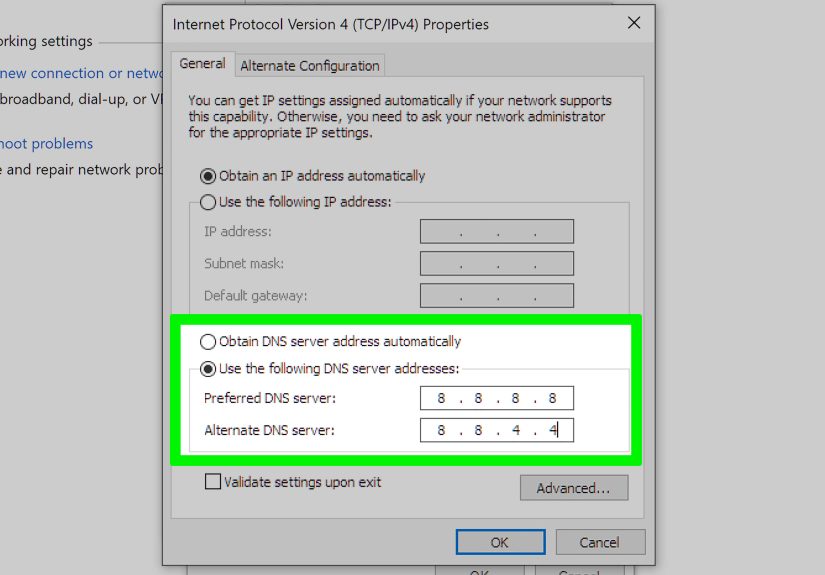
Consider switching DNS servers
Your internet provider’s DNS server may be slow, overloaded, stale, or just having a bad day. Switching to a public DNS provider can help. Popular choices include Google Public DNS and Cloudflare DNS. This is especially useful when only some websites fail while the rest of your connection seems normal.
If the website recently changed DNS records, remember that DNS updates can take time to propagate. In other words, the internet may not have finished updating its address book yet.
Check Date, Time, and HTTPS Certificate Warnings
If a secure website refuses to open and your browser shows a warning about connection security, the problem may not be the website itself. Your computer’s clock may be wrong, the certificate may be expired, or the secure connection may be failing somewhere between the site and the server.
What this looks like
- “Your connection is not private”
- “Potential security risk ahead”
ERR_SSL_VERSION_OR_CIPHER_MISMATCH525or526style SSL errors on Cloudflare-backed sites
First, make sure your device’s date, time, and time zone are correct. A wrong clock can make perfectly valid certificates look invalid. Then update your browser and operating system. Older browsers and old devices may struggle with newer certificate chains or modern TLS requirements.
If you own the website, this gets more server-side. SSL handshake failures, invalid origin certificates, and conflicting HTTPS redirect rules may require help from your hosting provider or CDN settings.
Watch for Redirect Loops, Login Loops, and Broken Settings
Some websites open, then immediately redirect again. And again. And again. Eventually your browser throws an error like ERR_TOO_MANY_REDIRECTS. That usually points to a mismatch between cookies, HTTPS rules, sign-in sessions, or account-specific settings.
Try this sequence
- Clear cookies for the site
- Open it in a private window
- Turn off extensions and content blockers
- Turn off VPN or proxy tools
- Try another browser
For website owners, redirect loops often come from conflicting rules between the server, CDN, HTTPS settings, and security policies like HSTS. For regular users, the practical fix is usually clearing site data and removing anything that changes how traffic is routed.
Test on Another Network
This is one of the smartest troubleshooting moves and one of the most overlooked.
If the website fails on your home Wi-Fi but works on your phone using cellular data, that strongly suggests a network-level issue. Maybe your router cached stale DNS data. Maybe your ISP is having trouble. Maybe your network has a filter, captive portal, parental control setting, or DNS rule blocking access.
Try these comparisons
- Home Wi-Fi versus cellular data
- Office network versus home network
- Public Wi-Fi versus personal hotspot
If the website only fails on one network, focus on DNS settings, router restart, ISP problems, or network filters. If it fails everywhere, the website itself may be down or regionally restricted.
When the Problem Is on the Website’s Side
Sometimes you do everything right, and the website is still the one being dramatic.
Clues the website is the real issue
- The site fails on multiple devices and multiple networks
- Other people report the same issue
- You see 5xx server errors
- The website recently changed hosting, certificates, or DNS
- Only one specific feature is broken, like login or checkout
In that case, your best move is patience, followed by contacting the site owner or support team. If you own the site, check your hosting logs, DNS records, SSL setup, CDN rules, firewall settings, and origin server response. A browser can only do so much when the server on the other end is having a meltdown.
A Practical Step-by-Step Fix Order
If you want the shortest path from “why won’t this load?” to “finally,” use this order:
- Check the URL
- Reload the page
- Test the site in another browser
- Test on another device
- Open the site in private browsing mode
- Clear cookies and cache for the affected site
- Disable extensions
- Turn off VPN or proxy tools
- Check firewall and antivirus settings
- Restart your browser, device, modem, and router
- Flush DNS and consider switching DNS servers
- Check date, time, and browser updates
- Try another network
- Assume the website may be down and contact support if needed
Real-World Experiences: What This Problem Looks Like in Everyday Life
In real life, not being able to access one particular website rarely feels like a neat little tech puzzle. It usually shows up at the worst possible time. Maybe it is your bank website when a bill is due in an hour. Maybe it is your school portal five minutes before an assignment upload deadline. Maybe it is an airline page while you are trying to check in, or an online store right when you finally decide to buy the thing that has been sitting in your cart for three weeks. Suddenly, a simple browser problem feels personal.
A very common experience is this: every website works except one. You open news sites, social media, streaming apps, and search engines just fine, but the one website you actually need refuses to load. At first, most people assume the site is down. Then they try again. Then they refresh six more times as if determination alone might bully the page into cooperating. That almost never works, but it is an extremely human response.
Another familiar scenario involves logins. The homepage opens, but the moment you sign in, the page spins, reloads, or dumps you right back where you started. That often turns out to be corrupted cookies or stale session data. It feels like the website is rejecting you personally, when really the browser is just holding on to outdated information like a friend who still thinks your old apartment is your current address.
Then there is the VPN situation. A person turns on a VPN for privacy, streaming, work, or travel, forgets it is active, and suddenly one website refuses to cooperate. Maybe the site blocks traffic from certain locations. Maybe it dislikes the IP address. Maybe its fraud prevention system decides your perfectly normal login attempt looks suspicious because it appears to come from another country. Turn off the VPN, and the site magically works again. It feels ridiculous, but it happens all the time.
There are also network-specific headaches. A website may fail on home Wi-Fi but work instantly on mobile data. That usually points to DNS or router trouble, and it can be maddening because it makes the issue look random. From the user’s point of view, nothing changed. From the network’s point of view, something definitely did.
Sometimes the experience is less about access and more about trust. A browser throws a scary security warning, and suddenly people wonder whether the website is dangerous, hacked, or fake. In some cases, it really is a certificate problem on the site. In other cases, the user’s system clock is wrong, the browser is outdated, or an interception tool on the network is breaking secure connections. The warning feels dramatic because browsers are designed to be dramatic about security, and honestly, that part is fair.
The biggest lesson from these real-world experiences is simple: when one website will not open, the cause is often narrow, specific, and fixable. It is usually not a sign that your computer is doomed. It is often just a stale cookie, a cranky extension, a stubborn DNS record, or a website server having a rough afternoon. Once you test the problem methodically, the chaos starts to look a lot less mysterious.
Conclusion
If you can’t access a particular website, don’t jump straight to worst-case scenarios. Most of the time, the fix is practical: clear the site’s data, test another browser, disable extensions, check your VPN, flush DNS, or switch networks. The goal is to isolate the problem quickly so you stop guessing and start solving. When your browser, network, and device all check out, the answer is often simple: the website itself needs attention. Either way, you now have a clear process to get from broken page to working page without losing your mind, your afternoon, or your faith in the refresh button.