Table of Contents >> Show >> Hide
- What “Error Connecting to the Apple Server” Usually Means
- 8 Tips to Fix “Error Connecting to the Apple Server”
- Tip 1: Check Apple’s System Status (Don’t Fix What Isn’t Broken)
- Tip 2: Confirm Your Internet Connection (And Test It Like You Mean It)
- Tip 3: Disable VPNs, Proxies, and Security Apps (Temporarily)
- Tip 4: Restart Your Device (Yes, Really) and Then Retry the Same Action
- Tip 5: Update iOS/iPadOS/macOS (And Don’t Skip the “Minor” Updates)
- Tip 6: Fix Date, Time, and Time Zone (Secure Connections Hate Wrong Clocks)
- Tip 7: Sign Out and Sign Back In (Refresh Your Apple Account Session)
- Tip 8: Reset Network Settings (When Your Network Stack Needs a Fresh Start)
- When to Stop Troubleshooting and Escalate
- Real-World Experiences: What This Error Looks Like (And How People Get Unstuck)
- Conclusion
Few things are more annoying than being ready to download an app, sign in to iCloud, or verify your Apple Account (formerly Apple ID),
and thenbamyou get slapped with an “Error Connecting to the Apple Server” message. It feels personal. It’s not. (Probably.)
This error is usually your device’s way of saying: “I tried to reach Apple’s services, but something in the middleyour network, your settings,
Apple’s servers, or a security layerdidn’t cooperate.” The good news is that most fixes are quick and don’t require you to perform a ceremonial
dance around your router (though no judgment if you already started).
In this guide, you’ll get eight practical, proven tips to fix Apple server connection errors across common scenarios like:
App Store won’t load, iCloud sign-in fails, Apple Account verification failed,
or Apple services unavailable. Each tip includes what to try, why it works, and when to move on.
What “Error Connecting to the Apple Server” Usually Means
Apple services (App Store, iCloud, Apple Music, Apple TV, Messages activation, and more) rely on secure connections that validate certificates,
verify time and region, and confirm account credentials. If any of these prerequisites are offeven slightlyyou can see server errors.
Common causes include:
- Apple service outage or regional disruption
- Weak or restricted internet (public Wi-Fi, captive portals, school/work firewalls)
- VPN, proxy, or security software interfering with Apple traffic
- Incorrect date/time (breaks secure authentication)
- Outdated software or a stuck network configuration
- Account session glitches that need a fresh sign-in
8 Tips to Fix “Error Connecting to the Apple Server”
Tip 1: Check Apple’s System Status (Don’t Fix What Isn’t Broken)
Before you reboot everything in your house, confirm Apple’s services are actually up. Apple provides a live System Status dashboard for services
like App Store, iCloud, Apple Account, Apple Music, and more.
If the service you need shows an outage or degradation, your best “fix” is waiting. Yes, waiting. The rarest skill.
- Best for: App Store not loading, iCloud login failing, Apple Account verification errors, Apple Music problems
- Why it works: If Apple’s side is down, your device can’t connect no matter how motivated you are
Tip 2: Confirm Your Internet Connection (And Test It Like You Mean It)
Apple server errors often happen because the connection is unstable, filtered, or only “kind of” online. Do a quick reality check:
open Safari/Chrome and load a few different sites. If pages don’t load consistently, Apple services won’t either.
Try these quick checks:
- Switch between Wi-Fi and cellular data.
- Restart your router/modem (unplug for ~10 seconds, plug back in).
- Move closer to the router or switch to a different band (2.4 GHz vs 5 GHz), if available.
- Try a different network entirely (hotspot, friend’s Wi-Fi, etc.).
Example: If the App Store works on cellular but not on your home Wi-Fi, your router DNS or firewall settings may be blocking Apple services.
If it fails on both, the issue is more likely device settings, Apple status, or account/session problems.
Tip 3: Disable VPNs, Proxies, and Security Apps (Temporarily)
VPNs and third-party security tools can interfere with Apple’s secure connectionsespecially if they filter traffic, block certificate checks,
or route DNS through a service Apple doesn’t like today.
What to do:
- Turn off your VPN (Settings > VPN, or the VPN app).
- Disable any ad blockers or security apps that filter network traffic.
- If you’re on school/work Wi-Fi, ask whether Apple services are restricted (some networks block App Store downloads).
If turning off the VPN fixes the “cannot connect to Apple server” issue, you’ve found the culprit. You can then adjust the VPN settings,
switch VPN providers, or configure split tunneling so Apple services can connect normally.
Tip 4: Restart Your Device (Yes, Really) and Then Retry the Same Action
Restarting clears temporary network/session glitches, resets background services, and forces a fresh connection handshake.
It’s not “magic,” but it’s shockingly effective.
Pro move: After restarting, try the exact action that failed (sign in, download, verify) onceslowlywithout rapid taps.
Repeated attempts can sometimes trigger rate-limits or lockouts that make the error feel “sticky.”
Tip 5: Update iOS/iPadOS/macOS (And Don’t Skip the “Minor” Updates)
Apple services evolve constantly. Outdated software can cause compatibility issues, certificate problems, or bugs that show up as server connection failures.
Check for system updates and install them.
On iPhone/iPad: Settings > General > Software Update
On Mac: System Settings > General > Software Update
If your device refuses to update, solve that firstbecause many Apple service issues vanish after a successful update.
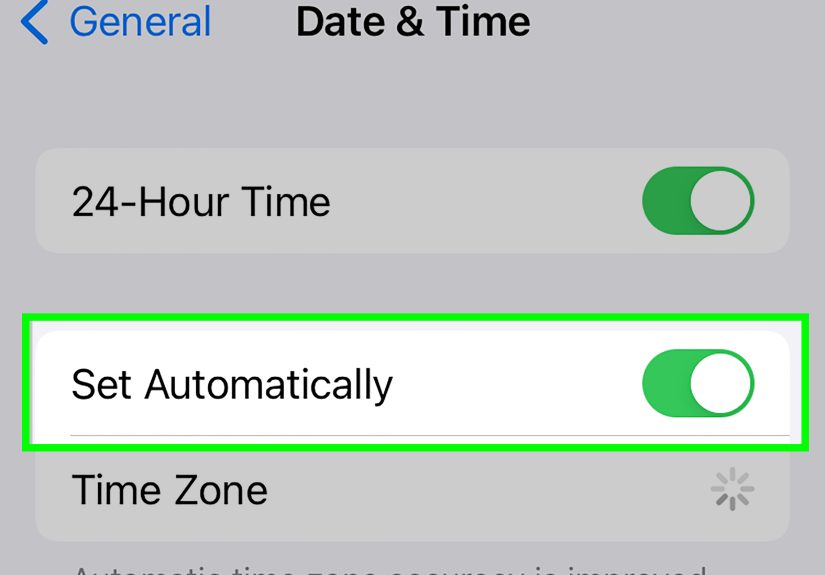
Tip 6: Fix Date, Time, and Time Zone (Secure Connections Hate Wrong Clocks)
This is a big one. If your device clock is incorrect, Apple’s secure authentication can fail because certificates and tokens rely on accurate time.
Even a “small” mismatch can cause verification or connection errors.
What to do on iPhone/iPad:
- Go to Settings > General > Date & Time.
- Turn on Set Automatically.
- Confirm your time zone is correct.
What to do on Mac: System Settings > General > Date & Time, then enable automatic settings.
Example: Traveling across time zones or turning off location services can quietly throw time settings off,
and suddenly Apple services act like you’re trying to log in from the year 2006.
Tip 7: Sign Out and Sign Back In (Refresh Your Apple Account Session)
Sometimes the issue isn’t your passwordit’s a stale session token or a stuck authentication state. A clean sign-out/sign-in forces your device
to request fresh credentials and reconnect properly.
On iPhone/iPad:
- Open Settings, tap your name at the top.
- Scroll down and tap Sign Out.
- Restart the device.
- Sign back in from Settings.
Bonus: If the App Store is the only thing failing, also check the “Media & Purchases” sign-in under your Apple Account settings,
then sign out and back in there too (it’s separate in some setups).
If you recently changed your Apple Account password, make sure every device is updated with the new passwordotherwise they can keep failing in the background
and trigger repeated server errors.
Tip 8: Reset Network Settings (When Your Network Stack Needs a Fresh Start)
If everything above checks outApple’s servers are up, your internet is fine, time is correct, VPN is offand you still get “Error Connecting to the Apple Server,”
your network configuration may be corrupted or conflicting.
On iPhone/iPad:
- Settings > General
- Transfer or Reset iPhone (or iPad) > Reset
- Tap Reset Network Settings
Important: This will remove saved Wi-Fi networks/passwords, VPN settings, and some cellular configurations. Have your Wi-Fi password ready.
On Mac (optional advanced checks):
- Try another Wi-Fi network or mobile hotspot to isolate the issue.
- Restart the Mac and router.
- If you use custom DNS, try automatic DNS temporarily.
If network reset fixes the issue, you’ve confirmed the problem was local configurationnot Apple’s servers or your account.
When to Stop Troubleshooting and Escalate
If you still can’t connect after all eight tips, the issue may be account-specific (security lock, verification requirements),
network-admin restrictions (school/work), or a regional routing problem. At that point:
- Try signing in on another device or on a different network (like a hotspot).
- Wait a bit and retry if Apple services appear unstable or recently had incidents.
- Contact Apple Support if your account appears locked or repeatedly fails verification.
Real-World Experiences: What This Error Looks Like (And How People Get Unstuck)
The phrase “Error Connecting to the Apple Server” is so vague it could be a fortune cookie. So here are some realistic, common scenarios people run into
the kind that make you swear the internet is hauntedplus what actually fixes them.
1) The Coffee Shop Wi-Fi That’s “Connected” but Not Really
Someone sits down at a café, joins Wi-Fi, sees the Wi-Fi icon, and assumes they’re online. Then the App Store says it can’t connect.
What’s happening? Captive portal. That network wants you to accept terms, log in, or watch a brief ad for muffins.
The fix is hilariously simple: open a browser and load any site. If the Wi-Fi login page appears, complete it. After that,
Apple services usually work immediately. If the portal page doesn’t pop up, toggling Wi-Fi off/on or “Forget This Network” and reconnecting can force it to appear.
2) The “I Travelled” Time Zone Problem
Another common story: someone flies to a new time zone, disables location services for privacy, and days later their iPhone starts throwing Apple server errors
during Apple Account verification. Their time zone didn’t adjust, and their clock drifted just enough to upset secure authentication.
Turning on “Set Automatically” under Date & Time often fixes it in under a minute. It feels too easy, which is exactly why it’s easy to miss.
3) The VPN That Helps Everything… Except Apple
VPN users sometimes discover that streaming works, browsing works, social media worksbut iCloud login or App Store downloads fail.
That’s because Apple services can be picky about certificate validation and routing, and some VPN configurations interfere.
The classic pattern: App Store fails on Wi-Fi with VPN on, but works instantly when the VPN is disabled. The best long-term fix is adjusting VPN settings:
use a different server region, switch protocols, or enable split tunneling so Apple services bypass the VPN.
4) The Home Router That “Ages” Like Milk
Routers can get into weird statesespecially after power flickers or firmware issues. People often report Apple server errors that vanish after a router reboot.
In some cases, changing DNS settings (or returning DNS to automatic) makes Apple services behave again.
The giveaway is consistency: if multiple Apple devices fail on the same home Wi-Fi but succeed on cellular or another Wi-Fi, your network is the common denominator.
5) The Day Apple Has a Bad Day
Sometimes it’s simply not you. Apple services do experience outages. When that happens, the best fix is checking System Status and waitingthen retrying later.
A lot of frustration comes from trying ten different “fixes” during an outage and accidentally changing settings that were fine in the first place.
The calm approach wins: verify the outage, pause the troubleshooting marathon, and try again once the service is back to normal.
Conclusion
“Error Connecting to the Apple Server” is annoying, but it’s rarely mysterious once you test the basics in the right order.
Start by checking Apple’s System Status, verify your connection, disable VPN/security filters, restart, update software, correct date/time,
refresh your Apple Account session, and reset network settings if needed.
Most importantly: change one thing at a time and retest. That way, when the error disappears, you’ll know whyand you won’t have to fear your settings menu
like it’s a haunted house.