Table of Contents >> Show >> Hide
- Why People Uninstall YouTube Updates
- Before You Start: Know What “Uninstall Updates” Actually Means
- How to Uninstall YouTube Updates: 5 Easy Steps
- What to Do If You Do Not See “Uninstall Updates”
- After You Uninstall YouTube Updates
- Should You Keep an Older YouTube Version?
- Common Mistakes to Avoid
- Quick FAQ
- Real-World Experiences: What People Usually Notice After Rolling Back YouTube
- Final Thoughts
Sometimes a YouTube update lands like a superhero. Other times, it arrives like a raccoon in your attic: noisy, inconvenient, and suddenly everyone in the house is asking why things feel weird. If the app started crashing, changed a feature you actually liked, ate more storage than expected, or began acting like it drank three espressos and forgot your preferences, rolling it back may help.
This guide explains exactly how to uninstall YouTube updates on Android in five easy steps. It also covers what happens after you roll the app back, what to do if the option is missing, and how to stop YouTube from immediately updating itself again like nothing happened. The goal here is simple: help you get control back without turning your phone troubleshooting session into a full-time job.
Why People Uninstall YouTube Updates
Most people do not wake up thrilled by the idea of uninstalling app updates. This usually happens for a reason. Maybe the newest version is laggy. Maybe a design change moved your favorite buttons into witness protection. Maybe the app crashes, buffers more than usual, or drains battery like it is training for a marathon.
Rolling back YouTube can be useful when a newer version causes problems on your device. On many Android phones, YouTube is a preinstalled app, so you often cannot remove it completely the way you would uninstall a random flashlight app from 2017. What you can often do is remove the updates and return the app to its factory version or earlier built-in version.
That means you keep YouTube on the phone, but you undo the newer app layer that may be causing trouble. Think of it as asking the app to please calm down and wear its older, less dramatic outfit.
Before You Start: Know What “Uninstall Updates” Actually Means
It does not always delete the YouTube app
If YouTube came with your phone, uninstalling updates usually rolls it back instead of removing it entirely. That is different from uninstalling a third-party app you downloaded yourself.
It may change the app’s look and behavior
After rollback, YouTube may look older, run a little differently, or lose access to newer features until you update it again. If your problem is caused by a recent bug or compatibility issue, that older version may work more smoothly.
Your menus may look slightly different
Android is famous for variety. Pixel, Samsung Galaxy, Motorola, OnePlus, and carrier-customized phones all love to move buttons around just enough to keep life interesting. So while the labels below are common, your path may be slightly different.
How to Uninstall YouTube Updates: 5 Easy Steps
Step 1: Open Settings and find YouTube
Start by opening the Settings app on your Android phone. Tap Apps, Apps & notifications, or Application manager, depending on your device. Then scroll until you find YouTube and tap it.
If your phone has an All apps or See all apps option, tap that first. On some devices, it helps to use the search bar and type YouTube instead of scrolling through every app you have installed since the dawn of time.
Step 2: Look for the three-dot menu
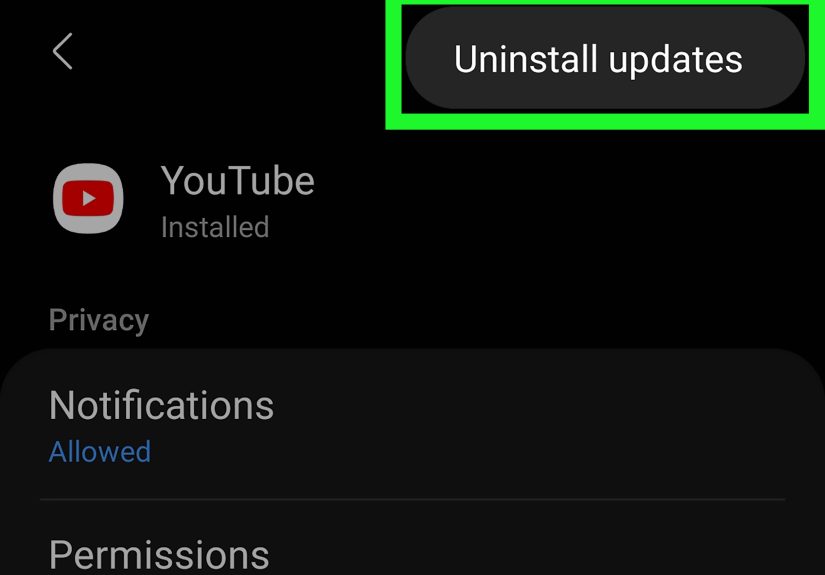
Once you are on the YouTube app info screen, look in the top-right corner for a three-dot menu. Tap it. On many Android phones, this is where the magical little option called Uninstall updates hides.
If you do not see the menu, do not panic. Some phones place the option elsewhere, and some do not offer it for every preinstalled app.
Step 3: Tap “Uninstall updates”
If the option appears, tap Uninstall updates. Your phone will usually show a warning letting you know the app will be replaced with the factory version.
Read the prompt, then confirm. This is the key step that removes the newer YouTube update package and rolls the app back.
Step 4: Confirm the rollback
After you tap OK or Confirm, wait a few seconds. Your phone should finish removing the newer version. Once that is done, open YouTube again and see whether the issue is fixed.
If the app opens normally, great. You have officially told YouTube to take a step back and think about what it has done.
Step 5: Turn off auto-update for YouTube
This step matters. If you skip it, Google Play may quietly reinstall the latest version and undo all your work while you are off making coffee.
Open the Google Play Store, search for YouTube, tap the app listing, then tap the three-dot menu on that page. Turn off Enable auto update.
Now the app should stay on the version you rolled back to until you choose to update it manually.
What to Do If You Do Not See “Uninstall Updates”
This is the part where many users mutter something unprintable. If the option is missing, here are the most common reasons:
Your phone does not allow rollback for that app
Some manufacturers let you uninstall updates for certain built-in apps, while others limit the option. In that case, you may only see Disable, or you may not see either choice.
YouTube may not be installed as a rollback-friendly system app
On some devices, YouTube behaves more like a normal app and may be removable. On others, it is deeply baked into the phone setup and can only be disabled or reset.
Try disabling the app instead
If Disable is available, tap it. Many phones first remove app updates before disabling a preinstalled app. This does not permanently erase YouTube, but it does stop it from running and removes it from normal use until you re-enable it.
That can be useful if your real goal is not just fixing YouTube, but getting it out of your face for a while.
After You Uninstall YouTube Updates
Rolling the app back is often enough. But if YouTube is still acting weird, there are a few smart follow-up moves.
Clear the cache
Go to Settings > Apps > YouTube > Storage or Storage & cache, then tap Clear cache. This removes temporary files that may be causing glitches.
Cache is basically the app’s junk drawer. Useful stuff lives there, but so do mystery crumbs and old receipts.
Clear storage only if needed
If clearing cache does not help, you can try Clear storage or Clear data. This is more aggressive. It resets the app and may sign you out or remove local settings. Use it only when you need a cleaner reset.
Restart your phone
Yes, it is the classic advice. Yes, it still works embarrassingly often. Restarting can clear temporary conflicts after an app rollback.
Re-enable or reinstall later
If you disabled YouTube or removed updates to troubleshoot, you can always return to the Play Store and manually update it later once the bug is fixed or the newer version behaves better.
Should You Keep an Older YouTube Version?
Maybe for a little while. Not forever.
Older app versions can be helpful if a recent update caused a problem on your phone. But staying on an outdated version indefinitely is not always a great long-term strategy. Over time, older builds may miss performance improvements, bug fixes, compatibility updates, and newer features.
So the smartest approach is usually this: roll back the app, stabilize your phone, then test a fresh update later when things look calmer. In other words, use the rollback as a temporary peace treaty, not a permanent lifestyle.
Common Mistakes to Avoid
Forgetting to disable auto-update
This is the number one mistake. If you do not turn off YouTube auto-update, the Play Store may reinstall the latest version and send you right back to square one.
Confusing “Clear cache” with “Clear storage”
These are not the same thing. Clearing cache removes temporary files. Clearing storage is closer to resetting the app. One is a tidy cleanup. The other is a small furniture move.
Expecting every Android phone to use the exact same steps
Android settings vary. If your menus do not match perfectly, look for equivalent terms like Apps, Manage apps, Application manager, or App info.
Assuming you can always delete YouTube completely
On many phones, YouTube is preinstalled. That usually means rollback or disable options are more realistic than full removal.
Quick FAQ
Will uninstalling YouTube updates delete my Google account?
No. It should not remove your Google account from the phone. It may, however, sign you out of the app or reset some local preferences if you clear storage too.
Can I uninstall YouTube updates on Samsung?
Often, yes. Many Samsung phones include an Uninstall updates option for some preinstalled apps right from the app info screen.
Can I uninstall updates from the Play Store page?
For this task, the safest place to check is the phone’s app info screen under Settings. The Play Store is still useful afterward for turning off auto-update.
What if YouTube will not update again later?
Open the Play Store, search for YouTube, and try a manual update. If it still fails, clear cache for both the Play Store and YouTube, then try again.
What if my phone says YouTube cannot be installed?
Check your Android version and available storage. If your device is too old, app compatibility can become an issue.
Real-World Experiences: What People Usually Notice After Rolling Back YouTube
In real life, most people do not uninstall YouTube updates because they are bored on a Tuesday afternoon. They do it because something changed, and not in a cute “new haircut” kind of way. The most common complaint is speed. A phone that ran YouTube just fine last week suddenly stutters, heats up, or takes forever to open videos after an update. For many users, uninstalling the update feels like loosening a necktie after a long day. The app opens faster, scrolling feels smoother, and the overall experience becomes less dramatic.
Another common experience is layout frustration. A lot of users get used to a certain button placement, a certain menu order, or a certain rhythm inside the app. Then an update rearranges the furniture. Suddenly, the captions control moved, playback gestures feel different, or the homepage looks like it was redesigned by someone who really enjoys surprises. Rolling back does not just fix bugs for these users; it restores sanity. Sometimes familiarity is the feature people miss most.
Battery complaints also show up often. Some users notice that after a YouTube update, their battery seems to drop faster during long viewing sessions. Others report the phone getting warmer than usual. While that is not guaranteed to happen, it is one reason people experiment with uninstalling updates, clearing cache, and comparing behavior before and after. When the app behaves better on the older build, it gives users a clue that the issue may be tied to the newer version rather than the phone itself.
There is also a group of users who discover that rolling back is only half the job. They uninstall the update, feel victorious for about seven minutes, then the Play Store silently updates YouTube again. That is why turning off auto-update matters so much. It is the digital equivalent of fixing a leaky faucet and then watching someone turn it back on the second you leave the room.
Some people never find the Uninstall updates option and assume they are doing something wrong. Usually, they are not. Their phone may simply handle preinstalled apps differently. In those cases, disabling the app, clearing cache, or waiting for the next update becomes the practical path. It is annoying, yes, but not unusual.
The biggest lesson from real-world use is that uninstalling YouTube updates is usually a troubleshooting tool, not a forever plan. It works best when you treat it like a reset button: use it to get the app stable, stop automatic updates, test performance, and then decide whether you want to stay on the older version or try a newer update later. In short, it is less about declaring war on updates and more about reclaiming control when an app starts acting like the main character.
Final Thoughts
If YouTube suddenly starts misbehaving, uninstalling updates can be a quick and practical fix. On many Android phones, the process takes only a minute or two: open app info, tap the menu, uninstall updates, confirm the rollback, and disable auto-update so the app does not immediately boomerang back to the version you were trying to escape.
The important thing is knowing what your phone allows. Some devices make rollback easy. Others offer only disable options. Either way, once you understand the difference between uninstalling an app, uninstalling updates, disabling a preinstalled app, and clearing cache, you have far more control over how YouTube behaves on your device.
And honestly, that is half the battle with modern tech: not becoming emotionally outmaneuvered by a video app.