Table of Contents >> Show >> Hide
- Before You Uninstall: 60 Seconds of Smart Prep
- The Fastest Method: Uninstall from the Home Screen or App Drawer
- Method 2: Uninstall Facebook in Android Settings (Works on Most Phones)
- Method 3: Uninstall Facebook from the Google Play Store
- When You Can’t Fully Uninstall: Disable Facebook (The Next-Best Thing)
- Don’t Forget These: Facebook-Related “Helper” Apps (Meta Services, App Manager, etc.)
- Advanced Option: “Debloat” Without Root (Proceed Like a Responsible Adult)
- After Uninstalling Facebook: Clean-Up Steps That Actually Matter
- Troubleshooting: When Facebook Won’t Uninstall (Common Fixes)
- Conclusion: Less Facebook, More Phone
- Real-World Experiences After Uninstalling Facebook (The Stuff People Actually Notice)
Facebook is like that friend who “just stops by for a minute” and somehow ends up eating your snacks, borrowing your charger,
and leaving 47 notifications on your lock screen. If you’re ready to reclaim storage, reduce distractions, or simply enjoy a
life where your phone doesn’t whisper “People you may know” at 2 a.m., uninstalling Facebook on Android is a solid move.
The good news: removing Facebook is usually easy. The slightly annoying news: on some Android phones (especially carrier models
or certain Samsung devices), Facebook may be preinstalled and won’t fully uninstall the normal way. In that case, you can still
disable it, remove updates, and stop it from running in the backgroundbasically the digital equivalent of putting it in a time-out chair.
Before You Uninstall: 60 Seconds of Smart Prep
1) Know what uninstalling does (and doesn’t) delete
Uninstalling the Facebook app removes the app from your phone, but it doesn’t delete your Facebook account. Your photos, posts,
messages, and memories remain on Facebook’s servers until you choose to deactivate or delete your account separately.
You can still access Facebook via a mobile browser (like Chrome) after uninstalling.
2) Check how you log into other apps
If you use “Log in with Facebook” for other apps (games, shopping apps, dating apps… no judgment), uninstalling Facebook won’t
automatically break everything, but it can make re-authentication slightly annoying. If you’re worried, open those apps first and
confirm you have a backup login method (email + password, phone number, or another sign-in option).
3) If you want to keep Messenger, decide your plan
Facebook and Messenger are separate apps. You can uninstall Facebook and keep Messenger, but some account-related settings and
prompts may still route you back to Facebook. If your goal is “less Meta, more peace,” you may want to uninstall both.
The Fastest Method: Uninstall from the Home Screen or App Drawer
This is the “tap-and-yeet” approach. On many Android phones, it’s the quickest methodespecially if Facebook is a normal,
user-installed app.
- Find the Facebook app icon on your Home screen or in your App drawer.
- Press and hold the icon.
- Tap Uninstall.
- Confirm by tapping OK or Uninstall.
If you don’t see “Uninstall,” you might see Disable instead (or nothing at all). That usually means Facebook is
preloaded, and Android is politely saying, “You can’t remove this entirely, but you can make it sit quietly in the corner.”
Don’t worrywe’ll cover that.
Method 2: Uninstall Facebook in Android Settings (Works on Most Phones)
If your phone didn’t offer a friendly “Uninstall” button from the icon, Settings is where Android keeps its grown-up controls.
The menus vary slightly by brand and Android version, but the path is generally the same.
Standard steps (Android 12/13/14/15-style menus)
- Open Settings.
- Tap Apps (sometimes Apps & notifications).
- Tap See all apps or App list.
- Scroll and select Facebook.
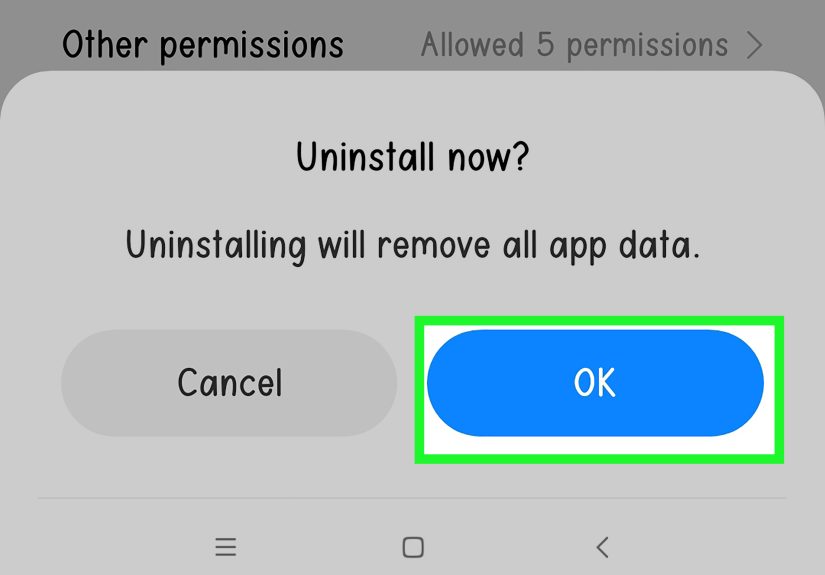
- Tap Uninstall.
- Confirm the uninstall.
If Facebook is being stubborn, do this first
Sometimes uninstall fails because the app is mid-tantrum (running in the background, crashing, or stuck updating).
Try this quick sequence:
- Settings > Apps > Facebook
- Tap Force stop.
- Tap Storage & cache.
- Tap Clear cache.
- Go back and try Uninstall again.
Clearing cache doesn’t delete your account or Facebook data stored online; it just removes temporary files on your phone.
It’s like taking out the trash before moving apartments.
Method 3: Uninstall Facebook from the Google Play Store
The Play Store method is especially useful if Facebook is installed normally but your Settings menu is being unhelpfulor if you
want to uninstall the “official” way Android recognizes.
- Open the Google Play Store.
- Tap your profile icon (top-right).
- Tap Manage apps & device, then Manage.
- Find and select Facebook.
- Tap Uninstall and confirm.
If you only see Disable in Settings and the Play Store shows Update instead of “Install,” that’s a clue:
Facebook might be preinstalled, and Android is treating it like a “system-ish” app. In that case, you can often remove updates,
disable it, and reduce its footprint dramatically.
When You Can’t Fully Uninstall: Disable Facebook (The Next-Best Thing)
Some phones come with Facebook preloaded. Depending on the manufacturer and carrier, Android may block full removal.
But disabling Facebook can still deliver most of what you want: it disappears from your app drawer, stops running in the background,
and won’t receive updates (because it’s not active).
How to disable Facebook
- Go to Settings > Apps.
- Select Facebook.
- Tap Disable.
- Confirm when prompted.
Remove updates first (often unlocks more control)
On preinstalled apps, you might see Uninstall updates instead of a full uninstall option.
This rolls the app back to the factory version and can reduce storage usage.
- Settings > Apps > Facebook
- Tap the three-dot menu (if available).
- Select Uninstall updates.
- Then tap Disable.
Lock it down: stop background activity and permissions
If your phone allows Facebook to remain installed but you want it quiet, you can restrict it further:
- Permissions: Settings > Apps > Facebook > Permissions > deny what you don’t want (location, contacts, etc.).
- Background usage: Look for “Battery” or “App battery usage” > set to Restricted if available.
- Notifications: Turn them off entirely if you’re uninstalling for sanity.
Think of this as turning Facebook into a houseplant: it still exists somewhere in the corner, but it’s not allowed to shout.
Don’t Forget These: Facebook-Related “Helper” Apps (Meta Services, App Manager, etc.)
On some Android phonesespecially certain carrier or manufacturer buildsyou may see extra Meta/Facebook components like:
Meta App Manager, Meta Services, or Facebook App Installer.
These can exist even if you never installed Facebook yourself.
What they do varies by device, but they’re generally used for installation, updates, or background services.
If your goal is to reduce background activity, it’s worth checking them.
How to find and manage them
- Go to Settings > Apps.
- Tap See all apps.
- Use the search bar (if available) and search for Meta or Facebook.
- Open each related app and check whether you can Disable or Uninstall.
If the uninstall/disable option is missing or greyed out, that typically means it’s treated as a system component.
In that case, your realistic options are: disable (if allowed), restrict background/battery usage, or use advanced debloating tools.
Advanced Option: “Debloat” Without Root (Proceed Like a Responsible Adult)
If you’re comfortable with tech tools, you can sometimes remove preinstalled apps using methods that don’t require rooting your phone.
Common approaches include using Android Debug Bridge (ADB) from a computer, or trusted debloating utilities that work through approved Android mechanisms.
Here’s the important part: removing the wrong system package can cause weird behavior (or worse). If you don’t recognize it,
don’t remove it. Your future self will thank youpreferably with a fully functioning phone.
What this approach is good for
- Phones where Facebook is “built in” and only offers Disable
- Devices that reinstall Facebook components after updates
- People who want a cleaner device without installing custom ROMs
Practical alternative if you just want less Facebook
If you don’t want to touch advanced tools, you can get most of the benefit by disabling Facebook, removing updates, restricting background usage,
and switching to browser access (or a lighter official app).
After Uninstalling Facebook: Clean-Up Steps That Actually Matter
1) Remove leftover shortcuts and widgets
Uninstalling usually removes app icons automatically, but home screen shortcuts can occasionally linger on certain launchers.
If you see one, press and hold it and remove it.
2) Clear your default “Open in app” behavior (optional)
If Facebook links keep trying to open in an app you no longer have, go to:
Settings > Apps > Default apps (or “Opening links”) and adjust as needed.
3) Decide your replacement
- Use a browser: Facebook in Chrome or another browser works fine for most needs, with fewer background behaviors.
- Try Facebook Lite (official): Designed to use less data and storage, often smoother on older phones.
- Keep Messenger only: If messaging is the main thing you use, uninstall Facebook but keep Messenger installed.
Troubleshooting: When Facebook Won’t Uninstall (Common Fixes)
The Uninstall button is greyed out
- It’s preinstalled: Disable it and uninstall updates if available.
- It’s a work-managed device: Your employer’s device policy may block removals.
- It has device admin rights: Rare for Facebook itself, but if any security policy is involved, check Settings > Security > Device admin apps.
Facebook keeps coming back after an update
Some carrier/manufacturer builds reinstall certain apps during system updates or “device setup” processes.
The best defense is to disable the app immediately after it reappears, restrict background usage, and (if your phone allows it)
turn off auto-updates for that app in the Play Store.
Uninstall fails or crashes mid-way
- Restart your phone and try again.
- Force stop the app, clear cache, then uninstall.
- Try uninstalling from the Play Store instead of Settings (or vice versa).
Conclusion: Less Facebook, More Phone
Uninstalling Facebook on Android can be as simple as a long-press and a tapor it can be a small adventure if Facebook arrived
preinstalled like an uninvited guest. Either way, you have options: uninstall it cleanly, disable it effectively, remove updates,
and restrict background activity so your phone feels lighter, quieter, and more yours.
And if you ever miss it (it happens!), you can always reinstall it from the Play Storebecause Facebook is many things,
but “hard to find again” isn’t one of them.
Real-World Experiences After Uninstalling Facebook (The Stuff People Actually Notice)
Let’s talk about what tends to happen in real life after someone uninstalls Facebook on Androidbecause the “how” is only half the story.
The other half is the moment you realize your phone is suddenly… calmer. Not magically perfect, not instantly a minimalist utopia,
but noticeably less needy.
The first thing many people notice is fewer interruptions. If Facebook was a top offender in your notification shade,
uninstalling it can feel like someone finally turned off a noisy TV in the next room. No more “You have memories,” “You have memories about memories,”
or “A person you met once in 2013 sneezedreact now.” You can still check Facebook in a browser when you actually want to, which is a surprisingly
empowering shift: you’re choosing the moment, not responding to the app’s constant pokes.
The second common experience is storage relief. Facebook can take up a chunk of space, and if you also had Messenger,
Instagram, and a few other heavyweight apps, you might suddenly have room for, you know, photos of your dog that you absolutely need.
Some folks don’t see a dramatic storage change at firstespecially if Facebook was preinstalled and only “disabled” rather than removed
but even then, rolling back updates and clearing cache often reduces the footprint.
Then there’s the legendary question: does uninstalling Facebook improve battery life? Sometimes, yesespecially on older phones
or devices where Facebook was constantly syncing, pushing notifications, or running background processes. But the results vary.
If you already restricted background activity and notifications, the battery difference may be modest.
On the other hand, if your phone was struggling (lots of apps, limited RAM, older chipset), removing a busy social app can feel like freeing up
a lane on a traffic-clogged freeway.
The most relatable moment? When people realize they still want the idea of Facebookevents, marketplace, groupsbut not the constant presence.
A common compromise is switching to browser-only Facebook. It’s not as slick, and sometimes it asks you to “use the app”
like a toddler asking for candy at checkout, but it works. Another compromise is Facebook Lite on Android, which many users find
lighter and less resource-hungry. It’s basically Facebook wearing comfy sweatpants instead of a three-piece suit.
People with Samsung phones or carrier models often have the “Wait, why can’t I uninstall this?” moment. That’s usually where disabling comes in.
And honestly, disabling can be satisfying in its own way: Facebook disappears from your app drawer, stops pestering you, and becomes easier to ignore.
Some users go further and disable extra Meta components if their phone includes them. The experience there depends heavily on the devicesome let you
disable those services, others treat them like “special guests” you’re not allowed to kick out.
Finally, there’s the social side: a surprising number of people report feeling less reactive. With the app gone, you’re less likely to
open Facebook automatically during micro-boredom (waiting in line, between emails, during “just one minute” breaks that turn into 25).
Instead, you might check it once a day in a browser, or only when you need something specific. It’s not about being anti-socialit’s about being
intentional. And your phone? It quietly thanks you by running a little smoother and demanding a little less attention.