Table of Contents >> Show >> Hide
- Quick refresher: What is LTE (and why should you care)?
- Before you start: 30-second checklist
- Step 1: Confirm your plan, coverage, and iPhone model
- Step 2: Turn on Cellular Data
- Step 3: Find “Voice & Data” (or “Enable LTE”) and select LTE
- Step 4: Verify LTE is actually working
- When LTE doesn’t show up (or you can’t select it): common fixes
- Smart LTE tips (so you don’t have to revisit this next week)
- FAQ
- Experience-based notes: what people usually run into (and how they get unstuck)
- Conclusion
- SEO Tags
Your iPhone is basically a tiny computer that also happens to make calls, take photos, and occasionally
remind you that you’ve spent six hours on social media “for research.” If your phone is crawling
on cellular data, dropping calls, or stubbornly clinging to a weaker signal, switching to LTE can help.
The good news: enabling LTE on an iPhone usually takes about a minute. The slightly-less-good news:
Apple loves hiding important toggles behind menus with names like “Cellular Data Options,” which sounds
like a place where settings go to retire.
Let’s fix that. Below are four simple steps to turn on LTE, plus troubleshooting tips if the LTE option
is missing, grayed out, or acting like it’s on vacation.
Quick refresher: What is LTE (and why should you care)?
LTE stands for “Long Term Evolution,” and in everyday life it’s what most people mean when they say
“4G LTE.” It’s typically faster and more reliable than older 3G networks (which many carriers have
retired), and in some areas it can be more stable than 5Gespecially indoors or when the 5G signal is
weak.
Common reasons people switch to LTE
- Better stability: LTE can be steadier than 5G in certain buildings or neighborhoods.
- Battery sanity: Forcing LTE can reduce battery drain compared with constantly hunting for 5G.
- Fewer weird “no data” moments: If your phone flips between networks a lot, LTE can feel smoother.
- Voice quality (VoLTE): Many carriers route calls over LTE for clearer audio and faster call setup.
Before you start: 30-second checklist
LTE settings can look slightly different depending on your carrier, region, and iPhone model. Run through
this quick list so you don’t chase a setting your carrier doesn’t offer:
- Your iPhone has an active SIM or eSIM and a cellular plan.
- Cellular data is turned on (we’ll do that in Step 2).
- You’re not in Airplane Mode.
- If you have Dual SIM, you know which line you want to use for data.
- Your carrier supports LTE for your plan (most do, but MVNOs can vary).
Step 1: Confirm your plan, coverage, and iPhone model
This step isn’t glamorous, but it prevents the classic “I followed every step and LTE still isn’t there”
situation.
What to check
-
Coverage: If you’re in a dead zone, enabling LTE won’t magically summon towers from the sky.
Try stepping outside or moving near a window to test. -
Plan features: Some plans or carriers may label options differently (e.g., “4G,” “LTE,” or “Voice & Data”).
If you’re on a prepaid/MVNO plan, certain toggles may be simplified. -
5G-capable models: On iPhone 12 and later, you may see 5G options. Selecting LTE often means you’re choosing
“LTE only” (aka turning off 5G).
If you suspect your plan is the issue, check your carrier account app or support page. It’s faster than
repeatedly tapping the same menu and hoping it “feels encouraged.”
Step 2: Turn on Cellular Data
LTE is a cellular data mode. If Cellular Data is turned off, your phone can’t use LTE for internet access
no matter how beautifully you configure the menus.
Do this
- Open Settings.
- Tap Cellular (or Mobile Data, depending on your region/carrier).
- Turn on Cellular Data.
If you have Dual SIM (two lines)
In the same Cellular/Mobile Data area, you may see a setting for which line uses data. Pick the line you
want to use for LTE data (especially if one line is for calls only or has a smaller data plan).
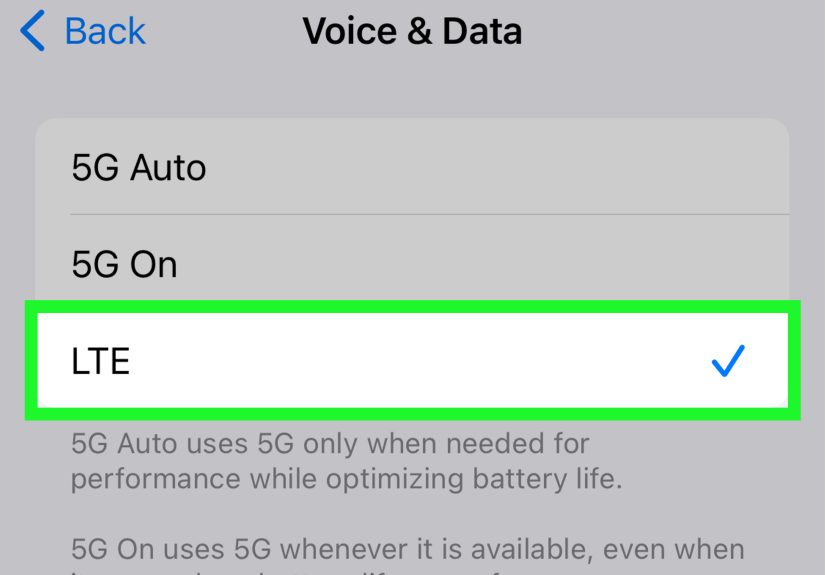
Step 3: Find “Voice & Data” (or “Enable LTE”) and select LTE
This is the main event. Apple sometimes labels the LTE control as Voice & Data or Enable LTE,
depending on carrier and iOS version. Both routes usually lead to the same place.
Most common path (newer iOS)
- Open Settings.
- Tap Cellular (or Mobile Data).
- Tap Cellular Data Options (or Mobile Data Options).
- Tap Voice & Data.
- Select LTE.
Alternate path (you see “Enable LTE” instead)
- Open Settings → Cellular (or Mobile Data).
- Tap Cellular Data Options.
- Tap Enable LTE.
- Choose Voice & Data (recommended for most people) or Data Only if you’re troubleshooting call quality.
What these options usually mean
- LTE / 4G: Uses LTE for data (and often voice, via VoLTE, if supported).
- Voice & Data: Allows both voice calls and data over LTE where supported (typically the best everyday choice).
- Data Only: Uses LTE for data but may route voice calls differently (helpful for specific carrier troubleshooting).
- 5G Auto / 5G On: On 5G phones, these control how aggressively your iPhone uses 5G. Choosing LTE usually disables 5G.
If you’re enabling LTE because 5G feels unstable, selecting LTE in the Voice & Data menu is often the cleanest fix.
If you want a middle ground, 5G Auto can switch between 5G and LTE depending on performance and battery needs.
Step 4: Verify LTE is actually working
You don’t need a lab coat for this. You just need to make sure your iPhone is truly using cellular data,
not Wi-Fi.
Three quick checks
-
Turn off Wi-Fi (Control Center → Wi-Fi icon) and load a website or streaming app.
If it loads, cellular data is working. -
Look at the status bar: you may see LTE or a related icon. Some carriers display different labels
(you might see “4G,” “5G,” “5G UW,” “5G+,” or other carrier-branded icons). - Make a quick call: if your carrier supports VoLTE, calls should connect quickly and data may still work during the call.
If the LTE label doesn’t show but everything works, don’t paniccarriers sometimes change what they display.
Function matters more than letters.
When LTE doesn’t show up (or you can’t select it): common fixes
If you don’t see “Voice & Data,” “Enable LTE,” or “LTE” as an option, it’s usually one of these causes:
carrier settings, iOS version, SIM/eSIM issues, or plan limitations.
Fix 1: Install carrier settings updates
Carrier settings updates are small updates that help your iPhone work properly on your carrier’s network.
They can also unlock or restore options like LTE/VoLTE features.
- Connect to Wi-Fi.
- Go to Settings → General → About.
- If prompted, tap Update.
Fix 2: Update iOS (yes, it’s boring, but effective)
Keeping iOS current helps prevent weird compatibility issues with carriers, eSIM profiles, and network features.
If LTE options disappeared after an update, a later patch can sometimes restore normal behavior.
- Go to Settings → General → Software Update.
- Install any available update.
Fix 3: Toggle Airplane Mode and restart
This is the tech equivalent of “turn it off and on again,” and it works more often than anyone wants to admit.
- Turn Airplane Mode on for 15 seconds, then off.
- Restart your iPhone afterward if needed.
Fix 4: Check your SIM/eSIM and data line selection
If you recently changed carriers or set up a new eSIM, your iPhone may need updated carrier settings, or you may
be adjusting the wrong line (Dual SIM users, this is your moment).
- In Settings → Cellular, confirm which line is selected for data.
- If you use a physical SIM, reseat it if you suspect it’s not being read correctly.
- If you use eSIM, confirm the plan is active in your carrier app/account.
Fix 5: Reset Network Settings (the “clean slate” option)
If settings are corrupted or stuck, resetting network settings can help. This won’t delete your photos, but it will
erase saved Wi-Fi networks and VPN settings, so you’ll need to re-enter passwords afterward.
- Go to Settings → General.
- Tap Transfer or Reset iPhone → Reset.
- Tap Reset Network Settings and confirm.
Fix 6: Contact your carrier
If LTE is missing because of plan provisioning (especially common with MVNOs or business accounts), only the carrier can fix it.
Ask them to confirm LTE/VoLTE provisioning on your line and to refresh your network profile.
Smart LTE tips (so you don’t have to revisit this next week)
Tip: Use LTE to stabilize data if 5G is flaky
If 5G feels fast but unpredictable, switching to LTE can smooth out performanceespecially for video calls,
navigation apps, and streaming when you’re moving around.
Tip: Watch out for Data Roaming when traveling
LTE roaming can be convenient and expensive. If you’re traveling internationally, confirm your roaming plan and keep
Data Roaming off unless you need it.
Tip: Know what the icons mean
Depending on the carrier, you might see “LTE,” “4G,” “5G,” or branded versions of 5G icons. The label doesn’t always
tell the whole storybut it can hint at whether you’re connected to a faster network tier.
FAQ
Will enabling LTE cost extra?
LTE itself usually doesn’t add a fee, but it uses your data plan. If your plan has a cap (or you’re roaming),
costs can increase based on your carrier’s policies.
Why do I see 4G or 5G but not LTE?
Some carriers use different labels. Also, your phone may show 5G even if it sometimes falls back to LTE behind
the scenes. What matters is whether your connection is stable and fast enough for what you’re doing.
What’s the difference between “Voice & Data” and “Data Only”?
“Voice & Data” typically enables voice calling over LTE (VoLTE) where supported, while “Data Only” focuses on LTE
for data. Most people should choose “Voice & Data” unless a carrier support rep tells you otherwise.
Experience-based notes: what people usually run into (and how they get unstuck)
Below are real-world patterns people commonly report when trying to enable LTEespecially after switching carriers,
setting up eSIM, or upgrading iPhones. Think of this as the “I did the steps… now what?” section.
1) The “I don’t even see Cellular in Settings” moment.
This usually happens on a device without an active SIM/eSIM, or on a phone that hasn’t finished activation.
People often assume LTE is a simple toggle, but iOS won’t show all cellular menus if there’s nothing to connect to.
The fix is typically confirming an active plan (SIM inserted correctly or eSIM installed), then restarting.
Once the phone recognizes the line, the Cellular/Mobile Data section becomes fully populatedlike a menu that finally
admits it has more than one item.
2) Dual SIM confusion: the right setting, wrong line.
Dual SIM is fantasticuntil you’re changing LTE settings on the line that isn’t used for data. A very common scenario:
someone has a work line and a personal line, and they assume the “Cellular Data Options” they’re editing applies to both.
In practice, iOS often makes you pick the line first, and only then do you see Voice & Data. If LTE seems “missing,”
it may simply be hiding behind the specific line’s settings. The quick fix: go to Settings → Cellular, tap the line,
then look for Voice & Data there.
3) “LTE is there, but it won’t select / it flips back.”
When LTE toggles won’t stick, the culprit is often carrier provisioning or a carrier settings mismatch. People notice it
after switching from physical SIM to eSIM, moving between MVNOs, or changing plans. Updating carrier settings (Settings
→ General → About) is the first move because it refreshes the phone’s network configuration. If that doesn’t help,
a carrier rep can “reprovision” the linebasically re-authorizing the features your plan should have. It’s not glamorous,
but it’s effective.
4) The “5G is fast… but my battery hates it” tradeoff.
Many people try LTE not because 5G is unavailable, but because 5G can be inconsistent in certain environments. In a place
with spotty 5G coverage, an iPhone may bounce between 5G and LTE frequently. That network hunting can drain battery and
create weird performance hiccupslike a video call that suddenly turns into a slideshow. Selecting LTE can stabilize both
battery and performance. Others choose 5G Auto as a compromise so the phone uses 5G when it’s truly beneficial and falls
back to LTE when it isn’t.
5) Travel surprises: LTE works… and then the bill arrives.
LTE roaming is convenient, but international roaming charges can be painful if you don’t have the right plan. People often
turn on data in an airport “just for a second,” then background app refresh, cloud photos, and auto-updates quietly throw a
party on cellular. The practical move: confirm your roaming plan first, use Wi-Fi when possible, and keep Data Roaming off
unless you truly need it. LTE isn’t the villain heresurprise fees are.
6) The “it says LTE but it’s still slow” reality check.
LTE is a network type, not a guaranteed speed. Congestion (lots of users nearby), weak signal, or indoor interference can
slow LTE down. In those cases, the best “speed boost” can be simpler than changing network mode: move closer to a window,
toggle Airplane Mode, or restart. If the issue happens in one specific place (like your home), checking carrier coverage
maps or enabling Wi-Fi Calling for voice can improve the overall experience.
The big takeaway: enabling LTE is usually just a settings change, but when it isn’t, the fix is almost always about
activation, carrier settings, or which line you’re editing. Once those are aligned, LTE behaves exactly
the way it shouldquietly, reliably, and without drama (unlike group chats).
Conclusion
Enabling LTE on an iPhone is refreshingly straightforward once you know where Apple hid the switch. In most cases, it’s:
turn on Cellular Data, open Cellular Data Options, tap Voice & Data (or Enable LTE), and select LTE.
If LTE is missing, don’t assume your iPhone is broken. Try a carrier settings update, update iOS, confirm the right line
for Dual SIM, and reset network settings if needed. And if all else fails, your carrier can usually re-enable LTE/VoLTE
features on the account side.