Table of Contents >> Show >> Hide
- What Is the Windows 10 Lock Screen?
- Before You Disable the Lock Screen: Know the Difference
- Method 1: Disable the Lock Screen Using Group Policy
- Method 2: Disable the Lock Screen Using Registry Editor
- Method 3: Stop Windows 10 from Asking for Sign-In After Sleep
- Method 4: Turn Off Lock Screen Extras Without Fully Disabling It
- Should You Disable the Windows 10 Lock Screen?
- Common Problems and Fixes
- Best Practices for a Safer Setup
- Real-World Experience: What Happens After You Disable the Lock Screen?
- Conclusion
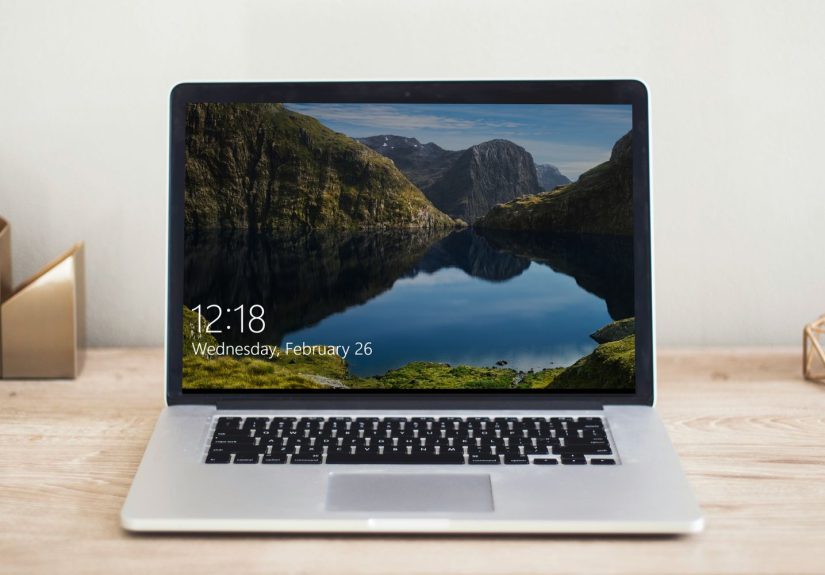
Let’s be honest: the Windows 10 lock screen is pretty, but sometimes it feels like a polite bouncer standing between you and your own desktop. You start your computer, wake it from sleep, or lock it for two minutes, and there it is again, asking you to click, swipe, tap, or press a key before you can even reach the sign-in screen. If your PC lives safely on your desk, in your bedroom, or in a low-risk home office, that extra step can feel less like security and more like Windows saying, “Before you work, please admire this mountain photo.”
This guide explains how to disable the lock screen on Windows 10 using the most reliable methods: Local Group Policy Editor, Registry Editor, and related sign-in settings. You will also learn what the lock screen actually does, what it does not do, and when turning it off is a good idea. Spoiler: disabling the lock screen is not the same as removing your password, and that distinction matters more than your printer’s mysterious “offline” mood swings.
The main keyword here is simple: how to disable the lock screen on Windows 10. But along the way, we will also cover related topics such as Windows 10 lock screen settings, NoLockScreen registry value, Group Policy lock screen, Windows sign-in screen, and how to skip the lock screen after sleep.
What Is the Windows 10 Lock Screen?
The lock screen is the first screen you see when Windows 10 starts, wakes from sleep, or returns from being locked. It may show a background image, Windows Spotlight photos, app status, calendar details, weather widgets, or other small bits of information. It sits before the sign-in screen, where you enter your password, PIN, fingerprint, or face recognition.
Think of it as Windows 10’s front porch. The sign-in screen is the actual door lock. The lock screen can be useful on tablets, shared computers, laptops used in public places, and work devices. It gives you a quick glance at time, date, notifications, and sometimes weather. But on a private desktop, it may simply add one more click to your day. One click is tiny, of course, but so is a mosquito, and we all know how annoying those can be.
Before You Disable the Lock Screen: Know the Difference
Before changing settings, it is important to understand what you are disabling. Removing the lock screen does not automatically remove your password, PIN, fingerprint, or Windows Hello sign-in. In most cases, it only skips the decorative screen before login and takes you straight to the sign-in prompt or user tile.
This is good news. It means you can make Windows 10 faster to access without completely removing account security. If you also disable password prompts, automatic locking, or Dynamic Lock, then your PC may become easier for someone else to access. That may be fine for a desktop in a private room, but it is not wise for a laptop you carry to school, work, cafés, airports, or anywhere human beings exist.
Method 1: Disable the Lock Screen Using Group Policy
If you use Windows 10 Pro, Enterprise, or Education, the easiest clean method is Local Group Policy Editor. Windows 10 Home usually does not include Group Policy Editor by default, so Home users should jump to the Registry method below.
Step-by-Step Instructions
- Press Windows + R to open the Run dialog box.
- Type gpedit.msc and press Enter.
- In Local Group Policy Editor, go to Computer Configuration.
- Open Administrative Templates.
- Select Control Panel.
- Click Personalization.
- Find and double-click Do not display the lock screen.
- Choose Enabled.
- Click Apply, then OK.
- Restart your PC or press Windows + L to test the change.
Yes, the setting sounds backwards at first. You are enabling a policy called “Do not display the lock screen.” In normal human language, that means you are turning on the rule that turns off the lock screen. Windows settings sometimes talk like they were assembled during a committee meeting at 4:59 p.m. on a Friday.
How to Undo the Group Policy Method
To bring the lock screen back, return to the same policy and choose Not Configured or Disabled. Then restart your computer. If your PC is managed by a company, school, or organization, some settings may be controlled by an administrator. In that case, you may see a message saying some settings are managed by your organization.
Method 2: Disable the Lock Screen Using Registry Editor
The Registry method works well for many Windows 10 systems, especially Windows 10 Home. However, Registry Editor is powerful. Editing the wrong key can cause problems, so do not freestyle here like you are remixing a sandwich recipe. Follow the steps carefully.
Back Up First
Before editing the Registry, create a restore point or export the Registry key you plan to modify. This gives you a safer way to reverse changes if something does not behave as expected. It is like wearing a seat belt: boring until suddenly it is your favorite invention.
Step-by-Step Registry Instructions
- Press Windows + R.
- Type regedit and press Enter.
- If User Account Control appears, click Yes.
- Navigate to this path: HKEY_LOCAL_MACHINESOFTWAREPoliciesMicrosoftWindows.
- Right-click the Windows key.
- Select New, then Key.
- Name the new key Personalization.
- Click the Personalization key.
- Right-click in the right pane and select New, then DWORD (32-bit) Value.
- Name the value NoLockScreen.
- Double-click NoLockScreen.
- Set Value data to 1.
- Click OK.
- Close Registry Editor and restart your computer.
After restarting, Windows 10 should skip the lock screen and move more directly to the sign-in area. If you still see a sign-in prompt, that is expected. Again, you disabled the lock screen, not your account protection.
How to Re-Enable the Lock Screen in Registry Editor
To restore the lock screen, go back to the same Registry location and either change NoLockScreen from 1 to 0, or delete the NoLockScreen value completely. Restart your computer afterward.
Method 3: Stop Windows 10 from Asking for Sign-In After Sleep
Some users say they want to disable the lock screen, but what they really mean is: “Please stop asking me to sign in every time I wake the computer.” That is slightly different. The lock screen is the visual screen before sign-in. The sign-in requirement after sleep is an account security setting.
To adjust it, follow these steps:
- Open Settings.
- Go to Accounts.
- Select Sign-in options.
- Look for the setting that asks when Windows should require you to sign in again.
- Choose Never, if available.
This can help if your main annoyance happens after sleep mode. However, not every device shows the exact same options. Hardware features, Windows Hello, Modern Standby, Microsoft account settings, and organization policies can change what appears in this menu.
Method 4: Turn Off Lock Screen Extras Without Fully Disabling It
If you do not want to remove the lock screen entirely, you can make it quieter. This is a good middle-ground option for people who like the security layer but dislike the extra clutter.
Clean Up the Lock Screen
- Open Settings.
- Go to Personalization.
- Select Lock screen.
- Change the background from Windows Spotlight to Picture if you want a stable image.
- Turn off tips, fun facts, and lock screen status items if available.
- Choose None for detailed status if you do not want app information displayed.
This does not technically disable the Windows 10 lock screen, but it makes the screen less distracting. For shared family PCs or laptops that travel, this may be the smarter compromise.
Should You Disable the Windows 10 Lock Screen?
You should disable the lock screen if your PC is private, physically secure, and used mostly by you. A desktop in a home office is a good example. You may also prefer disabling it on a media PC connected to a TV, a test machine, or a virtual machine where speed matters more than presentation.
You should probably keep the lock screen if your computer is used at school, work, cafés, libraries, dorms, shared apartments, or anywhere someone could casually access it. You should also keep it if the PC contains private documents, saved passwords, financial files, family photos, business data, or anything you would not want a random person to open while you are grabbing a snack.
The lock screen itself is not your strongest protection, but it is part of a layered setup. A strong password, PIN, Windows Hello, drive encryption, automatic updates, and sensible physical security matter more. Still, removing friction should not mean removing common sense.
Common Problems and Fixes
Group Policy Editor Does Not Open
If gpedit.msc does not open, you are probably using Windows 10 Home. Use the Registry method instead. Avoid downloading random “Group Policy enabler” tools from unknown websites. That is how a simple lock screen tweak turns into a malware soap opera.
The Lock Screen Still Appears
Restart your computer after applying the setting. Also double-check the Registry path and spelling. The value must be named NoLockScreen, and the value data should be 1. If your PC is managed by an organization, a domain policy may override your local changes.
Windows Still Requires a Password
That is normal. Disabling the lock screen does not remove the sign-in screen. To change password behavior after sleep, use Settings > Accounts > Sign-in options. Be careful with automatic sign-in settings, especially on laptops.
The Setting Reverts After Updates
Windows updates or organization policies can sometimes restore default behavior. If the lock screen comes back, check the same Group Policy or Registry setting again. For managed work or school PCs, ask the administrator instead of wrestling the system like it owes you money.
Best Practices for a Safer Setup
If you disable the lock screen, keep your actual sign-in protection active. Use a PIN, password, fingerprint, or face recognition. Set your computer to lock when you step away if other people can access the room. If you use a laptop, do not disable sign-in after sleep unless you understand the risk.
Also consider turning off lock screen notifications that show sensitive information. Even if you keep the lock screen enabled, displaying emails, calendar previews, or app alerts can reveal more than you expect. Privacy is not only about hackers in hoodies; sometimes it is about the person sitting next to you who can read very fast.
Real-World Experience: What Happens After You Disable the Lock Screen?
In day-to-day use, disabling the Windows 10 lock screen mainly makes your computer feel faster. It does not usually make Windows boot faster in a technical sense, but it removes one visual checkpoint. Instead of waking the PC, pressing a key, waiting for the lock screen to slide away, and then signing in, you are placed closer to the part where you can actually do something. It is a small improvement, but small improvements become noticeable when you unlock your computer many times a day.
On a desktop PC, the change feels especially natural. Many desktop users do not need a photo-heavy welcome screen. They want to press the power button, enter their PIN, and start working. If the computer is in a private room, the lock screen may feel like decoration wearing a security badge. After disabling it, the login process feels more direct and less theatrical. No mountain lake. No inspirational cave. No “Windows Spotlight” image that makes you wonder why your computer travels more than you do.
On laptops, the experience is more mixed. If the laptop never leaves your home, disabling the lock screen can be convenient. But if you take it outside, the lock screen and sign-in behavior become more important. A laptop is easy to lose, borrow, misplace, or leave unattended. In that situation, convenience should not win every argument. A good rule is simple: if the device moves, keep stronger sign-in habits. If it stays on your desk like a loyal but dusty appliance, disabling the lock screen is usually less risky.
Another practical lesson is that users often confuse three separate things: the lock screen, the sign-in screen, and sleep wake authentication. The lock screen is the image or information screen. The sign-in screen is where credentials are entered. Sleep wake authentication controls whether Windows asks for credentials after waking. Changing one does not always change the others. That is why someone may disable the lock screen and still see a password box. Windows is not ignoring them; it is simply separating appearance from account security.
For troubleshooting, the Registry method tends to be the most universal for personal Windows 10 machines, while Group Policy feels cleaner on Pro and business editions. The Registry method is not difficult, but accuracy matters. The most common mistakes are creating the Personalization key in the wrong location, misspelling NoLockScreen, or forgetting to restart. Another common issue is expecting the desktop to appear instantly without any sign-in. That only happens if sign-in requirements are also changed, which is a separate decision and not always recommended.
From a usability perspective, disabling the lock screen is one of those tweaks that makes Windows 10 feel less padded. It removes a screen that many users never asked for and rarely use. From a security perspective, it is safe enough when done carefully and when the sign-in screen remains active. The best experience is usually a balanced one: skip the unnecessary lock screen, keep your PIN or password, and avoid exposing private notifications. That gives you a faster path to your desktop without turning your PC into an open cookie jar.
Conclusion
Disabling the lock screen on Windows 10 is a practical tweak for users who want a faster, cleaner sign-in experience. The best method depends on your Windows edition. If you have Windows 10 Pro, Enterprise, or Education, Local Group Policy Editor is straightforward. If you use Windows 10 Home, Registry Editor is usually the better route. You can also adjust sign-in options after sleep if your real problem is being asked to log in too often.
The important thing is to know what you are changing. Removing the lock screen does not have to mean removing security. Keep your password, PIN, or Windows Hello sign-in active if other people could access your device. For a private desktop, this tweak can save time and reduce annoyance. For a laptop that travels, think twice before removing too many barriers. Convenience is wonderful, but security is the friend who reminds convenience not to leave the front door open.