Table of Contents >> Show >> Hide
- What Does Adding Family Members on Facebook Actually Do?
- Before You Add Family Members on Facebook
- How to Add Family Members on Facebook Using a Computer
- How to Add Family Members on Facebook Using the Mobile App
- How to Edit Family Members on Facebook
- How to Remove a Family Member from Facebook
- How to Hide Family Members Without Removing Them
- Common Problems When Adding Family Members on Facebook
- Best Privacy Tips for Facebook Family Information
- Specific Examples of When to Edit Family Members
- Facebook Family Members vs. Relationship Status
- Should You Add Family Members on Facebook?
- Real-Life Experience: What Usually Happens When You Clean Up Family Members on Facebook
- Conclusion
- SEO Tags
Adding family members on Facebook sounds simpleuntil the menu hides behind three taps, a tiny pencil icon, and a privacy setting that looks like it was designed by a raccoon with a clipboard. The good news: once you know where Facebook keeps the Family and Relationships section, updating your family list is quick, practical, and surprisingly useful.
This easy guide explains how to add family members to your Facebook profile, edit family relationships, change who can see them, remove outdated entries, and avoid the little mistakes that make your profile look like a digital family reunion gone slightly sideways.
What Does Adding Family Members on Facebook Actually Do?
When you add a family member on Facebook, you are adding that relationship to the About section of your personal profile. Depending on your privacy settings, other people may be able to see that someone is your brother, sister, mother, father, cousin, spouse, child, or another family relation.
This feature is different from tagging someone in a post. A family relationship sits on your profile as personal information. It can help friends recognize your connections, make your profile feel more complete, and reduce confusion when people see relatives interacting with you online. It can also be useful for older accounts where family members have changed names, created new profiles, or somehow multiplied into three profiles with the same vacation photo.
However, because family information is personal, you should always check the audience before saving. You may be comfortable showing your family list to friends, but not to the entire internet, your coworker’s cousin, or that one person who still comments “nice pic dear” on every public post.
Before You Add Family Members on Facebook
Before clicking buttons, take a minute to think about three things: accuracy, consent, and privacy.
Use the Right Profile
Make sure you are adding the correct person. Many people have similar names, duplicate accounts, old accounts, or profile photos from 2011 that could confuse even a professional detective. If possible, search for the person through your friends list first, then add the relationship from your profile.
Respect the Other Person’s Comfort
A family relationship may seem harmless, but not everyone wants their relationships displayed online. This is especially important for children, blended families, adoption, separation, estrangement, privacy-sensitive jobs, or complicated family situations. When in doubt, ask before adding.
Choose the Right Audience
Facebook lets you control who sees many profile details. For family members, you may see audience choices such as Public, Friends, Only me, or a custom audience. If you are unsure, choose Friends or Only me. You can always change it later.
How to Add Family Members on Facebook Using a Computer
If you are using Facebook on a desktop or laptop browser, follow these steps:
- Log in to your Facebook account.
- Click your profile picture or your name to open your personal profile.
- Click the About tab below your profile photo and cover image.
- Select Family and Relationships from the left-side menu or profile information area.
- Find the Family Members section.
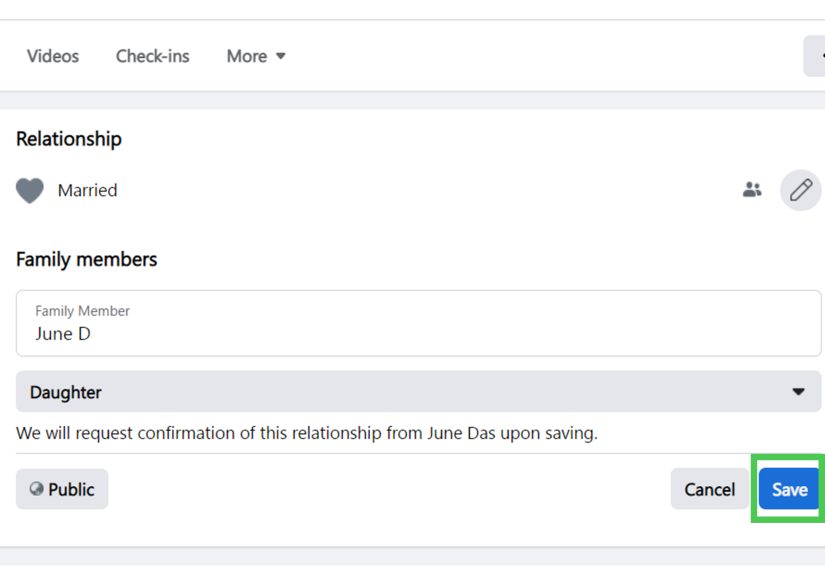
- Click Add a family member.
- Start typing the person’s name and select the correct profile when it appears.
- Choose the relationship type, such as mother, father, sister, brother, child, cousin, aunt, uncle, or another available option.
- Use the audience selector to decide who can see this family relationship.
- Click Save.
After saving, the family member may appear in your About section based on the privacy setting you selected. In some cases, Facebook may need the other person to confirm or may display the relationship differently depending on their own settings.
How to Add Family Members on Facebook Using the Mobile App
The Facebook mobile app changes its layout more often than a teenager changes profile pictures, but the general path is usually similar on iPhone and Android.
- Open the Facebook app.
- Tap your profile picture, name, or the menu icon to go to your profile.
- Scroll down and tap See Your About Info, Edit Profile, or a similar profile details option.
- Look for Family Members or Family and Relationships.
- Tap Add a Family Member.
- Search for the person’s name and select the correct profile.
- Choose the family relationship from the list.
- Pick the audience for that relationship.
- Tap Save.
If you cannot find the option in the app, try updating Facebook or using a desktop browser. Sometimes the desktop version makes profile editing easier because more settings are visible on one screen.
How to Edit Family Members on Facebook
Need to fix a relationship, change privacy, or remove someone from your family list? You can usually do it from the same Family and Relationships section.
Edit a Family Relationship on Desktop
- Go to your Facebook profile.
- Click About.
- Open Family and Relationships.
- Find the family member you want to edit.
- Click the pencil icon, three-dot menu, or Edit option near the entry.
- Change the relationship type, audience, or other available setting.
- Click Save.
Edit a Family Relationship on Mobile
- Open your Facebook profile in the app.
- Tap See Your About Info or Edit Profile.
- Scroll to Family Members or Family and Relationships.
- Tap the edit icon beside the family member.
- Adjust the relationship type or privacy audience.
- Tap Save.
If Facebook does not let you edit the relationship directly, remove the entry and add it again with the correct details. It is not elegant, but it works. Think of it as turning the profile off and on again, but with relatives.
How to Remove a Family Member from Facebook
Sometimes family information becomes outdated. Maybe someone created a new account, maybe you accidentally added the wrong “John,” or maybe you simply want a cleaner profile. Removing a family member from your Facebook profile does not delete or block that person. It only removes the relationship label from your About section.
- Go to your Facebook profile.
- Open About or See Your About Info.
- Find Family and Relationships.
- Select the family member you want to remove.
- Click or tap the edit icon, pencil icon, or three-dot menu.
- Choose Remove, Delete, or clear the relationship information if that option appears.
- Confirm the change.
After removal, check your public profile or use Facebook’s audience controls to make sure the information no longer appears where you do not want it shown.
How to Hide Family Members Without Removing Them
You may want to keep family information on your profile for your own reference while hiding it from others. In that case, change the audience instead of deleting the entry.
Open the family member entry, select the audience icon, and choose Only me. This keeps the relationship on your profile but prevents other people from seeing it. If you want close friends or selected people to see it, use a custom audience if available.
This is one of the smartest ways to manage Facebook family privacy. It gives you control without making every profile edit feel like a dramatic family announcement. No confetti. No group chat panic. Just a quiet privacy update.
Common Problems When Adding Family Members on Facebook
The “Add Family Member” Option Is Missing
If the option is missing, try opening Facebook in a desktop browser. You can also update the app, clear the cache, or log out and log back in. Sometimes Facebook places profile fields under slightly different menu names depending on the device, region, or app version.
The Person Does Not Appear in Search
Check the spelling of the person’s name. If they use a nickname, married name, old name, or special characters, search for the name shown on their Facebook profile. You may also need to be friends with the person or visit their profile first so Facebook recognizes the connection.
The Relationship Does Not Show Publicly
The most likely reason is privacy settings. If the audience is set to Only me, nobody else will see it. If it is set to Friends, only your Facebook friends can see it. The other person’s settings may also affect how the connection appears.
You Added the Wrong Person
Remove the entry right away and add the correct profile. This is especially important when several people have the same name. Accidentally adding a stranger as your father is funny for about four seconds, then awkward forever.
The Relationship Type Is Not Available
Facebook offers many relationship labels, but not every possible family structure may appear exactly the way you want. Choose the closest available option, or leave the section blank if none of the labels feel accurate.
Best Privacy Tips for Facebook Family Information
Family details can reveal more than you might think. A public family list can help strangers connect names, locations, ages, and relationships. That does not mean you should panic and delete everything, but it does mean you should manage the information thoughtfully.
- Avoid making family details public unless you have a clear reason.
- Use Friends or Only me for sensitive relationships.
- Be extra careful with children’s profiles and avoid exposing minors unnecessarily.
- Review old family entries if your account has been active for many years.
- Do not add someone without considering their comfort, especially in sensitive family situations.
- Check your profile from another account or use Facebook’s profile viewing tools when available to see what others can see.
The best rule is simple: if you would not announce the relationship to a room full of strangers at a grocery store, do not set it to Public on Facebook.
Specific Examples of When to Edit Family Members
Example 1: A Parent Creates a New Profile
Your mom forgets her password, creates a new Facebook account, and now has two profiles: one with her real photo and one with a flower, a sunset, and zero posts. Remove the old account from your family list and add the active one. This helps friends identify the real profile and avoids confusion.
Example 2: You Want More Privacy
You added your siblings years ago when Facebook felt like a giant online yearbook. Now you prefer a smaller digital footprint. Instead of removing everyone, edit the audience to Only me or Friends. Your information stays organized, but it is no longer open to everyone.
Example 3: A Relationship Label Is Incorrect
Maybe you selected “cousin” when you meant “brother,” or maybe Facebook auto-filled a name too quickly. Go back to Family and Relationships, edit the entry, choose the correct label, and save. Small correction, big improvement.
Facebook Family Members vs. Relationship Status
The Family Members section is not the same as your relationship status. Relationship status usually refers to romantic relationships, such as single, married, engaged, in a relationship, separated, or divorced. Family members include relatives such as parents, children, siblings, grandparents, cousins, and other family connections.
Both sections may appear near each other under Family and Relationships, so be careful when editing. If your goal is to add your sister, use Family Members. If your goal is to update your marital status, use relationship status. Mixing them up can create a profile update that your friends will absolutely notice.
Should You Add Family Members on Facebook?
Adding family members is optional. Some people love having a complete profile because it makes Facebook feel more personal and connected. Others prefer to keep family details private. Neither choice is wrong.
You may want to add family members if you use Facebook mainly for personal connections, family photos, birthdays, reunions, and staying in touch with relatives. You may want to hide or avoid family details if you use Facebook professionally, have privacy concerns, manage public content, or simply prefer a cleaner profile.
The best approach is to treat your Facebook profile like your front porch. Some things are fine to display. Other things belong inside the house.
Real-Life Experience: What Usually Happens When You Clean Up Family Members on Facebook
Editing family members on Facebook often starts with one tiny task and turns into a full profile cleanup. You log in thinking, “I’ll just add my sister,” and ten minutes later you are staring at a profile section that still lists an old school, a city you left eight years ago, and a favorite quote that sounded deep when you were younger. This is normal. Facebook profiles collect history like a junk drawer collects mystery cables.
In practical use, the family member feature is most helpful when it clears up identity confusion. For example, if you have a common last name or a large family network, adding close relatives can help friends know who is who. It can also make family photo interactions easier to understand. When someone comments, “That looks just like your dad,” people can actually see the connection instead of guessing from matching eyebrows.
One common experience is discovering duplicate or inactive profiles. Many families have at least one relative who made a new account after forgetting a password. If you added the old account years ago, your family section may point to a profile nobody uses. Updating it to the active account makes your profile cleaner and prevents friends from sending messages into the digital void.
Another common lesson is that privacy matters more than people expect. Years ago, many users filled out every Facebook field without thinking twice. Today, people are more careful. A public family list can reveal connections that some users would rather keep limited to friends. Changing the audience to Friends or Only me is often the best compromise. You still keep your profile organized, but you avoid sharing personal relationships with every curious stranger, bot, and distant acquaintance on the platform.
People also learn that not every family situation fits neatly into Facebook’s labels. Real families are beautifully complicated. Step-parents, guardians, chosen family, foster relationships, blended households, and private family histories do not always match a drop-down menu. If the available label feels wrong, you do not have to force it. Leaving a relationship off Facebook is perfectly fine. Your family is still real even if a social platform does not have the perfect category for it.
The smoothest experience usually comes from using a desktop browser. Mobile apps are convenient, but Facebook sometimes hides profile fields under layers of menus. On desktop, the About section is easier to scan, and editing family relationships usually feels less like a treasure hunt. If you are helping an older family member, sit with them on a laptop or desktop if possible. It reduces mis-taps and makes privacy choices clearer.
Finally, editing family members can be a good reminder to review your whole profile. Check your birthday visibility, hometown, workplace, old public posts, friend list privacy, and contact information. You do not need to erase your personality from Facebook, but you should decide what belongs online instead of letting old settings decide for you. A clean profile is not about being secretive; it is about being intentional.
Conclusion
Adding and editing family members on Facebook is easy once you know where to look. Go to your profile, open the About section, find Family and Relationships, add the correct person, choose the relationship type, set the audience, and save. To edit or remove someone later, return to the same section and use the edit, pencil, or three-dot menu.
The most important part is not the button-clickingit is the privacy choice. Family information can be meaningful, helpful, and personal, but it does not need to be public by default. Use Facebook’s audience settings wisely, respect other people’s comfort, and keep your profile updated so it reflects your real life without oversharing it.