Table of Contents >> Show >> Hide
- What Are Saved Instagram Posts?
- How to View Saved Instagram Posts on iPhone
- How to View Saved Instagram Posts on Android
- How to View Saved Instagram Posts on Desktop
- How to Create Collections for Saved Instagram Posts
- How to Manage Saved Collections
- Saved Posts vs. Liked Posts: What Is the Difference?
- Why Can’t I Find a Saved Instagram Post?
- Can People See That You Saved Their Instagram Posts?
- Can You Search Saved Instagram Posts?
- Tips to Keep Saved Instagram Posts Organized
- Common Mistakes When Using Instagram Saved
- Practical Examples: When Saved Posts Are Actually Useful
- Personal Experience: How Saved Posts Become Useful Instead of Chaotic
- Conclusion
- SEO Tags
Instagram is excellent at making you discover things you definitely did not plan to care about five minutes ago: a pasta recipe, a home office setup, a travel Reel, a workout routine, a meme that personally attacked your entire personality, and a pair of shoes you suddenly believe will change your life. Thankfully, the Save button exists. Less thankfully, many people save posts and then immediately forget where Instagram put them, like dropping snacks into a sofa cushion and hoping future-you has detective skills.
This guide explains exactly how to view saved Instagram posts on iPhone, Android, and desktop. You will also learn how Instagram Saved collections work, why some saved posts disappear, how to organize saved content, and how to avoid the common mistakes that turn your Saved tab into a digital junk drawer with Wi-Fi.
What Are Saved Instagram Posts?
Saved Instagram posts are bookmarks inside your Instagram account. When you tap the bookmark icon on a post or Reel, Instagram stores that content in your Saved section so you can return to it later. Unlike downloading an image or video, saving a post does not place a file in your phone gallery. It simply creates a private shortcut inside Instagram.
That difference matters. If you save a recipe Reel, you are not downloading the Reel. You are bookmarking the post. If the creator deletes the post, changes privacy settings, blocks you, or removes their account, the saved item may become unavailable. Instagram Saved is convenient, but it is not a permanent archive.
Are Saved Instagram Posts Private?
For regular saved posts and personal collections, yes. Your saved posts are private to you. Other people cannot open your profile and browse the posts you saved. If you save your friend’s vacation photo, a home decor idea, or a Reel titled “How to Stop Procrastinating” that you will watch later while procrastinating, nobody gets a notification that you saved it.
There is one important exception: collaborative collections. If you create or join a collaborative collection, the people included in that collection can see and add saved posts inside it. Use collaborative collections for shared planning, such as vacation ideas, party inspiration, shopping options, or memes that require group approval.
How to View Saved Instagram Posts on iPhone
The iPhone steps are simple once you know where Instagram hides the menu. The app interface may change slightly depending on updates, but the path is usually the same.
Step-by-Step: Find Saved Posts on iPhone
- Open the Instagram app on your iPhone.
- Tap your profile picture in the bottom-right corner.
- Tap the three-line menu icon in the top-right corner.
- Look under the section labeled “How you use Instagram.”
- Tap Saved.
- Open All posts to see everything you have saved, or tap a collection to view a specific folder.
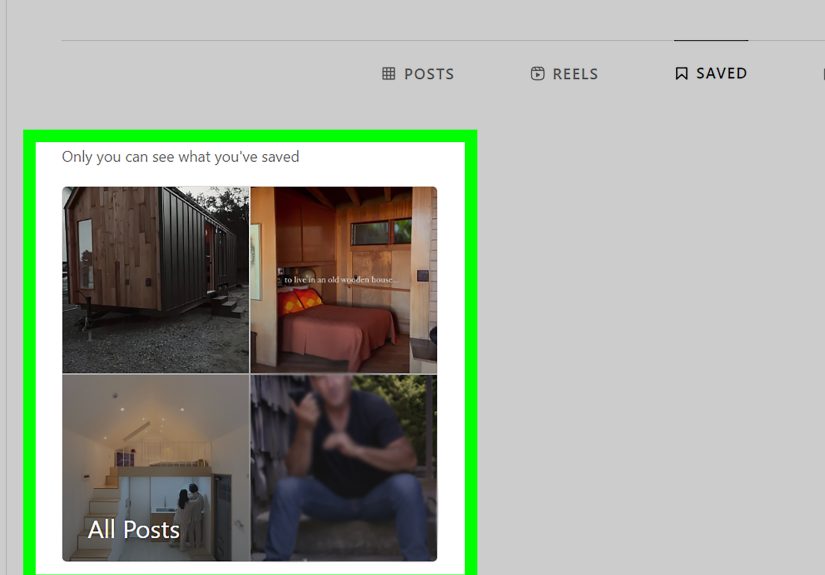
Inside Saved, Instagram usually groups content into “All posts” and any collections you have created. “All posts” is the master pile. Collections are the neat little folders you create when you are trying to convince yourself that your 847 saved design ideas are part of a system.
How to Save a New Instagram Post on iPhone
When you see a post you want to keep, tap the bookmark icon below it. For Reels, you may need to tap the three-dot menu or the bookmark option depending on the layout Instagram is testing on your account. To save directly into a collection, tap and hold the bookmark icon, then choose a collection or create a new one.
How to View Saved Instagram Posts on Android
The Android process is nearly identical to iPhone. Instagram keeps the main navigation consistent across both platforms, although the exact visual layout can vary slightly by device, screen size, and app version.
Step-by-Step: Find Saved Posts on Android
- Open the Instagram app on your Android phone.
- Tap your profile picture in the bottom-right corner.
- Tap the three-line menu in the top-right corner.
- Select Saved.
- Choose All posts or open one of your saved collections.
If you do not see Saved immediately, update the Instagram app and check again. Instagram often moves labels and menu sections during interface updates. The feature itself is not gone; it is usually just tucked into a slightly different menu location, because apparently apps enjoy playing hide-and-seek with useful buttons.
How to Save Reels on Android
To save a Reel, open the Reel and look for the bookmark icon or tap the three-dot menu for more options. After saving, go to your profile, open the menu, and tap Saved. Your saved Reels may appear inside All posts and, depending on your app version, may also be easier to filter visually because Reels display with a video-style preview.
How to View Saved Instagram Posts on Desktop
Instagram’s desktop website is much better than it used to be. You can browse posts, watch Reels, send messages, and view saved content from a computer. This is especially useful when you saved something practical, like a tutorial, recipe, home project, product idea, or travel plan, and want a larger screen instead of squinting at your phone like a detective in a tiny courtroom.
Step-by-Step: Find Saved Posts on Instagram Desktop
- Open your browser and go to Instagram.
- Log in to your account.
- Look at the left-side navigation menu.
- Click More if Saved is not already visible.
- Select Saved.
- Browse All posts or open a collection.
Depending on the current desktop layout, you may also find saved posts from your profile area. Instagram frequently tests different menus, so the key is to look for Saved in the main navigation, the More menu, or your profile options.
Why Use Desktop for Saved Instagram Posts?
Desktop is ideal when you need space to compare saved items. For example, if you saved ten desk setup posts, a laptop stand review, and a cable-management Reel that looks suspiciously too perfect, desktop makes it easier to inspect details. It is also helpful for creators, students, marketers, designers, and anyone building mood boards from saved inspiration.
How to Create Collections for Saved Instagram Posts
Collections are folders for your saved posts. Instead of throwing everything into All posts, you can organize saves by topic. This is the difference between “I know exactly where that post is” and “I saved it sometime during the emotional chaos of last Tuesday.”
Create a Collection From the Saved Menu
- Open Instagram and go to your profile.
- Tap the three-line menu.
- Tap Saved.
- Tap the plus icon or New collection.
- Name the collection.
- Select posts to add, then save the collection.
Create a Collection While Saving a Post
- Find a post you want to save.
- Tap and hold the bookmark icon.
- Choose an existing collection or tap the plus option to create a new one.
- Name the collection and save the post into it.
A good naming system can save you from future scrolling misery. Instead of vague names like “Ideas,” try specific labels such as “Dinner Recipes,” “Apartment Decor,” “Gym Workouts,” “Travel: Japan,” “Client Content Ideas,” or “Wedding Flowers.” Specific collection names make your Saved section feel like a helpful library instead of a mysterious attic.
How to Manage Saved Collections
Once you create collections, you can update them over time. Instagram lets you add or remove posts, rename collections, change collection covers, and delete collections you no longer need. Deleting a collection usually removes the folder, not necessarily every post from your All posts section. If you want to fully unsave something, open the post and tap the bookmark icon again to remove it.
Best Collection Ideas for Everyday Use
If you use Instagram for personal inspiration, create collections such as Recipes, Outfits, Travel Spots, Hair Ideas, Study Tips, Home Decor, Gift Ideas, Books, Fitness, and Restaurants. If you use Instagram professionally, create folders for Competitor Ideas, Content Hooks, Visual Styles, UGC Examples, Product Demos, Influencer Leads, Caption Ideas, and Campaign Inspiration.
The best collections match how you actually search later. If you often think, “Where was that brunch place?” make a Restaurants collection. If you often think, “What was that editing transition?” make a Video Editing Ideas collection. Build folders around future-you’s questions.
Saved Posts vs. Liked Posts: What Is the Difference?
Saved posts and liked posts are not the same thing. A like is a public or semi-public engagement signal depending on Instagram’s current visibility rules and the context of the post. A save is a private bookmark for later. Likes are often emotional: “Nice photo,” “great joke,” “supporting my friend.” Saves are usually practical: “I need this recipe,” “I want this outfit,” “I will pretend I am going to do this workout.”
To find saved posts, go to Profile > Menu > Saved. To find liked posts, go to your activity area and look for interactions or likes. Instagram changes wording from time to time, but the concept remains: saved content lives in Saved; liked content lives in your activity history.
Why Can’t I Find a Saved Instagram Post?
Sometimes a saved post vanishes or refuses to open. Before assuming Instagram personally betrayed you, check the common reasons below.
The Post Was Deleted
If the creator deleted the post, your saved bookmark no longer has content to display. Instagram cannot show a post that no longer exists.
The Account Became Private
If you saved a post from a public account and that account later became private, you may lose access unless you follow the account and are approved.
You Were Blocked or Removed
If the creator blocks you or removes you as a follower from a private account, saved posts from that account may disappear or become unavailable.
The Post Was Removed by Instagram
Posts can be removed for policy violations, copyright issues, or other platform reasons. If that happens, the save may no longer work.
You Saved It to a Different Account
This one happens more often than people admit. If you manage multiple Instagram accounts, you may have saved the post while using another profile. Switch accounts and check Saved again.
Can People See That You Saved Their Instagram Posts?
People cannot see exactly who saved their posts. Professional and creator accounts may see aggregate save counts in insights, but they do not receive a list of usernames who saved a post. In other words, your late-night saving spree of cake recipes, minimalist bedrooms, and motivational quotes is not being broadcast with a spotlight.
However, remember that saving is not the same as privacy everywhere. If you add a post to a collaborative collection, the people in that collection can see it. If you share a saved post in a direct message, the recipient can see what you sent. Normal personal saves remain private.
Can You Search Saved Instagram Posts?
Instagram’s saved-post search is limited compared with a full bookmark manager. You can browse collections, scroll All posts, and rely on your folder names, but finding one exact post among thousands can be frustrating. This is why collections matter. A few seconds spent organizing a post today can save you from a scroll marathon later.
For better results, organize posts as soon as you save them. If you wait until you have thousands of saved posts, sorting them becomes the digital equivalent of cleaning a garage while blindfolded.
Tips to Keep Saved Instagram Posts Organized
Use Clear Collection Names
Choose names that describe the reason you saved the post. “Recipes” is good. “Healthy 15-Minute Dinners” is better. “Stuff” is a cry for help.
Review Saved Posts Monthly
Once a month, open Saved and remove posts you no longer need. Trends expire. Product links break. Some design ideas age like milk in the sun. A quick clean-up keeps your collections useful.
Create Collections Before You Need Them
If you frequently save similar posts, create a collection now. Common categories include Recipes, Travel, Home Ideas, Workouts, Fashion, Shopping, Marketing, Study, Photography, and Events.
Do Not Use Saved as a Permanent Backup
If a post contains information you truly need, such as a recipe, checklist, address, or instructions, consider writing down the key details in your notes app. Instagram Saved is useful, but it depends on the original post staying available.
Common Mistakes When Using Instagram Saved
The first mistake is confusing saving with downloading. Saving a post does not store it on your phone or computer. The second mistake is saving everything into All posts without collections. The third mistake is relying on Instagram to preserve important information forever. The fourth mistake is using third-party tools without checking whether they are trustworthy. If a random website asks for your Instagram password just to “organize your saves,” treat it like a raccoon offering financial advice: amusing, but absolutely not safe.
Stick with Instagram’s built-in Saved feature unless you have a strong reason to use another tool. If you do use outside services, review their privacy policy, avoid giving away your password, and be cautious with browser extensions that request broad access to your account.
Practical Examples: When Saved Posts Are Actually Useful
Saved posts are not just for hoarding pretty pictures. They can become a surprisingly practical planning tool. Planning a trip? Save hotels, restaurants, walking routes, local creators, and destination tips into one travel collection. Redecorating a bedroom? Save color palettes, furniture layouts, lighting ideas, and storage hacks. Learning a skill? Save tutorials, drills, examples, and expert advice.
For creators and small businesses, Saved can become a research board. Save content hooks, competitor formats, caption structures, product photography ideas, and audience questions. The goal is not to copy; the goal is to study patterns and build better original content.
Personal Experience: How Saved Posts Become Useful Instead of Chaotic
Here is the honest experience most Instagram users have: at first, saving posts feels powerful. You tap the bookmark icon and think, “Excellent, I am now an organized person.” Then six months pass. Your Saved tab contains dinner recipes, travel tips, dog videos, productivity advice, gym routines, phone wallpapers, haircut ideas, and one mysterious post you saved for reasons known only to Past You. Suddenly, Saved is less of a library and more of a digital swamp wearing a nice hat.
The best way to use Instagram Saved is to treat it like a working notebook, not a storage unit. When I save a post for later, I try to ask one question: “Why will I need this?” If the answer is clear, it goes into a collection. If the answer is “vibes,” it can stay in All posts, but I do not expect to find it quickly later. This small habit changes everything. A recipe goes into “Dinner Ideas.” A content example goes into “Social Media Hooks.” A travel Reel goes into “Trip Planning.” The bookmark becomes useful because it has a destination.
Another helpful habit is creating action-based collections. Instead of only using broad labels like “Home,” try collections such as “Buy Later,” “Try This Weekend,” “Cook This Month,” or “Use for Work.” These names tell you what to do with the saved post. That matters because a saved post without an action often becomes digital decoration. It looks useful, but it never gets used.
Desktop viewing is especially helpful for turning saves into action. On a phone, it is easy to keep scrolling. On a computer, you can open Instagram Saved and use it like a planning board. If you saved apartment ideas, you can compare layouts on a bigger screen. If you saved recipes, you can make a grocery list. If you saved business content examples, you can study what made the post work: the hook, the visual, the caption, the call to action, or the timing.
One of the most underrated tricks is deleting saves that no longer fit your life. A post you saved two years ago may not matter anymore. Maybe your style changed. Maybe the restaurant closed. Maybe the “life-changing productivity system” required seventeen notebooks, three apps, and the emotional strength of a monk. Removing old saves makes the good ones easier to find. Organization is not only about adding folders; it is also about letting go.
For students, saved posts can become a study helper if organized properly. Create collections for “Essay Tips,” “Design Inspiration,” “Career Advice,” or “Language Learning.” For creators, use collections for “Reel Ideas,” “Caption Hooks,” “Editing Styles,” and “Brand Inspiration.” For everyday users, practical folders like “Recipes,” “Travel,” “Gift Ideas,” and “Restaurants” will probably do more good than a giant All posts folder that requires archaeology equipment.
The real secret is this: save less, organize sooner, and review often. Instagram makes saving effortless, which is both the feature and the trap. When everything is worth saving, nothing is easy to find. A clean Saved section turns Instagram from a distraction machine into a surprisingly useful reference tool. It will not make you cook every saved recipe or visit every saved café, but it will at least help you find them before the internet moves on to the next viral sandwich.
Conclusion
Viewing saved Instagram posts is easy once you know the path. On iPhone and Android, open Instagram, go to your profile, tap the menu, and choose Saved. On desktop, log in through your browser and look for Saved in the left navigation or More menu. From there, you can open All posts, browse collections, create new folders, and remove anything you no longer need.
The bigger challenge is not finding Saved once. It is keeping Saved useful over time. Use clear collections, organize posts when you save them, clean out old bookmarks, and remember that saved posts are private bookmarks, not permanent downloads. Done right, Instagram Saved can become a personal idea library for recipes, travel, shopping, work, study, design, fitness, and creative inspiration. Done wrong, it becomes a beautiful pile of “I’ll look at this later” content that future-you will absolutely judge.