Table of Contents >> Show >> Hide
- Before You Start: A Quick Reality Check About 3G
- Key Terms: What Android Means by “3G,” “4G,” LTE, GSM, and WCDMA
- Method 1 (Best): Switch 4G to 3G Using Android Settings
- Method 2 (Advanced): Use Android’s Hidden Testing Menu (*#*#4636#*#*)
- Method 3: “Soft Reset” the Connection So the New Setting Actually Sticks
- Troubleshooting: Common Problems (and Fixes That Don’t Require a Degree in Telepathy)
- How to Confirm You’re Actually on 3G (Not Just “Vibes”)
- FAQ: Switching from 4G to 3G on Android
- Conclusion: The Smart Way to Switch from 4G to 3G
- Experiences That Come Up a Lot When People Switch from 4G to 3G
Sometimes 4G is like that friend who promises to show up “in five minutes,” then arrives two hours late and
still eats your fries. In some buildings, rural stretches, or crowded events, a weak 4G signal can feel
slower than a steady (but older) 3G connection. So, yesswitching from 4G to 3G on Android can occasionally
make your phone feel more stable, even if it won’t win any speed trophies.
This guide walks you through the most reliable ways to switch from 4G (LTE) to 3G on Android, explains what
the settings actually mean, and helps you troubleshoot when your phone (or carrier) hides the option like a
squirrel burying acorns.
Before You Start: A Quick Reality Check About 3G
Here’s the big catch: in many placesespecially in the United States3G networks have been shut down or
heavily reduced. If your carrier no longer supports 3G, switching your phone to “3G only” may result in
No Service (or it may instantly bounce back to LTE/5G).
How to tell if 3G is even available for you
- Check your carrier’s network status: If 3G is retired, your phone can’t connect to itno matter how persuasive you are.
- Look at your status bar icons: “3G,” “H,” or “H+” typically indicates 3G/UMTS/HSPA. “LTE” usually indicates 4G.
- Be aware of carrier restrictions: Some carriers remove the 3G selection entirely from Android settings.
Important safety note (not meant to scare you, just to save your weekend)
Forcing older network modes can affect voice calling features (like VoLTE), voicemail behavior, and in rare
cases how quickly your phone connects during emergencies. If you depend on your phone for critical calls,
test this change somewhere safe firstand know how to revert to LTE/5G quickly.
Key Terms: What Android Means by “3G,” “4G,” LTE, GSM, and WCDMA
Android loves acronyms. Here’s the translation:
- 4G (LTE): Usually shown as LTE or 4G. This is the modern baseline for fast mobile data and VoLTE calling.
- 3G (UMTS/HSPA): Often shown as 3G, H, or H+. In menus, 3G may appear as WCDMA.
- 2G (GSM/EDGE): Often shown as E. In menus, 2G may appear as GSM.
- “Auto connect” modes: Options like “LTE/3G/2G (auto)” let the phone pick the best available signal.
If you see WCDMA, think “3G.” If you see GSM, think “2G.” If you see LTE, that’s “4G.”
Method 1 (Best): Switch 4G to 3G Using Android Settings
This is the cleanest, safest approach because it uses your phone’s normal settings and is easiest to undo.
The exact menu names vary by Android version and brand, but the idea is the same: find your SIM settings,
then change the preferred network type.
Step-by-step (Stock Android / Google Pixel-style menus)
- Open Settings.
- Tap Network & internet.
- Tap SIMs (or select your SIM/carrier name).
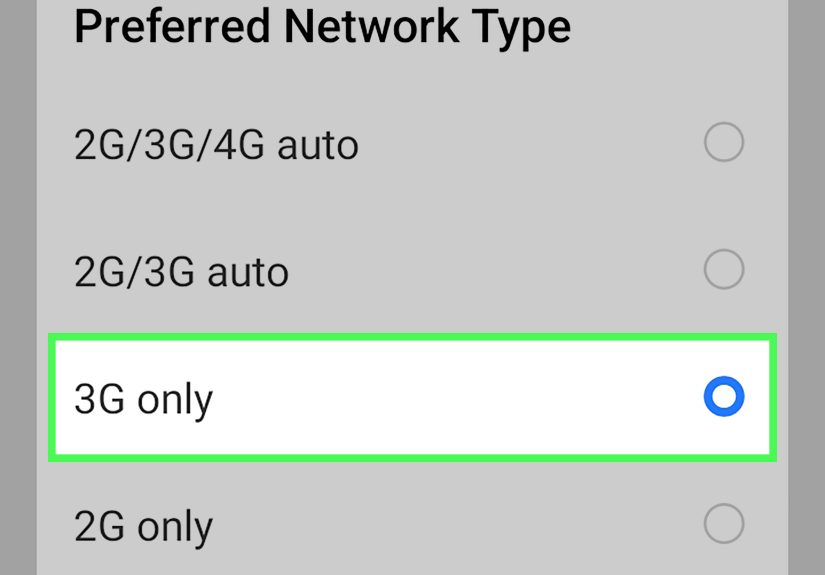
- Tap Preferred network type.
- Select an option that favors 3G, such as:
- 3G
- 3G only (if available)
- 3G/2G (auto connect)
- WCDMA only or WCDMA/GSM
Step-by-step (Samsung Galaxy / One UI-style menus)
- Open Settings.
- Tap Connections.
- Tap Mobile networks.
- Tap Network mode (or Preferred network type).
- Choose a 3G-friendly option like 3G/2G or WCDMA/GSM (wording varies).
Step-by-step (Other Android phones: Motorola, OnePlus, Sony, etc.)
Many devices use some variation of:
- Settings → Network & internet → Mobile network
- Tap Advanced (if you see it)
- Tap Preferred network type or Network mode
- Select a 3G option (often “3G/2G” or “WCDMA/GSM”)
What if there is no “3G” option?
That usually means one of these is true:
- Your carrier no longer offers 3G service in your area (so Android hides it).
- Your carrier restricts the menu (some carriers do this to reduce support issues).
- Your phone model/firmware doesn’t expose 3G-only toggles anymore.
If you don’t see 3G in Settings, jump to Method 2 (Testing menu) or the troubleshooting section.
Method 2 (Advanced): Use Android’s Hidden Testing Menu (*#*#4636#*#*)
Android includes a hidden “Testing” area that can expose more network options. On some phones it’s available,
on others it’s blocked. Think of it like the “employee entrance” for network settings: useful, but not
always open.
Step-by-step
- Open your Phone app (the dialer).
- Dial:
*#*#4636#*#*(it often opens automaticallyno need to press Call). - Tap Phone information.
- Scroll to Set preferred network type.
- Choose a 3G-focused option such as:
- WCDMA only (often the closest thing to “3G only”)
- WCDMA preferred
- WCDMA/GSM (3G/2G)
- Exit the menu and wait 10–30 seconds for the phone to re-register on the network.
Warnings (so you don’t accidentally make your phone grumpy)
-
The options can look intimidating. If you’re unsure, pick a mode that clearly mentions WCDMA
(3G) and avoid obscure combinations unless you know what they mean. -
If you lose service, don’t panicswitch back to an automatic mode like LTE/WCDMA/GSM (auto)
or reboot the phone. - Some phones revert these settings after a restart or after the carrier updates your configuration.
Method 3: “Soft Reset” the Connection So the New Setting Actually Sticks
Sometimes you change the network mode…and your phone politely ignores you. Here are quick “nudge” methods that
often force the phone to re-connect using your new preference.
Try these in order
- Toggle Airplane mode on for 10 seconds, then off.
- Restart the phone (yes, the classic; yes, it works more often than it should).
- Turn mobile data off/on (Settings → Network & internet → Internet/Mobile data).
- Re-seat your SIM (power down first if your device recommends it).
Troubleshooting: Common Problems (and Fixes That Don’t Require a Degree in Telepathy)
Problem: “3G/2G” or “Preferred network type” is missing
- Search Settings: Use the search bar inside Settings and type “network mode” or “preferred network.”
- Check for software updates: Settings → System → System update.
- Carrier restrictions: Some carriers hide the option; try the Testing menu method.
- Multiple SIMs: Make sure you’re editing the correct SIM (eSIM vs physical SIM).
Problem: You switched to 3G and now have “No Service”
- 3G may be unavailable: If your carrier retired 3G in your area, the phone can’t connect.
- Switch back: Go back to Settings and choose an auto mode like LTE/3G/2G (auto).
- Use Airplane mode: Toggle it to force a new registration on the network.
- Restart: If you’re stuck, restarting usually restores the last stable configuration.
Problem: Calls won’t go through after switching
Some carriers rely on 4G LTE (VoLTE) for voice calling. If you force 3G where VoLTE is required, calls may
behave oddlyor fail. The fix is usually to return to LTE/5G or an automatic mode.
Problem: Data is painfully slow on 3G (and you regret everything)
That’s normal. 3G is older and generally slower, especially for modern apps. If you only wanted stability,
consider LTE/3G/2G (auto) rather than “3G only,” so the phone can use LTE when it’s actually
strong enough to be useful.
Problem: Switching to 3G improves signal but makes apps time out
- Turn on Data Saver: It can reduce background usage and make 3G feel less clogged.
- Pause heavy apps: Backups, cloud photo uploads, and app updates can overwhelm 3G.
- Use Wi-Fi calling (if available): If your carrier supports it, Wi-Fi calling can keep voice quality high even when data is limited.
How to Confirm You’re Actually on 3G (Not Just “Vibes”)
Option A: Check the status bar icon
Look for 3G, H, or H+. LTE usually shows as LTE or 4G.
(Some Android skins label things differently, but these are common.)
Option B: Check SIM status
- Open Settings.
- Go to About phone (or About device).
- Tap SIM status / Status information.
- Look for Mobile network type.
Option C: Use the Testing menu
Dial *#*#4636#*#*, open Phone information, and look for the network type readout.
FAQ: Switching from 4G to 3G on Android
Will switching to 3G save battery?
Sometimes. If your phone is constantly hunting for a weak LTE signal, it can burn battery. A stable 3G
connection can be less “searchy.” But if 3G coverage is also weak, you might not gain anything.
Does switching to 3G reduce data usage?
Not automatically. It reduces speed, which can reduce certain background behaviors (like high-quality
video auto-playing), but apps can still use plenty of data on 3G. If data is your concern, use Data Saver
and set streaming apps to lower quality.
Why would anyone switch from 4G to 3G in 2026?
- You’re in a location where LTE is unstable but 3G (if available) is more consistent.
- You’re troubleshooting a network issue and want to test whether LTE is the problem.
- You’re trying to stabilize messaging/calls temporarily while you move to a better signal area.
Is it “bad” to force 3G?
It’s not inherently bad, but it can be inconvenient. You’ll likely get slower speeds, and depending on your
carrier, you might lose features that assume LTE/5G. Treat it like a temporary tool, not a forever lifestyle
(unless you truly love buffering circles).
Conclusion: The Smart Way to Switch from 4G to 3G
If your Android phone lets you switch from 4G to 3G, the safest approach is to use the normal Settings path
and choose a “3G/2G” or “WCDMA” option. If that menu is missing, the hidden Testing menu may reveal extra
network modesthough not every device supports it, and carriers can restrict it.
Most importantly: if 3G isn’t available on your carrier anymore, your phone can’t magically invent a 3G tower.
In that case, the best “fix” is usually better LTE settings, a network reset, Wi-Fi calling, or talking to
your carrier about coverage options.
Experiences That Come Up a Lot When People Switch from 4G to 3G
If you’re considering the 4G-to-3G switch, you’re not aloneand the situations tend to repeat themselves in
surprisingly familiar ways. One classic scenario: you’re inside an older building with thick walls (think
basement apartment, warehouse office, or that charming coffee shop that doubles as a Wi-Fi dead zone). Your
phone shows “LTE,” but it behaves like it’s communicating via carrier pigeon. Messages hang, web pages load
halfway, and every tap becomes a tiny trust fall. In spots like that, people often try switching to a 3G/2G
mode (when available) and suddenly the connection feels more consistentstill slower, but less erratic. The
win isn’t speed; it’s reliability. You stop fighting the signal and start using your phone again.
Another common experience shows up on road trips through rural areas. Some stretches have patchy LTE that
flickers between one bar and none, while older networks (where still active) may cover highways more evenly.
People sometimes switch to a 3G-preferred mode before a long drive to keep navigation, calls, or messaging
from constantly dropping. The interesting part is psychological as much as technical: fewer “network resets”
means less frustration. You’re not stopping to toggle airplane mode every 20 minutes like it’s a ritual you
learned from the ancient smartphone monks.
Then there’s the “crowd crush” momentconcerts, stadiums, festivalswhere the network is technically present,
but the airwaves are packed. In those environments, LTE congestion can feel like a traffic jam at rush hour.
Some people experiment with forcing a lower network mode to see if it behaves more predictably. Results vary:
sometimes it helps with basic tasks (texts, lightweight browsing), and other times it makes everything slower.
The takeaway is usually the same: it’s a tool you try when the default experience is already failing, not a
guaranteed upgrade.
Finally, a very real experience people report is discovering that the option simply isn’t there. They follow
a guide, open Settings, and…no “Preferred network type,” no “3G/2G,” nothing. That’s often the moment someone
learns their carrier has retired 3G or restricted the menu. In those cases, the “experience” shifts from
switching modes to troubleshooting smarter: resetting network settings, checking SIM configuration, enabling
Wi-Fi calling, or switching to an automatic mode that keeps LTE available when it’s strong. It can feel a bit
like planning a trip on a train line that stopped runningannoying, yes, but solvable once you know the map.