Table of Contents >> Show >> Hide
- Why sorting data in Google Sheets on Android matters
- Before you sort: do these quick checks first
- How to sort data in Google Sheets on Android: step-by-step
- How to filter data in Google Sheets on Android
- Important Android limitation: filter views are desktop-only
- What to do if you need more advanced sorting
- Common problems when sorting on Android and how to fix them
- Best practices for sorting data in Google Sheets on Android
- Real-world experiences with sorting data in Google Sheets on Android
- Final thoughts
- SEO Tags
If you have ever tried to clean up a spreadsheet from your phone while standing in line for coffee, congratulations: you are living the full modern-data-labyrinth experience. One minute you are checking a simple list, and the next you are wrestling a chaotic column of names, prices, dates, or inventory counts that looks like it was organized by a raccoon with a Wi-Fi signal. The good news is that sorting data in Google Sheets on Android is absolutely doable. The slightly less glamorous news is that the mobile app is great for quick sorting, but it is not as fancy as the desktop version when you want advanced control.
That is exactly why this guide exists. In this step-by-step walkthrough, you will learn how to sort data in Google Sheets on Android, how A–Z and Z–A sorting works for text, numbers, and dates, how to use filters on your phone, and what to do when the app refuses to behave. You will also get practical examples, troubleshooting tips, and real-world experience notes so this does not feel like one of those tutorials written by a robot who has never touched a phone screen in broad daylight.
Why sorting data in Google Sheets on Android matters
The Google Sheets Android app is built for quick edits, collaboration, and on-the-go spreadsheet work. That makes it handy when you need to alphabetize a class roster, sort customer names, put sales numbers from highest to lowest, or organize a list of due dates before a meeting starts in six minutes and your caffeine has not fully arrived yet.
For many people, mobile sorting is not about building a giant analytics dashboard. It is about speed. You are checking stock in a small business, updating a travel budget, cleaning a volunteer signup sheet, or finding the newest invoice in a cluttered list. In those moments, knowing how to sort data in Google Sheets on Android can save you from manually dragging rows around like it is 2004.
Still, the Android app has limits. It handles basic column sorting and filtering well, but more advanced sorting tools, such as multi-column custom sorts and full desktop-style advanced range sorting, are easier to manage on a computer. So the trick is knowing what Android does well, what it does not, and how to work around the difference without losing your mind.
Before you sort: do these quick checks first
Before you tap anything, give your sheet a two-minute sanity check. This is where you prevent the classic “Why did my spreadsheet just become modern art?” moment.
1. Make sure your data is arranged in clean rows
In most cases, each row should represent one full record. For example, if row 2 is one customer, then their name, order number, date, and total should all live on the same row. Sorting works best when Sheets can move complete rows together instead of guessing what belongs where.
2. Keep a clear header row
If your top row contains labels like Name, Date, Status, or Total, that is your header row. A clean header makes it much easier to understand which column you are sorting. On desktop, Google Sheets has explicit header-aware options. On Android, you should still keep headers tidy so you do not accidentally sort your labels into the middle of your data table.
3. Check formatting for numbers and dates
If dates are stored as plain text instead of real dates, sorting can get weird fast. The same goes for numbers entered with stray spaces or symbols. If something looks off, tap the cells, open the formatting menu, and confirm the values are using the right format. A spreadsheet that thinks “12/03/2026” is text instead of a date is the digital equivalent of a coworker labeling every folder “Important.”
4. Watch for blank rows and mixed data
Blank rows, merged cells, and mixed value types can all make sorting less predictable. If one column contains dates, keep it dates all the way down. If it contains prices, make sure it is not secretly half prices and half text notes like “check later.” Your future self deserves better.
How to sort data in Google Sheets on Android: step-by-step
Here is the simplest way to sort a column directly in the Google Sheets app on Android.
- Open the Google Sheets app on your Android phone or tablet.
- Open the spreadsheet you want to sort.
- Find the column you want to sort by.
- Tap the letter at the top of the column to select it.
- Tap the top of that column again to open the column menu.
- Tap More.
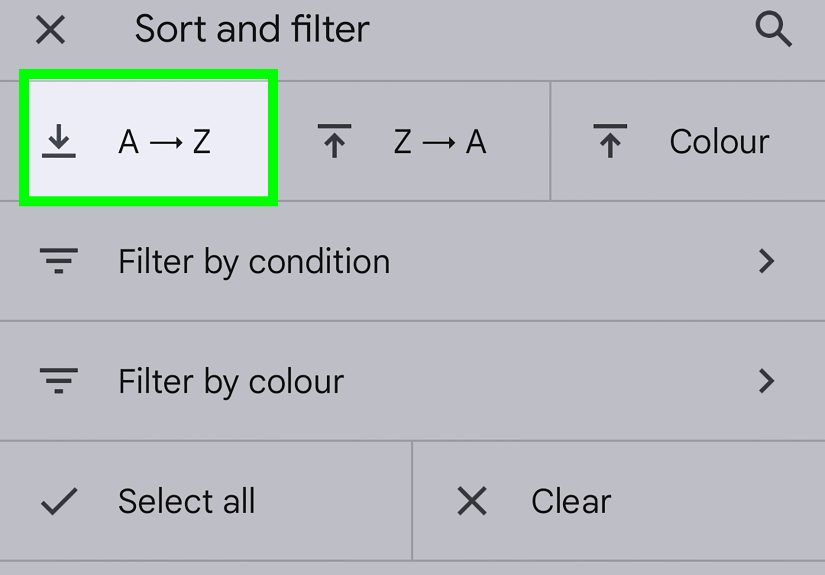
- Choose SORT A-Z or SORT Z-A.
That is the basic Android sort method. If you choose SORT A-Z, the selected column is sorted in ascending order. If you choose SORT Z-A, it is sorted in descending order.
What SORT A-Z and SORT Z-A mean
The meaning changes slightly depending on the type of data in the column:
- Text: A-Z sorts alphabetically from A to Z; Z-A reverses it.
- Numbers: A-Z usually means lowest to highest; Z-A means highest to lowest.
- Dates: A-Z usually means oldest to newest; Z-A means newest to oldest.
Example: say you have a sheet with columns for Client Name, Invoice Date, and Amount Due. If you tap the Amount Due column and choose SORT Z-A, the largest balances should rise to the top. If you tap Invoice Date and choose SORT A-Z, the oldest invoices should come first.
This is perfect for quick housekeeping on a phone. It is not fancy, but it gets the job done without requiring a laptop, a trackpad, or a dramatic sigh.
How to filter data in Google Sheets on Android
Sometimes sorting alone is not enough. You may want to hide everything except overdue tasks, one category of products, or rows containing a specific value. That is where filters come in.
To filter data in Google Sheets on Android:
- Open your spreadsheet in the Google Sheets app.
- Tap More.
- Tap Create a filter.
- At the top of the column you want to filter, tap the Filter icon.
- Choose how you want to filter:
- Filter by values
- Filter by condition
- Filter by color
If you use Filter by values, you can search for specific entries and uncheck the ones you want hidden. If you use Filter by condition, you can show only rows that match rules such as “starts with,” “contains,” or number/date conditions. Filter by color can be useful if your sheet uses color coding for priority or status.
Filtering is helpful when you do not want to permanently rearrange everything right away. For example, if you run a content calendar, you can filter the Status column to show only Draft items, then focus on those without deleting or moving the rest. It is like cleaning your desk by looking at only one pile at a time instead of flipping the whole thing into the air.
Important Android limitation: filter views are desktop-only
This is where many users get tripped up. Regular filters are available in the Android app, but filter views are a desktop feature. That matters for shared spreadsheets.
Why? Because regular filters can affect how the spreadsheet appears for people with access to the file, while filter views are designed to let different people view filtered versions without changing everyone else’s view. So if you collaborate with a team and need a private, custom view of the same data, Android may not be the ideal place to set that up.
Translation: if you only need a quick mobile filter, Android is fine. If you need advanced team-friendly sorting and filtering without stepping on anyone’s toes, switch to desktop before spreadsheet diplomacy collapses.
What to do if you need more advanced sorting
The Android app is best for quick, single-column sorting. If you need more control, here are your best options.
Use desktop for multi-column sorting
Desktop Google Sheets gives you advanced range sorting options, including sorting by one column and then by another. For example, you can sort first by Date and then by Priority. That is especially useful when several rows share the same date or category.
Imagine a sales sheet where multiple deals closed on the same day. On desktop, you can sort by Close Date first and then by Deal Value. On Android, that level of sorting control is much less convenient. If your sheet is mission-critical, do the advanced sorting on a computer and save your thumbs for something nobler.
Use the SORT function as a workaround
If you are comfortable with formulas, Google Sheets has a SORT function that can sort a range by one or more columns. This can be a smart workaround when you want a sorted view of data without constantly re-sorting the original list.
For example:
=SORT(A2:C20, 2, TRUE)
This sorts the range from A2 to C20 by the second column in ascending order. You can also build more complex versions that sort by multiple columns. That means if Android’s menu-based sorting feels too limited, a formula-driven sorted table can give you extra control.
It is not the simplest option for beginners, but it is powerful. Think of it as graduating from “tap and hope” to “tap and actually understand what the spreadsheet is doing.”
Common problems when sorting on Android and how to fix them
The dates are sorting in a weird order
Your cells may be formatted as text instead of actual dates. Reformat the column as dates, then sort again. If necessary, clean inconsistent entries first.
The header row moved with the data
Be extra careful when sorting from mobile if your headers are mixed into the data. Keep your header row obvious and double-check the result after sorting. For complex header-aware sorting, desktop is safer.
The wrong rows seem out of place
Look for blank cells, merged cells, hidden inconsistencies, or notes typed into data columns. One odd entry can throw off the sort order more than you would expect.
The filter is confusing my teammates
If this is a shared file, remember that regular filters are not the same as private filter views. If collaboration matters, use desktop filter views instead of making everyone wonder why half the spreadsheet vanished.
I have weak signal and the sheet is not cooperating
Make the file available offline in advance when you know you may work on it from the road. That will not turn your phone into a spreadsheet kingdom, but it can save you from editing trouble in spotty network conditions.
Best practices for sorting data in Google Sheets on Android
- Keep each row as one complete record.
- Use a clean header row with clear column names.
- Format dates and numbers correctly before sorting.
- Use filters when you want to narrow the view before making bigger decisions.
- Use desktop or the SORT function when you need multi-column precision.
- Double-check your result after every sort, especially on shared sheets.
That last point matters more than people think. Sorting is quick, but quick does not always mean foolproof. A five-second review after sorting can prevent a forty-minute cleanup later. That is just spreadsheet math of the emotional variety.
Real-world experiences with sorting data in Google Sheets on Android
Using Google Sheets on Android to sort data feels a lot like trying to tidy your kitchen while also answering a text, watching the timer on your oven, and pretending you absolutely meant to leave that spoon on the floor. It works, but it rewards patience.
One of the most common real-life uses is budget tracking. You are out shopping, open your monthly spending sheet, and want to sort purchases by amount to see where the money went. On a laptop, this is easy and slightly smug. On Android, it is still possible, but you quickly learn the value of clean columns and consistent formatting. If one grocery entry is typed as 12.50 and another as $12.50 with a trailing space, your neat mobile sorting session turns into an accidental comedy special.
Another everyday scenario is content planning. Writers, editors, and marketers often keep article titles, deadlines, statuses, and assigned authors in Sheets. On Android, sorting by due date can be a lifesaver when you are away from your desk and need to see what is urgent. Suddenly the app goes from “cute spreadsheet viewer” to “tiny crisis-management assistant.” It is not glamorous, but it gets the job done when your desktop is nowhere nearby and your brain is doing cartwheels.
Teachers and event organizers also get a lot out of mobile sorting. A teacher can sort a list of students alphabetically before taking attendance. A volunteer coordinator can filter by shift time or role while standing outside a busy venue. A reseller at a flea market can sort products by price or inventory count from the parking lot. That is where Android sorting shines: quick decisions, fast edits, zero ceremony.
But the experience also teaches humility. The first time you try a more complicated task, like sorting by date and then by priority, you realize the mobile app is helpful, not magical. It is more like a multitool than a full workshop. You can absolutely tighten a screw with it, but if you decide to renovate the house with that same tool, the house may start laughing.
Over time, most users settle into a smart rhythm. They use Android for urgent sorts, simple filters, and quick checks. Then they save the advanced cleanup for desktop, where the extra sorting controls are easier to see and use. That balance is what makes Google Sheets on Android genuinely useful instead of frustrating. It is not about forcing the phone app to do every spreadsheet job on earth. It is about knowing when it is the perfect tool and when it is simply the tool in your pocket.
And honestly, that is a pretty good role. If your goal is to sort data in Google Sheets on Android quickly, accurately, and without muttering at your screen in public, a little preparation goes a long way.
Final thoughts
Sorting data in Google Sheets on Android is simple once you know where the controls are and what the app is really designed to do. For fast alphabetizing, ranking numbers, checking dates, and filtering categories, the Android app is more capable than many people realize. The key is to keep your data clean, format it correctly, and use the mobile features for what they do best.
If you need advanced range sorting, multi-column sorting, or private filter views for a shared spreadsheet, desktop still wins. But for everyday spreadsheet triage on the go, Android is more than enough. In other words, your phone may not be a full spreadsheet command center, but it can absolutely stop the chaos from spreading.