Table of Contents >> Show >> Hide
- What “Locked Notes Password” Actually Means (So You Don’t Reset the Wrong Thing)
- Before You Reset: Quick Checklist (Saves You From Regret)
- How to Reset Your Locked Notes Password on iPhone (Step-by-Step)
- What Happens After You Reset (And Why Your Old Notes Still Won’t Open)
- How to Switch from a Notes Password to iPhone Passcode (Recommended)
- Troubleshooting: Common “Why Is My iPhone Doing This?” Situations
- Security Tips So You Don’t Have to Google This Again in Six Months
- FAQ: Resetting Password for Locked Notes on iPhone
- Conclusion
- Bonus: Real-World Experiences (The Password Hall of Fame + What Actually Works)
Locked Apple Notes are like that one friend who takes privacy very seriously. They won’t spill secrets,
they won’t budge, and if you forget the password… they will absolutely pretend they’ve never met you.
The good news: you can reset your Notes lock password on an iPhone and start protecting new notes again.
The slightly spicy news: resetting doesn’t magically unlock notes that were locked with the old password.
(Apple designed it that way on purpose. Security is fun like that.)
In this guide, you’ll learn exactly how to reset the password for locked notes on an iPhone, how to switch to using
your device passcode (hello, Face ID), what happens to existing locked notes, and what to do if your screen is
staring back at you like, “Wrong password, bestie.”
What “Locked Notes Password” Actually Means (So You Don’t Reset the Wrong Thing)
Apple Notes gives you two main ways to protect locked notes:
- Use Device Passcode: Unlock with your iPhone passcode (and optionally Face ID / Touch ID).
- Use Custom Password: A separate Notes password you create (plus an optional hint).
Here’s the key detail people miss: locked notes don’t have a universal “master reset” that reveals everything.
Resetting is mainly about setting a new lock method for future notes. Old notes keep their original lock.
That’s not Apple being meanit’s Apple being Apple: privacy-first, even when it inconveniences us.
Before You Reset: Quick Checklist (Saves You From Regret)
1) Try Face ID / Touch ID first (if it was enabled)
If you previously enabled Face ID or Touch ID for Notes, try opening the locked note and authenticating.
If it opens, you’re in luck: you can remove the lock and re-lock the note under a new method/password later.
2) Confirm which account your note belongs to
Notes can live in different places:
- iCloud (synced across Apple devices)
- On My iPhone (local only)
- Other accounts (like Gmail/IMAPmany of these can’t use Apple’s note-lock feature)
This matters because password settings can be per-account. If your locked notes are in iCloud but you reset the
“On My iPhone” password, you’ll feel like you did something… but nothing changes. Classic.
3) Know the big rule: resetting won’t unlock older locked notes
Resetting your Notes password (or switching lock methods) helps you secure notes going forward. It does
not unlock notes locked with the old password. So if your goal is “get into that one old note,” resetting
isn’t a magic keyit’s more like buying a new lock for your front door while the old one stays stuck on the shed.
How to Reset Your Locked Notes Password on iPhone (Step-by-Step)
Apple has adjusted Settings navigation over time, so you may see slightly different paths depending on your iOS version.
If you see an “Apps” section inside Settings, you’re on a newer layout. If you don’t, you’re on the classic layout.
Method A: Reset in Settings (newer iOS layout)
- Open Settings.
- Tap Apps → Notes.
- Tap Password.
- If you have multiple accounts, select the account (for example, iCloud or On My iPhone).
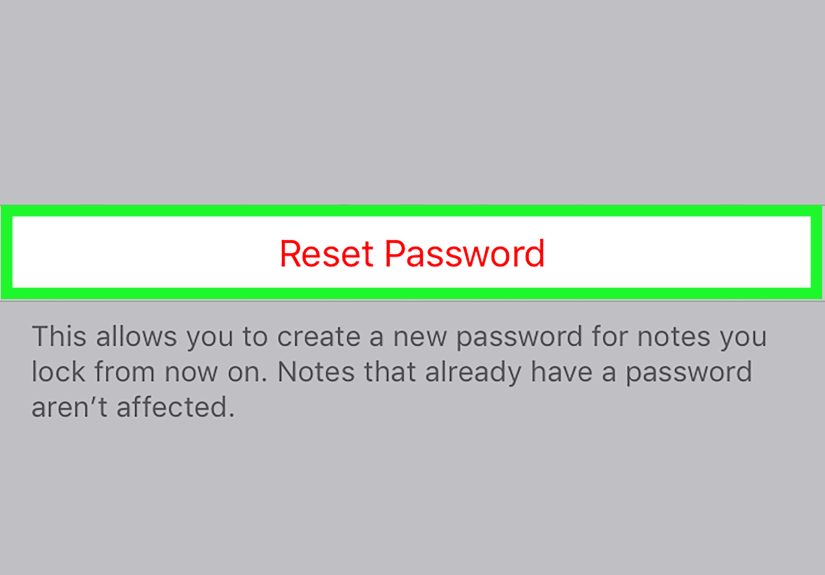
- Tap Reset Password.
- Enter your Apple Account (Apple ID) password when prompted.
- Confirm Reset Password again.
- Choose your new locking approach:
- Use Device Passcode (recommended for most people)
- or Enter a new Notes password + hint
- Tap Done.
Method B: Reset in Settings (older iOS layout)
- Open Settings.
- Scroll to Notes.
- Tap Password.
- Select the account (like iCloud or On My iPhone), if prompted.
- Tap Reset Password.
- Follow prompts to authenticate (you may be asked for your Apple ID password and/or device passcode).
- Create your new password (or switch to device passcode), add a hint, and tap Done.
Pro tip: When you reset, choose a hint that helps future you but doesn’t help random people.
“It’s my dog’s name” is basically a gift basket for anyone who’s seen your camera roll.
What Happens After You Reset (And Why Your Old Notes Still Won’t Open)
Resetting creates a “new lock,” not a “time machine”
After you reset your password, Notes will use the new password or method for any notes you lock going forward.
Notes that were already locked stay locked with whatever they were locked with originally.
You might have multiple Notes passwords floating around
If you reset more than once over the years, you can end up with notes locked under different passwords.
The Notes app can’t always tell you which password goes with which note from the list view. Instead, it prompts you
when you try to open a noteand if you enter the “current” password but the note expects the “old” one, you’ll get an error.
If you eventually remember the old password, you can “upgrade” old notes
If you open an older note using the older password, you may get an option to update that note to your current password/method.
This is the smoothest way to consolidate and stop living a multi-password lifestyle.
How to Switch from a Notes Password to iPhone Passcode (Recommended)
Using your iPhone passcode for locked notes is often the best user experience:
one passcode, Face ID/Touch ID support, and fewer “wait, what was my Notes password in 2019?” moments.
Steps to switch to device passcode
- Open Settings → Notes (or Settings → Apps → Notes).
- Tap Password.
- Select your Notes account (if you have multiple).
- Choose Use Device Passcode.
- Authenticate with Face ID / Touch ID, or enter your previous Notes password.
If you don’t see the option to use device passcode, check your iOS version and settings. Some features require newer OS versions.
Also, iCloud Keychain may need to be enabled for passcode-based locking to work properly for iCloud notes.
Troubleshooting: Common “Why Is My iPhone Doing This?” Situations
“Reset Password” is missing
- Make sure you’re in the correct account (iCloud vs On My iPhone).
- Update iOS if your device is behindsome options appear only on newer versions.
- If your notes are stored in a non-Apple account (like some IMAP email accounts), note-locking may not be supported.
Face ID stopped working for locked notes
Notes may require you to enter the Notes password again after changes to biometric settings. If Face ID was disabled,
re-enabled, or your face/fingerprint data changed, Notes can get cautious and ask for the password.
When in doubt: go to Notes password settings and re-check whether Face ID/Touch ID is enabled for Notes.
“I reset the password, but my old note still won’t open”
That’s expected. Resetting doesn’t decrypt previously locked notes. Your best options are:
- Try Face ID/Touch ID if it still works
- Try old passwords you might have used
- Look at your password hint (if you set one)
- If you eventually unlock it, update the note to your current lock method
“My locked notes are synced, but one device can’t open them”
If you’re using device passcode locking, each device uses its own passcode/login to unlock those notes. That’s normal.
But older OS versions may not support opening notes locked with newer methods. If one device is outdated, it may fail to open them.
Security Tips So You Don’t Have to Google This Again in Six Months
- Use device passcode locking when possible (less to remember, still secure).
- Pick a hint you’ll understand laternot a clue that helps other people guess.
- Consider a password manager for your custom Notes password (if you use one).
- Audit your locked notes: open older ones when you remember the password and update them to your current method.
FAQ: Resetting Password for Locked Notes on iPhone
Can Apple unlock my locked notes if I forgot the password?
No. Apple can help you reset the password for future notes, but they can’t unlock notes you already locked if you no longer
have the password (and can’t authenticate with Face ID/Touch ID).
Will resetting Notes password delete my notes?
Resetting the Notes password doesn’t delete notes. It changes how you lock notes going forward. Existing locked notes stay locked.
Is using iPhone passcode for Notes less secure than a custom password?
Not automatically. Your iPhone passcode (especially an alphanumeric passcode) plus Face ID can be very strong.
A custom password can add separation, but it also increases the odds you’ll forget it. Security that you can’t use is… mostly vibes.
Can I lock every note automatically?
Locked notes must typically be locked manually. Think of it as choosing which notes are “vault notes” rather than turning Notes into a bunker.
Conclusion
Resetting your password for locked notes on an iPhone is straightforward once you know where Apple hid the option this year.
The main thing to remember is the trade-off: Apple takes locked notes seriously, so resetting helps you move forward,
but it won’t unlock what was locked before. If you can still get in with Face ID/Touch ID, open those notes and update them.
If not, treat it as a lesson in future-proofing: simpler lock methods, better hints, and a plan you’ll actually remember.
Bonus: Real-World Experiences (The Password Hall of Fame + What Actually Works)
After helping friends, family, and the occasional coworker who whispers “Hey… don’t tell anyone I forgot my Notes password,”
I’ve noticed a pattern: nobody forgets their password on a calm Tuesday. It’s always during travel, a phone upgrade,
or five minutes before an important appointment when you suddenly need that one locked note titled “Taxes (Do Not Open).”
The most common story goes like this: someone set a custom Notes password years ago, enabled Face ID, and then lived happily ever after…
until Face ID stopped working for Notes after a big iOS update or a settings change. Suddenly Notes is like, “Great seeing you again.
Please type the password from 2018.” That moment is when people learn that Face ID is convenient, but it isn’t meant to be your
only lifeline. If you’re reading this while Face ID still opens your locked notes, consider that your friendly warning:
open your most important locked notes now and update them to your current lock method while you still can.
Another real-world classic: the “two accounts, two passwords” surprise. Users lock notes in iCloud, then later also lock notes “On My iPhone,”
and assume it’s all one system. It’s not always. The reset you did may apply to the local account while your iCloud notes are still asking
for a different password. The fix is boring but effective: go into the Notes password settings and check which account you’re editing.
When people finally pick the right account, they look at their phone like it personally betrayed themwhen really it was just being organized
in an unhelpful way.
I’ve also seen people reset their Notes password five times in a row because they’re convinced “reset” means “recover.”
I wish. If “Reset Password” unlocked old notes, half the internet would celebrate, and the other half would panic.
The design is intentional: if you lose the old password and can’t authenticate, those notes are effectively sealed.
So the best practical approach isn’t heroicsit’s prevention.
Here’s what works in real life: switch to device passcode locking if your iPhone is already protected with a strong passcode
and you trust Face ID/Touch ID. It reduces the number of secrets you have to remember, which lowers the chance you’ll lock yourself out.
Then, set a calendar reminder once a month (or once a quarter if you’re busy living) to open your most important locked notes.
If anything is locked under an ancient password, unlock it while you can and update it. This “maintenance” takes five minutes and can save
you from the dramatic, sweaty experience of trying every password you’ve ever used while questioning your entire digital existence.
Finally, a small but mighty experience-based tip: treat password hints like labels on a lunch in the office fridge.
Too vague and it’s useless (“It’s a word you know!”), too specific and it’s basically an invitation (“My dog’s name!”).
A good hint is something only you would understand, preferably tied to a memory you won’t forget. Your future self will thank you.
And if your future self doesn’t thank you, at least your Notes will remain securewhich is exactly the point.