Table of Contents >> Show >> Hide
- Where Samsung Galaxy Deleted Files Usually Go First
- How to Restore Media from Samsung Gallery Trash
- How to Recover Files from Samsung My Files Trash
- How Long Do Deleted Files Stay in Samsung Trash?
- What to Do If Samsung Trash Is Empty
- How to Restore Media from Samsung Cloud Backup
- How to Use Smart Switch Backup to Recover Files
- Can You Recover Permanently Deleted Files on Samsung?
- Best Practices to Prevent Losing Media Again
- Real-World Recovery Experiences and Lessons Learned
- Conclusion
Deleting a photo by accident on a Samsung Galaxy phone can feel like watching your lunch fall face-down on the sidewalk: tragic, avoidable, and somehow extra painful. The good news is that many deleted photos, videos, screenshots, audio clips, and downloaded files are not gone immediately. On Samsung Galaxy devices, there are several built-in places where deleted media may wait politely for you to change your mind. And if your files were synced to Google Photos, OneDrive, Google Drive, Dropbox, or another cloud service, you may still have a second chance.
This guide walks you through exactly how to recover trash files on a Samsung Galaxy phone, restore media from the Gallery app, recover files from My Files, and check backup services when the local Trash is empty. We will also cover what to do when your deleted content seems permanently gone, how to improve your odds of recovery, and the real-life habits that save people from digital heartbreak.
Where Samsung Galaxy Deleted Files Usually Go First
Before you panic-download ten sketchy “miracle recovery” apps with logos that look like they were designed at 2 a.m., start with the obvious places. Samsung phones often route deleted items to app-specific trash folders rather than wiping them instantly. That means your best recovery method depends on where the file originally lived.
- Photos and videos: usually in Gallery Trash
- Downloads, documents, audio, ZIP files, and random clutter you swore you still needed: usually in My Files Trash
- Cloud-synced media: may also be recoverable from Google Photos, OneDrive, Google Drive, Dropbox, or Lightroom
- Backed-up device content: may be restorable through Samsung Cloud or a Smart Switch backup
That is the golden rule: always check the original app first, then the cloud copy, then the backup. In data recovery terms, that is the difference between “Whew, got it back” and “I should have listened when people told me to back things up.”
How to Restore Media from Samsung Gallery Trash
If you deleted photos or videos from the Samsung Gallery app, this should be your first stop. It is the quickest and most likely fix for recently deleted media.
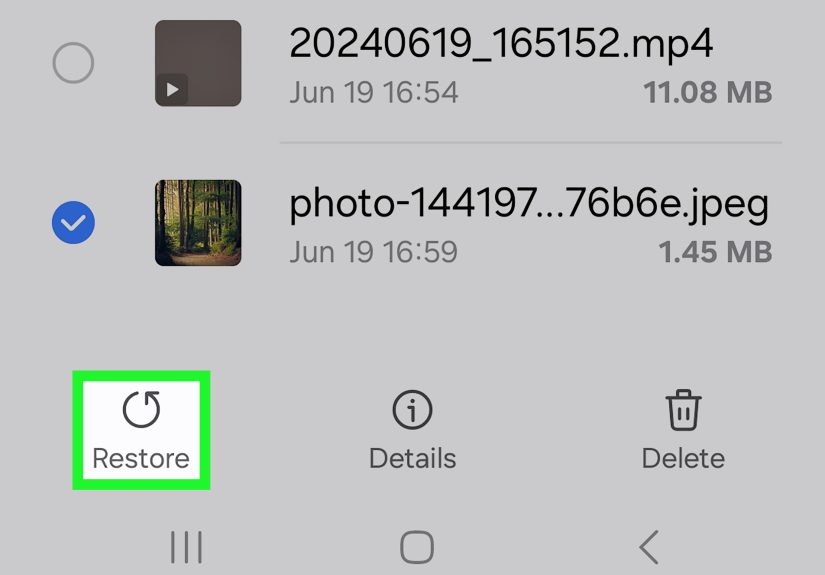
Steps to recover deleted photos and videos in Gallery
- Open the Gallery app.
- Tap the Menu icon.
- Select Trash.
- Tap Edit if needed.
- Select the photos or videos you want back.
- Tap Restore.
Once restored, the media usually returns to your Gallery library and is no longer treated like it is serving time in digital jail. This is the simplest solution when you are trying to recover deleted pictures on Samsung or restore videos removed by mistake.
If you regularly delete duplicate screenshots, blurry selfies, or twelve versions of the same sunset, Gallery Trash is your best friend. Samsung devices commonly keep manually deleted items in trash for a limited time, so speed matters. The longer you wait, the greater the chance the item is automatically removed for good.
When Gallery recovery works best
Gallery Trash is ideal when:
- You deleted the media from Samsung Gallery, not a third-party app.
- The deletion happened recently.
- You have not already emptied Trash manually.
- The file was stored locally on the device or shown in Gallery from synced storage.
If the photo is not there, do not assume it is gone forever. It may still be sitting in another service, looking smug.
How to Recover Files from Samsung My Files Trash
Samsung’s My Files app handles more than photos. It stores and organizes downloads, PDFs, audio clips, documents, APK files, compressed folders, and other digital odds and ends. If you deleted something from there, check its Trash next.
Steps to restore deleted files in My Files
- Open the My Files app.
- Scroll to Trash under Utilities.
- Touch and hold the file you want to recover.
- Tap Restore.
This is the best path for recovering deleted media files on Samsung when the file was not part of your main photo library. Think downloaded videos, voice recordings copied into folders, shared files from messaging apps, and that random PDF boarding pass you definitely needed yesterday.
Samsung also gives deleted files in My Files a grace period before they are permanently erased. So if you need to recover trash files on Samsung Galaxy, act quickly and check here before doing anything dramatic.
Files commonly found in My Files Trash
- Downloaded images and videos
- Documents such as PDF, DOCX, and TXT
- Audio files and recordings
- Archives such as ZIP or RAR
- App installers and miscellaneous file types
If your missing file does not show up in Gallery, it may be here instead. Samsung loves categories. Your missing file may simply be in the wrong party.
How Long Do Deleted Files Stay in Samsung Trash?
On many Samsung Galaxy devices, manually deleted files in apps such as My Files and Gallery are automatically deleted after about 30 days. That means your recovery window is real, but it is not forever. Trash is more like a waiting room than a retirement home.
If you are reading this because you deleted something today, excellent. You still have a solid chance. If you deleted it five weeks ago and emptied every bin in sight, your options become more limited and shift toward backups and synced cloud accounts.
What to Do If Samsung Trash Is Empty
This is the part where people assume the worst. But an empty Trash does not always mean the file is dead and gone. It often means the file was backed up somewhere else. On Samsung phones, that “somewhere else” is frequently one of the following services.
1. Check Google Photos
If your Samsung phone was backing up pictures and videos to Google Photos, open the app and check its Trash. Google Photos may keep deleted media longer than the local phone app in some cases, especially when backed-up content is involved.
- Open Google Photos.
- Tap Collections or navigate to Trash.
- Select the photo or video.
- Tap Restore.
This is one of the most useful ways to recover deleted photos on Samsung when the file vanished from Gallery but still existed in your Google backup. If you use Google Photos regularly, check here before assuming the universe has chosen violence.
2. Check Google Drive
If the missing item is a document, shared image, video file, or exported media saved to Google Drive, open the Drive app and inspect Trash.
- Open Google Drive.
- Open the side menu and tap Trash.
- Find the file.
- Tap Restore.
This is especially useful for school files, work documents, shared folders, and media you intentionally uploaded to Drive to free local storage.
3. Check Files by Google
Some Samsung users manage downloads and storage with Files by Google instead of Samsung My Files. If that is you, open the app and check Trash. Files moved there can be restored directly from within the app.
One important detail: files deleted through certain cleanup tools may be permanently removed instead of being moved to Trash. So if you used a “junk files” cleanup card and your media vanished, that particular shortcut may have skipped the safety net.
4. Check OneDrive if Gallery Sync Was Enabled
Samsung offers Gallery sync with OneDrive, and many Galaxy owners enable it without thinking much about it until the day disaster strikes. If your Gallery was synced, your missing photos or videos may still be recoverable from OneDrive’s recycle bin or from the synced album itself.
Open OneDrive, check your photo folders, then check the Recycle Bin. For personal accounts, deleted files are commonly retained there for a limited period, giving you another opportunity to restore them.
5. Check Dropbox or Adobe Lightroom
If you edit photos, organize media for work, or use cloud storage across multiple devices, your files may be safer than you think. Dropbox allows restoration of deleted files and version history through its web interface. Adobe Lightroom also offers a deleted area where recently deleted photos can often be restored within its own retention period.
These are not the first places casual users think to check, but for creators, freelancers, students, and anyone with a cluttered digital life, they can be life savers.
How to Restore Media from Samsung Cloud Backup
If the file is gone from Trash but your phone data was backed up, Samsung’s backup tools may still help. Samsung Cloud is designed for device backup and restore, and it can bring back supported content from an earlier backup set.
Steps to restore from Samsung Cloud
- Open Settings.
- Tap your Samsung account.
- Open Samsung Cloud.
- Tap Restore data.
- Select the backup and the content type you want to restore.
- Tap Restore.
This option is especially helpful after accidental deletion, phone reset, device replacement, or software trouble. It is less like picking one photo out of the trash and more like rewinding to an earlier safety checkpoint.
The catch, of course, is that a backup must exist. Backups are wonderful that way: incredibly useful when you have them, deeply philosophical when you do not.
How to Use Smart Switch Backup to Recover Files
If you previously connected your Galaxy phone to a PC or Mac and created a backup with Samsung Smart Switch, you may be able to restore lost media from that backup.
Restore with Smart Switch
- Connect your Samsung Galaxy phone to your computer with a USB cable.
- Open Smart Switch on the computer.
- Click Restore.
- Select the backup data you want to restore.
- Complete the on-screen instructions.
This is one of the strongest recovery methods for users who make local backups before upgrades, repairs, or phone transfers. It is also useful when the file is no longer available in Gallery Trash, My Files Trash, or cloud services.
Can You Recover Permanently Deleted Files on Samsung?
Sometimes yes, but not reliably with built-in tools. Once a file is removed from Trash and not present in a cloud recycle bin or backup, recovery becomes much more uncertain. Official support pages across major services are very consistent on this point: once an item is permanently deleted from the service’s recovery area, it may not be restorable through normal in-app methods.
So if your media is permanently deleted from Samsung Trash, missing from Google Photos, absent from Drive, and not included in a backup, your built-in recovery options become thin. At that stage, many users look into specialist recovery software or professional services, but success varies and there are no guarantees.
The best strategy is not heroic recovery after the disaster. It is boring preparation before the disaster. Annoying advice, yes. Also correct.
Best Practices to Prevent Losing Media Again
Once you recover your files, do future-you a favor.
Turn on multiple safety nets
- Enable Google Photos backup for photos and videos.
- Enable Samsung Cloud or device backup where available.
- Use OneDrive Gallery sync if that fits your workflow.
- Create an occasional Smart Switch backup on your computer.
Do a monthly cleanup with your brain fully turned on
Mass-deleting hundreds of files while sleepy, rushed, or emotionally offended by your storage warning is how people end up recovering wedding pictures at midnight.
Label important folders
If you store videos, voice notes, client media, or family archives in custom folders, give them clear names so they are easier to spot in My Files and cloud backups.
Check sync settings after every major update or phone switch
Many users assume backup is still running when it quietly is not. A new device, account change, or app reinstall can disrupt sync without much drama. Which is rude, frankly.
Real-World Recovery Experiences and Lessons Learned
Here is what often happens in the real world. A person deletes a few blurry pictures from the Gallery app, gets a little too confident, selects a whole batch, and accidentally sends half of their weekend trip into Trash. At first they assume everything is gone. Then they open Gallery Trash and realize the phone was not trying to sabotage them after all. One tap later, the photos return, along with their blood pressure.
Another common experience involves files that never touched Gallery in the first place. Someone downloads a video, saves a PDF ticket, grabs a voice note, and later deletes it from a folder in My Files while cleaning storage. Hours later, panic. But because the deletion happened inside Samsung’s file manager, the missing item is often still sitting in My Files Trash. It feels like a magic trick, but it is really just good design meeting user panic halfway.
Then there is the cloud-sync surprise. Many Samsung Galaxy users forget they turned on Google Photos or OneDrive months ago during setup. They think a deleted picture is gone because it vanished from Gallery, only to discover it is still in Google Photos Trash or safe in OneDrive. These are the happiest recovery stories because the backup already existed before the mistake happened. No heroics required.
There are also harder cases. Some users empty Trash manually because they are trying to free up storage fast. Others use cleanup tools without realizing certain actions can permanently delete junk files rather than moving them into Trash. In those situations, recovery becomes more limited and depends heavily on whether a cloud copy or backup exists. That is the moment people learn the difference between “deleted” and “permanently deleted,” and it is not usually a fun lesson.
People who have the best outcomes tend to share the same habits. They use at least one cloud photo service. They occasionally back up the whole device. They do not rely on memory to know whether sync is turned on. And they check Trash before downloading questionable recovery apps that promise to bring back everything short of their middle school science fair project.
The most practical lesson is simple: recovery on Samsung Galaxy is often easy when you know where to look. Gallery for photos and videos. My Files for documents and downloads. Google Photos for backed-up media. Google Drive for uploaded files. OneDrive for synced albums. Samsung Cloud and Smart Switch for broader backup recovery. The process feels confusing only when users assume there is one universal trash can for everything. There is not. Samsung recovery is more like a neighborhood of bins, lockers, and backup closets. Once you know the map, it becomes much easier to find what you lost.
So if you accidentally deleted your media, take a breath, stop randomly tapping, and work through the recovery options in order. Most of the time, the file is not gone; it is just waiting in the least convenient place possible.
Conclusion
If you need to recover trash files on a Samsung Galaxy phone, start with the built-in tools that are already on your device. Gallery Trash is the go-to place for deleted photos and videos, while My Files Trash is best for downloaded media, documents, and audio files. If those are empty, move on to Google Photos, Google Drive, Files by Google, OneDrive, or other synced services. And if you previously backed up your device, Samsung Cloud and Smart Switch can give you another path to recovery.
The key is acting fast, checking every likely recovery layer, and setting up better backup habits once your files are back. Because recovering deleted media is satisfying, but not needing to recover it in the first place is even better.