Table of Contents >> Show >> Hide
- Step 1: Pick Your “Outlook HQ” and set your defaults
- Step 2: Make the inbox readable before you make it fancy
- Step 3: Build a lightweight folder structure (3–7 folders max)
- Step 4: Use Categories as your universal labeling system
- Step 5: Create Rules that do the boring sorting for you
- Step 6: Build Quick Steps for one-click workflows
- Step 7: Turn emails into tasks (without rewriting them)
- Step 8: Use Search Folders to see what mattersfast
- Step 9: Clean up threads with Ignore and Conversation Clean Up
- Step 10: Run your week from the Calendar (time blocking + categories)
- Step 11: Optimize Outlook mobile for fast triage
- Putting it all together: a simple daily workflow
- 500+ Words of Real-World “Outlook Organization” Experiences (the kind people actually live through)
- Conclusion
Outlook is either your trusty personal assistant… or the loudest roommate you’ve ever had. It remembers everything, interrupts constantly, and somehow collects 4,000 “quick questions” while you’re away making coffee.
The good news: you don’t need a productivity PhD to organize yourself using Microsoft Outlook. You just need a system that’s simple enough to stick with and smart enough to do the boring parts for you. Below are 11 practical steps to turn Outlook into a calm command centermail, calendar, and tasks includedwithout going full “folder-hoarder.”
Step 1: Pick Your “Outlook HQ” and set your defaults
Outlook exists in multiple flavors (classic desktop, new Outlook for Windows, Outlook on the web, and mobile). Features overlap, but the buttons sometimes play hide-and-seek. The trick is to pick one “home base” where you do most of your organizing, then keep the others optimized for quick actions (reading, replying, scheduling).
Do this today
- Choose your HQ: usually desktop (heavy organizing) + mobile (quick triage).
- Decide how you’ll process mail: folders-first, categories-first, or a hybrid.
- Set a default behavior: archive vs delete, conversation view on/off, reading pane layout.
Think of this step as choosing where you’ll “meal prep.” You can cook in a hotel microwave, but you’ll be happier if you have one main kitchen.
Step 2: Make the inbox readable before you make it fancy
Organization fails when your inbox feels like a junk drawer full of fireworks. Before rules, folders, or color labels, make your message list easy to scan so your brain can stop sprinting.
Inbox settings that reduce chaos
- Focused Inbox (optional): If your inbox is a firehose, Focused Inbox can separate “likely important” messages from the rest. If it annoys you, turn it off and rely on rules and categories.
- Conversation view (optional): Great for threads, terrible for people who like everything flat. Use it if you live in email chains. Skip it if you live in fear of the “expand all” triangle.
- Conditional formatting (power move): Make key senders or subjects visually pop so you don’t miss them. It’s like giving your inbox a highlighterwithout licking the marker.
Your goal here is a message list you can read in five seconds. If you can’t scan it quickly, you’ll either ignore it or doom-scroll it. Neither is the vibe.
Step 3: Build a lightweight folder structure (3–7 folders max)
Folders are useful, but too many folders turn Outlook into a filing cabinet you never open. A good folder system is small, obvious, and doesn’t require emotional labor.
A simple folder set that works for most people
- Action (needs you to do something)
- Waiting (you’re waiting on someone else)
- Reference (info you may need later)
- Receipts / Admin (bills, confirmations, HR, etc.)
- Projects (optional: one folder, not 47 subfolders)
If you’re thinking, “But I have 19 projects,” that’s exactly why you should not create 19 folders. Use categories for projects and keep folders for workflow stages.
Rule of thumb
If you can’t explain what a folder is for in one sentence, it’s probably a “panic folder.” Panic folders breed more panic folders. It’s Outlook biology.
Step 4: Use Categories as your universal labeling system
Categories are one of Outlook’s most underrated organization tools because they work across mail, calendar items, and (depending on setup) tasks. A folder tells you where something lives; a category tells you what it is.
Try this category set
- Action (requires work)
- Waiting (pending response)
- Deep Work (requires focus time)
- Finance (invoices, receipts)
- Project: [Name] (use a consistent prefix)
Make categories actually useful
- Limit the palette: too many colors becomes confetti, not clarity.
- Name categories like actions: “Waiting” beats “Blue.”
- Use the same categories on calendar blocks: so your week visually makes sense.
Categories are how you stop treating email like a pile and start treating it like a system. Also, color-coding your calendar is weirdly satisfying. Like adult sticker charts.
Step 5: Create Rules that do the boring sorting for you
If you’re manually moving the same type of email every day, you’re basically doing unpaid robot work. Outlook rules are how you outsource that job to, well… Outlook.
Three high-impact rules (with examples)
- Newsletters → Read Later
Condition: sender contains “newsletter@” or subject contains “unsubscribe”
Action: move to “Reference” (or a “Read Later” folder), optionally mark as read. - Boss / Key clients → Flag or categorize
Condition: from “[email protected]” or domain “@bigclient.com”
Action: categorize “Action,” optionally flag for follow-up. - Receipts / invoices → Finance
Condition: subject contains “invoice,” “receipt,” “order confirmation”
Action: move to “Receipts / Admin,” categorize “Finance.”
One important warning
Don’t create rules that hide messages you should actually see. Start with rules that move low-stakes mail (newsletters, automated notifications), then expand slowly. Your future self will thank you.
Step 6: Build Quick Steps for one-click workflows
Rules are automatic. Quick Steps are semi-automaticperfect for repeat actions that still require a human decision. If you do the same 3–4 clicks multiple times a day, Quick Steps turn them into a single click.
Quick Steps worth stealing
- “File + Done”: move to Reference, mark as read.
- “Delegate”: forward to a teammate, CC yourself, categorize as Waiting, then move to Waiting folder.
- “Schedule Reply”: snooze the email (if available in your version) or flag it for tomorrow.
- “Meeting Mode”: create a calendar event from the email + reply with proposed times.
Quick Steps are the closest thing Outlook has to a “make it someone else’s problem” buttonethically, of course.
Step 7: Turn emails into tasks (without rewriting them)
The fastest way to feel “unorganized” is to keep tasks trapped inside emails. Outlook gives you a few ways to convert “this needs action” into an actual to-do listwithout copying and pasting like it’s 2009.
Use flags as task triggers
- Flag emails you must act on (today, tomorrow, this week).
- Mark complete when done so your task list stays clean.
- Keep flagged items visible (Tasks pane / My Day / To Do, depending on Outlook version).
Best practice
Use flags for “I must do something,” and use categories for “what kind of thing is this.” A flagged email with the category “Waiting” is basically a tiny productivity superhero.
Step 8: Use Search Folders to see what mattersfast
Search Folders are like smart views. They don’t move anything; they just show you a filtered window into your mail. That means you can keep your folder structure small while still seeing “everything that matters” in one click.
Search Folder ideas
- Unread mail (for quick catch-up)
- Flagged for follow-up (your email-driven task list)
- From VIPs (boss, clients, direct reports)
- Category: Action (everything labeled Action across folders)
If your organization style is “I’ll just search for it,” Search Folders are your way of doing that on purpose instead of as a last resort.
Step 9: Clean up threads with Ignore and Conversation Clean Up
Group emails can multiply like gremlinsespecially if someone replies-all with “Thanks!” at 11:47 PM. Outlook has tools to reduce the noise without you becoming the office villain.
Two thread-taming tools
- Ignore: stops future messages in a conversation from cluttering your inbox. Great for threads you truly don’t need.
- Conversation Clean Up: removes redundant messages in a thread (like older copies of quoted text). Great when a conversation has turned into a novel.
Use these carefully. They are powerful. Like a leaf blower. Indoors.
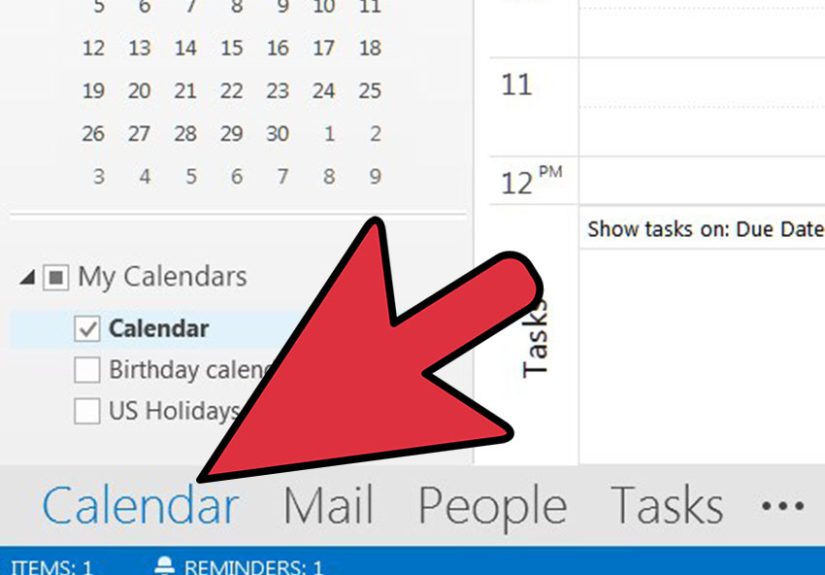
Step 10: Run your week from the Calendar (time blocking + categories)
Inbox organization helps you react better. Calendar organization helps you live better. If everything is “urgent,” nothing is. The calendar is where you protect time for real work.
Time-blocking basics in Outlook
- Block focus time like you would schedule a meeting.
- Make it recurring (e.g., 9:00–11:00 AM Mon–Thu for deep work).
- Add reminders for tasks that always slip (weekly review, expense reports, planning).
- Color-code blocks using the same categories you use in email.
A realistic example week
- Mon 9:00 AM: Weekly planning (Category: Deep Work)
- Daily 11:30 AM: Email processing batch (Category: Admin)
- Tue/Thu 2:00 PM: Project time block (Category: Project: Phoenix)
- Fri 4:00 PM: Wrap-up + inbox cleanup (Category: Admin)
If you don’t schedule time for important work, your inbox will happily schedule it for you. Spoiler: your inbox is bad at calendaring.
Step 11: Optimize Outlook mobile for fast triage
On mobile, you’re not building the systemyou’re maintaining it. The goal is quick decisions: archive, delete, flag, schedule, or reply. Outlook mobile shines when swipes are set up correctly.
Set swipe actions you’ll actually use
- Swipe right: Archive (or Delete, if you’re brave)
- Swipe left: Flag (or Schedule/Snooze, if that helps you)
Mobile habits that keep you organized
- Process in bursts: 2–5 minutes, not 45 minutes of thumb-typing misery.
- Flag first, reply later: if you can’t answer well on mobile, flag/snooze it.
- Archive aggressively: your inbox is not a museum exhibit.
Putting it all together: a simple daily workflow
- Morning (10 minutes): scan Focused/priority mail, flag real tasks, archive the rest.
- Midday (10 minutes): process newsletters/low-priority, run Quick Steps, update Waiting.
- End of day (10 minutes): clear loose ends, confirm tomorrow’s calendar blocks, tidy the inbox.
The magic isn’t in doing more email. It’s in doing less email on purpose.
500+ Words of Real-World “Outlook Organization” Experiences (the kind people actually live through)
Let’s talk about what this looks like outside of perfect productivity blog-landwhere every inbox is empty, every meeting ends early, and nobody emails you “Following up on my last follow-up.” In real life, Outlook organization usually starts the same way: someone opens their inbox, sees a number that looks like a national debt, and quietly considers changing careers to alpaca farming.
One common pattern is the Folder Spiral. A person starts with good intentions: “I’ll create folders for each project.” Two weeks later, they have 38 folders, 12 half-built rules, and a mysterious “Misc (TEMP)” folder that has become the email equivalent of that chair in the bedroom where clothes go to think about their choices. The fix isn’t more foldersit’s fewer folders plus categories. When people switch to labeling emails by project (Category: Project: X) while keeping folders reserved for workflow stages (Action, Waiting, Reference), they stop “filing” and start “finding.”
Another classic experience is the Reply-Later Mirage. Someone reads an email, thinks, “I’ll reply after lunch,” and then that email sinks into the inbox like a rock in a lake. Three days later, it resurfaces as a panic memory at 10:30 PM. This is where flags and To Do integration feel like cheating. The moment people start flagging messages that require actionand actually reviewing the flagged list daily “reply later” transforms from a wish into a plan. The inbox becomes a place where messages arrive, not where obligations go to hide.
There’s also the Meeting Avalanche experience. Your calendar fills up, and somehow the only open time left is “never.” People try to manage this by working “in the cracks,” which basically means doing deep work while being interrupted every eight minutes. The organizations (and individuals) who do best in Outlook tend to treat time blocks like real appointments. They’ll create recurring focus blocks, color-code them, and protect them with the same intensity they’d protect a meeting with a VIP. It’s not about being rigidit’s about making your week visible. When you can see that Tuesday morning is “Deep Work” and Wednesday afternoon is “Admin,” you stop pretending you can do everything anytime.
A surprisingly emotional moment for many people is discovering Quick Steps. Not because it’s glamorous, but because it removes tiny daily annoyances that quietly drain energy. For example: a team lead who constantly forwards emails to a project alias, categorizes them, and moves them into a project folder can compress that workflow into a single click. After a week, they often describe it the same way: “I didn’t realize how much friction I was tolerating.” Outlook organization is frequently less about grand strategy and more about removing repetitive micro-pain.
Finally, there’s the Weekly Reset experience. People who stay organized in Outlook usually have one small ritual: a weekly review. They spend 20–30 minutes clearing junk, updating rules that are misbehaving, scanning the Waiting folder, and checking flagged tasks. It’s not exciting. It’s also the reason their Monday morning doesn’t start with inbox dread. If Outlook organization had a secret sauce, it would be this: a system you maintain a little, consistently, instead of rebuilding dramatically every time things fall apart.
If any of these experiences sound familiar, you’re not “bad at email.” You’re just missing a system that matches how humans actually work: we need fewer decisions, clearer priorities, and a place for tasks to live that isn’t the middle of an inbox pile. Outlook can do thatonce you teach it how.
Conclusion
Organizing yourself using Microsoft Outlook isn’t about achieving mythical “Inbox Zero” perfection. It’s about building a workflow where email, tasks, and your calendar work togetherso you spend less time managing messages and more time doing the work those messages are actually about.
Start small: clean up your view, create a few categories, add 2–3 rules, and build one Quick Step you’ll use daily. Then protect your time with calendar blocks and keep tasks visible with flags/To Do. In a week, Outlook will feel less like a chaotic group chat and more like a control panel.