Table of Contents >> Show >> Hide
- What Roblox Voice Chat Is (and Why It’s Not “Just a Mic”)
- Before You Start: The Three Big Requirements
- What Changed Recently (and Why It Matters in 2026)
- Without ID Method #1: Enable Voice Chat Using Phone Verification
- Without ID Method #2: Use Facial Age Estimation (Age Check)
- With ID Method: Verify Your Age Using Government ID
- Turn Voice Chat On (Works for All Methods)
- Make Sure the Experience Supports Voice Chat
- Troubleshooting: Voice Chat Not Showing, Not Working, or Nobody Can Hear You
- Safety, Privacy, and “Am I Being Recorded?”
- FAQ: Quick Answers That Save You a Headache
- Real-World Experiences: What It’s Like Once You Turn VC On (500+ Words)
- Conclusion
Roblox Voice Chat is one of those features that feels like a “secret level” until the day it suddenly appears in your settings. One minute you’re typing “brb” like it’s 2009, and the next minute you’re saying, “Okay team, I’m going left,” like you’re in a heist movie… except the heist is stealing a virtual hamburger.
But Voice Chat also comes with rules, verification requirements, and a few common “Why is my mic icon mocking me?” problems. This guide walks you through the official ways to get Roblox Voice Chat with ID and without IDplus troubleshooting, safety tips, and what it’s actually like once you turn it on.
What Roblox Voice Chat Is (and Why It’s Not “Just a Mic”)
Roblox Voice Chat lets players talk using their microphone inside supported experiences. In many games, it works like spatial (proximity) voice, meaning you typically hear people more clearly when they’re near your character and less when they’re far awaykind of like real life, except in real life you can’t mute your little cousin with one tap (tragic).
Developers choose whether to add Voice Chat to their experiences, so Voice Chat can be fully enabled on your account and still not work in a specific game if that game doesn’t support it. Translation: sometimes the problem isn’t you. Sometimes it’s the experience.
Before You Start: The Three Big Requirements
1) You must be 13+ (no exceptions)
Roblox Voice Chat is restricted to eligible users who are at least 13 years old. If an account is under 13, Voice Chat won’t show up, even if everything else looks correct.
2) You must verify eligibility (without ID or with ID)
Depending on where you live and what Roblox is rolling out in your region, you may qualify through one of these official methods:
- Phone number verification (available in many countries for eligible 13+ users)
- Facial age estimation (an “age check” using a video selfie)
- Government ID verification (passport, driver’s license, residency card, etc.)
Important: “Without ID” does not mean “bypass the rules.” It means using Roblox’s legit alternatives (like phone verification or facial age estimation) when they’re available for your account and region.
3) Your device must allow microphone access
Even if Voice Chat is enabled in Roblox, it won’t work if your device blocks mic access. Think of this like trying to make a phone call with your phone on airplane modetechnically you’re holding a phone, but nobody’s hearing anything.
What Changed Recently (and Why It Matters in 2026)
Roblox has been tightening communication safety, including stronger age checks for chat features. In many places, you may see more prompts for “age checks” (facial age estimation) or other verification steps before chat features fully unlock. If your Voice Chat option seems to “randomly” disappear or never appears, it may be tied to regional rollouts and eligibility checks.
Without ID Method #1: Enable Voice Chat Using Phone Verification
If you’re 13+ and live in a supported country, Roblox may allow Voice Chat once your phone number is verified. This is one of the most common “no government ID” paths.
Step-by-step: Verify your phone number
- Log in to Roblox on the app or website.
- Go to Settings (gear icon).
- Find the area for account details / contact info and add your phone number.
- Enter the verification code Roblox sends to confirm the number.
Step-by-step: Turn Voice Chat on
- Go to Settings.
- Open Privacy and content restrictions.
- Go to Communication.
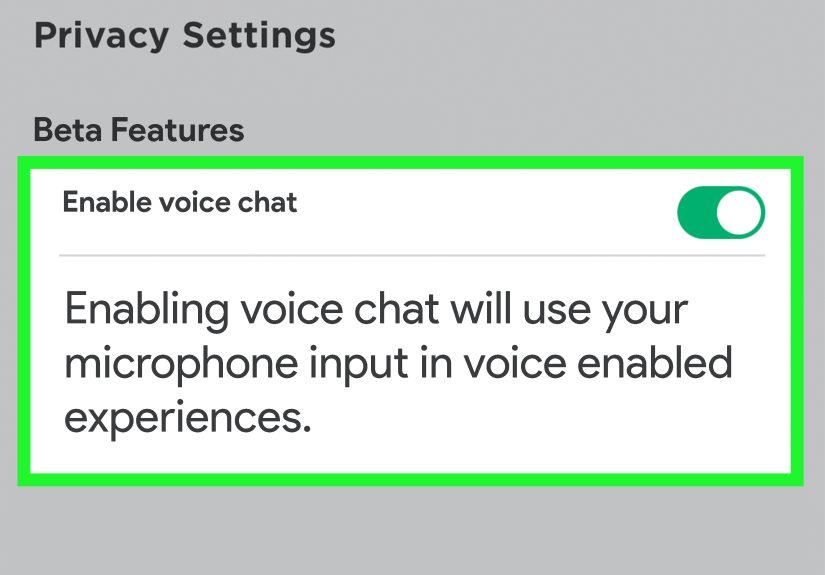
- Under Voice Chat, toggle Enable Microphone to ON.
If you don’t see the Voice Chat section after phone verification, it can mean (a) Voice Chat isn’t available in your region yet, (b) your account isn’t eligible, or (c) your account needs an age check method instead.
Without ID Method #2: Use Facial Age Estimation (Age Check)
If you don’t have a government ID available (or you simply prefer not to use it), Roblox may offer an age check option using facial age estimation. This typically involves taking a video selfie in the Roblox app so the system can estimate your age and place you into an age group.
What to expect
- You’ll use your device camera in the Roblox app.
- The system estimates your age to place you into an age bracket.
- If the estimate can’t be made confidently or seems wrong, Roblox may offer correction paths such as ID verification or parental consent options (depending on region and policy).
Why Roblox does this
The point is to keep communication safer by limiting who can chat with whom and reducing risky interactions between adults and minors. This is also why availability and requirements can differ by country and can change over time.
With ID Method: Verify Your Age Using Government ID
If phone verification or facial age estimation isn’t available for your account, or if you’re in a country where Voice Chat requires ID verification, the official route is government ID verification.
Accepted documents (examples)
- Driver’s license
- Passport
- Residency card (or similar government-issued photo ID)
Step-by-step: ID verification (official flow)
- Log in to Roblox.
- Go to Settings → Account Info.
- Find the option like Continue with ID (or similar wording).
- Follow the instructions to scan your ID (front and back if required).
- Take a selfie/photo when prompted so the system can match you to the ID.
- Wait for the result (this can take a few minutes).
Tip: If verification fails, double-check good lighting, a clean camera lens, and that your ID is fully in frame and readable. If it keeps failing, Roblox Support is the safest next steprandom “workarounds” from the internet are often scams or policy violations.
Turn Voice Chat On (Works for All Methods)
Once your account is eligible (phone verified, age checked, or ID verified), you still have to turn Voice Chat on. It’s not enabled by default.
Settings path (Mobile, Desktop app, Web)
- Open Roblox and go to Settings.
- Open Privacy and content restrictions.
- Go to Communication.
- Find Voice Chat and toggle Enable Microphone to ON.
Turning it on inside a voice-enabled experience
In some voice-enabled experiences, Roblox may prompt you for consent related to Voice Chat and voice recording (for moderation and safety). After that, your device may pop up a permission request for microphone access. Say “Allow,” or you’ll be voice-chatting with the power of pure silence.
Make Sure the Experience Supports Voice Chat
Even with everything enabled, Voice Chat only works in experiences that support it. Before you spend 45 minutes rage-clicking your settings, check the experience’s details. If Voice Chat is listed as supported, you should be good to go. If it’s not supported, your mic won’t appear because there’s nothing to connect it to.
Troubleshooting: Voice Chat Not Showing, Not Working, or Nobody Can Hear You
Problem: The Voice Chat toggle is missing
- Confirm you’re 13+ on the account.
- Confirm verification: phone verified, age checked, or ID verified.
- Region limitations: Voice Chat and verification methods can vary by region.
- Account eligibility: some features roll out gradually, so two friends can have different access even with similar settings.
Problem: You have Voice Chat, but your mic doesn’t work
- Check device permissions:
- Windows: Settings → Privacy & security → Microphone → allow access for Roblox (and the Roblox app).
- macOS: System Settings → Privacy & Security → Microphone → allow Roblox.
- iOS/Android: App permissions → Microphone → Allow.
- Check the correct input device: if your laptop has a built-in mic and you’re using a headset, your system might still be listening to the wrong one.
- Check mute states:
- Muted in the experience (mic icon shows muted).
- Muted in the operating system.
- Muted on the headset (yes, that tiny switch matters).
Problem: You can hear others, but they can’t hear you
- Re-check input device selection (most common culprit).
- Make sure your mic isn’t set to extremely low input volume.
- Leave and rejoin the experience after changing permissions (some devices only apply changes after restart).
- Try another voice-enabled experience to confirm it’s not a game-specific issue.
Problem: Voice Chat works in one experience, not another
- That’s usually normal. Developers can enable/disable voice, limit it to certain servers, or build special rules into their experiences.
- Some experiences may support voice but not in every mode or area (like certain lobbies or events).
Safety, Privacy, and “Am I Being Recorded?”
Voice Chat is fun, but it’s also a real-time communication toolmeaning it can be misused. Roblox includes safety tools like muting, blocking, and reporting. If someone is being toxic, spammy, or creepy, don’t “argue it into a happy ending.” Mute, block, report, move on.
Voice recording (what it’s for)
Roblox may record voice audio for safety and moderation, including handling abuse reports and improving automated detection. Roblox also states that voice recordings aren’t used for advertising or marketing, and that recordings may be deleted after a short retention period when no violations are reported or detected.
How to mute quickly
- Mute your own mic using the microphone icon inside the experience.
- Mute other users by clicking the speaker icon near their name/avatar (in supported experiences).
FAQ: Quick Answers That Save You a Headache
Can you get Roblox Voice Chat under 13?
No. Voice Chat is a 13+ feature. If your account is under 13, it won’t unlock.
Can you get Roblox Voice Chat without any verification?
Usually, no. Roblox requires eligibility checkscommonly phone verification, facial age estimation (age check), or ID verificationdepending on region and rollout.
Why do my friends have Voice Chat but I don’t?
Common reasons include different regions, different verification status, gradual rollouts, or simply that Roblox hasn’t enabled it for every eligible account at the same time.
Is Voice Chat available everywhere?
No. Voice Chat availability and verification methods can vary by country, region, and account eligibility.
Real-World Experiences: What It’s Like Once You Turn VC On (500+ Words)
Once you finally enable Voice Chat, the first thing you’ll notice is that Roblox feels more like a hangout and less like a comment section. Coordinating in a game becomes dramatically easier: instead of typing “follow me” while your character is getting launched into the stratosphere, you can just say it. That alone can make teamwork-heavy games feel smootherespecially in fast rounds where typing is basically an Olympic sport.
But the second thing you’ll notice is… people. Real people. With real voices. Which means the vibe can swing from “wholesome teamwork montage” to “someone chewing into their mic like it’s a podcast about crunchy chips.” In practice, Voice Chat is at its best when players treat it like a shared space: quick callouts, friendly reactions, and normal conversation. It’s at its worst when someone treats it like a stage and forgets everyone else is trying to play.
A common “first-day VC” experience is the awkward mic-check moment. You toggle your mic on, say “hello?” and then wonder if the game heard you or if you just whispered into the void. Many players end up doing a mini checklist: check the mic icon, check system permissions, check if the experience supports voice, check if you’re muted. After that, it usually clicksand when it does, it feels like unlocking an entirely new layer of the platform.
Another real pattern: Voice Chat tends to make friendships form faster, but it also makes boundaries more important. When you can talk instantly, it’s easier to share too much too quickly. The best habit is simple: keep personal info personal. Your real name, school, phone number, and location don’t need to be part of a Roblox conversation, even if someone seems “nice.” Nice is not a security setting.
Players also report that different experiences have totally different “VC cultures.” In some games, Voice Chat is mainly tactical: short, helpful callouts like “behind you” or “meet at spawn.” In others, it’s more social: people joking around, roleplaying, or reacting to goofy moments. And sometimes you’ll join a server where half the players are silent and the other half are narrating their entire life story. That’s where mute and block become your quality-of-life superpowers.
Voice Chat can also change how confident you feel while playing. If you’re shy, it can be intimidating at firstespecially if you’re worried you’ll sound “weird” or “too young” or “like you just woke up.” (Spoiler: lots of people sound like they just woke up. Gaming has no office hours.) The easiest way to ease in is to use Voice Chat only when you need it: a quick “gg,” a short callout, a simple answer. You don’t have to become the server DJ on day one.
Finally, there’s the “I enabled VC… now what?” moment. The best move is to test it in a voice-enabled experience with friends you already trust. You’ll learn the controls, your mic sensitivity, and how to mute quickly without panic-clicking every button like you’re defusing a bomb. Once you’re comfortable, Voice Chat becomes what it was meant to be: a tool that makes Roblox more connected, more cooperative, andwhen used wellway more fun.
Conclusion
Getting Roblox Voice Chat comes down to three things: being 13+, completing the right eligibility verification for your region (phone verification, facial age estimation, or ID verification), and turning the feature on in your Communication settings. After that, it’s about choosing voice-enabled experiences, allowing microphone permissions, and using safety tools like mute, block, and report when needed.
If your goal is Voice Chat “without ID,” stick to the official optionsphone verification where supported and facial age estimation where available. Not only is that safer, it also keeps your account in good standing so you don’t lose access later.