Table of Contents >> Show >> Hide
- What “YouTube History” Actually Includes
- Quick Reality Check: What Happens When You Disable History?
- How to Disable YouTube History: 13 Steps
- Step 1: Decide Your Goal (Pause, Clear, or Auto-Delete)
- Step 2: Pause Watch History in the YouTube Mobile App
- Step 3: Pause Search History in the YouTube Mobile App
- Step 4: Pause Watch History on YouTube Desktop
- Step 5: Pause Search History on Desktop (via History / My Activity)
- Step 6: Turn Off YouTube History at the Google Account Level (All Devices)
- Step 7: Clear Your Existing Watch History (Optional, but Satisfying)
- Step 8: Clear Your Existing Search History (Optional, but Even More Satisfying)
- Step 9: Delete Specific Videos or Searches Instead of Nuking Everything
- Step 10: Set Auto-Delete for YouTube History
- Step 11: Use YouTube Incognito Mode for “Just This Once” Viewing
- Step 12: If You Watch Signed Out, Pause History There Too
- Step 13: Verify It’s Working (and Fix Common “Why Is This Still Saving?” Issues)
- How Disabling History Changes Your YouTube Experience
- Privacy Upgrades That Pair Well With Disabling History
- Conclusion: You Don’t Have to Let YouTube Remember Everything
- Real-World Experiences: What It’s Like After You Disable YouTube History (About )
YouTube is amazing at two things: serving you videos you’ll love… and remembering that one time you watched “How to yodel like a distressed coyote” at 2:14 a.m.
If you’d rather keep your watch and search habits private (or you’re trying to stop the algorithm from insisting you’re now a full-time goat-farmer),
disabling YouTube history is one of the quickest ways to take back control.
In YouTube-speak, “disable” usually means pauseas in “stop saving new watch/search activity going forward.”
You can also clear past activity, and you can choose auto-delete so your history doesn’t live forever like an embarrassing middle-school haircut.
What “YouTube History” Actually Includes
Before you flip switches, it helps to know what you’re switching off. YouTube history is usually two separate buckets:
- Watch History: Videos you watched (including partial watches, depending on how you viewed them).
- Search History: Searches you typed (or spoke) into YouTube.
When these are on, YouTube uses them to power things like recommendations, your Home feed, “Continue watching,” and easier re-finds.
When they’re off, you gain privacy and a cleaner slatebut you may also lose some personalization.
Quick Reality Check: What Happens When You Disable History?
Disabling (pausing) YouTube history generally means:
- New videos you watch won’t be added to your watch history.
- New searches won’t be saved (if you pause search history too).
- Recommendations may become less personaland sometimes dramatically less busy.
Translation: You get more privacy, but YouTube gets less psychic about your interests. Fair trade.
How to Disable YouTube History: 13 Steps
These steps cover the most common places YouTube history can be managed: the YouTube app, the desktop site, and your Google Account activity controls.
You don’t necessarily need to do every stepthink of this as a “choose-your-own-privacy-adventure.”
-
Step 1: Decide Your Goal (Pause, Clear, or Auto-Delete)
Ask yourself: Do you want to stop future history, erase past history, or have YouTube clean up automatically?
- Pause = stops saving new activity (going forward).
- Clear = deletes what’s already saved (past activity).
- Auto-delete = automatically deletes activity after a set time.
-
Step 2: Pause Watch History in the YouTube Mobile App
On iPhone or Android, the setting is usually in the same place:
- Open YouTube → tap your profile icon.
- Tap Settings → History & privacy.
- Turn on Pause watch history.
Tip: If you share a device (or your kid “borrows” your phone), this step alone can prevent your Home feed from turning into an unrequested cartoon marathon.
-
Step 3: Pause Search History in the YouTube Mobile App
Search history is the other half of the “how did YouTube know?” puzzle. In the same History & privacy area:
- Turn on Pause search history.
If you’re researching sensitive topics (health, finances, relationship advice, or “how to remove glitter from everything”), pausing search history is a quiet but powerful upgrade.
-
Step 4: Pause Watch History on YouTube Desktop
On a computer browser:
- Go to YouTube and open the History page.
- Look for a control that says Pause watch history and confirm.
This is especially useful if you watch mostly on a laptop or desktop and want immediate results without digging through your phone.
-
Step 5: Pause Search History on Desktop (via History / My Activity)
YouTube search history is often managed through Google’s activity settings:
- Open your Google Account activity controls for YouTube History.
- Pause search activity (and watch activity, if prompted together).
If you’ve ever searched “how to quit YouTube” while still watching YouTube, this step helps keep that irony private.
-
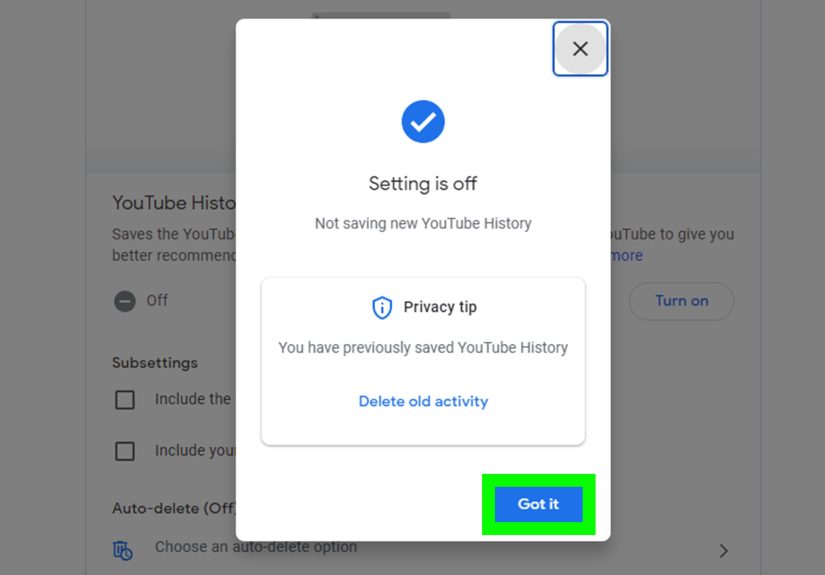
Step 6: Turn Off YouTube History at the Google Account Level (All Devices)
This is the “one switch to rule them all” option. When you pause YouTube History in your Google Account, it applies across devices signed into the same account.
- Go to your Google Account privacy/activity controls.
- Find YouTube History.
- Select Turn off (which pauses saving activity) and confirm.
This is the best step if you bounce between phone, tablet, TV, and laptop and want consistent behavior everywhere.
-
Step 7: Clear Your Existing Watch History (Optional, but Satisfying)
Pausing stops new entries. Clearing removes old ones. If you want a true reset:
- In YouTube’s History area (or History & privacy settings), choose Clear watch history.
Why do this? Because YouTube can’t base recommendations on watch history that no longer exists. If your Home page feels “stuck,” clearing old watch history can help it move on.
-
Step 8: Clear Your Existing Search History (Optional, but Even More Satisfying)
If your search bar suggestions are calling you out, clear them:
- In History & privacy (mobile) or in your Google account YouTube activity settings, choose Clear search history.
This is especially helpful if you share an account with family members and don’t want your searches to become a group project.
-
Step 9: Delete Specific Videos or Searches Instead of Nuking Everything
Sometimes you don’t need a full resetyou just need to delete that one video. You can usually remove individual items:
- Open History.
- Find the item you want gone.
- Select Remove / Delete (often an “X” or a menu).
This “surgical clean” approach keeps useful history while removing the weird stuff. Like adulthood, but for your algorithm.
-
Step 10: Set Auto-Delete for YouTube History
Want history, but only temporarilylike a guest who actually leaves after the party? Use auto-delete.
- Go to your YouTube History controls in Google Account / My Activity.
- Select Auto-delete.
- Choose a retention window (common options include a few months to a few years).
- Confirm your choice.
Auto-delete is great if you want some personalization without building a forever-library of everything you’ve ever clicked.
-
Step 11: Use YouTube Incognito Mode for “Just This Once” Viewing
Incognito mode in the YouTube mobile app acts like you’re signed out for that sessionwithout fully signing you out.
It’s perfect for surprise gift research, sensitive topics, or avoiding “recommendation contamination” from one-off curiosity.- Open YouTube → tap your profile icon.
- Tap Turn on Incognito.
- When done, exit Incognito mode to return to normal.
Heads-up: Incognito helps keep activity out of your account history, but it doesn’t make you invisible to the internet at large. Think “private from your account,” not “cloaked like a spy.”
-
Step 12: If You Watch Signed Out, Pause History There Too
Yes, you can manage watch history even while signed out (depending on device/browser).
If you use YouTube without signing in, you may still see a watch history page where you can:- Go to History.
- Select Pause watch history (and clear, if available).
This is useful for shared computers, guest viewing, or public devicesbasically any place where you don’t want your next person to see your “How to fold a fitted sheet” saga.
-
Step 13: Verify It’s Working (and Fix Common “Why Is This Still Saving?” Issues)
After you pause history, do a quick test:
- Watch a short video.
- Check your History tabif it’s not appearing, you’re good.
If activity is still showing up, here are the usual suspects:
- Wrong Google account: You paused history on Account A, but you’re watching on Account B.
- Multiple profiles/devices: A TV app or tablet may be signed into a different account.
- Only paused one type: Watch history is paused, but search history isn’t (or vice versa).
- Incognito confusion: Incognito is on (so nothing saves), then you exit and forget you’re “back to normal.”
How Disabling History Changes Your YouTube Experience
Your Home Feed Might Get… Quiet
If you pause watch history, YouTube may have less data to personalize recommendations. For some people, the Home feed becomes far less tailoredsometimes even close to empty.
That can be a feature, not a bug, if you’re trying to stop mindless scrolling.
“Continue Watching” and Re-Finding Videos Gets Harder
With watch history off, you may lose the convenience of jumping back into videos you partially watched.
If you rely on YouTube for tutorials or long podcasts, consider using “Save to Watch Later” or playlists as your manual memory.
Your Recommendations Can Be Reset on Purpose
If your recommendations got weird (it happens), a combination of clearing old history + pausing new history can create a fresh start.
Then you can be intentional: subscribe to channels you actually like, search on purpose, and avoid “hate-watching” anything you don’t want to see again.
Privacy Upgrades That Pair Well With Disabling History
- Use separate profiles/accounts: One for personal viewing, one for family/TV use.
- Use playlists as bookmarks: Replace history with “Watch Later,” “Favorites,” or custom lists.
- Mind your devices: TVs, smart speakers, and tablets often stay signed in longer than you think.
- Review other Google activity controls: If you’re in privacy mode, you may also want to check broader Google activity settings.
Conclusion: You Don’t Have to Let YouTube Remember Everything
Disabling YouTube history isn’t about hiding in a digital bunkerit’s about choosing when personalization helps and when it feels creepy.
With a few taps, you can pause watch and search history, clear past activity, and set auto-delete so your account doesn’t become a permanent diary of your curiosity.
Start with the basics (pause watch + search history), then decide whether you want a clean slate (clear old history) or a balanced approach (auto-delete).
Your recommendations might changemaybe drasticallybut your privacy gains are immediate.
Real-World Experiences: What It’s Like After You Disable YouTube History (About )
People usually disable YouTube history for one of three reasons: privacy, sanity, or survival. Privacy is obviousnobody wants their account broadcasting
that they watched 27 consecutive videos about “signs your cat is judging you.” Sanity is about the algorithm: if you watch one video out of curiosity,
YouTube can act like you’ve enrolled in a four-year degree program on that topic. Survival is what happens when multiple humans share one account
and the recommendations become a chaotic family group chat nobody asked for.
The first thing many users notice is the Home feed shift. If you pause watch history, YouTube has less to work with, and the platform can feel oddly quiet.
For some, this is blisslike walking into a store and discovering the employees have stopped following you around asking if you need help. You open the app,
and suddenly you’re not being aggressively pitched 14 “you might also like” thumbnails. That calm can be exactly what you want if you’re trying to cut back
on endless scrolling, because you’ll have to search intentionally instead of getting lured into an autoplay vortex.
The second change is the “wait… where did that video go?” moment. History is a convenience tool, and when it’s off, you’ll occasionally want to re-find
a tutorial or a podcast episode and realize your account didn’t save it. This is where simple habits help: use “Watch Later,” make a playlist called
“Actually Useful,” or even bookmark your most-visited channels. It’s the same energy as writing down a phone number instead of trusting your brain
to remember it forever.
A surprisingly common experience is “algorithm rehab.” Someone disables history after their recommendations go off the railsmaybe because a friend watched
a bunch of videos on their account, maybe because they rage-clicked a topic they hate, maybe because one weird search became a long-term identity in YouTube’s eyes.
Pausing history stops the bleeding. Clearing old history is like wiping the whiteboard. After that, many people rebuild their feed intentionally by subscribing
to channels they truly like and using search more carefully. The result can feel like YouTube becomes useful again instead of noisy.
Finally, there’s the “incognito confession.” Many users don’t want to disable history foreverthey just want the option to watch something without it becoming
their entire personality online. Incognito mode is the practical middle ground: watch the one-off thing, exit incognito, and move on with your life.
It’s a small feature, but it can save you from months of “recommended because you watched…” consequences.
Bottom line: disabling YouTube history can make YouTube feel less sticky and more intentional. You trade some personalization for more controland for a lot of people,
that trade is worth it.