Table of Contents >> Show >> Hide
- What the CONVERT Function Does (and Why It’s Better Than “Quick Math”)
- CONVERT Syntax: The 3 Arguments You Need
- The Secret Sauce: Unit Codes (They’re Picky, but Fair)
- Metric Prefixes and Binary Prefixes (Because Excel Is a Nerd in a Good Way)
- Practical Examples: Real Conversions You’ll Actually Use
- 1) Length: Inches ⇄ Centimeters, Feet ⇄ Meters, Miles ⇄ Kilometers
- 2) Weight & Mass: Pounds ⇄ Kilograms (and the “lb” Trap)
- 3) Volume: Kitchen Conversions Without the Sticky Note
- 4) Temperature: Celsius ⇄ Fahrenheit ⇄ Kelvin
- 5) Time: Days ⇄ Hours (and Why Excel Time Is Weird)
- 6) Information: Bytes ⇄ Bits (and Binary Prefixes)
- Build a Reusable Unit Converter Sheet (Takes 5 Minutes, Saves Hours)
- Troubleshooting: Fix CONVERT Errors Fast
- When CONVERT Isn’t Enough (And What to Do Instead)
- Conclusion: Convert Like a Pro (Without Becoming a Unit Conversion Encyclopedia)
- Experiences in the Real World: How People Actually Use CONVERT (and What They Learn the Hard Way)
- 1) The “International Team” Spreadsheet Problem
- 2) Recipe Scaling That Accidentally Turns Into Operations
- 3) Temperature Logs and “Wait, That’s Celsius” Moments
- 4) The Case-Sensitivity Trap (a.k.a. “Why Is This #N/A?”)
- 5) Converting Time: When “Hours” Isn’t Stored as Hours
- 6) Storage and Data Sizes: Decimal vs. Binary Confusion
If you’ve ever stared at a spreadsheet like it personally offended youbecause half the numbers are in miles,
the other half are in kilometers, and someone tossed in “cups” for emotional supportwelcome. Excel can absolutely
handle measurement conversions, and you don’t need to build a Frankenstein table of multipliers to do it.
The hero of today’s story is Excel’s CONVERT function: a built-in tool that turns one unit into another
with a clean, readable formula. You’ll learn how it works, which unit codes matter, how to avoid common errors,
and how to build a practical “unit converter” sheet you can reuse forever (or at least until someone changes the
column headers and pretends they didn’t).
What the CONVERT Function Does (and Why It’s Better Than “Quick Math”)
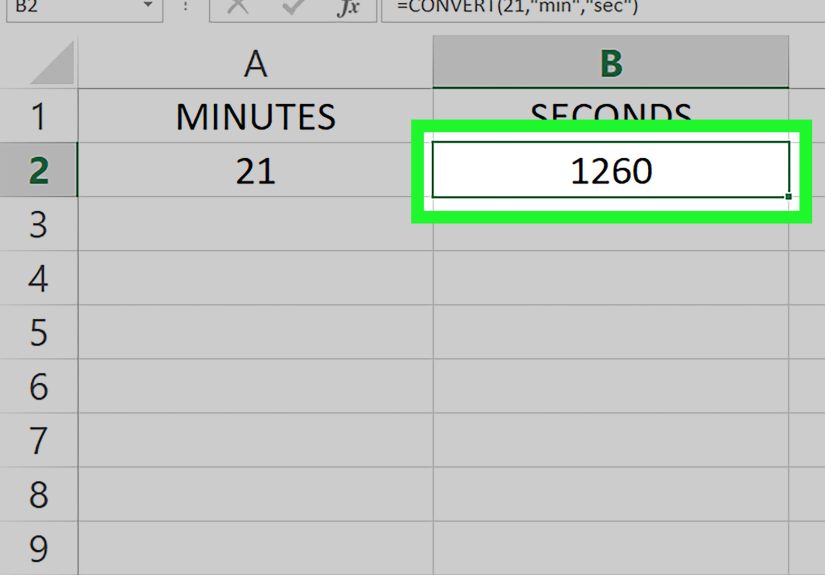
Excel’s CONVERT function converts a numeric value from one unit of measure to anotherlike
inches to centimeters, pounds to kilograms, Fahrenheit to Celsius, gallons to liters, and more.
It’s especially handy when:
- You’re combining data from different countries, teams, vendors, or templates.
- You want conversions to update automatically when inputs change.
- You need consistency across a workbook (and less “close enough” math).
- You want formulas that future-you can actually understand.
Bonus: CONVERT is readable. “=CONVERT(A2,”in”,”cm”)” tells the next person exactly what you meant.
“=A2*2.54” tells them you were in a hurry and living dangerously.
CONVERT Syntax: The 3 Arguments You Need
The syntax is refreshingly simple:
- number: The value you want to convert (or a cell reference).
- from_unit: The unit code for the current unit (in quotes).
- to_unit: The unit code for the target unit (in quotes).
Example: Convert 72 inches to centimeters:
Or, using a cell reference (recommended for real work):
The Secret Sauce: Unit Codes (They’re Picky, but Fair)
The most important part of using CONVERT is choosing the correct unit codes. Excel supports a long list of codes
across categories like distance, mass, time, temperature, volume, speed, and even information (bits/bytes).
Unit Codes Are Case-Sensitive (Yes, Really)
Excel treats unit codes like they’re tiny VIP name tags. If you type the wrong case, Excel won’t “figure it out.”
It will simply return an error and stare at you silently.
For instance, "m" (meters) is not the same thing as "M" (a prefix used in some contexts, like mega).
The safest approach is to copy unit codes from a trusted list or build a dropdown in your sheet.
Common Unit Codes You’ll Use All the Time
Here’s a quick starter pack of unit codes that cover most everyday conversions:
- Distance:
"in"(inch),"ft"(foot),"yd"(yard),"mi"(mile),"m"(meter),"cm","mm","km" - Mass:
"lbm"(pound mass),"ozm"(ounce mass),"g"(gram),"kg" - Volume:
"tsp"(teaspoon),"tbs"(tablespoon),"cup","pt"(pint),"qt"(quart),"gal"(gallon),"l"(liter) - Temperature:
"C"(Celsius),"F"(Fahrenheit),"K"(Kelvin) - Speed:
"mph","m/s","m/hr","km/hr"(often expressed via prefix + unit style) - Information:
"bit","byte"(and binary prefixes like"Mi"for mebi)
One important detail: mass ounces and fluid ounces are different things.
Excel uses "ozm" for ounce mass, and "oz" for fluid ounces. That single letter “m” is doing a lot of work.
Metric Prefixes and Binary Prefixes (Because Excel Is a Nerd in a Good Way)
CONVERT supports:
- Metric prefixes like kilo-, milli-, micro-, etc. (think
km,mg,mm). - Binary prefixes like kibi-, mebi-, gibi- for information units (think
Ki,Mi,Gi).
Translation: Excel can convert bytes to bits, and it can also help you keep “MB” (decimal megabytes) separate
from “MiB” (binary mebibytes) when you’re dealing with storage specs. That’s the kind of detail that prevents
“Wait, why is the file size off?” arguments at 4:58 PM on a Friday.
Practical Examples: Real Conversions You’ll Actually Use
1) Length: Inches ⇄ Centimeters, Feet ⇄ Meters, Miles ⇄ Kilometers
Convert 6 inches to feet:
Convert 6 miles to kilometers:
Convert a column of feet (A2:A100) into meters in B2:
Pro tip: If you’re converting a whole dataset, keep the original values intact and convert into a new column.
That way you can audit the results, and you won’t accidentally overwrite the only copy of the data you trust.
2) Weight & Mass: Pounds ⇄ Kilograms (and the “lb” Trap)
Excel’s unit code for pound mass is "lbm" (not "lb").
Convert 1 lbm to kilograms:
Convert 12 ounces (mass) to grams:
If you try a unit code that doesn’t exist (or doesn’t belong to the same unit group), Excel will return #N/A.
That’s not Excel being rude. It’s Excel preventing nonsense.
3) Volume: Kitchen Conversions Without the Sticky Note
Convert 6 teaspoons to tablespoons:
Convert 6 gallons to liters:
Convert 2.5 cups to fluid ounces:
Yes, this is extremely useful for recipe scaling and catering worksheets. Also yes, it’s surprisingly useful
in manufacturing, chemical mixing, and any job where “a splash” is not an approved unit of measure.
4) Temperature: Celsius ⇄ Fahrenheit ⇄ Kelvin
Convert 37.3°C in cell B3 to Fahrenheit:
Convert 68°F to Celsius:
Convert 25°C to Kelvin:
Temperature conversions are where people often abandon multipliers and start guessing, because offsets (like +32)
complicate manual formulas. CONVERT handles the rules correctlyno mental gymnastics required.
5) Time: Days ⇄ Hours (and Why Excel Time Is Weird)
Excel stores times as fractions of a day (so 12 hours = 0.5). That can be useful, but it can also be confusing.
If you have a duration in days and want hours:
If your durations are actual time values (like 2:30 PM minus 9:00 AM), you may still use CONVERTbut confirm
your inputs represent what you think they represent (a day fraction vs. a count of “days”).
6) Information: Bytes ⇄ Bits (and Binary Prefixes)
Convert 2 bytes into bits:
For binary prefixes (like mebi), Excel supports specific prefix codes. If you apply a binary prefix to a unit
that doesn’t support it, Excel will return #N/A. That’s Excel’s way of saying, “Nice try.”
Build a Reusable Unit Converter Sheet (Takes 5 Minutes, Saves Hours)
If you convert measurements often, don’t keep rewriting formulas. Create a simple converter table:
- Column A: Value
- Column B: From Unit (unit code)
- Column C: To Unit (unit code)
- Column D: Result
In D2, enter:
Now you can fill down, and each row becomes its own conversion. The best part is you can use
Data Validation dropdowns for columns B and C so nobody types "KM" when Excel expects "km".
(Case sensitivity is a harsh teacher. Dropdowns are a kinder one.)
Upgrade: Make It Feel Like an App (Without Making an App)
- Dropdown unit lists: prevent typos and case errors.
- Input checks: highlight missing/invalid unit codes.
- Friendly labels: display “Kilometers (km)” next to the code.
- Separate raw vs. converted columns: keep audits easy.
Troubleshooting: Fix CONVERT Errors Fast
Error 1: #VALUE! (Wrong Data Type)
If your number argument isn’t actually numeric, CONVERT returns #VALUE!.
This often happens when numbers are stored as text (like “12” instead of 12), or when the cell includes extra characters (like “12 kg”).
Quick fixes:
- Convert text numbers using
=VALUE(A2)before converting units. - Remove extra characters (like unit labels) into a clean numeric column.
Error 2: #N/A (Invalid Unit Code)
If the unit code doesn’t exist, you’ll get #N/A. This is usually caused by:
- A typo in the unit code (like
"lbs"instead of"lbm"). - Wrong capitalization (like
"KM"instead of"km"). - Using a code not supported in your Excel version.
Error 3: #N/A (Units in Different Groups)
Excel won’t convert between different measurement groups. This will fail:
That’s because feet (distance) and seconds (time) aren’t convertible without additional context (like speed).
Excel is refusing to invent physics for you. Respect.
Fast Debug Checklist
- Are the unit codes in quotes? (They should be.)
- Are the codes spelled correctly and in the correct case?
- Are you converting within the same category (mass to mass, distance to distance, etc.)?
- Is the input a real number (not text, not “12kg”, not an empty string)?
When CONVERT Isn’t Enough (And What to Do Instead)
CONVERT is great, but it can’t cover every custom scenario. If you need a niche unit, a company-specific conversion,
or a special rule (like product shrinkage, density-based conversions, or “our internal unit that’s definitely not made up”),
you have options:
Option A: Use a Conversion Table + XLOOKUP
Store conversion factors in a table (FromUnit, ToUnit, Factor), then calculate:
This gives you full control, which is perfect when your units are custom or when CONVERT doesn’t support a specific pair.
Option B: Combine CONVERT with Simple Math for Derived Units
Sometimes you can convert components and then compute the rest. For example, if you have a rate per mile and want per kilometer,
you can convert the distance part and adjust the rate accordingly.
Option C: Use Power Query for Repeatable Cleaning + Conversions
If your source data is messy (mixed unit labels, inconsistent formats, imported files), Power Query can clean inputs
consistently before you apply CONVERT in the worksheetor even do conversions during import.
Conclusion: Convert Like a Pro (Without Becoming a Unit Conversion Encyclopedia)
Excel’s CONVERT function is one of those tools that feels small until you use it twicethen you wonder
how you survived without it. It handles conversions cleanly, keeps formulas readable, and reduces mistakes when data
travels between teams, countries, systems, and spreadsheets that have been “maintained” by 14 people over 9 years.
If you take only one thing away: unit codes matter. Use the right codes, respect case sensitivity, and
CONVERT will do the heavy lifting. Build a reusable converter sheet once, and you’ll save yourself from endless
copy-paste conversions (and the occasional “Wait, is that imperial or metric?” panic).
Experiences in the Real World: How People Actually Use CONVERT (and What They Learn the Hard Way)
You don’t have to be an engineeror a spreadsheet wizardto get real value out of CONVERT. In practice, the function
shows up in everyday workflows where “numbers in different units” is the quiet chaos nobody planned for. Below are
common, real-world scenarios and the lessons people typically pick up along the way.
(No, not “personal experiences” in the diary sensemore like field notes from the land of spreadsheets.)
1) The “International Team” Spreadsheet Problem
A classic: a U.S. team tracks distances in miles, a European team logs kilometers, and management wants one dashboard.
People often start with manual multipliers, then realize a single mistaken constant can quietly skew an entire report.
CONVERT becomes the safer choice because the intent is visible in the formulaand you can audit it quickly.
The lesson: keep the original unit column untouched, add a converted column, and label it clearly (e.g., “Distance (km)”).
That preserves traceability, and it prevents the infamous “someone overwrote the source data” incident.
2) Recipe Scaling That Accidentally Turns Into Operations
It starts innocently: converting tablespoons to teaspoons for a recipe. Then it becomes a catering sheet:
cups, quarts, gallons, batch sizes, yields, and ingredient costs. CONVERT helps because it handles common kitchen units
and makes the spreadsheet flexible when serving sizes change.
The lesson: separate volume and mass. People often try to convert “cups to grams” directly.
That’s not a unit conversionit depends on density (flour vs. sugar vs. oil). CONVERT won’t do it (correctly), and that’s
a feature, not a bug. Use a density lookup table if you truly need volume-to-mass conversions.
3) Temperature Logs and “Wait, That’s Celsius” Moments
Any time you’re importing sensor logs, machine readings, or environmental data, temperature units can be sneaky.
A file might say “Temp” without stating Celsius or Fahrenheit. When the numbers look “wrong,” the fix is often:
standardize everything to one unit and document it.
CONVERT shines here because temperature conversions include offsets, and manual formulas are where mistakes happen
(especially when someone forgets parentheses). People typically build a single conversion column (C→F, F→C, or C→K)
and then base charts and conditional formatting on the standardized values.
4) The Case-Sensitivity Trap (a.k.a. “Why Is This #N/A?”)
One of the most common “I’m not mad, I’m just disappointed” errors: typing a unit code in the wrong case.
Someone uses "KM" instead of "km" or types a nautical mile code incorrectly.
Excel responds with #N/A and no emotional cushioning.
The lesson: if conversions will be used by others, build dropdown lists for unit codes. It’s not overkillit’s
spreadsheet ergonomics. Fewer errors, fewer “Why is this broken?” messages, and fewer people blaming Excel for doing
exactly what it said it would do.
5) Converting Time: When “Hours” Isn’t Stored as Hours
In scheduling and time-tracking sheets, people often assume Excel stores time durations as “hours.”
But Excel stores time as a fraction of a day. So a duration cell might show 6:00, but the underlying value is 0.25.
CONVERT can be helpful, but only if you’re clear about what the input represents.
The lesson: document whether a column is a time value (fraction of a day) or a numeric count (like “3.5 hours”).
Then convert consistently. When teams standardize this, dashboards stop contradicting each other.
6) Storage and Data Sizes: Decimal vs. Binary Confusion
People run into this in IT inventories, cloud storage reporting, and download analytics:
Is it MB (powers of 10) or MiB (powers of 2)? When totals don’t match across systems, it’s often because one report uses
decimal units while another uses binary units.
The lesson: pick one standard for reporting, convert everything to that, and include the unit in the column header.
CONVERT supports information units and binary prefixes, which helps you reconcile “why these two tools disagree.”
Bottom line: CONVERT isn’t just a formulait’s a reliability upgrade. It makes spreadsheets easier to understand,
easier to audit, and harder to accidentally sabotage with a “quick fix” multiplier that nobody remembers later.