Table of Contents >> Show >> Hide
- What Is a BIOS Version, Exactly?
- Why You Might Need to Check Your Current BIOS Version
- Method 1: Check BIOS Version in Windows System Information
- Method 2: Use PowerShell to Check the BIOS Version
- Method 3: Check BIOS Version from Command Prompt
- Method 4: Check the BIOS Version from the BIOS or UEFI Screen
- Method 5: Use Your Manufacturer’s Support Tools
- How to Compare Your Current BIOS Version with the Latest One
- Linux: How to Check BIOS Version
- What About Mac Computers?
- Common Mistakes to Avoid
- When You Should Actually Update Your BIOS
- Experience and Real-World Lessons from Checking BIOS Versions
- Conclusion
- SEO Tags
If your computer were a movie set, the BIOS would be the stage manager in a headset, quietly making sure the lights come on, the actors hit their marks, and the show starts on time. You rarely think about it until something breaks, a hardware upgrade acts weird, or Windows starts dropping hints like, “A newer firmware update may be available.” That is when knowing how to check the current BIOS version on your computer becomes surprisingly useful.
Whether you are troubleshooting boot problems, planning a CPU upgrade, verifying a manufacturer update, or just trying to feel like the kind of person who casually knows their firmware version before breakfast, this guide walks you through the process step by step. The good news? You usually do not need special software, a degree in computer engineering, or a dramatic soundtrack. In most cases, Windows already gives you the answer.
Below, you will learn the easiest ways to find your current BIOS version in Windows, how to check it inside the BIOS or UEFI screen itself, what Linux and Mac users should know, and how to compare your installed version with the latest one from your computer or motherboard maker.
What Is a BIOS Version, Exactly?
BIOS stands for Basic Input/Output System. On many modern computers, the firmware is technically UEFI rather than old-school legacy BIOS, but people still say “BIOS version” the way people still say “hang up the phone” even though nobody is slamming a plastic handset anymore.
Your BIOS or UEFI firmware initializes hardware before the operating system loads. It helps your computer recognize the processor, memory, storage devices, keyboard, and other essential components. The version number tells you which firmware release is currently installed. That matters because firmware updates can fix bugs, improve stability, add hardware compatibility, patch security issues, or support newer processors and SSDs.
Why You Might Need to Check Your Current BIOS Version
There are several practical reasons to look it up:
- Before updating BIOS: You want to confirm whether you already have the latest version.
- When troubleshooting: Boot issues, hardware detection problems, sleep/wake glitches, and random instability can sometimes be firmware-related.
- Before installing a new CPU or RAM kit: Some hardware requires a minimum BIOS revision.
- For support calls: Tech support often asks for your BIOS version early in the conversation, right after “Have you tried restarting?”
- For security and maintenance: Firmware updates sometimes include important fixes that never make the front page of your favorite tech site.
Method 1: Check BIOS Version in Windows System Information
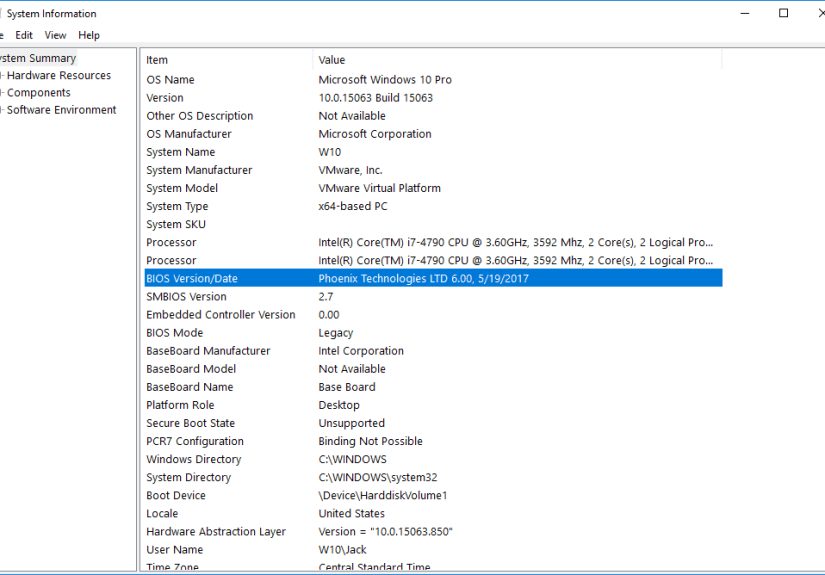
This is the easiest method for most people and the one I recommend first. Windows includes a built-in utility called System Information that shows your BIOS version and date in a plain, readable format.
Steps
- Press Windows + R to open the Run dialog.
- Type msinfo32 and press Enter.
- In the System Summary section, look for BIOS Version/Date.
You should see something like this:
BIOS Version/Date: Dell Inc. 1.18.0, 01/09/2025
That line usually includes the manufacturer name, the installed BIOS version, and the release date. If all you needed was a quick answer, congratulations, you are done. You may now close the window and enjoy the rare thrill of successful computer maintenance.
Why this method is great
It is fast, built into Windows, and does not require command-line tools. It also works well on desktops and laptops from brands like Dell, HP, Lenovo, ASUS, and Acer.
Method 2: Use PowerShell to Check the BIOS Version
If you like getting answers with a little more technical flair, PowerShell is an excellent option. It can pull BIOS information directly from the system’s firmware data.
Recommended PowerShell command
Open PowerShell, paste that command, and press Enter. You should get a clean output showing the BIOS manufacturer, the current BIOS version, and the firmware release date.
Why this method is useful
PowerShell is great if you want something scriptable, especially for IT support, advanced troubleshooting, or checking multiple PCs in a more structured way. It is also a more modern approach than relying on older WMI-based habits.
A simpler variation
This returns more data, including serial-style information and other firmware properties, though it can look a bit cluttered if you only wanted the version number.
Method 3: Check BIOS Version from Command Prompt
If Command Prompt feels more your speed, that works too. One commonly used command is:
This usually returns a short version string such as:
Another handy option is:
This filters the system report and shows only the BIOS-related line.
One important note
Many guides still use wmic because it is simple and memorable, but PowerShell with Get-CimInstance is generally the better long-term method for modern Windows systems. Still, if wmic works on your PC, it is a perfectly fine quick check.
Method 4: Check the BIOS Version from the BIOS or UEFI Screen
If Windows will not boot, or you want to verify the number directly from the firmware interface, you can check your BIOS version inside the BIOS or UEFI setup menu.
Common steps
- Restart your computer.
- As it powers on, repeatedly press the setup key. This is often F2, Delete, F10, F12, or Esc, depending on the manufacturer.
- Look for the version information on the main screen, under System Information, Overview, or a similarly named section.
On some boards, the BIOS version appears right on the first screen. On others, you may need to click a tab or press a key like F9 for detailed system information.
Why this method matters
This is especially helpful if the operating system is not loading, if you are building a new PC, or if you are checking a motherboard before installing a new processor.
Method 5: Use Your Manufacturer’s Support Tools
Many PC brands offer built-in apps or support utilities that show your current BIOS version and help you compare it with the latest release. This is often the easiest path for non-technical users.
Examples by brand
- Dell: SupportAssist and Dell support tools can help identify your installed BIOS and available updates.
- HP: HP Support Assistant and HP system information tools can display the BIOS revision and date.
- Lenovo: Lenovo support tools and update utilities can show current firmware and available updates.
- ASUS: MyASUS or the UEFI utility can reveal the BIOS version.
- Acer: Acer Care Center can show the BIOS version under system details.
If you have a prebuilt desktop or laptop, this method is often simpler than hunting through your motherboard support page manually.
How to Compare Your Current BIOS Version with the Latest One
Finding the current BIOS version is only half the story. The next step is knowing whether it is up to date.
Here is the smart way to compare versions
- Write down your current BIOS version exactly as shown.
- Find your exact computer model or motherboard model.
- Visit the manufacturer’s support page.
- Open the BIOS or firmware section.
- Compare the latest listed version and release date with what is installed on your computer.
The phrase exact model matters a lot here. “ASUS gaming laptop” is not enough. “Dell XPS” is not enough. You need the specific model name or service tag because BIOS files are model-specific. Installing the wrong BIOS is the opposite of a fun weekend project.
Pro tip
If the release notes mention support for a CPU you are about to install, or fixes for issues you are actively having, that is a good sign the update may be relevant. If your computer is stable and the update solves problems you do not have, think before flashing just because a newer number exists.
Linux: How to Check BIOS Version
If you use Linux, the usual route is the terminal. One of the most common commands is:
You can also check the release date with:
This reads firmware data from the system’s SMBIOS table. Because it often needs elevated permissions, sudo is usually required.
What About Mac Computers?
Macs do not present this information the same way typical Windows PCs do, and modern Macs do not use a traditional PC-style BIOS in the way most users mean it. On older Intel-based Macs, you may see firmware or Boot ROM information in System Information. In everyday language, that is the closest equivalent when someone asks for the “BIOS version” on a Mac.
So if you are on a Mac and cannot find a “BIOS version,” that is not because your computer is being mysterious. It is because Apple prefers a different firmware structure and naming scheme.
Common Mistakes to Avoid
- Confusing BIOS version with Windows version: They are completely different.
- Using the wrong model page: Always verify your exact laptop, desktop, or motherboard model.
- Updating firmware just because it exists: Read the release notes first.
- Ignoring the release date: The version string alone does not always tell the full story.
- Assuming every computer uses the same key to enter BIOS: They absolutely do not. Computers love variety when it is least helpful.
When You Should Actually Update Your BIOS
Checking the current BIOS version does not automatically mean you should install a newer one. BIOS updates are more sensitive than ordinary app updates because they affect low-level firmware. You should consider updating if:
- You are fixing a known hardware issue.
- You need support for a new CPU or component.
- The manufacturer specifically recommends the update.
- The update addresses security, stability, or compatibility problems relevant to your system.
If your computer works perfectly and there is no clear benefit, it is reasonable to leave it alone. This is one of the few areas in computing where “because there is a newer version” is not always the best reason to act.
Experience and Real-World Lessons from Checking BIOS Versions
One of the funniest things about BIOS version checks is how often they solve mysteries that have been blamed on absolutely everything else. A person starts with “My Wi-Fi is cursed,” moves on to “Windows hates me,” then spends an hour reinstalling drivers, only to discover the manufacturer released a firmware update months ago that specifically improves hardware stability. It is not always the answer, but when it is, it feels like finding the last missing puzzle piece under the couch.
I have seen people check the BIOS version only after upgrading RAM, swapping in a new SSD, or trying to install a newer processor. Suddenly the system that should have worked in theory becomes moody in practice. It boots sometimes, restarts for no reason, or refuses to recognize a component that should be compatible. In many of those cases, the first clue is the installed BIOS version. Once you compare it with the support page, the issue becomes obvious: the hardware is supported, but only on a newer firmware release.
There is also the classic laptop support story. Someone opens a chat with customer support and gets asked for three things almost immediately: the serial number, the operating system version, and the BIOS version. That moment is when knowing how to open msinfo32 turns you from mildly panicked user into oddly impressive person who already has the answer ready. It is a small skill, but it saves time and makes troubleshooting less chaotic.
Another common experience is discovering that the BIOS version number looks strange, inconsistent, or less dramatic than expected. Some vendors use simple numbering like 1.14.0. Others use formats that look like secret launch codes. That is normal. The important part is not whether the version number looks cool. The important part is whether it matches the model-specific firmware listed on the manufacturer’s site.
For people who maintain multiple PCs, PowerShell becomes especially helpful. Instead of opening window after window, you can grab BIOS information quickly and consistently. It feels more efficient, and honestly, a little cooler. Even if you are not a full-time IT admin, knowing one reliable command can make you look like the person everyone calls when their computer starts behaving like a haunted toaster.
The biggest lesson is simple: checking your BIOS version is not glamorous, but it is useful. It helps you verify, troubleshoot, compare, and make better decisions before you flash firmware or replace hardware. It is one of those quiet maintenance habits that can prevent a lot of loud frustration later.
Conclusion
If you want the fastest way to check the current BIOS version on your computer, start with System Information in Windows by running msinfo32. It is quick, built in, and easy to read. If you prefer a command-line method, use PowerShell with Get-CimInstance -ClassName Win32_BIOS. You can also check directly in the BIOS or UEFI setup screen, or use your manufacturer’s support utility for a more guided experience.
The key is not just finding the number, but understanding what to do with it. Compare it with the latest firmware release for your exact model, read the release notes, and only update when there is a clear reason. That approach keeps your system safer, your troubleshooting smarter, and your stress level a little lower.