Table of Contents >> Show >> Hide
- What Is Copilot Vision, Exactly?
- How Copilot Vision Works on Windows 10 vs Windows 11
- What You Can Actually Do with Copilot Vision
- Privacy, Security, and Limitations
- How to Turn On Copilot Vision in Windows 10 and 11
- Who Benefits Most from Copilot Vision?
- Real-World Copilot Vision Experiences and Tips
- 1. It’s surprisingly good at “What am I looking at?” moments
- 2. It shines when you’re learning new software
- 3. It’s not magic you still need to think
- 4. Privacy habits really matter
- 5. It pairs well with voice but text is catching up
- 6. On older PCs, keep your expectations realistic
- 7. The bottom line: it’s most valuable when you remember to use it
- Final Thoughts
Remember when your computer just stared back at you blankly while you yelled,
“Why won’t this work?!” Microsoft’s answer to that eternal scream is
Copilot Vision, a feature now rolling out to
Windows 10 and Windows 11 that lets the AI assistant actually
“see” what’s on your screen and help you in real time.
Instead of copying error messages, hunting down obscure menu items, or trying
to explain a screenshot to a chatbot, you can simply share your screen (or a
specific app window) with Copilot. It then analyzes what it sees and guides
you through the next steps whether you’re editing in Photoshop, wrangling a
spreadsheet in Excel, or just trying to find that one Windows setting buried
five menus deep.
In this guide, we’ll break down what Copilot Vision is, how it works in
Windows 10 and 11, what you can do with it, and how to enable it. We’ll also
talk about privacy, real-world use cases, and hands-on experiences to help
you decide if this AI “second set of eyes” is something you’ll actually use
and not just another icon in your taskbar.
What Is Copilot Vision, Exactly?
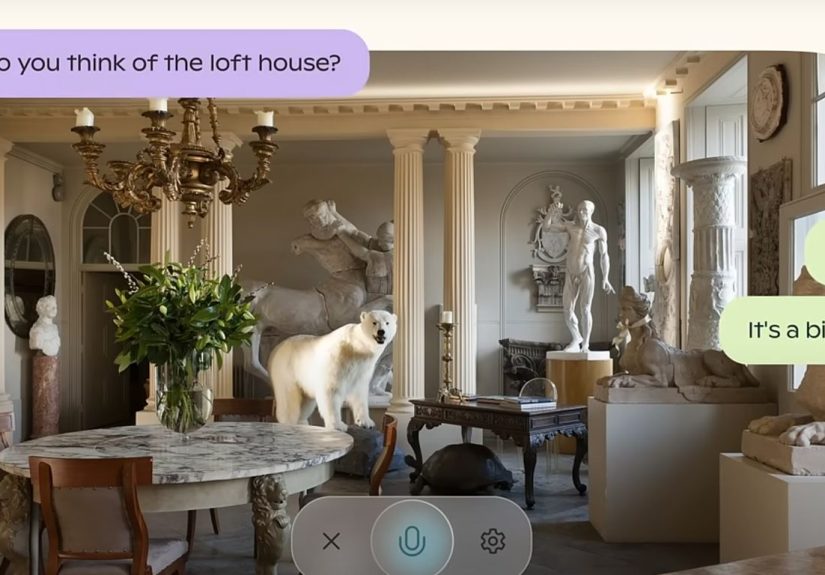
Microsoft Copilot Vision is a visual extension of the
Copilot assistant. Think of it as giving Copilot a pair of glasses: instead
of working only with text prompts and files you paste in, it can now
see what’s on your screen and respond based on that context.
When you turn on Copilot Vision in the Copilot app on Windows, you can allow
it to view specific app windows or your whole screen. Once enabled, you can
ask questions like:
- “Show me how to adjust the exposure in this Photoshop window.”
- “Explain this chart on the right.”
- “Summarize this web page I’m looking at.”
- “Walk me through changing this Windows setting.”
Copilot Vision then analyzes the visible content and replies with step-by-step
instructions, explanations, or actions it can take on your behalf. In newer
builds, you can use voice or just type your question, and Copilot responds in
text, making it usable even in quiet offices or late-night work sessions.
Microsoft describes it as a “second set of eyes” for your PC and that’s
actually a pretty accurate summary.
How Copilot Vision Works on Windows 10 vs Windows 11
The big news is that Copilot Vision is available on both Windows 10
and Windows 11 via the Copilot app. You don’t need to buy a brand-new
“AI PC” just to try it, though newer hardware will generally give you a
smoother experience.
Availability and requirements
-
You need the Copilot app for Windows with a recent version
that supports Vision (Microsoft has been rolling this out globally, with an
early focus on U.S. users). -
For the best experience, Microsoft strongly nudges you toward signing in
with a personal Microsoft account or a
Microsoft 365 subscription (Family, Personal, or Copilot
Pro). That unlocks more advanced features like Copilot Vision, chat
history, and voice. -
On Windows 11, Vision is more tightly integrated with newer AI experiences,
taskbar features, and the evolving “agentic OS” direction. On Windows 10, it
still works, but you’ll rely more on the standalone Copilot app rather than
deep OS integration.
Experience differences between Windows 10 and 11
On Windows 11, Vision plays especially well with:
-
The new Ask Copilot box on the taskbar (in recent preview
builds), which can include icons and shortcuts for Vision and voice. -
Deeper integration with File Explorer, where Copilot can
help interpret files and folders you’re looking at. -
Microsoft’s broader AI push, where Windows becomes an “agentic OS” meaning
Copilot and other agents can run tasks for you in the background while you
work.
On Windows 10, Vision is more of a powerful add-on: it still
sees your apps and screens and can coach you through tasks, but you won’t get
quite as many of the newer taskbar and system-level integrations. Think
“supercharged AI assistant in a window,” not “OS redesigned around AI.”
What You Can Actually Do with Copilot Vision
“It can see your screen” sounds cool, but what does that mean in practice?
Here are some real-world tasks Copilot Vision can help with on Windows 10 and
11:
1. Step-by-step software coaching
Struggling with a new app? Share that app window with Copilot Vision and ask:
- “Walk me through removing the background from this image.”
- “How do I create a pivot table from this Excel sheet?”
- “Where is the setting to change my default browser?”
Copilot Vision can respond with instructions like:
- “Click the Insert tab at the top.”
- “Now look at the right panel and choose Format Background.”
That’s much easier than skimming a long help article while constantly
alt-tabbing.
2. On-screen summarization and explanation
If you’re staring at a wall of text or data, Copilot Vision can turn it into
something more digestible:
- Summarize a long article or PDF that’s open in your browser.
- Explain a complicated chart or table you’re viewing.
- Highlight key points or action items from a document on screen.
Instead of copying and pasting content into a chat, you just say, “Summarize
what’s in this window,” and Copilot Vision takes it from there.
3. Accessibility and usability boosts
For people with low vision, learning differences, or just plain screen
fatigue, Copilot Vision can be a serious upgrade:
-
Combined with tools like Immersive Reader or Windows
Magnifier, it can give spoken guidance while you zoom in
on specific elements. -
It can answer questions like, “What is this button in the bottom right?”
without requiring you to guess the right technical term for it. -
Paired with voice control, you get a mostly hands-free way
to understand and navigate the screen.
4. Everyday productivity help
Copilot Vision isn’t just for power users. It’s also handy when you’re doing
regular, boring things like:
- Comparing two product pages in your browser and asking, “Which is cheaper?”
- Looking at a cluttered desktop and asking, “Which of these files are large PDFs?”
- Needing reminders like, “What’s the due date mentioned in this email?”
If you’ve ever wished you could just point at the screen and say, “Explain
this,” Copilot Vision is basically that wish in software form.
Privacy, Security, and Limitations
Anytime you hear “AI can see your screen,” your privacy radar should start
blinking and that’s healthy. Microsoft has built some guardrails into
Copilot Vision, but it’s still important to understand what’s going on.
You’re in control of what it sees
-
You opt in to Copilot Vision. It doesn’t automatically
start scanning your desktop. -
You can select specific windows (for example, just your browser or just
Excel) instead of sharing your entire screen. - You can turn screen sharing off at any time, ending Vision’s access.
Content it won’t analyze
Copilot Vision is designed to avoid certain types of content:
-
DRM-protected media (like many streaming video services)
is off-limits for analysis. -
Content flagged as harmful or inappropriate may not be processed or
described.
Under the hood, the visual information is used to generate a response and
power the assistance you see. It’s still subject to Microsoft’s AI and
privacy policies, but from a user perspective, the main rule of thumb is
simple: don’t share windows with Copilot Vision that you wouldn’t
feel comfortable screen sharing with a colleague.
How to Turn On Copilot Vision in Windows 10 and 11
Exact wording and menus may vary slightly as Microsoft ships updates, but the
basic flow looks like this on both Windows 10 and Windows 11:
-
Install or update the Copilot app.
Go to the Microsoft Store, search for Copilot, and
install or update the app to the latest version. -
Open Copilot on Windows.
Launch it from the taskbar icon, Start menu, or the new
Ask Copilot box (on supported Windows 11 builds). -
Sign in if prompted.
Sign in with your Microsoft account or Microsoft 365 subscription to
unlock Vision and other premium features. -
Share your screen or window.
Look for options such as Turn on Vision, Share this window,
or a screen-share icon in the Copilot interface. Choose whether to share
your current app or the entire screen. -
Ask a question about what you see.
Once Vision is active, you can say or type things like:
“Explain what’s on this page,” “Help me edit this slide,” or “Walk me
through changing this setting.”
If you don’t see Vision yet, you may be in a region or on a build where
it’s still rolling out, or you may need to update Windows and the Copilot
app. Microsoft has been steadily expanding support, so it’s worth checking
back after major updates.
Who Benefits Most from Copilot Vision?
While anyone can use Copilot Vision, there are a few groups that may find it
especially helpful:
-
New Windows users who feel overwhelmed by settings menus
and app interfaces. -
Students who want quick explanations of on-screen content
(charts, diagrams, articles) without constantly switching apps. -
Professionals who live inside Office apps or creative tools
and want in-context help without breaking focus. -
People with low vision or reading difficulties who benefit
from spoken guidance and contextual, visual explanations. -
Power users and tinkerers who like having an AI co-pilot
ready to explain or automate whatever they’re doing on screen.
Real-World Copilot Vision Experiences and Tips
Features always sound amazing in marketing slides. The real question is:
what’s it like to actually live with Copilot Vision in Windows 10 or 11?
Here are some experience-based insights and practical tips drawn from how
people are starting to use it day to day.
1. It’s surprisingly good at “What am I looking at?” moments
One of the most common use cases is the “I have no idea what this is” moment.
Maybe someone sent you a complex dashboard link, or you opened a report you
barely understand. With Vision turned on, asking, “What is this chart telling
me?” or “What’s the main point of this article?” often gives you a clean,
human-friendly summary.
This is especially handy for students and busy professionals. Instead of
spending 15 minutes scanning a dense page, you get a quick overview and can
decide whether it’s worth a deeper read.
2. It shines when you’re learning new software
If you’ve ever tried to follow a YouTube tutorial while pausing every five
seconds and switching windows, Copilot Vision feels like an upgrade. You can
share your actual app window and say, “Help me crop this image the way the
tutorial shows,” or “Show me how to add transitions between these slides.”
Instead of generic instructions, you get guidance tailored to what’s actually
on your screen. That reduces the friction between “I watched someone else do
it” and “I can do it myself.”
3. It’s not magic you still need to think
Copilot Vision is helpful, but it’s not infallible. Sometimes it mislabels a
button, doesn’t recognize an unusually styled interface, or gives directions
that don’t perfectly match your version of the app. Think of it more like a
helpful coworker than an all-knowing oracle.
A good workflow is:
- Let Copilot Vision explain or outline the steps.
- Double-check before you click anything critical.
- Use it to speed up your understanding, not replace it.
4. Privacy habits really matter
The most practical experience tip isn’t technical at all: build good privacy
habits around Vision from day one. Before sharing your screen or a window:
- Close any apps with sensitive information (banking, HR portals, etc.).
-
Avoid sharing your entire desktop when you only need to share one app
window. -
Get used to toggling Vision off when you’re done just like ending a
screen share on a video call.
Once this becomes muscle memory, the feature feels much less risky and far
more comfortable to use.
5. It pairs well with voice but text is catching up
Early versions of Copilot Vision leaned heavily on voice: you’d say, “Show me
how…” and Copilot would talk you through the process. That’s great when your
hands are busy, but not always ideal in shared spaces. Newer builds add
stronger text-in, text-out support, so you can type your
question and read the reply like a normal chat.
In practice, many people end up mixing styles: using voice for quick
“show-and-tell” questions at home and text for quiet environments. The nice
part is that both options work off the same visual context.
6. On older PCs, keep your expectations realistic
On mid-range or older Windows 10 machines, Copilot Vision still works, but
you may notice a bit more lag especially if you’re juggling many apps at
once. You can make the experience smoother by:
- Closing extra background apps you don’t need.
- Sharing only a single window instead of your entire desktop.
- Keeping your graphics drivers and Windows updates current.
Even with those limitations, many users find that the time they save getting
help more than makes up for the occasional pause or delay.
7. The bottom line: it’s most valuable when you remember to use it
The biggest “gotcha” with Copilot Vision isn’t technical it’s human. It’s
easy to forget it exists and slip back into old habits: googling error
messages, digging through settings menus, or DMing a techy friend. The
people who get the most out of Vision are the ones who consciously build a
new habit:
-
When confusion hits, ask yourself, “Can I just let Copilot see this and
explain it?” -
Keep the Copilot app pinned and visible, so Vision is always one click
away.
After a week or two of remembering to use it, Copilot Vision starts to feel
less like a novelty and more like a built-in part of how you use Windows 10
or 11.
Final Thoughts
Copilot Vision on Windows 10 and 11 is a big step toward
making your PC feel less like a stubborn machine and more like a
collaborative partner. By letting the AI actually see what you’re working
on, Microsoft has opened the door to richer, more contextual help whether
that’s teaching you a new app, summarizing what’s on screen, or guiding you
through tricky settings.
It’s not perfect, and it doesn’t replace your own judgment, but when you use
it thoughtfully with good privacy habits and realistic expectations it
can genuinely save time, reduce frustration, and make Windows feel more
approachable. If you’re on Windows 10 or 11 and already have the Copilot app,
turning on Vision is absolutely worth a try. At worst, you’ll get a few
helpful explanations. At best, you might finally stop yelling at your
computer.