Table of Contents >> Show >> Hide
- What a VPN Actually Does (and What It Absolutely Does Not)
- Step 1: Pick the Right VPN (Because Not All VPNs Deserve Your Trust)
- Step 2: Install the VPN the Safe Way (No Side-Loading Mystery Apps)
- Step 3: Connect and Choose a Server (Location Matters, But Not Like a Spy Movie)
- Step 4: Turn On the Security Features That Make a VPN Worth Using
- Step 5: Use a VPN in Real Life (Where the Messy Stuff Happens)
- Step 6: Troubleshoot Like a Calm, Reasonable Human (Not a Keyboard-Slapping Gremlin)
- A Simple VPN Security Checklist
- Conclusion: A VPN Is a Seatbelt, Not a Force Field
- Field Notes: of Real-World VPN Experiences (What People Actually Run Into)
Your internet connection is a lot like a conversation in a crowded diner: you think you’re just talking to your friend,
but there’s always a chance someone at the next booth is listening inespecially on public Wi-Fi. A VPN (Virtual Private Network)
is one of the simplest ways to add a privacy-and-security “buffer” between your device and the wider internet.
This guide walks you through how to use a VPN the right waywithout turning it into a religion, a personality trait, or a magical cloak
of invisibility. (Spoiler: it’s not invisibility. It’s more like “tinted windows.”)
What a VPN Actually Does (and What It Absolutely Does Not)
The short version
A VPN creates an encrypted tunnel between your device and a VPN server run by your provider. Your internet traffic travels through that tunnel,
then exits to the websites and services you use. To the outside world, it generally looks like your traffic is coming from the VPN server
instead of your home or coffee-shop network.
What that helps with
- Protecting you on public Wi-Fi: Encryption makes it harder for nearby snoops to intercept your data on sketchy hotspots.
- Reducing ISP visibility into browsing details: Your ISP can usually see you’re using a VPN, but not the full list of sites you visit.
- Adding location flexibility: Websites often see the VPN server’s location, not yours (useful for travel and region-based services).
What a VPN doesn’t protect you from
- Phishing and scams: A VPN can’t stop you from handing your password to “TotallyRealBank-Security.com.”
- Malware: If you download a bad file, a VPN won’t jump in like an action hero and wrestle it away.
- Tracking via cookies and fingerprinting: Ads and trackers can still identify you in other ways.
- Weak passwords: “Password123!” is still “PleaseHackMe456!” with a VPN.
Think of a VPN as connection security and privacy routingnot total online invincibility.
Step 1: Pick the Right VPN (Because Not All VPNs Deserve Your Trust)
Choosing a VPN is less like buying a toaster and more like choosing who gets to handle your mail for a while.
You’re routing your traffic through their servers, so the provider matters.
What to look for in a reputable VPN
- Clear privacy policy: Look for plain-language explanations of what data is (and isn’t) logged.
- Strong modern encryption: Most reputable VPNs use modern encryption standards and trusted protocols.
- Independent audits and transparency reports: Not required, but it’s a good sign when a provider invites scrutiny.
- Essential safety features: Kill switch, DNS leak protection, and auto-connect on untrusted networks.
- Good cross-platform apps: You want stable apps for Windows, macOS, iOS, Androidwhatever you actually use.
Free VPNs: proceed with caution
Some free plans from reputable companies can be fine for light use. But random “free VPN unlimited forever!!!” apps can pay their bills by
cutting cornersthrough aggressive ads, questionable data practices, or weak infrastructure. If you’re using a VPN to improve privacy,
you don’t want the business model to be “sell your privacy.”
Step 2: Install the VPN the Safe Way (No Side-Loading Mystery Apps)
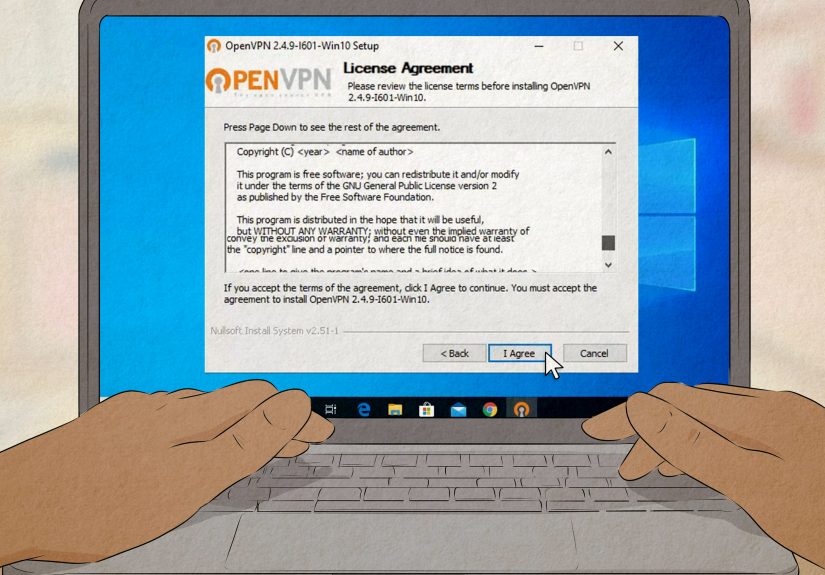
Use the provider’s official website or your device’s official app store. Once installed, log in with your account.
If the VPN offers multi-factor authentication for your account dashboard, turn it on. Account security matters because a VPN account is
basically a “master key” to your encrypted tunnel.
Quick platform notes
- Windows/macOS: Use the provider app unless you specifically need a manual setup.
- iPhone/iPad: The VPN app will typically ask permission to add a VPN configurationapprove it.
- Android: You can often enable “Always-on VPN” and a setting that blocks connections without the VPN for extra safety.
Step 3: Connect and Choose a Server (Location Matters, But Not Like a Spy Movie)
Open the VPN app and hit Connect. Most apps will pick a “best” server automatically based on distance and load.
In general:
- For speed: choose a server close to your physical location.
- For travel access: choose a server in your home country to access services that expect you there.
- For general privacy: any reputable server location is finefocus more on features and provider trust.
How to verify it’s actually working
- Check the VPN app status: it should say “Connected.”
- Confirm your IP address changes using a reputable IP-check site (your “public IP” should match the VPN server region).
- If your provider includes a “connection test” or “diagnostics” feature, run it once.
Step 4: Turn On the Security Features That Make a VPN Worth Using
Enable a Kill Switch
A kill switch blocks internet traffic if the VPN connection drops. Without it, your device might quietly fall back to the regular connection,
which can expose what you’re doingespecially on public Wi-Fi. Yes, it can be annoying when it triggers. That annoyance is the sound of it working.
Turn on Auto-Connect for Untrusted Networks
Many VPN apps can automatically connect when you join a new Wi-Fi network (like airports, hotels, or your favorite café with the wobbly table).
If you travel or work remotely, this is one of the best “set it and forget it” protections.
Pick a strong protocol (when you have the option)
Most VPN apps let you choose a protocol. The names sound like Transformers, but the idea is simple: protocols determine how the tunnel is built.
- WireGuard: Often fast and efficient, commonly a great default for everyday use.
- OpenVPN: Older but extremely well-supported; great compatibility and flexibility.
- IKEv2/IPsec: Frequently stable on mobile devices and good at reconnecting when you switch networks.
If you’re unsure, start with the provider’s recommended default. If you notice frequent drops on mobile, try IKEv2/IPsec (if available).
If you want the best “everyday speed,” try WireGuard.
Enable DNS leak protection (and handle IPv6 wisely)
DNS is how your device translates “example.com” into a server address. If DNS requests leak outside the tunnel, someone on the network could still learn
what sites you’re trying to reach. Reputable VPN apps usually offer DNS leak protection.
IPv6 can be great, but not every VPN handles it cleanly. Many providers either fully support IPv6 through the tunnel or recommend disabling IPv6 to
avoid leaks. If your VPN offers an “IPv6 leak protection” toggle, turn it on.
Use Split Tunneling when you need it (not because it sounds cool)
Split tunneling lets you send some apps or sites through the VPN while others use your regular connection. This can help if:
- You want your banking app to use your normal location while your browser uses the VPN.
- You need a local device (printer, smart TV) to stay on your home network while the rest is tunneled.
- You’re troubleshooting a service that blocks VPN traffic.
Just remember: anything outside the tunnel isn’t protected by the VPN.
Step 5: Use a VPN in Real Life (Where the Messy Stuff Happens)
Scenario: Coffee shop Wi-Fi
This is the classic VPN moment. Connect to the Wi-Fi, then connect your VPN immediately. Avoid signing into sensitive accounts until your VPN is active.
And yes, still prefer HTTPS sitesVPN + HTTPS is a strong combo.
Scenario: Hotels and airports
Hotel networks can be crowded and inconsistent. If your VPN drops often, switch protocols (IKEv2 can be more forgiving when you move around).
Also consider enabling the kill switch so you don’t “accidentally” browse without protection during a reconnect.
Scenario: Remote work and admin accounts
If you’re logging into work dashboards, cloud consoles, or anything involving money, don’t rely on a VPN alone. Pair it with:
- Multi-factor authentication (ideally an authenticator app or security key)
- A password manager for strong, unique passwords
- Updated devices and browsers
Scenario: Protecting your whole house
You can run a VPN on a router to cover devices that don’t support VPN apps (smart TVs, streaming boxes, game consoles).
This is powerful, but it’s also more technical. If you go this route, prioritize:
- Router compatibility and clear setup guides
- Strong router admin password and updated firmware
- Realistic expectations: router-level VPN can reduce speed, depending on hardware
Step 6: Troubleshoot Like a Calm, Reasonable Human (Not a Keyboard-Slapping Gremlin)
If your internet is slow
- Switch to a closer server.
- Try WireGuard (or your provider’s fastest option).
- Disable extra features temporarily (ad blocking, multi-hop) to test performance.
- Restart the VPN app (yes, it’s cliché; yes, it works surprisingly often).
If websites keep showing CAPTCHAs or blocking you
Some services are suspicious of shared VPN IP addresses. Try another server in the same region, or use split tunneling for that specific site.
If the VPN offers “dedicated IP,” that can help in some cases.
If the VPN disconnects a lot
- Switch protocols (IKEv2 can be steadier on mobile networks).
- Disable aggressive battery optimization for the VPN app on phones.
- Turn on auto-reconnect and keep the kill switch enabled for safety.
A Simple VPN Security Checklist
- Install from official sources (provider site or official app store).
- Turn on kill switch to prevent accidental exposure.
- Enable DNS leak protection (and IPv6 leak protection if offered).
- Use auto-connect on public/untrusted Wi-Fi.
- Pick a modern protocol (WireGuard/OpenVPN/IKEv2).
- Keep your device updated and use MFA for important accounts.
- Remember limitations: VPN is not anti-phishing armor or malware repellent.
Conclusion: A VPN Is a Seatbelt, Not a Force Field
If you want to secure your internet connectionespecially on public Wi-Fia VPN is one of the most practical tools you can use.
The trick is using it like a grown-up: pick a reputable provider, enable the safety features that prevent leaks, and combine it with basic
security habits like strong passwords, updates, and skepticism toward “urgent” emails with 14 exclamation points.
Do that, and your VPN becomes what it should be: a quiet, reliable layer of protection that fades into the backgroundlike a good locks-on-your-doors
situation, not a dramatic spy thriller.
Field Notes: of Real-World VPN Experiences (What People Actually Run Into)
In day-to-day use, the biggest “aha” moment most people have with a VPN is realizing how often they connect to networks they don’t fully control.
Picture this: you’re in a café, your laptop is open, and you’re juggling a latte, a login screen, and the subtle fear that someone nearby has
far too much interest in network traffic. The VPN experience here is usually delightfulconnect once, and the anxiety drops a notch because your
data is traveling through an encrypted tunnel instead of wandering around the hotspot like it’s lost in an airport.
The second common experience is the “Why is everything slower?” phase. This usually happens when someone picks a server on the other side of the planet
because it sounded adventurous. (It’s not adventurous. It’s just far.) Switching to a closer server typically fixes it. People also notice that
protocols matter: a modern, efficient protocol often feels snappier for normal browsing, while older options may feel more stable in tricky networks.
It’s very normal to test two settings and stick with what behaves best on your devices.
Then there’s the “VPN vs. Random Website” standoff. Some sites react to shared VPN IP addresses by throwing CAPTCHAs, logging you out, or acting like
you’re trying to break into Fort Knox with a paperclip. This is where users learn a practical trick: if you’re getting blocked, change servers in the
same region, or use split tunneling for that one site. Many people end up with a “default VPN-on lifestyle,” plus a small list of exceptions for
services that get fussy.
Travelers tend to love auto-connect. The experience is simple: you land, connect to hotel Wi-Fi, and the VPN turns on automatically before you even
remember where you packed your charging cable. That small automation prevents the most common mistake people makeforgetting to turn the VPN on until
after they’ve already logged into email, bank accounts, or work tools.
Finally, there’s the “VPN reality check.” Over time, many users learn to treat a VPN as one tool in a security toolkit, not the entire toolkit.
They still use multi-factor authentication, avoid weird links, keep their devices updated, and understand that privacy also depends on browser behavior,
account settings, and good judgment. The best real-world outcome isn’t becoming an invisible internet ninja. It’s simply browsing, working, and traveling
with fewer risks and fewer “I hope nobody’s watching this” moments.