Table of Contents >> Show >> Hide
- Quick Jump
- Before You Start: The 60-Second Setup Checklist
- Way 1: Classic Outlook for Windows (Desktop App) Automatic Replies
- Way 2: New Outlook for Windows Settings-Based Automatic Replies
- Way 3: Outlook on the Web (Browser) The “I Forgot Until the Airport” Method
- Way 4: Outlook for Mac Tools Menu Automatic Replies
- Way 5: Outlook Mobile (iOS/Android) Set It Up from Your Phone
- Way 6: No “Automatic Replies” Button? Use a Rule (Carefully)
- What to Write: Out-of-Office Message Formula (That Doesn’t Overshare)
- Troubleshooting: When Outlook Gets Dramatic
- Extra: Real-World Experiences and Lessons Learned (500+ Words)
- Conclusion
If your inbox had a personality, it would absolutely schedule a meeting while you’re on vacation and then act surprised when you don’t reply in 14 seconds.
Luckily, Outlook has a built-in “I’m away, but I still care (a little)” featureaka Automatic Replies (your out of office message).
In this guide, you’ll learn six practical ways to set up an out of office message in Outlook across Windows, web, Mac, and mobileplus a fallback method for when Outlook hides the button like it’s playing hide-and-seek.
Before You Start: The 60-Second Setup Checklist
Before you flip the out-of-office switch, decide these four things. It’ll save you from the classic “Oops, I replied to everyone forever” situation.
- Your dates and times: Set a start/end time so the message turns off automatically.
- Internal vs. external message: Coworkers usually need more detail than customers.
- Emergency contact: One person, one email address, one job title. Keep it simple.
- Calendar behavior: Optionally block your calendar and decline meetings while you’re away.
Way 1: Classic Outlook for Windows (Desktop App) Automatic Replies
This is the “classic” Outlook desktop app (the one many offices still use). If your mailbox is on Microsoft Exchange, Microsoft 365, or Outlook.com,
you’ll typically see Automatic Replies in the File menu.
Steps (Classic Outlook for Windows)
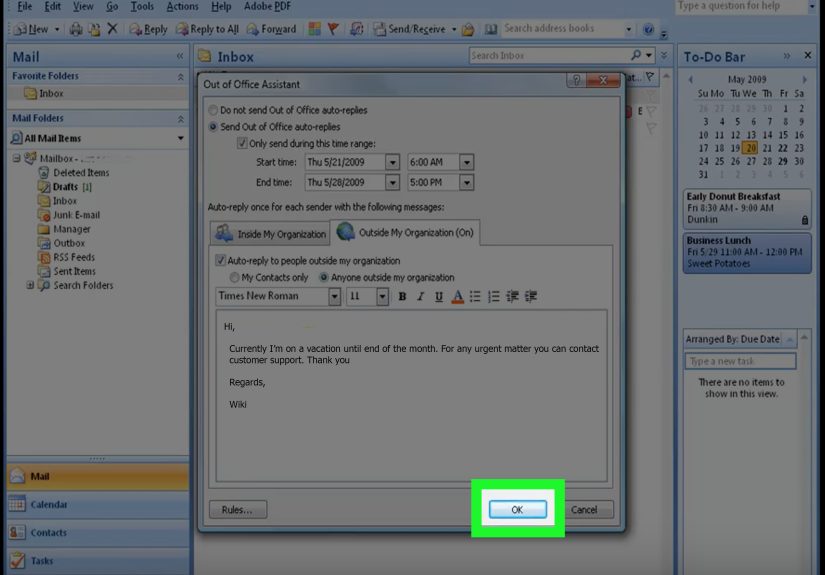
- Open Outlook, then click File.
- Select Automatic Replies (Out of Office).
- Choose Send automatic replies.
- To avoid accidentally becoming a full-time autoresponder, check Only send during this time range and set your start/end.
- Write your message for Inside My Organization. If you want, set a separate message for people outside your organization.
- Click OK to save.
Pro tip: Tell Outlook what to do with meetings
If your version offers it, consider options like blocking your calendar, declining new invitations, or canceling meetings during your away period.
This prevents the “surprise meeting avalanche” when you return.
Way 2: New Outlook for Windows Settings-Based Automatic Replies
The new Outlook for Windows looks and behaves more like Outlook on the web. The out-of-office settings live under Settings rather than the old File menu.
If your workplace recently “upgraded” you (translation: moved your buttons), this is probably your path.
Steps (New Outlook)
- Open Outlook.
- Go to View and select View settings (or open Settings from the gear icon).
- Choose Accounts > Automatic replies.
- Turn on Automatic replies.
- Set your schedule and type your message (and separate internal/external replies if available).
- Save your changes.
If the steps don’t match what you see, you might still be on classic Outlook (yes, Outlook has multiple personalities). Jump to Way 1.
Way 3: Outlook on the Web (Browser) The “I Forgot Until the Airport” Method
Outlook on the web is the best option when you’re not on your work computer. It’s also a lifesaver if you remembered your out-of-office message
at the exact moment you turned on airplane mode.
Steps (Outlook on the web)
- Sign in to Outlook on the web.
- Click the Settings gear icon.
- Select View all Outlook settings.
- Go to Mail > Automatic replies.
- Turn on Automatic replies.
- Set a time range (highly recommended), then write your message. If available, set separate replies for internal vs. external senders.
- Save.
Bonus: Many people prefer the web version because it’s straightforwardand it keeps working even if your laptop is off.
Way 4: Outlook for Mac Tools Menu Automatic Replies
On a Mac, Outlook tucks out-of-office settings under the Tools menu. The wording might vary slightly depending on your Outlook version,
but the path is usually consistent.
Steps (Outlook for Mac)
- Open Outlook and make sure you’re in Mail.
- From the menu bar, select Tools > Automatic Replies.
- Turn on automatic replies for the correct account.
- Enter your message (and set a schedule if available).
- Save/close the window.
Tip: If you have multiple accounts in Outlook for Mac, double-check you’re enabling the correct mailboxespecially if you have both a personal and work email in the app.
Way 5: Outlook Mobile (iOS/Android) Set It Up from Your Phone
Outlook’s mobile app can set out-of-office replies for many account types, including Microsoft 365, Exchange, and Outlook.com.
It’s perfect for quick changeslike extending your away dates because your flight got delayed (again).
Steps (Outlook mobile)
- Open the Outlook app.
- Tap the Settings gear icon.
- Select the email account you want to configure.
- Tap Automatic Replies.
- Toggle it On, set your schedule, and type your message.
- Save (often a checkmark).
Mobile tip: Keep your message short and clean. Nobody wants to read a novel on a tiny screenespecially not one about how you’re “out of office and living your best life.”
Way 6: No “Automatic Replies” Button? Use a Rule (Carefully)
Sometimes Outlook doesn’t show Automatic Replies. This often happens with certain account types (for example, POP/IMAP accounts) or specific setups.
If that’s you, don’t panicyou can create an out-of-office workaround using an Outlook rule.
Important reality check
- This workaround may require Outlook to stay running on your computer to send replies.
- Auto-reply rules can cause loops if two systems reply to each other (like two robots arguing politely forever).
- Some organizations block external auto-replies for security reasons.
Steps (Classic Outlook rule-based auto-reply)
- Create a reply template: start a new email, write your away message, then save it as an Outlook Template (.oft).
- Go to Rules (usually under the Home tab) and choose Manage Rules & Alerts.
- Create a new rule that applies to messages you receive.
- Choose the action reply using a specific template, then select your saved .oft template.
- Add exceptions (optional but smart): exclude mailing lists, automated notifications, or specific senders.
- Turn the rule on.
If you’re already away (or locked out): the admin option
If your mailbox is in Microsoft 365/Exchange and you can’t access your usual device, a Microsoft 365 admin can often enable automatic replies
for your mailbox through the admin tools. If you’re in a hurry, message your IT team with your away dates and the exact text you want used.
What to Write: Out-of-Office Message Formula (That Doesn’t Overshare)
The best Outlook out of office message answers three questions: When are you back? What should the sender do now? and
What can they expect next? That’s it. No dramatic cliffhangers. No vacation coordinates.
A simple, professional structure
- One-line status: “Thanks for your messageI’m currently out of the office.”
- Return date: “I’ll be back on Tuesday, March 12.”
- Urgent contact: “For urgent requests, email Jordan Lee at [email protected].”
- Expectation: “I’ll respond as soon as I’m able after I return.”
Copy/paste templates
Template 1: Internal (coworkers)
Template 2: External (clients/customers)
Privacy tip: It’s generally smarter to say “out of office” than “on vacation in a different time zone with no cell service.” Keep the details minimal.
Troubleshooting: When Outlook Gets Dramatic
“I don’t see Automatic Replies anywhere.”
- You may be using an account type that doesn’t support server-based automatic replies. Try Way 6 (rules).
- You may be in new Outlook but following classic steps (or vice versa). Double-check Way 1 vs. Way 2.
- If you can access Outlook on the web, try Way 3it often exposes settings that the desktop app hides.
“My out-of-office message keeps sending again and again.”
- Many systems send an automatic reply only once per sender, but rule-based solutions can behave differently.
- If you used a rule, add exceptions (for mailing lists and automated senders) to reduce reply storms.
“People say they didn’t get my reply.”
- If you set a time window, confirm the start date/time hasn’t been set in the future by mistake.
- Confirm whether you enabled replies to people outside your organization.
- If you used a rule-based method, make sure Outlook is running (and your computer isn’t fully powered down).
Extra: Real-World Experiences and Lessons Learned (500+ Words)
Out-of-office messages seem simpleuntil real life enters the chat. Here are a few “seen it in the wild” scenarios (and what they teach you) that can make your Outlook
automatic replies more helpful and less… accidentally legendary.
1) The “I set it but forgot the end date” classic
Someone takes a long weekend, turns on Automatic Replies, and returns on Monday feeling refreshedonly to discover that their out-of-office message has been replying
to emails for two straight weeks. That’s not just awkward; it can quietly slow projects down because people assume you’re still unavailable.
The fix is boring but powerful: always set a start and end time. Think of it like setting a timer when you cookbecause you are the human version
of “I’ll remember,” and Outlook is the human version of “No you won’t.”
2) The “I overshared and now everyone knows I’m not home” problem
It’s tempting to be cute: “I’m in Hawaii until Friday!” or “Gone campingno signal!” But detailed away messages can become a security issue (and sometimes a compliance issue),
especially for public-facing roles. The best practice many IT teams promote is to keep it generic: “I’m out of the office until [date].”
You can still be warm and human without broadcasting your location. If you want to add personality, do it safely:
“I’m away from email this week and will reply after I return.”
3) The “internal vs. external” mismatch
Inside your organization, coworkers may need actionable detail: who can approve invoices, who can sign off on content, and where the latest file lives.
Outside your organization, less is more. A client doesn’t need to know your org chartthey need a reliable next step. Splitting your message into
internal and external replies is one of the easiest upgrades you can make: your team gets clarity, and your customers get confidence.
It also cuts down on follow-up emails like, “Hi, are you still out?” (which is basically the email version of poking you with a stick).
4) The calendar chaos you don’t see until you return
Some people come back from PTO to a calendar that looks like a game of Tetrisevery open slot filled, including the first hour back when you’re still searching for
your coffee mug and your will to live. If your Outlook version offers it, use the options to block your calendar and decline or cancel meetings
during your away window. It sets expectations automatically and prevents colleagues from scheduling you into the past.
Even if you don’t cancel existing meetings, blocking your calendar helps others self-correct when they try to book time with you.
5) The “rule-based out of office” that backfired
When Automatic Replies isn’t available, rules can helpbut they also introduce risk. A common mistake is replying to every message with no exceptions,
accidentally responding to mailing lists, automated alerts, or ticketing systems. That creates noise, not communication. If you use a rule:
add exceptions for distribution lists and automated senders, limit the reply window, and test by emailing yourself from a personal account first.
Most importantly: if your rule needs Outlook running, make sure your computer won’t shut down, update, or disconnect while you’re away.
Bottom line: the best Outlook out-of-office setup is the one that protects your time and helps other people move forward without you.
If your message answers “when,” “who,” and “what next,” you’ve done it right.
Conclusion
Setting up an out-of-office message in Outlook is one of those tiny tasks that pays off massively: fewer follow-ups, better boundaries, and less chaos when you return.
Use the method that matches your deviceclassic Outlook, new Outlook, web, Mac, or mobileand always set a time range so you don’t become a permanent autoresponder.
If Outlook won’t show Automatic Replies, a carefully-built rule can still do the job (just test it first).