Table of Contents >> Show >> Hide
- What “Factory Settings” Means in Microsoft Word
- Before You Reset Word
- How to Restore Factory Settings in Microsoft Word on a Windows PC
- How to Restore Factory Settings in Microsoft Word on a Mac
- What Gets Reset and What Does Not
- Common Problems After a Reset
- Best Practices After You Restore Word
- Practical Experiences: What Restoring Word Usually Feels Like on PC and Mac
- Final Thoughts
- SEO Tags
Note: Microsoft Word does not come with one big shiny “Factory Reset” button. Tragic, I know. In real life, restoring Word to default settings usually means resetting the Normal template, removing broken customizations, clearing out troublesome add-ins, restoring proofing or toolbar settings, and, in more stubborn cases, repairing Office itself.
If Word has started acting like it drank six espressos and forgot how margins work, you are not alone. Maybe the ribbon looks wrong. Maybe new documents open with strange fonts, odd spacing, mysterious indents, or keyboard shortcuts that seem to have joined another religion. Maybe Word crashes, freezes, or refuses to save your preferences. Whatever flavor of chaos you are dealing with, the good news is that you can usually restore factory settings in Microsoft Word on both PC and Mac without reinstalling your entire computer or sacrificing a printer to the software gods.
This guide walks through the safest and most effective ways to reset Microsoft Word on Windows and macOS. We will start with the lighter fixes, move into the more complete reset methods, and show you what actually changes when you do it. That way, you can stop guessing, stop clicking random buttons, and get Word back to behaving like a civilized word processor.
What “Factory Settings” Means in Microsoft Word
When people search for how to restore factory settings in Microsoft Word, they usually want one of three things: a clean default layout for new documents, a reset of Word’s interface and custom options, or a fix for corruption caused by templates, preferences, or add-ins. The phrase sounds simple, but Word stores settings in several places.
That means a true reset can involve more than one component, including the following:
- The Normal.dotm template, which controls many default behaviors for new documents
- Ribbon and Quick Access Toolbar customizations
- Keyboard shortcuts and AutoCorrect preferences
- Proofing and Editor settings
- Add-ins loaded when Word starts
- Registry settings on Windows or preference files on Mac
In other words, resetting Word is less like flipping a master switch and more like cleaning out a messy closet. Sometimes you just fold the shirts. Sometimes you remove everything, stare at the chaos, and rebuild your life one shelf at a time.
Before You Reset Word
Back up anything custom
If you created custom macros, styles, AutoText entries, or keyboard shortcuts, make a backup before doing a full reset. The most common reset methods replace or rebuild the files that store those customizations.
Start with the least destructive fix
If your issue is only visual, such as a weird ribbon layout or a toolbar that wandered off, do not jump straight into registry edits or preference-file surgery. Start small. Word rewards restraint.
How to Restore Factory Settings in Microsoft Word on a Windows PC
Method 1: Reset the Ribbon and Quick Access Toolbar
If Word looks wrong but still opens normally, this is the easiest fix. Resetting the ribbon restores default tabs, and resetting the Quick Access Toolbar removes custom commands that may be causing confusion.
- Open Word.
- Go to File > Options.
- Select Customize Ribbon.
- Click Reset.
- Choose Reset all customizations or reset only the selected tab.
- To reset the Quick Access Toolbar by itself, go to the toolbar customization area and choose Reset only Quick Access Toolbar.
This step is perfect if you accidentally customized Word into looking like an escape room.
Method 2: Reset Proofing, Editor, and Formatting-Related Defaults
Sometimes Word is technically fine, but the proofreading behavior, grammar alerts, or default formatting feels off. You can reset parts of that without wiping everything.
Try these options:
- Go to File > Options > Proofing and use Recheck Document if Word keeps ignoring spelling or grammar issues it skipped before.
- In Editor or grammar settings, use Reset to default where available.
- For text that only needs to return to default styling, select it and use Clear All Formatting.
This is helpful when the problem lives inside the document experience, not the whole app.
Method 3: Rebuild the Normal.dotm Template
This is the classic fix for strange default fonts, broken styles, odd spacing, weird new-document behavior, and some macro-related weirdness. The Normal.dotm file is the main template Word uses for new blank documents. If it becomes corrupted, Word can act like it has a personality disorder.
- Close Word completely.
- Press Windows + R.
- Type %appdata%MicrosoftTemplates and press Enter.
- Find Normal.dotm.
- Rename it to something like OldNormal.dotm.
- Reopen Word.
When Word launches again, it creates a fresh Normal.dotm file with default settings. If the problem disappears, congratulations: the old template was the troublemaker.
If you later discover you need custom macros or styles from the old template, you can selectively copy them back instead of restoring the whole mess.
Method 4: Check Startup Add-ins and Templates
If Word behaves badly only at startup, an add-in may be the actual villain. Word loads templates and add-ins from startup folders, and one broken add-in can make the app feel cursed.
- Open Word in Safe Mode first by pressing Windows + R, typing winword /safe, and pressing Enter.
- If Word works normally in Safe Mode, the issue is often an add-in or startup customization.
- Check your Word startup folder, often found at %appdata%MicrosoftWordSTARTUP.
- Move items out temporarily and test Word again.
- Also review File > Options > Add-ins and disable suspicious COM add-ins.
This fix is especially useful when Word freezes on launch, loads slowly, or acts fine until a certain plug-in joins the party.
Method 5: Reset Advanced Word Settings in the Registry
This is the more advanced Windows method. It is effective, but it is not something to do casually while half-awake and holding a muffin. Word stores many user settings in the Windows Registry. Resetting those keys can restore Word’s options, recent lists, and other stored behaviors.
Proceed carefully:
- Close all Office apps.
- Open Registry Editor by searching for regedit.
- Navigate to your Word key, usually HKEY_CURRENT_USERSoftwareMicrosoftOffice16.0Word for Microsoft 365, Word 2019, and Word 2016.
- Export the key or subkeys first as a backup.
- If needed, delete the Data and Options subkeys, or the full Word key if you understand the consequences.
- Restart Word so it rebuilds the settings.
This step can reset Word more deeply than the Normal.dotm method, but it also removes a lot of user-specific settings. Use it when Word remains broken after the gentler fixes.
Method 6: Repair Office
If Word still behaves badly after resetting its templates and settings, the Office installation itself may be damaged.
- Go to Settings > Apps or Installed apps.
- Select your Microsoft 365 or Office installation.
- Choose Modify.
- Run Quick Repair first.
- If that fails, run Online Repair.
Think of this as Word’s spa retreat. It comes back cleaner, calmer, and slightly less dramatic.
How to Restore Factory Settings in Microsoft Word on a Mac
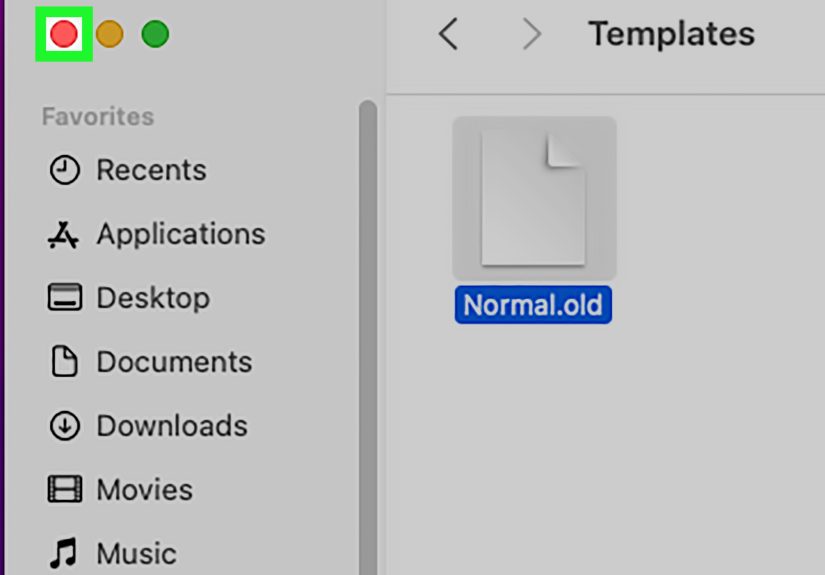
Method 1: Reset the Normal.dotm Template on Mac
Just like on Windows, Word for Mac stores default document behaviors in Normal.dotm. If new documents look wrong or Word crashes around formatting, replacing this file is often the fastest fix.
- Quit Word.
- In Finder, hold Option, click Go, then choose Library.
- Navigate to ~/Library/Group Containers/UBF8T346G9.Office/User Content/Templates.
- Find Normal.dotm.
- Rename it to OldNormal.dotm or move it to the desktop.
- Reopen Word.
Word will generate a new clean template. For older Mac versions, the template may live in an older Office user-templates path, but current Microsoft 365 and modern Mac installations usually use the Group Containers location above.
Method 2: Remove Word Preference Files
If resetting Normal.dotm is not enough, the next step is clearing Word’s preference files. These store various app behaviors and custom settings, and corruption here can cause crashes, stubborn display problems, or settings that refuse to stick.
- Quit all Office apps.
- Open Finder > Go > Library again.
- Open the Preferences folder.
- Move files such as com.microsoft.Word.plist or related Word preference files to the desktop.
- Reopen Word and test.
Do not permanently delete anything until you confirm the reset solved the problem. Renaming or moving files first is the smarter move.
Method 3: Reset Keyboard Shortcuts and AutoCorrect If Needed
If Word is mostly fine but your shortcuts or text-replacement behavior are a disaster, target those settings directly.
- For keyboard shortcuts, open Tools > Customize Keyboard and choose Reset All.
- For AutoCorrect, go to Word > Preferences > AutoCorrect and review or restore the settings you changed.
This approach saves time when your app is healthy but your typing experience feels like someone swapped your keyboard with a trick prop from a sitcom.
Method 4: Test Word After the Reset
Once Word opens again, create a new blank document and test the basics:
- Does the default font and spacing look normal?
- Do new documents behave correctly?
- Can Word save, close, and reopen without errors?
- Do keyboard shortcuts work as expected?
If the answer is yes, you found the broken layer. If not, the issue may be a damaged Office installation, a third-party add-in, or a document-specific problem rather than an app-wide one.
What Gets Reset and What Does Not
Restoring Microsoft Word to factory settings does not usually delete your saved documents. It mainly affects the program’s behavior, its templates, preferences, interface setup, and custom defaults.
Depending on which reset method you use, you may lose:
- Custom styles stored in Normal.dotm
- Macros and AutoText entries
- Custom ribbon and toolbar layouts
- Keyboard shortcut changes
- Recent-file lists and some user preferences
Your documents themselves should remain safe, but Word’s memory of how you wanted life organized may vanish. Honestly, sometimes that is the point.
Common Problems After a Reset
“My old styles disappeared”
If the old styles lived inside Normal.dotm, that is expected. Import only the specific styles you need instead of restoring the entire old template and inviting the original problem back in through the front door.
“Word is still weird in one document”
That often means the document itself is damaged or overloaded with formatting. A Word reset fixes the app, not every file on Earth. Copy the content into a fresh document and clear formatting where necessary.
“The problem comes back every time I reopen Word”
That usually points to an add-in, a permissions problem, or a template file that Word cannot properly rewrite. Check file permissions and startup items, especially if your settings keep resetting on exit.
“I can’t find the Mac Library folder”
That is normal. Apple hides it. Hold Option while opening the Go menu in Finder, and the Library option will appear like a secret passage in a mystery novel.
Best Practices After You Restore Word
Once Word is back to normal, keep it that way with a few practical habits. Add one customization at a time instead of importing every old setting at once. Be selective with add-ins. Keep Office updated. If you rely on custom macros or templates, store backup copies somewhere obvious so your future self does not have to go digital archaeology mode.
It is also smart to test Word with one clean blank document after every major change. If something breaks, you will know which tweak caused the trouble instead of having to interrogate six settings, three add-ins, and one questionable template named “Final_Final_ReallyFinal.dotm.”
Practical Experiences: What Restoring Word Usually Feels Like on PC and Mac
In real-world use, restoring factory settings in Microsoft Word is usually less dramatic than people fear and more annoying than they expect. The most common experience on a Windows PC starts with a user noticing something small: the default font changed, new documents open with odd spacing, the ribbon looks different, or Word suddenly crashes when opening a blank file. At first, it seems minor. Then the tiny issue starts spreading. A shortcut stops working. A style refuses to behave. The Quick Access Toolbar looks like it was organized by a raccoon. That is usually the moment people start searching for how to reset Word.
What surprises many PC users is that the problem is often not Word as a whole. It is one layer of Word. Sometimes renaming Normal.dotm solves everything in under two minutes, and the reaction is basically, “That was it?” Other times, Word opens fine in Safe Mode, which is the software equivalent of a doctor saying, “Good news, it is probably not your heart, just the weird energy drink you had before the exam.” That points to an add-in conflict, and once the add-in is disabled, Word goes back to normal. The bigger lesson is that a lot of Word problems look huge from the outside but come from one corrupted template or one bad startup item.
On a Mac, the experience is often slightly more confusing because the Library folder is hidden and file paths are less obvious if you do not already live comfortably inside Finder. Many Mac users assume Word has no reset option at all because there is no simple menu item that says, “Please undo whatever nonsense just happened.” Once they find the hidden Library folder and rename Normal.dotm or remove the Word preference files, the app often settles down fast. The hardest part is usually not the fix itself. It is locating the right file without feeling like you are exploring a cave system with a flashlight made of menu commands.
Another common experience is discovering that the reset worked, but a few favorite customizations disappeared. That can be mildly irritating, especially for people who had carefully tuned keyboard shortcuts, styles, or AutoCorrect entries over months or years. Still, most users decide the trade-off is worth it. A clean, stable version of Word is better than a personalized version that behaves like it is haunted. The smart move after a successful reset is rebuilding only the custom settings you actually miss. That tends to produce a better setup than the old one, because you stop carrying around digital clutter from five versions ago.
The biggest practical takeaway is simple: when Word starts acting strange, do not panic and do not immediately reinstall your entire machine. Start with the smallest reset that matches the symptom. Reset the ribbon if the interface is weird. Rebuild Normal.dotm if new documents look wrong. Remove preferences on Mac if settings are corrupted. Use Safe Mode or repair Office if the app itself is unstable. Most people who go through the process come away with the same conclusion: Word is fixable, but it likes to hide the fix behind two folders, three menus, and just enough mystery to keep things interesting.
Final Thoughts
If you need to restore factory settings in Microsoft Word on a PC or Mac, the best approach is to treat Word like a stack of layers instead of one giant black box. Reset the easy stuff first, then rebuild the Normal template, remove damaged preferences, disable add-ins, and repair Office only when necessary. That step-by-step method is faster, safer, and much less likely to wipe out custom work you still want.
Once Word is back to its default settings, it should open cleanly, create normal blank documents, and stop making you question your life choices over line spacing. And really, that is all most of us want from a word processor.