Table of Contents >> Show >> Hide
- What Registry Errors in Windows 7 Usually Look Like
- How to Fix Registry Errors in Windows 7: 14 Steps
- Back up your personal files before you touch anything
- Figure out when the problem started
- Create a restore point if Windows still loads normally
- Export a registry backup before making manual changes
- Restart the PC once before doing anything dramatic
- Uninstall recently added software, drivers, or utilities
- Run System File Checker
- Run Check Disk to look for file system or drive damage
- Boot into Safe Mode
- Use System Restore to roll Windows back
- Use Startup Repair if Windows 7 will not boot
- Use Bootrec for boot-related corruption
- Manually undo only the exact registry change you know caused the issue
- Run a malware scan
- Consider a repair install, clean install, or upgrade path
- Mistakes to Avoid While Fixing Windows 7 Registry Errors
- When a “Registry Error” Is Actually Something Else
- Real-World Experiences and Lessons From Fixing Registry Errors in Windows 7
- Conclusion
- SEO Tags
When Windows 7 starts acting like it drank three energy drinks and then tripped over its own shoelaces, the registry often gets blamed. Sometimes that is true. Sometimes it is only partly true. The Windows registry is a giant database that stores settings for Windows, hardware, drivers, and programs. If it becomes damaged, edited incorrectly, or tangled up after a bad uninstall, malware infection, or failing drive, your PC may throw error messages, boot badly, or refuse to cooperate altogether.
Before we dive in, one important reality check: fixing registry errors in Windows 7 is rarely about downloading a shiny “one-click cleaner” that promises to turn your old PC into a rocket ship. In real life, the safest approach is boring but effective: back up your data, create a restore point, use built-in Windows repair tools, and only edit the registry manually when you know exactly what you are changing. Glamorous? No. Effective? Usually, yes.
Also, Windows 7 is an old operating system and no longer receives regular security support. That does not make your computer instantly explode, but it does mean you should be extra careful with downloads, malware, and random registry tools from the internet. If your machine still runs Windows 7, treat it like a classic car: useful, occasionally charming, and not something you should trust with reckless adventures.
What Registry Errors in Windows 7 Usually Look Like
Registry problems can show up in a few classic ways. You may see startup errors after installing or removing software. Programs may refuse to open. Windows may hang at boot, restart repeatedly, or display messages suggesting a system file or configuration is missing or corrupted. In some cases, what people call a “registry error” is really a damaged system file, disk problem, broken driver, or malware infection wearing a registry-shaped disguise.
That is why the smartest fix is not to attack the registry first with a digital chainsaw. Instead, work through a logical sequence. The 14 steps below move from safest to most invasive, which is exactly how troubleshooting should work when you would prefer not to spend your weekend reinstalling Windows 7 and questioning all your life choices.
How to Fix Registry Errors in Windows 7: 14 Steps
-
Back up your personal files before you touch anything
If Windows still boots, copy your important documents, photos, work files, browser bookmarks, and anything else you care about to an external drive or cloud storage. If Windows will not boot, use Safe Mode, a Linux live USB, or another computer to rescue your files. Registry repair can go smoothly, but this is still computer repair, and computers have a dark sense of humor.
-
Figure out when the problem started
Think back. Did the issue appear after a Windows update, new driver, antivirus install, sketchy download, registry tweak, or failed uninstall? That timeline matters. If the problem began right after one change, you have a much better chance of reversing it quickly. A registry problem with a clear starting point is far easier to fix than a mystery that has been fermenting for six months.
-
Create a restore point if Windows still loads normally
Open the Start menu, search for Create a restore point, and use System Protection to create one. This gives you a safety net before you try repairs. A restore point will not back up your vacation photos, but it can roll back important system settings, drivers, and registry changes. That makes it one of the safest first moves when Windows 7 is still limping along.
-
Export a registry backup before making manual changes
Press
Windows + R, typeregedit, and press Enter. In Registry Editor, choose File > Export. If you are only changing one key, back up that specific branch. If you want broader protection, export more of the registry. Save the file somewhere obvious. If the edit goes wrong, you can later restore it by double-clicking the saved.regfile or importing it through Registry Editor. That little backup file can save you from a very long afternoon. -
Restart the PC once before doing anything dramatic
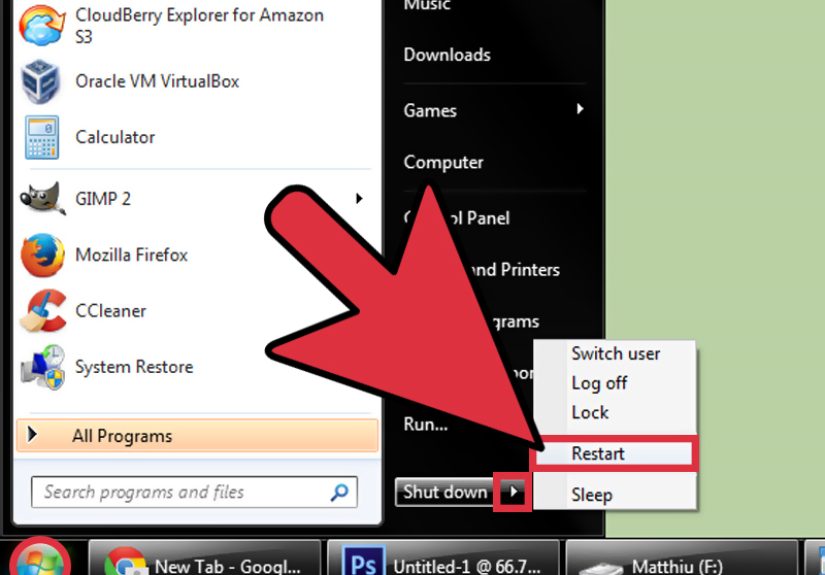
Yes, this sounds almost insultingly simple. Do it anyway. Some temporary errors clear after a clean reboot, especially after a failed install or update. If Windows has been running badly for a while, a restart may also reveal whether the problem is consistent, startup-related, or only happens after you launch specific software. The humble reboot has survived this long for a reason.
-
Uninstall recently added software, drivers, or utilities
If your problem started after installing a driver pack, “optimizer,” security suite, theme tool, codec bundle, or mystery utility that promised to speed up your computer by 900 percent, remove it first. Go to Control Panel > Programs and Features and uninstall the most suspicious recent additions. In Device Manager, roll back a new driver if needed. Many registry headaches begin with software that wedges itself too deeply into Windows and then leaves a mess behind.
-
Run System File Checker
Open an elevated Command Prompt and run:
sfc /scannowThis tool scans protected Windows system files and replaces corrupted versions with cached copies when possible. If it reports that corrupt files were found and repaired, restart and see whether the issue is gone. If it says it could not repair some files, do not panic. That simply means you may need Safe Mode, System Restore, or deeper repair steps next.
-
Run Check Disk to look for file system or drive damage
Open Command Prompt as administrator and run:
chkdsk c: /rIf Windows says the volume is in use and asks to schedule the scan for the next restart, say yes and reboot. This matters because a damaged file system or failing disk can create errors that look like registry corruption. If the hard drive itself is having a bad day, fixing the registry alone will be like repainting a house with a broken foundation.
-
Boot into Safe Mode
Restart the PC and tap
F8before Windows loads. Choose Safe Mode or Safe Mode with Networking. Safe Mode loads a stripped-down set of drivers and services, which is helpful if a bad driver, startup item, or third-party tool is blocking normal repair. From Safe Mode, you can run System Restore, uninstall problem software, runsfc /scannowagain, or export and restore registry branches more safely. -
Use System Restore to roll Windows back
If the computer worked fine last week and now behaves like a haunted toaster, System Restore is often the fastest legitimate fix. In Windows 7, go to Start > All Programs > Accessories > System Tools > System Restore. Choose a restore point from before the problem began. This can revert registry settings, system files, drivers, and installed programs to an earlier state without removing your personal documents. That makes it one of the best tools for registry-related damage caused by recent changes.
-
Use Startup Repair if Windows 7 will not boot
If Windows 7 will not start at all, boot from a Windows 7 installation DVD or a system repair disc. Choose Repair your computer and then run Startup Repair. This tool is designed to detect and repair common startup issues automatically. If you still have access to Windows beforehand, you can create a repair disc from Backup and Restore in Control Panel. It is not glamorous, but it is exactly the kind of tool you want when the computer refuses to reach the desktop.
-
Use Bootrec for boot-related corruption
If Startup Repair does not solve the problem and the issue appears to involve startup records or boot configuration, open Command Prompt from the recovery environment and use Bootrec. Common commands include:
bootrec /fixmbr
bootrec /fixboot
bootrec /rebuildbcdThese commands are aimed at startup problems, not routine cleanup. Use them when Windows 7 will not boot properly after corruption, malware cleanup, or failed recovery attempts. If you are not dealing with a boot problem, skip this step and avoid turning a repair job into a new hobby.
-
Manually undo only the exact registry change you know caused the issue
This is where patience matters. If you changed a specific key yesterday and your problem started today, reverse that exact change. Do not roam through the registry “cleaning things up” because entries look unfamiliar. The registry is full of strange names, long strings, and mysterious branches that are completely normal. Random deletion is how a minor issue becomes a support forum post titled “Help please urgent nothing works.”
If you already exported a backup of the affected key, import it and restart. If you did not, compare the setting carefully against documentation from the software vendor or trusted support instructions before editing anything.
-
Run a malware scan
Malware can damage registry settings, add malicious startup entries, break file associations, and interfere with Windows services. Use a trusted antivirus or anti-malware scanner and run a full scan. This is especially important if the problem began after downloading pirated software, opening suspicious email attachments, or installing free tools from questionable websites. In older operating systems like Windows 7, malware loves to move in like it pays rent.
-
Consider a repair install, clean install, or upgrade path
If the errors keep returning, System File Checker cannot fully repair the damage, or the machine still crashes after multiple fixes, you may have reached the point where repair is less efficient than replacement. A repair install can refresh Windows while preserving data in some scenarios. A clean install is more disruptive but often more reliable. If the hardware allows it, planning a move away from Windows 7 is the long-term fix. Sometimes the real registry solution is admitting the operating system has served bravely and deserves retirement.
Mistakes to Avoid While Fixing Windows 7 Registry Errors
The biggest mistake is trusting registry cleaners to do the thinking for you. Many tools flag hundreds of “errors” that are harmless leftovers, cosmetic issues, or entries Windows simply does not care about. Deleting them may not improve performance at all, and in some cases it can break programs, fonts, drivers, or Windows startup. Another common mistake is editing the registry without a backup, which is the computing equivalent of skydiving because the backpack looked aerodynamic.
You should also avoid restoring random .reg files from forums or video comments. A registry file from another PC may not match your hardware, installed software, or system configuration. Finally, do not ignore hardware problems. If your drive is failing, no amount of registry editing will make it trustworthy again.
When a “Registry Error” Is Actually Something Else
It is worth saying plainly: not every Windows 7 crash, slowdown, or startup problem is caused by the registry. Bad RAM, failing drives, corrupted updates, broken drivers, overheating, and malware can all create symptoms that users describe as registry errors. That is why the best troubleshooting sequence includes System File Checker, Check Disk, Safe Mode, System Restore, and startup repair tools instead of obsessing over Regedit from minute one.
For example, if your PC freezes while loading Windows and then suddenly boots in Safe Mode, the real issue may be a driver conflict. If chkdsk reports bad sectors, the drive may be deteriorating. If a full malware scan finds infections, the registry may only be one part of a larger mess. In other words, treat the registry as part of the system, not the entire mystery novel.
Real-World Experiences and Lessons From Fixing Registry Errors in Windows 7
People often imagine registry repair as a single dramatic moment: type one magical command, press Enter, and watch Windows rise from the ashes like a heroic phoenix in a desktop wallpaper. In real life, fixing registry errors in Windows 7 is usually much less theatrical and much more methodical.
A very common experience goes like this: a user installs a free utility that promises faster startup, deeper cleaning, smarter memory use, and possibly eternal happiness. The tool runs a “scan,” reports 1,274 severe registry problems, and offers to fix them. The next restart takes forever, a favorite program stops opening, and now the user is searching for answers. In many cases, the best recovery path is not another cleaner. It is System Restore, an imported registry backup, or uninstalling the utility that caused the mess in the first place.
Another familiar situation happens after uninstalling old software, especially security suites, printer drivers, or all-in-one media tools. The uninstall finishes, but Windows 7 starts showing startup messages, file association problems, or slow logins. Here, users often assume the registry is hopelessly broken. In practice, running sfc /scannow, removing leftover startup items, and restoring the system to a point before the uninstall can fix the issue without any dramatic manual editing.
There is also the “it will only boot in Safe Mode” experience. This one makes people instantly suspect catastrophic registry corruption, but the cause is often more ordinary. A bad display driver, damaged system file, or incomplete update may be the real villain. Safe Mode helps because it loads fewer drivers and services, giving you room to uninstall the bad software, run a repair command, or launch System Restore. Many users are surprised to learn that the registry was not the entire problem. It just got caught in the chaos.
Then there is the case where Windows 7 will not boot at all and throws errors that mention configuration or corruption. That sounds terrifying, and to be fair, it is not ideal. But this is exactly where the recovery tools matter most. Startup Repair, System Restore from recovery mode, Bootrec, and a repair disc can often revive the system enough to save your files or restore functionality. Users who prepared backups ahead of time usually recover faster. Users who did not prepare backups usually become passionate believers in backups immediately afterward.
One more real-world lesson stands out: sometimes persistent “registry errors” are a clue that the hard drive is failing. You fix something, it returns. You restore Windows, it breaks again. You repair files, and new corruption appears later. That pattern often points to storage trouble rather than a mysterious registry curse. In those cases, replacing the drive and reinstalling Windows can be more productive than endlessly tweaking settings.
The most successful Windows 7 repairs usually come from people who slow down, document what changed, make backups, and use Windows tools in the right order. The least successful repairs usually involve panic-clicking through ten utilities, deleting random keys, and hoping the computer appreciates the enthusiasm. It does not.
Conclusion
If you need to fix registry errors in Windows 7, the safest path is clear: protect your files, create backups, use System Restore, run sfc /scannow, check the disk, and lean on Startup Repair or Bootrec only when the machine truly needs recovery-level help. Manual registry edits should be precise, reversible, and based on a known problem, not guesswork.
Windows 7 can still be repaired, but it rewards careful troubleshooting rather than shortcuts. If the system is badly damaged or keeps relapsing, a repair install, clean install, or move to a newer version of Windows may save more time than heroic tinkering. Sometimes the smartest fix is not the flashiest one. It is the one that gets your PC stable again without creating three brand-new problems on the way there.