Table of Contents >> Show >> Hide
- What is Cache and Why Should You Clear It?
- Step-by-Step Guide to Clearing the Cache in IE11
- What to Expect After Clearing the Cache
- Why It’s Important to Clear Cache Regularly
- Common Cache-Related Issues and How to Resolve Them
- How Often Should You Clear Your Cache?
- Final Thoughts on Clearing the Cache in IE11
- Personal Experiences: Why I Cleared My Cache in IE11
Have you ever encountered slow browsing speeds or issues loading up your favorite websites? If you’re using Internet Explorer 11 (IE11), the culprit might just be your browser’s cache. Clearing the cache can help improve performance, fix bugs, and ensure you’re seeing the most up-to-date version of the websites you visit. But how do you go about clearing the cache in IE11? Don’t worry, this step-by-step guide will walk you through the process with ease, ensuring a smoother browsing experience every time!
What is Cache and Why Should You Clear It?
Before diving into the “how,” let’s take a quick look at the “what” and “why.” Your browser’s cache is a storage space that temporarily holds files from websites you visit, such as images, scripts, and other data. This helps websites load faster the next time you visit by reusing these files instead of downloading them all over again.
However, over time, the cache can become cluttered with outdated or corrupted files, leading to slow performance and potential errors. Clearing the cache regularly helps free up space and ensures that you’re seeing the latest content from websites, instead of potentially outdated data stored on your device.
Step-by-Step Guide to Clearing the Cache in IE11
Now that we understand what the cache is and why it’s important to clear it, let’s go over the exact steps to clear the cache in Internet Explorer 11:
1. Open Internet Explorer 11
First, launch Internet Explorer 11 on your computer. You can do this by searching for “Internet Explorer” in your Start Menu (for Windows 7) or typing it into the search bar on Windows 10. Make sure you’re using IE11 and not another version, as the steps may differ slightly between versions.
2. Access the Settings Menu
Next, look at the top-right corner of the browser window for the gear icon. This is the settings menu. Click on it to open the dropdown menu.
3. Select “Internet Options”
In the dropdown menu, click on “Internet Options.” This will open up a window with several settings for your Internet Explorer.
4. Navigate to the “General” Tab
Once in the Internet Options window, make sure you’re on the “General” tab. This is where you’ll find the option to delete your browsing history, including cached files.
5. Click on “Delete” Under Browsing History
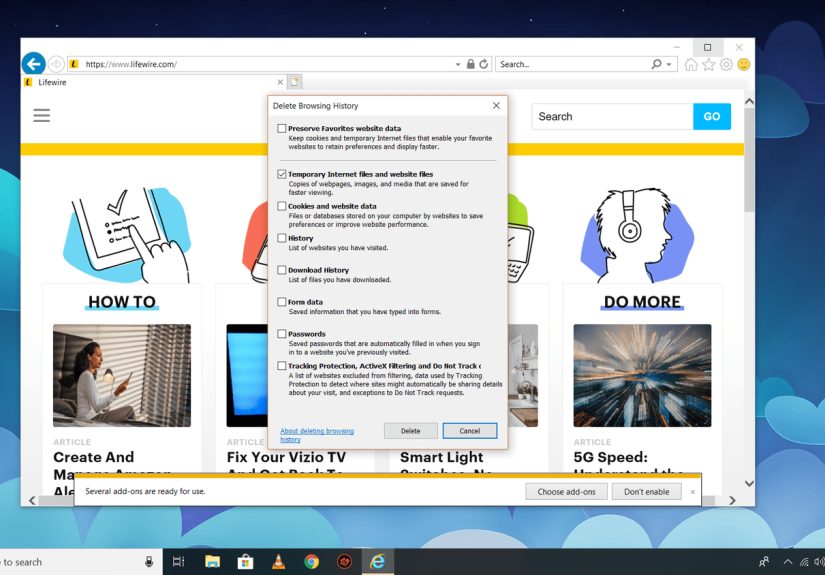
In the Browsing History section, click the “Delete…” button. This will open a new window where you can choose what data to clear.
6. Select “Temporary Internet Files and Website Files”
In the Delete Browsing History window, make sure the box labeled “Temporary Internet Files and Website Files” is checked. This is the cache you want to clear. You can also choose to clear other data such as cookies and history, depending on what you prefer.
7. Click “Delete”
After selecting the appropriate checkboxes, click the “Delete” button. This will clear the cached files, and the browser will notify you once it’s done.
8. Restart Internet Explorer
Once the cache is cleared, close and restart Internet Explorer 11 to ensure the changes take effect and you’re ready to enjoy a fresh browsing experience!
What to Expect After Clearing the Cache
Once you clear the cache in IE11, you may notice a few changes:
- Faster Load Times: Since your browser is no longer storing outdated files, websites may load faster the next time you visit them.
- Fewer Errors: Issues like corrupted images or broken pages caused by old cache data should no longer occur.
- More Storage Space: Your device will have more space available since temporary files are no longer taking up valuable storage.
Why It’s Important to Clear Cache Regularly
Clearing your cache isn’t a one-time fix. As you continue to browse the web, your browser will accumulate more cache data. Here’s why you should make it a habit to clear your cache regularly:
- Improved Performance: Over time, cached files can take up a significant amount of space. By clearing them, you free up room for newer files, keeping your browser running smoothly.
- Security: In some cases, cached files can store sensitive information. By clearing the cache, you reduce the risk of personal data being accessed if your device is compromised.
- Bug Fixes: If you notice issues with website functionality or layouts, it may be due to cached files. Clearing them can resolve these problems by forcing the browser to load fresh versions of the website.
Common Cache-Related Issues and How to Resolve Them
Clearing the cache often solves common browser problems, but here are some additional tips for addressing specific issues:
1. Slow Loading Websites
If your favorite websites are taking forever to load, it could be because your cache is filled with old or unnecessary data. Clearing the cache, as outlined above, can speed up the loading process by forcing the browser to download the most recent files.
2. Broken or Outdated Web Pages
If a website looks outdated or some elements (like images or videos) aren’t loading properly, the problem may be caused by cached data. Clearing the cache forces the browser to reload the latest versions of those elements.
3. Login Problems
Sometimes cached data can interfere with login sessions, causing issues when you try to log in to certain websites. If this happens, clearing your cache can often resolve the problem and allow you to log in successfully.
How Often Should You Clear Your Cache?
How often you should clear your cache depends on your browsing habits. If you use a lot of websites and notice performance issues or bugs, clearing the cache once a month is a good starting point. If you rarely encounter problems, you may not need to clear it as often.
Final Thoughts on Clearing the Cache in IE11
Clearing the cache in Internet Explorer 11 is a simple and effective way to improve browsing performance, resolve website issues, and free up storage space. While the process may seem tedious at first, it’s a good habit to keep your browser running smoothly and securely. By following the steps outlined in this guide, you’ll be able to clear your cache with ease, ensuring a faster and more enjoyable browsing experience every time!
Personal Experiences: Why I Cleared My Cache in IE11
As a heavy user of Internet Explorer 11, I’ve faced my fair share of slow loading speeds, errors, and issues with outdated websites. There was one instance when I tried to access my favorite news website, but it kept showing me an old version of the homepage. The images were outdated, and the links were broken. It was frustrating to see the same content every time I visited.
After some research, I learned that clearing the cache could help fix the issue, and I decided to give it a try. I followed the steps mentioned above, and within minutes, the problem was resolved! The website loaded quickly with the latest content, and all the images and links worked perfectly. It felt like a breath of fresh air to browse without all the slowdowns and glitches.
In another instance, I was having trouble logging into my online banking site. No matter what I did, I kept getting redirected to the login page. After clearing the cache, I was able to log in immediately without any further issues. It was a small but powerful reminder of how important it is to keep your cache clear!
Overall, clearing the cache in IE11 has become part of my regular routine. It’s a quick and easy fix for a variety of problems, and it helps me keep my browser running at its best. If you’re experiencing similar issues with slow performance or website errors, I highly recommend giving it a try. You may be surprised at how much of a difference it makes!
Conclusion
Clearing your cache in Internet Explorer 11 is one of the easiest and most effective ways to troubleshoot browsing issues. Whether you’re dealing with slow speeds, outdated content, or login problems, clearing the cache can resolve many common browser-related problems. By following the simple steps above, you’ll ensure a smoother, faster, and more secure browsing experience.