Table of Contents >> Show >> Hide
- Before You Start: What You Need to Clean a MacBook Air
- Step 1: Shut Down and Unplug Everything
- Step 2: How to Clean a MacBook Air Screen
- Step 3: How to Clean the MacBook Air Keyboard
- Step 4: Clean the Trackpad and Palm Rest
- Step 5: Clean the Aluminum Exterior
- Step 6: Clean Ports, Vents, and Edges Carefully
- Step 7: Disinfect Without Overdoing It
- MacBook Air Cleaning Schedule
- Easy MacBook Air Maintenance Tips Beyond Cleaning
- Common MacBook Air Cleaning Mistakes
- How to Keep Your MacBook Air Cleaner for Longer
- Frequently Asked Questions
- Real-World Experience: What Actually Works When Cleaning a MacBook Air
- Conclusion
Your MacBook Air is light, fast, and elegant enough to make a coffee shop table look like a productivity runway. Unfortunately, it is also a magnet for fingerprints, keyboard crumbs, mystery dust, and the occasional “I swear I only touched it once” smudge. The good news: learning how to clean a MacBook Air safely is simple when you use the right tools, the right technique, and just enough patience to avoid turning your laptop into a very expensive science experiment.
This guide covers how to clean a MacBook Air screen, keyboard, trackpad, ports, aluminum body, and accessories without damaging the display coating or sending liquid into places liquid should never visit. You will also find practical MacBook Air maintenance tips for battery health, storage cleanup, software updates, and daily habits that keep your laptop looking sharp and running smoothly.
The main rule is easy: be gentle. A MacBook Air does not need a power washer, a bath, or an aggressive scrub session. It needs a soft cloth, minimal moisture, careful handling, and a cleaning routine that respects the fact that electronics and liquids have never been best friends.
Before You Start: What You Need to Clean a MacBook Air
Before cleaning your MacBook Air, gather your supplies. Having everything ready helps you avoid grabbing a paper towel, kitchen spray, or random “all-purpose miracle cleaner” halfway through the job. Those may be fine for countertops, but your MacBook screen is not a countertop, even if it sometimes becomes one during snack time.
Recommended cleaning supplies
- Two or three clean microfiber cloths
- Distilled water or clean water for light dampening
- 70% isopropyl alcohol for stubborn fingerprints or disinfecting hard surfaces
- Compressed air for loose keyboard debris
- A soft-bristled brush for dust around edges and ports
- Cotton swabs for careful edge cleaning, used lightly
- A dry, clean workspace with good lighting
What not to use
Avoid window cleaner, bleach, hydrogen peroxide, ammonia, abrasive pads, paper towels, rough cloths, aerosol sprays, and any cleaner sprayed directly onto the MacBook Air. Harsh products can damage coatings, scratch surfaces, or push moisture into openings. Paper towels may feel soft in your hand, but on a delicate display they can act like tiny scratchy villains wearing capes.
Also skip soaking-wet cloths. Your cloth should be slightly damp, not dripping. If you can squeeze liquid out of it, it is too wet. If it leaves puddles, your MacBook Air is silently judging your life choices.
Step 1: Shut Down and Unplug Everything
Start by shutting down your MacBook Air completely. Do not just close the lid and hope for the best. Unplug the power adapter, remove USB-C accessories, disconnect external drives, and take off any case or sleeve. This lowers the risk of electrical problems and gives you full access to the surfaces you want to clean.
Place the laptop on a clean, stable surface. A desk or table is better than a bed, couch, or lap because soft surfaces can wobble, collect dust, and make it harder to control your cleaning pressure. Open the display to a comfortable angle so you can clean the screen without pressing too hard.
Step 2: How to Clean a MacBook Air Screen
The screen is the most delicate part of the cleaning process. It collects fingerprints, dust, sneeze mist, and the occasional “I pointed at something and accidentally touched the display” mark. Clean it slowly and gently.
Use a dry microfiber cloth first
Begin with a clean, dry microfiber cloth. Wipe the display using light pressure. Move in smooth lines from top to bottom or use gentle circular motions for small smudges. Do not press hard, especially near the corners or edges. The goal is to lift dust and oils, not buff the screen like a sports car.
Use water only for normal screen cleaning
If dry wiping does not remove fingerprints, lightly dampen a corner of the microfiber cloth with water. Wring it out thoroughly. The cloth should feel barely damp. Wipe the screen gently, then follow with a dry microfiber cloth to remove streaks.
Never spray water or cleaner directly onto the display. Liquid can run downward into the hinge, keyboard, or display edges. A tiny spray can become a tiny disaster with excellent aim.
Use alcohol only when needed
For stubborn fingerprints or smudges on the display or aluminum enclosure, a cloth lightly moistened with 70% isopropyl alcohol can be used carefully. Do not overuse alcohol, do not soak the cloth, and do not scrub. Gentle contact is enough. When in doubt, use water first and save alcohol for spots that refuse to behave.
Step 3: How to Clean the MacBook Air Keyboard
The keyboard is where daily life goes to hide. Dust, hair, crumbs, and skin oils collect between keys, especially if you snack near your laptop. No judgmentmany great ideas have been typed with one hand while the other hand held a cookie. Still, the keyboard deserves regular attention.
Remove loose debris
Hold your MacBook Air at a slight angle and gently use compressed air across the keyboard from left to right. Use short bursts, not long blasts. Rotate the laptop and repeat from different angles so debris can move out instead of simply relocating under another key like a tiny dust tourist.
Keep the compressed air can upright and avoid spraying too close. If the can releases liquid propellant, stop and let everything dry before continuing. You are trying to remove crumbs, not frost the keyboard.
Wipe the keys
Use a slightly damp microfiber cloth to wipe the keycaps and palm rest. For oily keys, lightly moisten the cloth with 70% isopropyl alcohol and wipe gently. Avoid letting moisture pool around the keys. If you use cotton swabs near key edges, keep them barely damp and use minimal pressure.
Do not remove keycaps unless you know exactly what you are doing. Modern laptop keys are delicate, and one enthusiastic pull can turn a cleaning session into a repair appointment. If a key is stuck or not working after careful cleaning, professional service is safer than a DIY rescue mission involving tweezers and confidence.
Step 4: Clean the Trackpad and Palm Rest
The trackpad and palm rest collect oils faster than you might expect. Use a microfiber cloth lightly dampened with water to clean the aluminum surface and trackpad. Wipe gently, then dry with a second cloth.
For stubborn shine or grime on the palm rest, use a small amount of 70% isopropyl alcohol on the cloth. Do not pour alcohol onto the laptop. Do not let liquid collect along the edge of the trackpad. The trackpad may look like one solid piece of glass, but moisture can still travel where it should not.
Step 5: Clean the Aluminum Exterior
The MacBook Air’s aluminum body is durable, but it can still scratch or discolor if you use the wrong cleaner. Wipe the lid, bottom case, sides, and hinge area with a soft, slightly damp, lint-free cloth. Follow with a dry cloth to remove streaks.
If your MacBook Air has stickers, be careful around the edges. Sticker residue can be stubborn, but harsh solvents are risky. Instead, use patience, gentle pressure, and a slightly damp cloth. If residue remains, use a tiny amount of 70% isopropyl alcohol on the cloth and test carefully on a small area first.
Step 6: Clean Ports, Vents, and Edges Carefully
MacBook Air ports can collect lint and dust, especially if the laptop travels in a backpack. Use a dry soft brush or gentle compressed air to clear visible dust around USB-C ports, MagSafe, and headphone jacks. Keep the air bursts short and angled away from the opening when possible.
Never insert metal tools, pins, paper clips, or sharp objects into ports. That “just a little poke” can bend contacts or damage internal parts. If a port looks blocked and gentle cleaning does not help, get professional service.
For the hinge and edges, use a dry microfiber cloth and a soft brush. Dust loves the hinge area because it is narrow, shadowy, and apparently very exclusive. A few gentle passes are usually enough.
Step 7: Disinfect Without Overdoing It
If you share your MacBook Air, travel often, or use it in public places, disinfecting can be helpful. Use a 70% isopropyl alcohol wipe or a microfiber cloth lightly moistened with 70% isopropyl alcohol on hard, nonporous surfaces such as the keyboard, trackpad, and aluminum enclosure.
Do not use bleach or hydrogen peroxide. Do not soak the keyboard. Do not wipe aggressively for several minutes as if the laptop insulted your family. A gentle wipe is enough. Let the MacBook Air air-dry fully before turning it back on.
MacBook Air Cleaning Schedule
A simple routine keeps your laptop cleaner and reduces the need for intense cleaning later. Think of it like brushing your teeth, except your MacBook will not complain about mint flavor.
Daily or every few uses
- Wipe fingerprints from the screen with a dry microfiber cloth.
- Brush crumbs away before closing the lid.
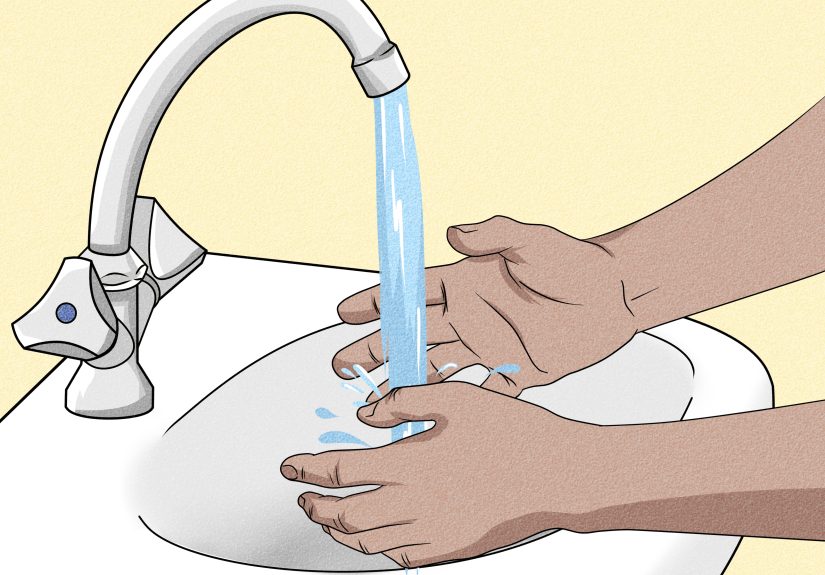
- Wash your hands before long typing sessions.
- Keep drinks away from the keyboard.
Weekly
- Clean the keyboard, trackpad, and palm rest with a slightly damp microfiber cloth.
- Dust the screen, lid, and bottom case.
- Check ports for visible lint or debris.
- Clean your desk so dust does not immediately return for revenge.
Monthly
- Use compressed air lightly on the keyboard if crumbs or dust are visible.
- Clean your case, sleeve, or backpack compartment.
- Review storage space and remove files you no longer need.
- Check for macOS updates and app updates.
Easy MacBook Air Maintenance Tips Beyond Cleaning
Physical cleaning is only half the story. A well-maintained MacBook Air should also have healthy storage, updated software, sensible charging habits, and a clean workspace. Here is how to maintain your MacBook Air without turning your life into a full-time IT department.
Keep macOS updated
Software updates help improve security, stability, compatibility, and performance. Go to System Settings, choose General, then select Software Update. Before major upgrades, back up your MacBook Air using Time Machine or another reliable backup method. Updates are like vitamins for your Mac, except your Mac actually wants them.
Manage storage space
A nearly full drive can slow down everyday work and make updates harder to install. Check storage by going to System Settings, then General, then Storage. Review large files, old downloads, duplicate media, unused apps, and forgotten screen recordings. The Downloads folder is often where digital clutter goes to retire.
Move important files to iCloud, an external drive, or another backup location before deleting anything. Do not randomly erase folders you do not recognize. If a folder name looks like it belongs in a spaceship manual, research it before touching it.
Protect battery health
Modern MacBook Air models include battery features designed to reduce wear, such as Optimized Battery Charging. Keep this feature enabled unless you have a specific reason to turn it off. If your version of macOS supports a charge limit on Apple silicon Macs, you can use it to reduce time spent at a full charge during desk-heavy workdays.
You can also help battery health by avoiding extreme heat, using Low Power Mode when appropriate, lowering screen brightness, and unplugging accessories you do not need. If you notice “Service Recommended” in Battery settings, the MacBook Air can still be used, but battery service may improve your experience.
Check battery cycle count when troubleshooting
If your MacBook Air drains quickly or shuts down unexpectedly, check the battery condition and cycle count. Hold the Option key, click the Apple menu, open System Information, then select Power. This information can help you understand whether the battery is aging normally or may need service.
Keep the laptop cool
Heat is not your MacBook Air’s friend. Use it on a hard, flat surface so heat can dissipate properly. Avoid using it on blankets, pillows, or thick fabric for long periods. Those surfaces may feel cozy, but they can trap heat. Your MacBook Air is a computer, not a burrito.
Use Apple Diagnostics if problems appear
If your MacBook Air has repeated crashes, strange hardware behavior, or issues that cleaning and updates do not solve, Apple Diagnostics can help identify possible hardware problems. It is not a magic wand, but it is a useful first step before contacting support.
Common MacBook Air Cleaning Mistakes
Even careful owners can make mistakes. Here are the big ones to avoid.
Spraying cleaner directly onto the screen
This is the classic mistake. Spray goes where gravity takes it: into edges, hinges, and openings. Always apply liquid to the cloth, never the laptop.
Using paper towels
Paper towels can scratch delicate surfaces and leave lint. Microfiber cloths are safer, reusable, and better at lifting oils without drama.
Cleaning while the MacBook Air is on
Cleaning a powered-on laptop increases risk and can also trigger accidental key presses. Shut it down, unplug it, and give yourself a calm workspace.
Using too much alcohol
Alcohol can be useful, but more is not better. Use it sparingly, only on appropriate hard surfaces, and always through a cloth or wipe that is damp rather than wet.
Ignoring the case or sleeve
If your laptop sleeve is full of dust, your freshly cleaned MacBook Air will return to grime city by lunchtime. Shake out or clean your sleeve regularly.
How to Keep Your MacBook Air Cleaner for Longer
Prevention is easier than cleaning. Keep food and drinks away from your keyboard. Wash your hands before typing. Store your laptop in a clean sleeve. Close the lid when the laptop is not in use. Clean your desk weekly. These small habits make a big difference.
If you work in cafés, classrooms, airports, or shared offices, carry a microfiber cloth in your bag. A quick wipe at the end of the day prevents oils and dust from building up. It also makes you look like the kind of person who has their life together, even if your browser has 47 tabs open.
Frequently Asked Questions
Can I use Clorox wipes on a MacBook Air?
You can use approved disinfecting wipes carefully on hard, nonporous surfaces, but avoid excessive moisture and do not use them on fabric or leather accessories. Wipe gently and keep liquid away from openings.
Can I clean my MacBook Air screen with Windex?
No. Window cleaners and ammonia-based products can damage screen coatings. Use a soft microfiber cloth, water for normal cleaning, and 70% isopropyl alcohol only when needed for stubborn smudges.
How often should I clean my MacBook Air?
For most users, a quick screen wipe every few days, a keyboard and trackpad wipe once a week, and a deeper cleaning once a month works well. If you travel often or eat near your laptop, clean it more frequently.
Can compressed air damage my keyboard?
Compressed air is useful when used correctly: short bursts, angled passes, and no close-range blasting. Keep the can upright and stop if liquid propellant appears.
What should I do if I spill liquid on my MacBook Air?
Shut it down immediately if it is safe to do so, unplug it, disconnect accessories, and keep it off. Blot visible liquid gently with a dry cloth. Do not shake it, heat it, or try to “test” it right away. Contact Apple or an authorized service provider as soon as possible.
Real-World Experience: What Actually Works When Cleaning a MacBook Air
The most useful lesson from cleaning a MacBook Air regularly is that dramatic cleaning sessions are usually the result of tiny habits ignored for too long. A screen does not become cloudy overnight. A keyboard does not collect a miniature bakery in one afternoon. The mess builds slowly, one fingerprint and one cracker crumb at a time, until your laptop starts looking like it has been hiking without you.
A practical routine begins with the screen. The best results come from using two microfiber cloths: one barely damp and one dry. The damp cloth loosens the fingerprints; the dry cloth removes streaks. The trick is not to chase every streak with more liquid. That usually creates new streaks, which leads to more wiping, which leads to frustration, which leads to muttering at an inanimate object. Use less moisture, not more. Light pressure and a clean cloth do most of the work.
The keyboard is where prevention pays off. People often wait until keys feel gritty before cleaning, but a thirty-second weekly pass with a cloth keeps oils from hardening into shiny patches. If you eat near your laptop, turn the computer off, open it, gently angle it, and let loose crumbs fall out before using compressed air. This small step prevents debris from being pushed deeper under the keys. It feels almost too simple, but simple is exactly what you want when dealing with a thin laptop keyboard.
Another experience-based tip: clean your workspace before cleaning the MacBook Air. If your desk has dust, crumbs, pet hair, and three weeks of “temporary” sticky notes, your laptop will not stay clean for long. Wipe the desk, shake out the laptop sleeve, and clean the charging cable. The cable is easy to forget, but it collects oils and dust every time it is handled. A clean laptop with a grimy charging cable is like wearing a tuxedo with muddy sneakers.
For students and remote workers, the best maintenance habit is a Sunday reset. Spend five minutes wiping the screen, keyboard, trackpad, and lid. Then spend five more minutes clearing downloads, deleting duplicate files, emptying the trash if appropriate, and checking for updates. This turns MacBook Air care into a small routine instead of a big chore. It also helps you start the week with a laptop that feels faster, cleaner, and less chaotic.
Travel adds another layer. A MacBook Air carried in a backpack should live in a sleeve, not loose next to pens, receipts, snacks, and whatever that mysterious cable is from 2019. Dust and grit inside a bag can scratch the aluminum and transfer grime to the keyboard. Clean the sleeve occasionally and avoid putting the laptop into a bag while the exterior is damp from cleaning.
The final lesson is restraint. Most MacBook Air cleaning problems come from doing too much: too much liquid, too much pressure, too much alcohol, too much compressed air, or too much confidence with sharp objects near ports. The safer approach is calm and boring, which is exactly why it works. A microfiber cloth, a careful wipe, a little air, and regular maintenance will keep your MacBook Air looking polished without risking damage. In laptop cleaning, boring is beautiful.
Conclusion
Cleaning a MacBook Air is not complicated, but it does require the right method. Shut it down, unplug it, use a soft lint-free cloth, keep moisture away from openings, avoid harsh chemicals, and clean gently. For the screen, start dry and use a lightly damp cloth only when needed. For the keyboard, remove loose debris carefully and wipe keycaps without soaking them. For long-term maintenance, keep macOS updated, manage storage, protect battery health, and build a quick weekly cleaning habit.
Your MacBook Air does not need a spa day with exotic chemicals. It needs consistent, careful care. Treat it well, and it will reward you with a cleaner screen, smoother typing, better reliability, and fewer moments where you wonder whether that speck on the display is dust, a scratch, or evidence of your snack habits.