Table of Contents >> Show >> Hide
- Why Chrome Blocks Extensions in the First Place
- Quick Steps to Add a Blocked Extension on Google Chrome
- Step 1: Check whether Chrome is managed
- Step 2: Try the normal Chrome Web Store install first
- Step 3: Exit Guest mode or Incognito mode
- Step 4: Update Chrome
- Step 5: Re-enable a temporarily disabled extension
- Step 6: Repair or reinstall the extension
- Step 7: Load the extension in Developer Mode if it is your own trusted code
- How to Add a Blocked Extension on a Work or School Computer
- Developer Mode: The Right Way to Add a Non-Web-Store Extension
- Security Tips Before You Add Any Blocked Extension
- Troubleshooting When Chrome Still Says No
- Best Practices for Admins Managing Blocked Chrome Extensions
- Final Thoughts
- Experiences and Lessons Learned From Adding Blocked Extensions in Chrome
- SEO Tags
Note: This guide is for personal devices, developer testing, or work and school environments where you have permission from the administrator. It does not cover bypassing organization policies. In other words: we are here to solve Chrome headaches, not to pick a fight with your IT department before lunch.
Trying to install a Chrome extension and getting blocked can feel like the browser just folded its arms and said, “Absolutely not.” Sometimes the issue is harmless, like being in Guest mode or using an outdated build. Other times, Chrome is blocking the extension because the browser is managed, the add-on is unsupported, or the extension is outside the Chrome Web Store and needs to be loaded properly.
The good news is that there are several legitimate ways to add a blocked extension on Google Chrome. The right method depends on why the extension is blocked in the first place. On a personal computer, the fix may be as simple as installing from the Chrome Web Store, updating Chrome, or re-enabling a temporarily disabled extension. In a managed environment, the answer usually involves an allowlist, a force-install policy, or approval from an administrator. And if you built the extension yourself, Developer Mode may be the correct route.
This guide breaks down the fastest and safest options, explains what each Chrome warning really means, and walks through practical fixes without drifting into sketchy territory. Let’s make Chrome cooperate again.
Why Chrome Blocks Extensions in the First Place
Before you try to add a blocked extension on Google Chrome, figure out what kind of “blocked” you’re dealing with. Chrome uses the same word for several very different situations, which is about as helpful as a toaster with a “food issue” warning.
1. The browser is managed by your organization
If Chrome says your browser is managed, your school or company may control which extensions can be installed. In that setup, an extension can be blocked by policy even if it is perfectly safe and available in the Chrome Web Store.
2. The extension is unsupported or disabled
Chrome may disable an extension that no longer meets current platform requirements. In some cases, you can re-enable it temporarily, but that is usually a short-term fix rather than a forever home.
3. You are trying to install outside supported conditions
Chrome does not let you install extensions in Guest mode or while browsing in Incognito. Extensions also install on desktop Chrome, not on the mobile version of Chrome.
4. The extension is not in the Chrome Web Store
If the extension comes as source files or an unpacked project, Chrome expects you to use Developer Mode. That is normal for developers and testers, but it should be used only for code you trust.
5. Chrome detects corruption, compatibility, or download problems
Sometimes the block has nothing to do with the extension itself. A bad Chrome version, a corrupted extension, unwanted software, or a failed download can all stop installation.
Quick Steps to Add a Blocked Extension on Google Chrome
Here are the fastest legitimate methods, starting with the easiest.
Step 1: Check whether Chrome is managed
Open Chrome and look for the message that says the browser is managed by your organization. If you see that, the extension may be blocked by policy rather than by a bug. On a managed browser, normal users often cannot override extension restrictions. The clean fix is to ask the admin to allow the specific extension.
This matters because you do not want to waste twenty minutes blaming Chrome when the real answer is, “Your IT policy said no three months ago.”
Step 2: Try the normal Chrome Web Store install first
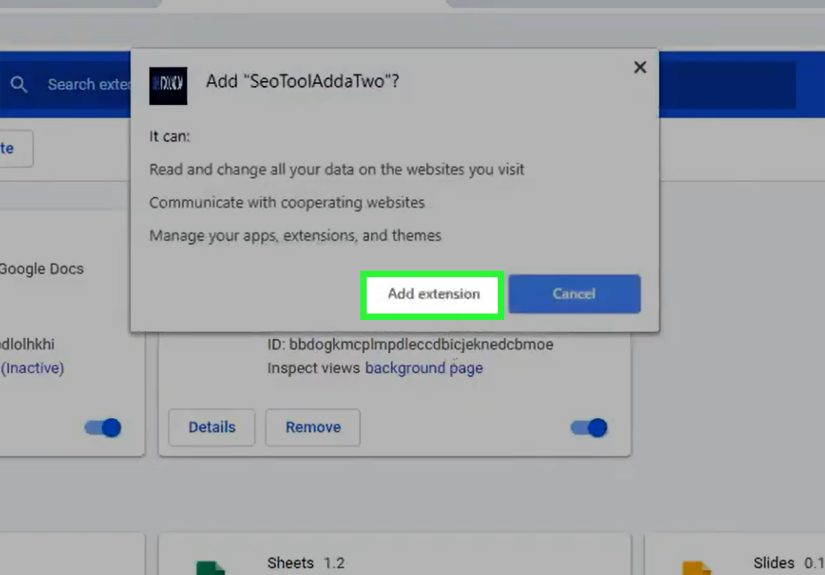
If this is your personal computer, install the extension from the Chrome Web Store whenever possible. Search for the extension, open its listing, click Add to Chrome, and then confirm with Add extension. Review the requested permissions before you accept. If the extension wants access to everything short of your sandwich order, pause and think.
Using the official store is still the simplest and safest way to install Chrome extensions. It also reduces the odds of running into packaging or update problems later.
Step 3: Exit Guest mode or Incognito mode
If the install button is unavailable, make sure you are not in Guest mode or Incognito. Chrome does not allow extension installation there. Switch back to a standard browsing window signed into your regular Chrome profile, then try again.
Step 4: Update Chrome
An out-of-date browser can make perfectly normal extensions act like they just arrived from 2017 in a time machine. Update Chrome, restart the browser, and try the install again. Compatibility issues often disappear after that.
Step 5: Re-enable a temporarily disabled extension
If the extension is already installed but marked unsupported or disabled, go to Manage Extensions and check whether Chrome offers a temporary toggle to turn it back on. This is only a short-term option, and it usually means you should start looking for an alternative or wait for the developer to publish a compliant version.
If the extension was disabled because it is no longer supported, contacting the developer and asking them to publish or update it through the Chrome Web Store is often the proper long-term fix.
Step 6: Repair or reinstall the extension
If an extension is present but broken, Chrome may offer a Repair button. Use that first. If repair does not help, remove the extension and reinstall it from the official listing. This is especially useful when Chrome flags the extension as corrupted.
Step 7: Load the extension in Developer Mode if it is your own trusted code
If the extension is not from the Web Store and you built it yourself, or you received source files from a trusted developer, open chrome://extensions, turn on Developer mode, and use Load unpacked to select the extension folder.
This method is intended for development and testing. It is not a magic back door for random files downloaded from the internet. If you would not trust the code with your browsing data, passwords, and page content, do not load it. Chrome extensions can request powerful permissions, and a shady add-on can turn your browser into a gossip columnist with your private life.
How to Add a Blocked Extension on a Work or School Computer
This is where many users get stuck. On a managed Chrome browser, the block usually comes from policy. That means the extension is not “broken”; it is simply not permitted under the current settings.
Ask the admin to allowlist the extension
If the organization blocks most or all extensions, an admin can allow specific extension IDs through policy. This is the standard fix when one safe tool needs to be approved without opening the floodgates for every add-on under the sun.
Ask the admin to force-install the extension
For required business tools such as password managers, compliance plug-ins, or internal productivity add-ons, an admin can force-install the extension so it appears automatically for users. This is common in enterprise environments.
Ask the admin to verify Chrome Web Store access
In some education and enterprise environments, access to the Chrome Web Store itself may be limited. Even approved extensions may not install correctly until that service is enabled for users.
Use the extension ID when working with IT
When submitting a request, include the extension name, what it is for, the Chrome Web Store page, and the extension ID. That makes life easier for the admin and makes you look wonderfully organized. Possibly suspiciously organized, but still helpful.
Developer Mode: The Right Way to Add a Non-Web-Store Extension
Developer Mode gets a lot of dramatic internet chatter, but the concept is simple. It allows Chrome to load an unpacked extension from a folder instead of from the Chrome Web Store.
When to use Developer Mode
- Testing an extension you are building
- Reviewing internal tools in a development environment
- Loading trusted code for local use before publication
When not to use Developer Mode
- To bypass work or school restrictions
- To install random extension files from unknown websites
- To ignore Chrome security warnings because a forum post said “just click through it”
If your goal is safe and stable use, the Chrome Web Store remains the better path for most people. Developer Mode is a tool, not a loophole.
Security Tips Before You Add Any Blocked Extension
Whether the extension is blocked, disabled, or merely being difficult, take a minute to check the basics before installing it.
Review permissions carefully
Chrome extensions can request access to browsing activity, site data, tabs, downloads, and more. Some permissions are routine, but others are powerful enough to justify extra caution.
Prefer reputable developers
Install extensions from known publishers or vendors with a track record, support documentation, and real update history.
Do not install too many extensions
Every extension adds complexity, possible conflicts, and risk. A small, clean extension list is easier to manage and usually better for browser performance.
Watch for warning signs
If an extension suddenly changes your search engine, home page, or other browser settings, investigate it immediately. Chrome can show when an extension is controlling a setting, and that is your cue to make sure the behavior is expected.
Troubleshooting When Chrome Still Says No
If you still cannot add the extension, run through this checklist.
Check your device type
Extensions install on desktop Chrome. If you are on a phone or tablet using Chrome mobile, the install will not work the way it does on a computer.
Look for download or network errors
If Chrome throws a download error, unwanted software or a damaged installation may be interfering. Running a malware scan and, if needed, reinstalling Chrome can help.
Sign in to the right Chrome profile
If you use multiple profiles, make sure you are in the profile where you want the extension installed. This avoids the classic “I installed it, where did it go?” mystery.
Try an alternative extension
If the blocked extension is unsupported or abandoned, look for a current Chrome Web Store alternative with similar features. Sometimes the fastest fix is not revival but replacement.
Best Practices for Admins Managing Blocked Chrome Extensions
If you manage users, the best approach is not to block everything blindly or allow everything blindly. Both are chaos with different branding.
Create a sensible extension policy
Use allow, block, and force-install settings intentionally. High-risk categories can be blocked broadly, while approved productivity and security tools can be allowlisted or deployed automatically.
Document approved extensions
Users are more cooperative when they know which tools are approved and why. Publish the approved list, include request steps, and save everyone a dozen repetitive support tickets.
Review permissions and vendor reputation
Before approving any extension, confirm that the permissions match the function and that the developer looks credible. A calculator extension asking to read everything on every website should raise eyebrows, questions, and maybe a small dramatic music cue.
Final Thoughts
If you need to add a blocked extension on Google Chrome, the solution depends on the cause. On a personal desktop browser, the fastest fix is usually installing from the Chrome Web Store, exiting Guest or Incognito mode, updating Chrome, or re-enabling a temporarily disabled extension. For self-built tools, Developer Mode and Load unpacked are the right options. On managed browsers, the proper route is policy approval, allowlisting, or force-installation through the administrator.
The smartest move is not to ask, “How do I force Chrome to stop caring?” The smarter question is, “Why is Chrome blocking this, and what is the supported fix?” That question saves time, keeps your browser safer, and dramatically reduces your chances of accidentally installing a digital raccoon in a trench coat.
Experiences and Lessons Learned From Adding Blocked Extensions in Chrome
One of the most common real-world experiences with blocked Chrome extensions starts with a user assuming the extension itself is bad. In many cases, that is not true at all. Someone tries to add a grammar tool, a shopping helper, a research sidebar, or a password manager and gets blocked. Their first instinct is to hunt down a “secret fix” from some random forum post that looks like it was written during a power outage. Usually, that is the wrong turn.
What actually happens most often is much less dramatic. The browser is managed. The user is in the wrong Chrome profile. The extension is disabled because it is outdated. Or the device is in Guest mode and Chrome is simply following its normal rules. Once people identify the real cause, the solution becomes much easier and much less weird.
Another common experience happens in offices and schools. A user needs one specific extension for work, but the organization has a broad blocklist. The person thinks, “Chrome is broken.” IT thinks, “The policy is working exactly as intended.” The fastest path is usually not technical wizardry. It is sending a clean request with the extension name, business purpose, and ID. Admins are far more likely to approve an extension when the request is specific and sensible instead of “Please unlock this thing because reasons.”
Developers have a different experience. They often receive an unpacked extension folder and forget that Chrome expects Developer Mode for local testing. Once they toggle Developer Mode and use Load unpacked, the problem disappears. Then comes the second lesson: only trusted code should be loaded that way. Plenty of people learn this after testing an extension with sloppy permissions or unstable behavior and realizing that “it loads” is not the same as “it is safe.”
There is also the classic unsupported-extension story. A favorite old add-on stops working after a Chrome update, and the user goes through the five stages of browser grief. First denial, then clicking refresh repeatedly, then blaming Google, then toggling random settings, and finally accepting that the extension developer has not kept up. In those moments, the best answer is often to find a maintained alternative rather than trying to keep a fading extension on life support.
The biggest lesson across all these situations is simple: blocked does not always mean impossible. It often means Chrome wants a safer, more current, or more authorized method. Once users stop treating the block like a personal insult and start treating it like a clue, the fix usually appears much faster.