Table of Contents >> Show >> Hide
- What Does “Automatically Add App Icons” Mean on Android?
- Why New App Icons May or May Not Appear Automatically
- How to Automatically Add App Icons on a Google Pixel
- How to Automatically Add App Icons on Samsung Galaxy Phones
- How to Add App Icons Manually on Any Android Phone
- How to Add Website Icons to Your Android Home Screen
- How to Add Widgets Alongside App Icons
- Why the “Add App Icons” Setting May Be Missing
- How to Stop New Apps from Appearing on the Home Screen
- Best Ways to Organize Automatically Added App Icons
- Security Tips Before Adding Every App to Your Home Screen
- Should You Turn Automatic App Icons On or Off?
- Troubleshooting: New App Icons Still Do Not Appear
- Common Mistakes to Avoid
- Real-Life Experience: What It Is Like to Use Automatic App Icons
- Conclusion
There is a special kind of tiny joy that happens when you install a new Android app and its icon appears right on your Home screen, ready for action. No digging. No swiping through the app drawer like you are searching for a lost sock in a digital laundry basket. Just tap, open, and go.
That is the simple promise behind the ability to automatically add app icons on your Android Home screen. When the feature is turned on, newly installed apps can place shortcuts directly on your Home screen so you can find them immediately. When it is turned off, new apps stay tucked away in the app drawer until you decide they deserve prime real estate.
The tricky part is that Android is not one single-looking system on every phone. A Google Pixel, Samsung Galaxy, Motorola, OnePlus, Xiaomi, and a phone using Microsoft Launcher or another third-party launcher can all handle Home screen settings a little differently. The good news? The idea is the same: your launcher controls whether new app icons appear automatically.
This guide explains how the feature works, how to enable or disable it, how to add icons manually, how to keep your Home screen from turning into a confetti cannon of apps, and what to do when the setting seems to disappear.
What Does “Automatically Add App Icons” Mean on Android?
On Android, an app icon on the Home screen is usually a shortcut, not the entire app itself. Think of it like a front-door key. Removing the shortcut from the Home screen does not usually uninstall the app; it simply removes that easy-access button. The app still lives in your app drawer or apps list unless you uninstall it completely.
When “Add app icons to Home screen” or a similar setting is enabled, your phone may place a shortcut on the Home screen after you install a new app from Google Play or another trusted app source. This can be convenient if you frequently test new apps, install tools for work, or want every new download to be visible immediately.
However, convenience has a sneaky cousin named clutter. If you install lots of apps, games, banking tools, travel apps, food delivery apps, parking apps, airline apps, and that one flashlight app you probably did not need, your Home screen can quickly become a crowded digital bulletin board.
Why New App Icons May or May Not Appear Automatically
The automatic app icon setting depends on three main things: your Android version, your phone brand, and your launcher. A launcher is the part of Android that controls your Home screen, app drawer, icons, folders, widgets, gestures, and overall layout. Pixel Launcher, Samsung One UI Home, Motorola’s launcher, Microsoft Launcher, and Nova Launcher are all examples.
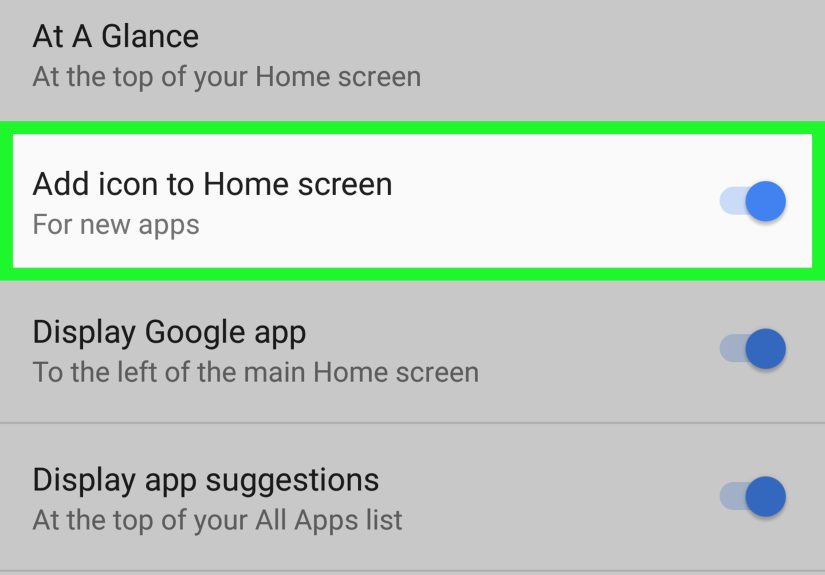
In older Android versions, the option to add new app icons often appeared inside the Google Play Store settings. On many newer Android phones, that control moved to the launcher’s Home settings instead. That is why some older tutorials tell you to open the Play Store, tap settings, and look for “Add icon to Home screen,” while your current phone may show absolutely nothing there. Your phone is not gaslighting you. Android simply moved the furniture.
How to Automatically Add App Icons on a Google Pixel
On many Google Pixel phones, the setting is managed through the Home screen settings rather than the Play Store. The exact wording can vary slightly by Android version, but the path is usually simple.
Steps for Pixel Phones
- Go to your Home screen.
- Touch and hold an empty area of the screen.
- Tap Home settings.
- Look for an option such as Add app icons to Home screen or Add new apps to Home screen.
- Turn the switch on.
After that, install a new app and check whether the icon appears on the Home screen. If it does not, restart the phone and test again. Pixel phones usually keep the app drawer as the main place where every installed app appears, while the Home screen remains the space for your favorite shortcuts, widgets, folders, and daily-use tools.
How to Automatically Add App Icons on Samsung Galaxy Phones
Samsung Galaxy phones use One UI Home, which has its own Home screen settings. Samsung devices separate the Home screen from the Apps screen. The Apps screen contains all installed apps, while the Home screen displays selected shortcuts and widgets.
Steps for Samsung Galaxy
- Touch and hold an empty space on your Home screen.
- Tap Settings or Home screen settings.
- Find Add new apps to Home screen or Add apps to Home screen.
- Turn the option on.
If the option is enabled, newly installed apps should be added to the Home screen automatically. If you prefer a cleaner layout, turn it off and manually add only the apps you use often.
Manual Method on Samsung
If the automatic feature is off, you can still add any app manually. Swipe up to open the Apps screen, touch and hold the app, then tap Add to Home. You can also drag the icon to the desired Home screen page. It is fast, painless, and less dramatic than letting every new app move in like it owns the place.
How to Add App Icons Manually on Any Android Phone
Even if your phone does not offer an automatic setting, you can add icons manually. This method works on most Android phones, although labels may vary by brand.
- Swipe up from the Home screen to open the app drawer or Apps screen.
- Find the app you want to add.
- Touch and hold the app icon.
- Drag it to an empty spot on the Home screen, or tap Add to Home if that option appears.
- Release your finger to place the shortcut.
To move it later, touch and hold the icon, drag it to a new position, and release. To remove it from the Home screen, touch and hold it, then choose Remove. Be careful not to tap Uninstall unless you actually want to delete the app from your phone.
How to Add Website Icons to Your Android Home Screen
Android is not limited to app icons. You can also add website shortcuts to your Home screen, which is useful for favorite blogs, work dashboards, school portals, recipe pages, banking sites, or web apps you use often.
Using Chrome on Android
- Open Chrome on your Android phone.
- Visit the website you want to save.
- Tap the three-dot menu in the top-right corner.
- Tap Add to Home screen.
- Rename the shortcut if needed.
- Tap Add.
The new website icon appears on your Home screen like an app shortcut. Some modern websites behave like progressive web apps, meaning they may open in a more app-like window. Others simply open in Chrome. Either way, it is a handy shortcut when you visit the same page often.
How to Add Widgets Alongside App Icons
App icons are great for launching apps, but widgets are better when you want information at a glance. Weather, calendar events, notes, music controls, battery status, smart home buttons, and search bars can all live directly on the Home screen.
To add a widget on most Android phones, touch and hold an empty area of the Home screen, tap Widgets, choose the app, then drag the widget where you want it. Widgets are different from app icons because they can show live or quick-access information without requiring you to fully open the app.
A good Android Home screen often uses both: a few essential app icons for quick launching and a few widgets for helpful information. The goal is not to decorate every pixel. The goal is to make your phone feel like it works for you instead of making you work for it.
Why the “Add App Icons” Setting May Be Missing
If you cannot find the automatic app icon setting, do not panic. There are several common reasons.
Your Launcher Does Not Support It
Not every Android launcher includes the same options. Some launchers automatically place new icons. Others never do. Some let you choose. If your launcher does not support the feature, you may need to add icons manually or install a different launcher.
The Setting Has a Different Name
Depending on your phone, the feature may be called Add app icons to Home screen, Add new apps to Home screen, Add apps to Home screen, or something similar. Use your phone’s Settings search bar and search for “Home screen,” “new apps,” or “app icons.”
Your Phone Uses an App Drawer Layout
Some Android phones focus on the app drawer as the main place for all installed apps. In that setup, the Home screen is intentionally reserved for chosen shortcuts. If automatic icons are off, new apps will still install correctly; they simply appear in the app drawer first.
You Are Using a Work Profile or Managed Device
Company-managed Android phones may restrict launcher behavior. If your employer manages the phone through Android Enterprise, Microsoft Intune, or another device management system, some Home screen settings may be controlled by policy. In plain English: the IT department may have called dibs.
How to Stop New Apps from Appearing on the Home Screen
Some people love automatic icons. Others consider them a personal attack on Home screen peace. If you want new apps to stay in the app drawer, turn the setting off.
General Steps
- Touch and hold an empty area on the Home screen.
- Tap Home settings or Settings.
- Find the option related to adding new app icons.
- Turn it off.
Once disabled, new apps should install normally but will not automatically crowd your Home screen. You can still add your favorites manually whenever you want.
Best Ways to Organize Automatically Added App Icons
If you enable automatic icons, a little organization goes a long way. Otherwise, your Home screen may start looking like the junk drawer of your phone.
Create Folders by Category
Drag one app icon on top of another to create a folder. You can make folders such as Finance, Travel, Shopping, Health, Games, Work, and Social. This keeps related apps together and reduces visual chaos.
Keep Your First Page Sacred
Your first Home screen page should contain the apps and widgets you use daily. Phone, Messages, Camera, Calendar, Maps, Email, Browser, Notes, and your preferred music or podcast app are common picks. Less-used apps can live on page two or in folders.
Use the Dock Wisely
The dock is the bottom row of icons that usually stays visible as you swipe between Home screen pages. Put your most important apps there. A good dock might include Phone, Messages, Chrome, Camera, and Gmail. Avoid putting random new apps in the dock unless you enjoy chaos wearing a tiny hat.
Review New Icons Weekly
If automatic icons are turned on, take one minute each week to clean up. Remove shortcuts you do not need, group related apps, and uninstall apps you no longer use. A tidy Home screen can make your phone feel faster, even if the processor did not actually do a victory lap.
Security Tips Before Adding Every App to Your Home Screen
Home screen convenience should not replace basic app safety. Only install apps from trusted sources such as the Google Play Store, Galaxy Store, or official developer websites when appropriate. Google Play Protect helps scan apps for harmful behavior, but smart habits still matter.
Before installing an app, check the developer name, reviews, update history, permissions, and whether the app really needs the access it requests. A calculator app asking for microphone, contacts, location, and camera access deserves a raised eyebrow. Maybe two.
Also remember that Home screen icons can make rarely used apps feel more important than they are. If you installed an app once for a coupon, event, hotel stay, or one-time project, remove the shortcut after you are done. Better yet, uninstall the app if you no longer need it.
Should You Turn Automatic App Icons On or Off?
The best choice depends on how you use your phone.
Turn It On If:
- You install apps often and want to find them immediately.
- You are setting up a new phone and want quick access to everything.
- You help family members manage their phones and want new apps to be visible.
- You prefer Home screen access over searching the app drawer.
Turn It Off If:
- You like a clean, minimal Home screen.
- You install many apps but only use a few regularly.
- You prefer organizing apps manually.
- You use folders, widgets, and a carefully designed layout.
For most users, turning it off creates a cleaner experience. For beginners, seniors, kids, or anyone who frequently loses track of newly installed apps, turning it on can be genuinely helpful.
Troubleshooting: New App Icons Still Do Not Appear
If you turned on the setting but new app icons still do not show up, try these fixes.
Restart Your Phone
It sounds basic because it is basicand because it often works. Restarting can refresh the launcher and clear small glitches.
Check for Launcher Updates
Open the Google Play Store or Galaxy Store and check whether your launcher has an update. Pixel Launcher, One UI Home, Microsoft Launcher, and other launchers can receive updates that affect Home screen behavior.
Make Sure the App Installed Successfully
Open your app drawer and search for the app. If it is not there, the installation may have failed, paused, or been blocked. Check your internet connection and available storage.
Look on Another Home Screen Page
Sometimes Android adds a new icon to a different page, especially if your main page is full. Swipe left or right across your Home screens before assuming the icon vanished into the digital wilderness.
Reset Home Screen Layout Carefully
Some phones allow you to reset the Home screen layout. This can fix stubborn problems, but it may also rearrange your icons and folders. Use this option only if you are comfortable rebuilding your layout.
Common Mistakes to Avoid
First, do not confuse removing an icon with uninstalling an app. Remove usually deletes only the shortcut from the Home screen. Uninstall deletes the app from the phone.
Second, do not add everything to the Home screen. If every app is “important,” nothing is important. Keep your Home screen focused on apps you actually use.
Third, do not ignore folders. Folders are the difference between a calm Home screen and a tiny app tornado.
Finally, do not forget widgets. A calendar widget can save more time than five separate calendar app shortcuts. A notes widget can be better than opening a notes app twelve times a day. Use the Home screen as a dashboard, not just a parking lot for icons.
Real-Life Experience: What It Is Like to Use Automatic App Icons
When I first started using Android phones, I liked having every new app automatically appear on the Home screen. It felt reassuring. I installed a budgeting app, and there it was. I installed a photo editor, and there it was. I installed a weather app, a scanner app, a language app, and one suspiciously enthusiastic wallpaper appand there they all were, smiling at me from the Home screen like guests who arrived before I cleaned the living room.
At first, automatic icons made sense. I never had to wonder where a newly installed app went. This was especially useful when testing apps for work or helping someone set up a new phone. For a beginner, the app drawer can feel hidden. The Home screen, on the other hand, is obvious. Install app. See icon. Tap icon. Life continues.
But after a while, the Home screen became messy. New apps landed wherever there was space. Some appeared on a second or third page. A few were placed in spots that made no sense next to unrelated apps. A meditation app sat beside a food delivery app, which sat beside a PDF scanner, which sat beside a game I opened exactly once. It was less “organized productivity hub” and more “yard sale, but make it Android.”
The biggest lesson was that automatic icons are best during setup or short bursts of app testing. When I set up a new phone, I may turn the feature on temporarily so I can see what has installed. Once the phone is ready, I turn it off and manually organize the apps that deserve Home screen space. This gives me the best of both worlds: visibility during setup and calm afterward.
For family members who are less comfortable with phones, I usually leave automatic app icons on. It helps them find newly installed apps without asking, “Where did it go?” every time. Then I create simple folders like Banking, Health, Photos, and Shopping. I also keep the first Home screen page extremely simple: Phone, Messages, Camera, Photos, Chrome, and maybe Weather. Too many icons can be overwhelming, especially for someone who just wants the phone to behave.
For power users, I recommend the opposite. Turn automatic icons off. Use the app drawer as your full library and reserve the Home screen for essentials. Add a calendar widget, a weather widget, a notes widget, and maybe a search bar. Keep the dock limited to apps you use every day. Then review your installed apps once a month. If an app has not earned its keep, remove the shortcut or uninstall it.
One surprisingly useful habit is creating a temporary folder called “New.” When I install several apps at once, I manually place them in that folder. After a week, I know which ones I actually use. The winners get promoted to the main Home screen or a category folder. The losers go back to the app draweror off the phone entirely. It is like a probation period for apps, except nobody has to wear a tiny suit.
Automatic app icons are not good or bad by themselves. They are a preference. They are wonderful when you want visibility, frustrating when you want minimalism, and perfect when used intentionally. The real secret is not just knowing how to turn the feature on. It is knowing when to turn it off.
Conclusion
Automatically adding app icons on your Android Home screen can make new apps easier to find, especially when setting up a phone or helping someone who prefers visible shortcuts. On Pixel phones, Samsung Galaxy devices, and many other Android models, the setting usually lives in Home screen or launcher settings. If the option is unavailable, you can still add apps manually from the app drawer.
The smartest approach is to match the setting to your habits. Turn it on if you want instant access to newly installed apps. Turn it off if you prefer a clean, organized Home screen. Either way, use folders, widgets, and occasional cleanup to keep your phone useful instead of cluttered. Your Home screen should feel like a command center, not a crowded airport departure board.
Note: Menu names can vary by Android version, phone brand, and launcher. If you do not see the exact option described above, search your phone settings for “Home screen,” “app icons,” or “new apps.”