Table of Contents >> Show >> Hide
- What Are Twitch Drops?
- Can You Switch Channels for Twitch Drops?
- How to Switch Channels for Twitch Drops the Right Way
- When Switching Channels Works
- When Switching Channels Does Not Work
- Can You Watch Multiple Channels to Earn Drops Faster?
- Why Your Twitch Drops Progress Stops After Switching
- Step-by-Step Example: Switching Channels Without Losing Progress
- Best Practices for Smooth Twitch Drops Tracking
- Common Mistakes Viewers Make When Switching Drops Channels
- Troubleshooting Checklist After Switching Channels
- Experience-Based Tips for Switching Channels for Twitch Drops
- Conclusion
Twitch Drops are one of the few moments in gaming where “watching someone else play” can actually feel productive. You open a stream, enjoy the chaos, and somewhere in the background Twitch starts counting your watch time toward free in-game rewards. Easy, right? Mostly. The part that confuses many viewers is what happens when you switch channels. Do you lose progress? Can you hop from one streamer to another? Does opening five streams make rewards arrive faster, like a loot-powered microwave?
The simple answer is: yes, you can switch channels for Twitch Drops, but only if the new channel is eligible for the same active Drops campaign. Your progress usually continues from where it left off, as long as you are watching a live, Drops-enabled stream that meets the campaign rules. However, watching multiple channels at once does not speed things up. Twitch is generous, but not “five tabs equals five rewards” generous.
This complete guide explains how to switch Twitch Drops channels correctly, how to check whether a stream counts, why progress sometimes freezes, and what to do before blaming your browser, your Wi-Fi, or that one streamer who went offline right before your reward unlocked.
What Are Twitch Drops?
Twitch Drops are rewards you can earn by watching eligible live streams during an active Drops campaign. These rewards are usually connected to specific games and may include cosmetic items, skins, sprays, emotes, packs, currency, codes, or other in-game bonuses. The campaign is normally created by the game publisher or developer, while Twitch tracks the viewing progress.
For example, a game may run a campaign that says, “Watch two hours of participating streams to earn a special character skin.” Once you meet the watch-time requirement, Twitch lets you claim the reward through your Drops Inventory. After claiming it, the reward is sent to the linked game account, though delivery time can vary depending on the game.
Can You Switch Channels for Twitch Drops?
Yes, in many campaigns you can switch channels and keep earning progress, but there are conditions. The new channel must be part of the same Twitch Drops campaign, the stream must be live, and the channel must have Drops enabled. If the campaign allows progress across participating channels, you can watch part of the required time on one stream, switch to another eligible stream, and continue earning toward the same reward.
Think of Twitch Drops progress like a punch card at a sandwich shop. You do not usually need to stand in the same line forever, but you do need to stay inside the same shop. Switching from one eligible channel to another is fine. Switching to a random stream without Drops is like wandering into a hardware store and asking for sandwich loyalty points.
How to Switch Channels for Twitch Drops the Right Way
1. Check the Current Drops Campaign First
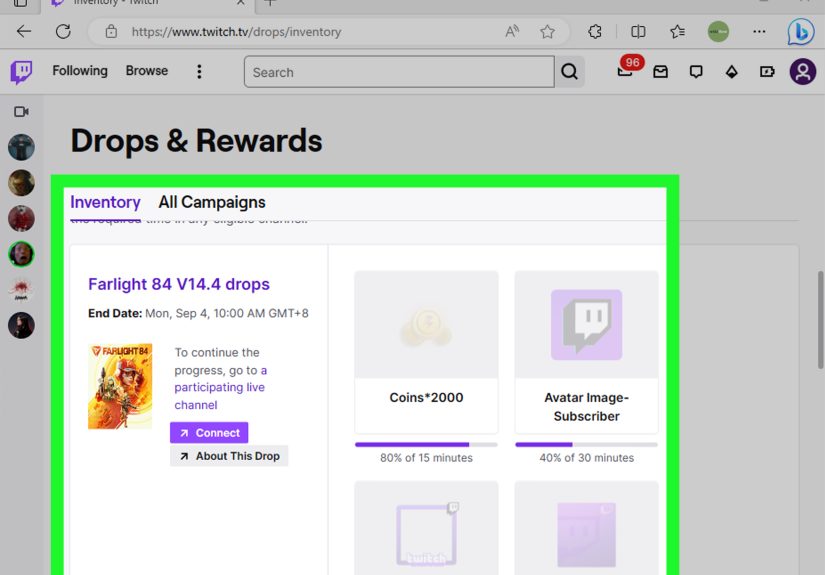
Before switching, open your Twitch Drops Inventory or the active Drops campaign page. Look at the reward you are trying to earn, the required watch time, the game category, and whether the campaign lists specific participating channels. Some campaigns are category-wide, meaning many streamers in that game category may count. Others are limited to selected creators or official channels.
This step matters because not all channels in a game category automatically count. A streamer can be playing the correct game but still not be eligible for that campaign. If the campaign is creator-specific, switching to a non-listed streamer may stop your progress.
2. Look for the Drops Enabled Tag
On Twitch, eligible streams often show a “Drops Enabled” tag. You may see it on the stream page, in the category directory, or as a notice in chat. This tag is one of the easiest signs that the channel can count toward Drops. Still, it is smart to confirm the campaign details because some rewards require a specific category, event, or streamer list.
If a streamer says “Drops are on” but you do not see any progress after several minutes, check the Inventory page. The progress bar is the real judge. Stream titles can be outdated, chat can be excited, and humans can make mistakes. The progress bar has fewer feelings.
3. Close or Pause the First Stream
When you move to another channel, avoid keeping multiple Drops streams open and active. Twitch Drops are designed to count one active viewing session at a time for a reward. Leaving several streams running in different tabs may cause confusion, delay progress updates, or stop progress from tracking reliably.
The cleanest method is simple: close the old stream, open the new eligible stream, make sure it is live and playing, then wait a few minutes. If the new stream qualifies, your Drops progress should continue from the previous percentage.
4. Keep the New Stream Active
After switching, keep the stream playing in a normal browser tab or the Twitch app. Avoid minimizing the player, muting the stream through the player, or casting in ways that may not count. Some campaigns and support pages warn that certain viewing methods, such as console apps, casting, or minimized streams, may not reliably track progress.
You do not have to stare at the stream with the intensity of a final boss fight, but the stream should remain active enough for Twitch to recognize you as a viewer. Let it play normally, keep the tab accessible, and check your Drops Inventory instead of constantly refreshing like a nervous goblin guarding treasure.
5. Verify Progress in Drops Inventory
The best way to confirm a successful channel switch is to check your Twitch Drops Inventory. This page shows active campaigns, reward progress, completed Drops, and claim buttons. If your percentage increases after switching, you are good. If it stays frozen for a long time, something about the new channel, browser session, account link, or campaign rule may be wrong.
Give Twitch a few minutes before panicking. Progress does not always update instantly. A short delay is normal. A frozen bar for 20 to 30 minutes, however, is a sign that you should troubleshoot.
When Switching Channels Works
Switching channels usually works when the campaign allows progress on any participating channel. For example, if a game publisher runs a Drops campaign for all approved streamers in a certain game category, you can start watching one streamer, switch to another approved streamer, and continue earning the same Drop.
This is useful when the first streamer ends their broadcast, changes games, loses Drops eligibility, or starts doing something you do not want to watch. Maybe they switched from gameplay to a six-hour debate about sandwich toppings. Fair enough. Move to another eligible channel and continue earning.
When Switching Channels Does Not Work
Switching channels may not work if the Drop is tied to a specific streamer, official broadcast, event channel, or allowlisted creator group. Some games run special creator-specific campaigns where a reward can only be earned by watching one named streamer or a small set of channels. In that case, switching to a different streamer may stop progress because the new channel is not part of the reward rules.
It also will not work if the new stream is a VOD, rerun, offline page, or live stream in the wrong category. Twitch Drops are generally earned through live streams, not recorded broadcasts. If you switch from a live eligible channel to a past broadcast, your progress is probably taking a nap.
Can You Watch Multiple Channels to Earn Drops Faster?
No. Watching multiple Twitch channels at the same time does not make Drops progress faster. Twitch and many game publishers make it clear that progress is counted for one active channel at a time. Opening extra tabs may feel like a clever speedrun strategy, but it usually does not help and may even create tracking problems.
The smarter approach is to pick one eligible stream, keep it active, and let the required time build naturally. If the streamer goes offline, switch to another eligible stream. Do not build a browser tab jungle and hope Twitch rewards your multitasking ambition.
Why Your Twitch Drops Progress Stops After Switching
The New Channel Is Not Eligible
This is the most common reason. The streamer may be playing the right game but not enrolled in the campaign. Check for the Drops Enabled tag and confirm the campaign rules.
The Stream Changed Categories
If a campaign is tied to a specific game category, progress may stop when the streamer changes games. A channel can be eligible one minute and irrelevant the next if the broadcast category changes.
You Have Multiple Streams Open
Multiple active Twitch streams can interfere with clear tracking. Close extra Twitch tabs and keep only one eligible stream open.
Your Account Is Not Linked
Many Drops require your Twitch account to be connected to the game account. In some cases, you can earn or claim first and link later, but many publishers recommend linking before watching to avoid reward delivery issues.
The Reward Needs to Be Claimed First
Some campaigns require you to claim one Drop before progress starts toward the next reward. If your progress bar seems stuck at 100%, visit your Inventory and claim the completed item.
The Campaign Ended
If the Drops campaign is over, new watch time will not count. Some claimed or earned rewards may remain available for a limited claim window, but progress toward expired campaigns is gone.
Step-by-Step Example: Switching Channels Without Losing Progress
Let’s say you are earning a Twitch Drop for a fantasy RPG. The campaign requires 90 minutes of watch time. You watch Streamer A for 40 minutes, and your Drops Inventory shows 44% progress. Then Streamer A ends the stream because dinner has defeated them.
Here is what you should do:
- Open the active Drops campaign or Twitch category page.
- Find another live channel with the Drops Enabled tag.
- Make sure the channel is streaming the correct game category.
- Close Streamer A’s tab if it is still open.
- Open Streamer B’s stream and let it play normally.
- Wait several minutes, then check Drops Inventory.
- If the progress bar continues moving, stay on that channel until the reward is complete.
- When the Drop reaches 100%, click Claim.
That is the whole dance. No secret handshake required.
Best Practices for Smooth Twitch Drops Tracking
Use One Browser or Device
Using one device and one active stream reduces the chance of tracking confusion. If you switch from desktop to mobile, check your Inventory afterward to make sure progress continues.
Do Not Rely on Muted or Minimized Streams
Some support guidance suggests that muted or minimized streams may not reliably count. Keep the stream playing normally. If you need silence, lowering system volume may be safer than muting the Twitch player itself.
Disable Aggressive Browser Extensions
Ad blockers, privacy extensions, script blockers, and pop-up blockers can sometimes interfere with Twitch features. If Drops are not progressing, test in another browser or temporarily disable extensions.
Claim Rewards Promptly
Do not leave completed Drops sitting in your Inventory forever. Claim them as soon as possible, especially when a campaign has multiple rewards in a sequence. A claim button is not decoration; it is the doorbell for your loot.
Log Out and Back In if Progress Freezes
If nothing works, log out of Twitch, clear your browser cache, restart the browser, and log back in. Then open one eligible stream and check progress again after several minutes.
Common Mistakes Viewers Make When Switching Drops Channels
The first mistake is assuming every streamer in a game category counts. Drops are campaign-based, and campaigns can be limited. Always check eligibility before switching.
The second mistake is opening multiple streams at once. It feels efficient, but Twitch Drops are not a buffet where every plate counts separately. One active eligible stream is the safer choice.
The third mistake is forgetting to claim completed rewards. Many viewers keep watching, then wonder why the next Drop does not progress. If the campaign uses sequential Drops, claiming may be required before the next timer begins.
The fourth mistake is switching to a streamer who has changed categories. If the campaign is for a specific game, the stream needs to remain in that category. A streamer who moves from the campaign game to casual chatting may no longer count.
The fifth mistake is ignoring account connections. If the game account and Twitch account are not linked properly, you may claim the Drop but not receive the reward in-game. Always verify the connection on the publisher’s Drops page or account settings.
Troubleshooting Checklist After Switching Channels
- Confirm the campaign is still active.
- Check that the new channel has Drops enabled.
- Make sure the stream is live, not a replay or VOD.
- Keep only one eligible stream open.
- Check your Twitch Drops Inventory for progress.
- Claim any completed reward before earning the next one.
- Verify that your Twitch account is linked to the correct game account.
- Try refreshing the stream after a few minutes.
- Test another browser or device if progress still does not move.
- Contact Twitch Support or the game publisher if the reward was claimed but never delivered.
Experience-Based Tips for Switching Channels for Twitch Drops
After dealing with Twitch Drops across different games and campaigns, the biggest lesson is that patience beats tab chaos. Many viewers treat Drops like a puzzle they can outsmart, but the system is usually simple: one account, one eligible live stream, one progress bar. When something goes wrong, it is often because the viewer switched too quickly, left several streams open, or trusted a stream title instead of checking the campaign page.
A good personal routine is to start every Drops session from the Inventory page. Do not begin by randomly searching Twitch. Open Inventory, see the campaign, confirm what reward you want, then move to an eligible channel. This gives you a clear baseline. If your progress is 37% before switching, you know exactly what number to look for after the switch. Without that baseline, you may spend 20 minutes wondering whether the bar moved from “kind of almost there” to “slightly more kind of almost there.”
Another useful habit is to wait five to ten minutes after switching before judging the result. Twitch progress can lag. If you switch channels and check Inventory after 30 seconds, you may think it is broken when it simply has not updated yet. Let the new stream play for a bit, then check. If the number moves, relax. If it does not, move through the troubleshooting checklist.
It also helps to choose stable streams. A streamer with a strong connection, the correct category, and a clear Drops Enabled tag is better than a channel that keeps restarting, changing games, or experimenting with settings. Smaller streamers can count perfectly well if they are eligible, but you want consistency. For long watch-time rewards, a stable stream is your best friend. The streamer does not need to be the loudest person on the internet; they just need to stay live and eligible.
For multi-reward campaigns, claim each reward as soon as it unlocks. This is especially important when rewards unlock one after another. Some campaigns do not begin progress toward the next item until the current one is claimed. If you leave a completed Drop unclaimed, you may accidentally park your progress like a car in front of a closed gate. Open Inventory, click Claim, and continue watching.
Finally, do not wait until the last hour of a campaign unless you enjoy unnecessary drama. Drops campaigns have end times, and once they end, progress usually stops. If you are at 80% and the campaign ends, that unfinished progress may disappear. Start early, switch channels carefully, and give yourself extra time for delays. Twitch Drops are fun, but they are much less fun when you are racing a countdown clock while your browser decides it needs an update.
Conclusion
Switching channels for Twitch Drops is easy once you understand the rules. You can usually move from one participating channel to another and keep your progress, as long as the new stream is live, eligible, and part of the same active campaign. The safest method is to close the old stream, open one new Drops-enabled stream, wait a few minutes, and confirm progress in your Twitch Drops Inventory.
Do not try to farm faster with multiple tabs, do not ignore the campaign requirements, and do not forget to claim completed rewards. Twitch Drops are built for steady viewing, not browser gymnastics. Follow the steps in this guide, and you will have a much better chance of earning your rewards without losing progress, wasting time, or yelling at a progress bar that did nothing wrong.