Table of Contents >> Show >> Hide
- What Is a .LNK File in Windows?
- Common Signs of .LNK File Extension Problems
- 1. Check Whether the Shortcut Target Still Exists
- 2. Show File Extensions and Hidden Items
- 3. Reset the .LNK File Association
- 4. Rebuild Broken Shortcuts and Refresh the Icon Cache
- 5. Scan for Malware and Clean Shortcut-Virus Symptoms
- 6. Repair Windows System Files with DISM and SFC
- Extra Tips to Prevent .LNK Problems from Coming Back
- Real-World Experience: What Usually Works Best
- Conclusion
When a Windows shortcut stops working, it can feel like your computer suddenly forgot where everything lives. You double-click an app, and nothing happens. You click a desktop icon, and Windows asks what program should open a shortcut. Or worse, every file on your USB drive magically turns into a suspicious little shortcut. That is not productivity. That is your PC doing improv comedy without permission.
The .LNK file extension belongs to Windows shortcut files. A shortcut is not usually the real program, document, or folder. It is a pointer that tells Windows, “Open that thing over there.” When the shortcut association breaks, the target moves, the icon cache glitches, or malware tampers with files, .LNK problems can spread across the desktop, Start menu, taskbar, and removable drives.
The good news: most .LNK file extension problems in Windows are fixable without reinstalling Windows or sacrificing your laptop to the recycling gods. Below are six practical, beginner-friendly ways to repair broken shortcuts, restore normal file behavior, and clean up shortcut-virus symptoms safely.
What Is a .LNK File in Windows?
A .LNK file is a Windows Shell Link, commonly known as a shortcut. It stores information about a target location, such as an application, folder, document, network path, or system tool. When you open a shortcut, Windows reads the link and launches the target. That is why deleting a shortcut usually does not delete the original file. It only removes the tiny “map” pointing to it.
A shortcut can contain a target path, icon location, working directory, launch arguments, and other details. For example, a desktop shortcut for Google Chrome may point to something like:
If that target path changes, the shortcut may fail. If Windows loses the correct .LNK association, all shortcuts may open in the wrong program. If malware creates fake shortcuts, the .LNK file may launch a harmful script instead of your real folder. In short, .LNK files are helpful little signpostsunless someone bends the signpost toward a swamp.
Common Signs of .LNK File Extension Problems
Before fixing anything, identify the symptom. Different .LNK problems require different solutions.
- All desktop shortcuts open with the same wrong app.
- Windows asks, “How do you want to open this file?” when you click a shortcut.
- Shortcut icons look blank, white, generic, or incorrect.
- A shortcut says the target has been moved, renamed, or deleted.
- Files on a USB drive appear as shortcuts instead of normal folders.
- Clicking a shortcut opens Command Prompt, PowerShell, a browser page, or an unknown program.
- The Start menu, taskbar pins, or desktop icons stop launching apps.
If only one shortcut is broken, the target is probably missing or moved. If every shortcut is broken, Windows file association or system corruption may be involved. If external drives suddenly fill with strange .LNK files, treat it as a possible malware issue.
1. Check Whether the Shortcut Target Still Exists
Start with the simplest fix: confirm that the shortcut still points to a real file. Many .LNK problems happen after an app is uninstalled, a folder is renamed, a drive letter changes, or a file is moved to another location. Windows is smart, but it is not psychic. If the target moved, the shortcut cannot magically find it.
How to Check a Shortcut Target
- Right-click the broken shortcut.
- Select Properties.
- Open the Shortcut tab.
- Look at the Target field.
- Click Open File Location if the button is available.
If Windows says the target cannot be found, the shortcut is not the main problem. The original file or application is missing, renamed, or stored somewhere else. Search for the app or file from the Start menu or File Explorer. If you find it, create a new shortcut by right-clicking the real file and choosing Show more options > Send to > Desktop (create shortcut) on Windows 11, or Send to > Desktop on Windows 10.
For apps, the cleanest fix is often to repair or reinstall the program. For example, if a Microsoft Office shortcut points to a missing executable, repairing Office is safer than manually guessing file paths. If a game shortcut fails after moving the game folder, use the game launcher’s repair or locate feature.
2. Show File Extensions and Hidden Items
Windows hides known file extensions by default on many systems. That can make troubleshooting confusing because a file named Report.pdf.lnk may appear as Report.pdf. Sneaky? A little. Dangerous? Sometimes. Malware often abuses this behavior by making a shortcut look like a normal document or folder.
How to Show File Extensions in Windows 11 or Windows 10
- Open File Explorer.
- Select View.
- Choose Show.
- Enable File name extensions.
- Also enable Hidden items if you are checking a USB drive or missing folders.
Once extensions are visible, inspect suspicious files carefully. A real folder should not end in .lnk. A shortcut to a folder may be normal, but if all folders on a flash drive have become .LNK files, do not double-click them. That behavior often appears in shortcut-virus infections, where the original folders are hidden and fake shortcuts are created to run malicious commands.
This step is especially important for downloaded files and email attachments. If something looks like Invoice.pdf but is actually Invoice.pdf.lnk, treat it like a suspicious shortcut, not a harmless PDF. The extra extension is the digital equivalent of a fake mustache.
3. Reset the .LNK File Association
If every shortcut opens in Notepad, a browser, a media player, or another random program, the .LNK file association may be broken. This can happen after a mistaken “Open with” choice, registry corruption, malware activity, or an overenthusiastic cleanup tool.
In a healthy Windows installation, .LNK files are handled by the Windows Shell, not by a regular app like Word, Chrome, or VLC. You normally should not assign a default app to .LNK files. If Windows treats shortcuts like ordinary documents, it needs a reset.
Try the Simple Command First
You can attempt to restore the shortcut association with Command Prompt:
- Press Windows + S.
- Type cmd.
- Select Run as administrator.
- Enter this command:
Restart Windows after running the command. Then test a few desktop shortcuts and Start menu shortcuts.
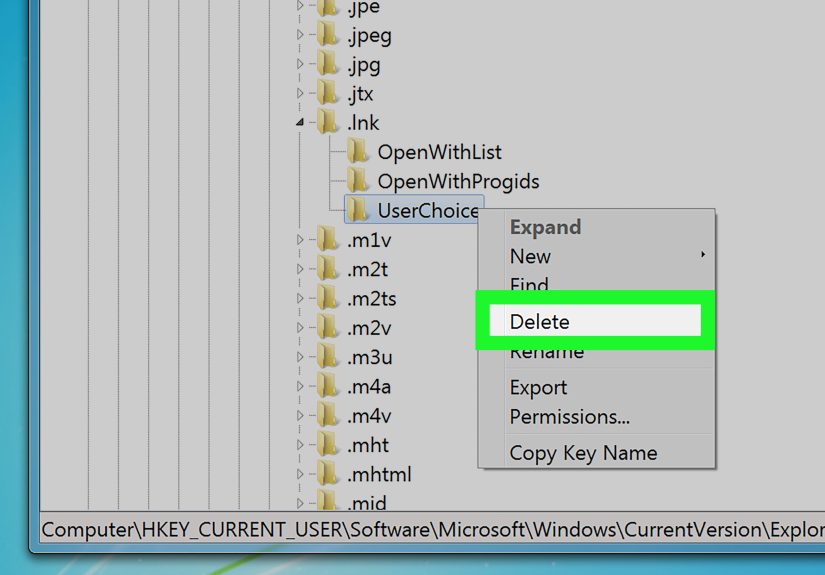
Use Registry Fixes Carefully
Advanced users may restore .LNK registry values manually, but the Windows Registry is not a place for freestyle jazz. A wrong edit can create new problems. Before changing registry entries, create a restore point:
- Press Windows + S and search for Create a restore point.
- Select your system drive.
- Click Create.
- Name the restore point something clear, such as Before LNK Fix.
If you use a .REG repair file, use one from a trusted Windows support source or create it only if you know exactly what it changes. Avoid random “one-click shortcut fixer” downloads from unfamiliar websites. A tool that promises to repair shortcuts but arrives from a sketchy pop-up ad is not a fixer; it is an audition for your next headache.
4. Rebuild Broken Shortcuts and Refresh the Icon Cache
Sometimes the shortcut works, but the icon looks wrong. You may see blank white icons, generic file icons, or outdated app icons. This is often an icon cache issue rather than a true .LNK association problem. Windows stores icon images in a cache so it does not have to reload every icon from scratch. When that cache becomes corrupted, shortcuts can look broken even when they still launch correctly.
First, Recreate the Shortcut
For one or two broken icons, recreate them manually:
- Delete the broken shortcut only, not the original program or file.
- Find the original app or file.
- Right-click it.
- Choose Send to > Desktop (create shortcut) or Create shortcut.
- Pin it again to the taskbar or Start menu if needed.
This is the safest solution when only a few shortcuts are affected. It avoids unnecessary system edits and gives Windows a fresh .LNK file with a correct target path.
Then Restart Windows Explorer
If icons still look strange, restart Windows Explorer:
- Press Ctrl + Shift + Esc to open Task Manager.
- Find Windows Explorer.
- Right-click it and choose Restart.
You can also reboot the PC. Yes, “turn it off and on again” is a cliché, but it became a cliché because it works annoyingly often.
5. Scan for Malware and Clean Shortcut-Virus Symptoms
If your USB drive or external hard drive suddenly shows folders as .LNK shortcuts, do not assume the files are gone. In many shortcut-virus cases, the real folders are hidden, and fake shortcuts are created to lure you into launching malicious code. This problem often spreads through removable drives, shared computers, and outdated systems.
Run a Full Security Scan
Start with Windows Security:
- Open Settings.
- Go to Privacy & security > Windows Security.
- Select Virus & threat protection.
- Choose Scan options.
- Run a Full scan.
If you strongly suspect persistent malware, run Microsoft Defender Offline scan. This restarts the computer and scans from a cleaner environment before Windows fully loads. It is useful when malware hides during normal operation.
Recover Hidden Files on a USB Drive
After scanning and removing threats, you can try revealing hidden files. Replace E: with the correct drive letter for your USB drive:
This command removes hidden, read-only, and system attributes from files and folders on that drive. Be careful to run it on the correct drive. Do not run random commands copied from comments, forums, or videos unless you understand what they do.
After your real files reappear, copy important data to a safe location, format the infected USB drive, and scan the computer again. If every new USB drive gets infected after connecting to the same PC, the infection is probably on the computer, not just the removable drive.
6. Repair Windows System Files with DISM and SFC
If .LNK problems appear together with broken Start menu items, failed Windows apps, missing system icons, or general weirdness, Windows system files may be damaged. In that case, use the built-in repair tools DISM and System File Checker.
Open Command Prompt or Windows Terminal as administrator and run:
When that finishes, run:
DISM checks and repairs the Windows component store. SFC scans protected system files and replaces damaged versions when possible. Together, they are a reliable built-in repair combo for many Windows issues, including shortcut-related problems caused by system corruption.
Do not close the window while the scan is running. If SFC reports that it repaired files, restart the PC and test your shortcuts again. If it says some files could not be repaired, you may need to run the scan in Safe Mode, install pending Windows updates, or perform an in-place repair upgrade.
Extra Tips to Prevent .LNK Problems from Coming Back
Keep Windows Updated
Shortcut behavior is part of the Windows Shell, so system updates matter. Security patches also protect against vulnerabilities that may involve shortcut files, file previews, or malicious command execution. Go to Settings > Windows Update and install available updates.
Be Careful with Email Attachments
A .LNK file attached to an email should raise your eyebrows. Attackers may disguise shortcut files as invoices, shipping notices, resumes, or shared documents. If the sender is unknown or the message feels urgent in a suspicious way, do not open it.
Avoid Unknown Registry Cleaners
Registry cleaners often promise speed boosts and miracle repairs. Some are harmless, some are unnecessary, and some cause exactly the kind of association problems you are trying to fix. Windows already includes repair tools, default app settings, restore points, and malware scanning. Use those first.
Back Up Important Files
Shortcut issues are usually fixable, but malware and drive corruption can put real files at risk. Keep backups on an external drive, cloud storage, or both. A backup turns a disaster into an inconvenience, which is still annoying but much better for your blood pressure.
Real-World Experience: What Usually Works Best
In real troubleshooting, .LNK problems often look scarier than they are. The first thing I usually check is whether the shortcut is actually broken or whether the original file has simply moved. Many users panic when a desktop icon stops opening, but the real app is still installed and working perfectly from the Start menu. In that case, deleting the old shortcut and creating a new one solves the problem faster than any advanced repair tool.
The second most common situation is the “all shortcuts open with one program” problem. This usually happens after someone accidentally assigns .LNK files to an app. For example, a user may right-click a shortcut, choose “Open with,” and select Notepad or a browser. Suddenly, every shortcut behaves like a text file or web link. It feels catastrophic because the desktop becomes almost unusable, but the underlying programs are usually fine. Restoring the .LNK association and restarting Windows often brings everything back.
USB shortcut-virus cases are different. They require more caution because the shortcuts may be malicious. The biggest mistake is double-clicking every shortcut to “see what happens.” What happens may be another infection. A better workflow is to disconnect from unnecessary networks, scan the PC, scan the USB drive, reveal hidden files with the attrib command only after scanning, and then copy recovered files to a clean location. After that, formatting the removable drive is often the cleanest ending.
Another lesson: do not trust appearances. A folder icon can still be a shortcut. A file that looks like a PDF can still be a .LNK file if extensions are hidden. Turning on file name extensions is one of the simplest security habits Windows users can adopt. It takes ten seconds and prevents many bad clicks.
I have also seen users waste hours rebuilding Windows when the real issue was only a corrupt icon cache. If shortcuts open correctly but look blank, start with refreshing Explorer, rebooting, and recreating the shortcut. Visual glitches are not always structural problems. In troubleshooting, the boring explanation wins surprisingly often.
Finally, the best long-term habit is restraint. Do not install five registry repair tools, three driver boosters, and a mysterious “shortcut virus remover” from a download site with twelve blinking buttons. Use Windows Security, DISM, SFC, File Explorer settings, and restore points first. They are built into Windows, well-tested, and far less likely to turn a small shortcut problem into a full weekend project.
Conclusion
Fixing .LNK file extension problems in Windows is mostly about matching the symptom to the right solution. If one shortcut fails, check its target. If extensions are hidden, turn them on. If all shortcuts open incorrectly, reset the .LNK association. If icons look wrong, rebuild or refresh shortcuts. If USB files become shortcuts, scan for malware before clicking anything. If Windows itself seems damaged, use DISM and SFC.
Shortcuts are small files, but they play a big role in how Windows feels day to day. When they break, the computer can seem more damaged than it really is. Work carefully, avoid suspicious downloads, back up important files, and use Windows’ built-in repair tools before trying risky fixes. Your desktop icons should go back to being helpful little launch buttonsnot tiny square-shaped mysteries.