Table of Contents >> Show >> Hide
- What Are Comments in Microsoft Word?
- How to Insert Comments in Microsoft Word Using the Review Tab
- How to Insert Comments by Right-Clicking
- How to Insert Comments with a Keyboard Shortcut
- How to Insert Comments in Word for the Web
- How to Use Modern Comments in Microsoft Word
- How to Mention Someone in a Word Comment
- How to Reply to Comments in Microsoft Word
- How to Edit a Comment in Word
- How to Delete Comments in Microsoft Word
- How to Resolve Comments Without Deleting Them
- Comments vs. Track Changes: What Is the Difference?
- Best Practices for Writing Useful Word Comments
- Common Problems When Inserting Comments in Word
- Practical Experience: What Commenting in Word Feels Like in Real Work
- Conclusion
- SEO Tags
Microsoft Word comments are like polite sticky notes that do not fall off, curl up, or mysteriously disappear under your coffee mug. Whether you are editing a school essay, reviewing a business proposal, marking up a legal draft, or leaving a friendly “please explain this sentence before my brain files a complaint,” comments help you give feedback without changing the original text.
The good news: inserting comments in Microsoft Word is easy. The better news: there are several ways to do it, so you can choose the method that fits how you work. You can use the Review tab, the right-click menu, a keyboard shortcut, Word for the web, or modern collaboration tools such as @mentions. This guide walks through the easiest ways to add comments in Word, manage them, reply to them, resolve them, and use them like a document-reviewing professional instead of a person throwing digital confetti into the margins.
What Are Comments in Microsoft Word?
Comments in Microsoft Word are notes attached to specific text, spaces, sentences, paragraphs, images, tables, or document sections. They allow reviewers to ask questions, suggest improvements, explain edits, assign follow-up tasks, or flag issues without directly rewriting the document.
For example, instead of deleting a sentence and replacing it with your own version, you can highlight it and add a comment such as, “Can we make this more specific?” or “Please add a source here.” That keeps the original writing intact while making your feedback clear.
When Should You Use Comments?
Use comments when you want to:
- Give feedback on a draft without changing the wording.
- Ask a question about a sentence, statistic, or claim.
- Suggest a rewrite while letting the author decide.
- Assign someone a task in a shared Microsoft 365 document.
- Keep editing conversations in one place.
- Review contracts, reports, articles, resumes, and academic papers.
Comments are especially helpful because they keep conversations tied to the exact part of the document being discussed. That is much better than sending an email that says, “In the third paragraph near the thing about the other thing…” which is how confusion becomes a full-time job.
How to Insert Comments in Microsoft Word Using the Review Tab
The Review tab is the classic and most reliable way to insert comments in Microsoft Word. It works in many modern versions of Word, including Microsoft 365, Word for Windows, Word for Mac, and Word for the web.
Step-by-Step Instructions
- Open your document in Microsoft Word.
- Select the word, phrase, sentence, paragraph, image, or table you want to comment on.
- Go to the Review tab in the ribbon at the top of the screen.
- Click New Comment.
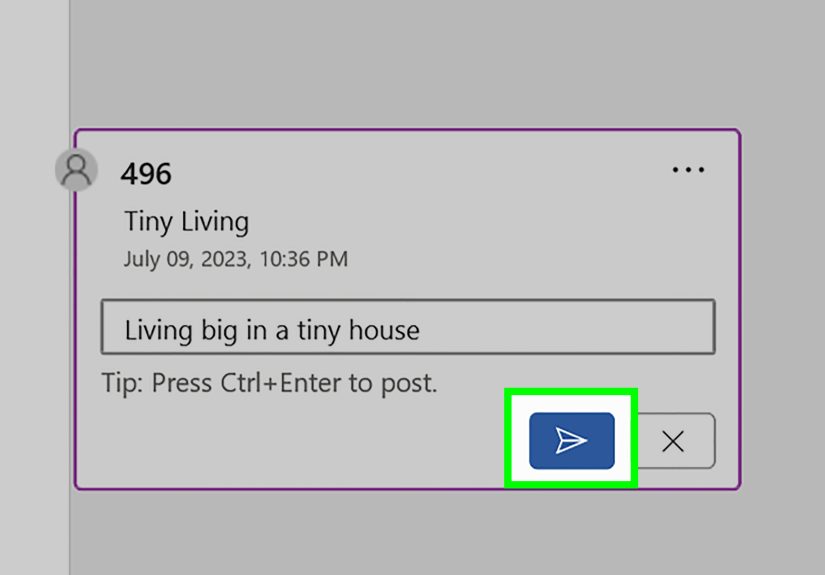
- Type your comment in the comment box or margin area.
- Click Post or press the correct posting shortcut if your version uses modern comments.
In newer versions of Word, comments usually need to be posted before others can see them. This is useful because it lets you write and revise your comment before publishing it. Think of it as a tiny safety net for those moments when your first draft says, “This paragraph is chaos,” and your second draft says, “Consider reorganizing this paragraph for clarity.” Growth!
Example Comment
Suppose the document says:
Our company experienced significant growth last year.
You might highlight the sentence and add this comment:
Can we add a percentage or specific revenue figure to make this claim stronger?
This kind of comment is useful because it does not just point out a problem; it gives the writer a clear next step.
How to Insert Comments by Right-Clicking
If you prefer quick actions, the right-click method may become your favorite. It is fast, simple, and does not require hunting through the ribbon like you are searching for hidden treasure in a software jungle.
Step-by-Step Instructions
- Select the text or object you want to comment on.
- Right-click the selected area.
- Choose New Comment from the context menu.
- Type your comment.
- Post the comment if Word asks you to do so.
This method is excellent when you are reviewing a long document and want to stay focused on the text instead of moving your mouse back and forth to the ribbon. It is also very natural for editors, teachers, managers, and anyone who likes getting things done with fewer clicks.
How to Insert Comments with a Keyboard Shortcut
For people who love speed, keyboard shortcuts are the secret sauce. In Word for Windows, the common shortcut to insert a comment is:
Ctrl + Alt + M
Here is how to use it:
- Select the text you want to comment on.
- Press Ctrl + Alt + M.
- Type your comment.
- Post it if required.
Keyboard shortcuts are especially helpful when you are reviewing many pages. Once your fingers learn the shortcut, inserting comments becomes almost automatic. You highlight, press the shortcut, type the note, and move on. It feels less like document editing and more like playing a productivity piano.
What If the Shortcut Does Not Work?
If Ctrl + Alt + M does not insert a comment, try these fixes:
- Make sure the cursor is inside the document body.
- Check whether another program is using the same shortcut.
- Try inserting the comment from the Review tab instead.
- Restart Word if the ribbon or shortcut behavior seems frozen.
- Use Word’s keyboard customization settings if you need a custom shortcut.
Some keyboard layouts, accessibility tools, browser environments, or third-party utilities may interfere with shortcuts. The ribbon method is a dependable backup when your keyboard decides to act mysterious.
How to Insert Comments in Word for the Web
Word for the web is useful when you are working from a browser or collaborating through OneDrive, SharePoint, or Microsoft 365. The commenting process is similar to desktop Word, but the interface may look slightly different.
Steps for Word Online
- Open the document in Word for the web.
- Select the text or object you want to discuss.
- Click Review.
- Select New Comment.
- Write your comment.
- Click Post.
Word for the web is especially powerful for team projects because everyone can work on the same file instead of emailing different versions back and forth. Version chaos is real. One day you have “Final Report,” then “Final Report 2,” then “Final Report REALLY Final,” and before you know it, civilization has collapsed into attachments.
How to Use Modern Comments in Microsoft Word
Modern comments are Microsoft Word’s updated commenting experience. They are designed for cleaner collaboration across Word, Excel, PowerPoint, desktop apps, web apps, and Microsoft 365 sharing environments.
One important difference is that modern comments usually require you to post the comment. This means your comment is not immediately visible to collaborators while you are still typing. That is helpful when you want to think before sharing feedback, which is usually wise unless your editing philosophy is “type first, apologize later.”
How Modern Comments Work
- You select text and create a new comment.
- You type your feedback in the comment box.
- You click Post to make the comment visible.
- Other people can reply in the same comment thread.
- You can resolve the thread when the issue is complete.
Modern comments help keep document conversations organized. Instead of scattered feedback, you get threaded discussions attached to the exact content being reviewed.
How to Mention Someone in a Word Comment
If your document is saved in a Microsoft 365 collaboration location such as OneDrive or SharePoint, you may be able to use @mentions in comments. This lets you tag a person directly and bring their attention to a specific issue.
Steps to Use @Mentions
- Add a new comment using the Review tab or right-click menu.
- Type the @ symbol.
- Begin typing the person’s name or email address.
- Select the correct person from the list.
- Finish your message and post the comment.
For example:
@Jordan Can you confirm whether this date is correct before we send the proposal?
This is better than sending a separate message because the question stays connected to the document. The person knows exactly what you mean, and nobody has to play detective.
How to Reply to Comments in Microsoft Word
Comments are not just one-way notes. They can become conversations. Replying is helpful when you need to answer a question, explain a decision, or discuss a suggested change.
Steps to Reply
- Click the comment you want to respond to.
- Select Reply.
- Type your response.
- Post the reply if required.
Example:
Editor: Can we make this claim more specific?
Writer: Yes, I added the 2025 sales percentage in the next sentence.
This keeps the editing conversation tidy. Future reviewers can see what was asked, what was answered, and whether the issue was handled.
How to Edit a Comment in Word
Sometimes you write a comment and immediately realize it could be clearer. Maybe you typed too fast. Maybe autocorrect turned “brand voice” into “bread voice.” It happens. Fortunately, Word lets you edit comments.
Steps to Edit a Comment
- Click the comment you want to change.
- Select the edit option, which may appear as a pencil icon or menu option depending on your version.
- Revise the comment text.
- Save, confirm, or post the updated comment.
Editing comments is useful when your feedback needs to be more specific, professional, or actionable. Instead of saying, “This is weak,” try: “Consider adding one example here to support the claim.” The second version is kinder, clearer, and much less likely to make the writer stare sadly out a window.
How to Delete Comments in Microsoft Word
Once a comment is no longer needed, you can delete it. This is common after a draft has been reviewed, revised, and approved.
Delete One Comment
- Click the comment you want to remove.
- Go to the Review tab.
- Click Delete, or open the comment menu and choose the delete option.
Delete All Comments
- Go to the Review tab.
- Click the arrow next to Delete.
- Select Delete All Comments in Document.
Be careful before deleting all comments. If the document is still under review, those comments may contain useful decisions, unresolved questions, or feedback history. Deleting comments too early is like throwing away the recipe while the cake is still in the oven.
How to Resolve Comments Without Deleting Them
Resolving a comment is different from deleting it. When you resolve a comment, you mark the discussion as complete while keeping a record of the conversation. This is helpful for team reviews, approvals, academic editing, and business documents where feedback history matters.
When to Resolve a Comment
- The suggested change has been made.
- The question has been answered.
- The issue no longer applies.
- The team has agreed on a decision.
In many Word versions, you can click a comment and choose Resolve. The comment may become dimmed or marked as resolved. If needed, some versions allow you to reopen resolved comments.
Comments vs. Track Changes: What Is the Difference?
Comments and Track Changes are often used together, but they are not the same thing.
Comments
Comments are notes, questions, suggestions, or conversations attached to the document. They do not directly change the text.
Track Changes
Track Changes records actual edits, such as inserted words, deleted text, formatting updates, and moved content. Reviewers can later accept or reject those edits.
Here is a simple way to think about it:
- Use comments when you want to discuss something.
- Use Track Changes when you want to show exactly what you changed.
For serious editing, use both. Track Changes shows the edits; comments explain the thinking behind them.
Best Practices for Writing Useful Word Comments
Adding comments is easy. Adding good comments takes a little more skill. A useful comment should be clear, specific, respectful, and action-oriented.
1. Be Specific
Instead of writing:
This needs work.
Write:
Can we add a concrete example here to show how the feature helps small business users?
The second comment tells the writer exactly what to do next.
2. Keep the Tone Professional
Even if a paragraph is confusing, your comment should help the writer, not roast them like a Thanksgiving turkey. A respectful tone improves collaboration and keeps the review process productive.
3. Ask Questions When You Are Unsure
If you are not certain something is wrong, ask instead of accusing. Try:
Should this be 2026 instead of 2025?
That sounds much better than:
This date is wrong.
4. Use One Comment per Issue
Avoid stuffing five different requests into one comment. Separate comments are easier to resolve, track, and answer.
5. Resolve Comments as You Go
When an issue is finished, resolve it. This keeps the document clean and helps everyone see what still needs attention.
Common Problems When Inserting Comments in Word
The New Comment Button Is Grayed Out
If New Comment is unavailable, the document may be protected, opened in read-only mode, or restricted by permissions. Try saving a copy, enabling editing, or checking document protection settings.
Comments Are Not Showing
If you cannot see comments, check the Review tab and look for comment display options. You may need to show comments, open the comments pane, or switch the markup view.
Comments Look Different Than Before
Microsoft has updated the commenting experience in many Microsoft 365 versions. If comments now appear in a cleaner panel or require posting, you are likely using modern comments.
People Cannot See Your Comments
If you are collaborating, make sure the document is saved in a shared location and that other users have permission to view or edit the file. If you are using modern comments, confirm that you clicked Post.
Practical Experience: What Commenting in Word Feels Like in Real Work
After using comments in Microsoft Word across drafts, reports, web articles, proposals, and team documents, one thing becomes clear: comments save relationships. That may sound dramatic, but anyone who has received a heavily edited document knows the difference between thoughtful feedback and a page that looks like it lost a wrestling match with red ink.
The best experience comes from using comments as a conversation tool, not a criticism cannon. For example, when reviewing a blog article, I find it more effective to leave a comment like, “Can we add a quick example here for readers who are new to the topic?” instead of rewriting the whole paragraph immediately. That gives the writer room to solve the issue in their own voice. It also prevents the document from becoming a tug-of-war between two writing styles.
In business documents, comments are excellent for slowing down decisions just enough to avoid mistakes. A small note such as “Please confirm this pricing before sending” can prevent an awkward client email later. In academic or research-based writing, comments are useful for marking places where a citation is needed, where logic jumps too quickly, or where a paragraph needs a better transition. The comment does not interrupt the flow of the main document, but it keeps the concern visible.
One practical habit that works well is to make comments action-based. Start with verbs like “Add,” “Clarify,” “Confirm,” “Shorten,” “Move,” or “Check.” These words make feedback easier to process. A comment that says “Clarify who ‘they’ refers to in this sentence” is much more useful than “Unclear.” The first comment gives direction. The second comment gives vibes, and vibes are not a revision strategy.
Another lesson from experience: do not leave comments that only make sense to you at 11:47 p.m. Comments should be understandable later, by someone else, possibly on a different day, possibly before coffee. Instead of writing “Fix this,” explain what needs fixing. Instead of “Source?” write “Please add a source for the claim that remote work improves retention.” Specificity is kindness in editing clothes.
For team collaboration, resolving comments is just as important as adding them. A document with 86 unresolved comments can make everyone feel like they are staring at a haunted spreadsheet, even if half the issues are already done. Resolve comments when they are handled, but avoid deleting important discussions too early. Resolved comments can provide helpful context if someone later asks why a sentence was changed.
Finally, comments work best when combined with a clear review process. Before sending a document around, tell reviewers what kind of feedback you want. Are they checking grammar, facts, structure, legal language, tone, formatting, or final approval? Without that guidance, one person may correct commas while another questions the entire strategy. Word comments are powerful, but they still need human direction. Use them well, and they turn messy collaboration into a clear, organized editing workflow.
Conclusion
Learning how to insert comments in Microsoft Word is one of the easiest ways to improve editing, collaboration, and document review. You can add comments from the Review tab, use the right-click menu, press a keyboard shortcut, or work in Word for the web. You can also reply to comments, edit them, delete them, resolve them, and use @mentions to bring teammates into the conversation.
The real value of Word comments is not just the button you click. It is the clarity they create. Good comments help writers improve, teams make decisions, and reviewers explain feedback without damaging the original draft. In short, comments make Microsoft Word less of a solo writing tool and more of a smart collaboration space. And when everyone comments clearly, resolves issues promptly, and avoids “Fix this” as a complete sentence, the whole document review process becomes smoother, faster, and far less dramatic.
Note: Menu names and comment behavior may vary slightly depending on your version of Microsoft Word, your operating system, and whether you are using classic comments or modern comments in Microsoft 365.