Table of Contents >> Show >> Hide
- Why Printing a PDF Email Attachment Can Be Weirdly Annoying
- Method 1: Print the PDF Directly From the Email
- Method 2: Download the PDF First, Then Print It From a PDF App
- Method 3: Print the PDF From Your Phone or Tablet
- Common Problems and How to Fix Them
- Which Method Should You Choose?
- Real-World Experiences With Printing a PDF Email Attachment
- Final Thoughts
Printing a PDF email attachment sounds like one of those tasks that should take 12 seconds and zero emotional damage. And yet, somehow, it can turn into a mini-adventure involving missing printer icons, mysterious preview windows, and a printer that suddenly acts like it has never met your Wi-Fi before.
The good news is that printing a PDF from email is usually easy once you know which route to take. In most cases, you have three reliable options: print directly from the email preview, download the PDF and print it from a PDF app, or print from your phone or tablet using wireless tools like AirPrint or Android’s built-in print service.
This guide walks through all three methods in plain English, with practical examples, troubleshooting tips, and real-life advice for when the attachment is a contract, school form, invoice, travel document, or that one very important PDF someone emailed five minutes before you had to leave the house.
Why Printing a PDF Email Attachment Can Be Weirdly Annoying
Before we get to the fixes, it helps to know why this task sometimes feels harder than it should. Email apps and services do not all handle attachments the same way. Some let you preview and print right away. Others want you to download the file first. Some will happily print the email message but ignore the attachment unless you open it separately.
Then there is the PDF itself. A PDF may open in your browser, in Adobe Acrobat Reader, in your phone’s file viewer, or in your email app’s preview mode. Each one has slightly different print controls. Add in printer settings, default printer confusion, mobile device limitations, and the occasional “why is this coming out blank?” moment, and the task suddenly has more plot twists than expected.
That is exactly why the smartest approach is not “click random icons and hope for the best.” It is choosing the method that matches your device and how much control you need.
Method 1: Print the PDF Directly From the Email
This is the fastest route when it works. If your email service or app lets you open the attachment in a preview window, you may be able to print it without saving the file first. Think of it as the grab-and-go method.
How to Do It on a Computer
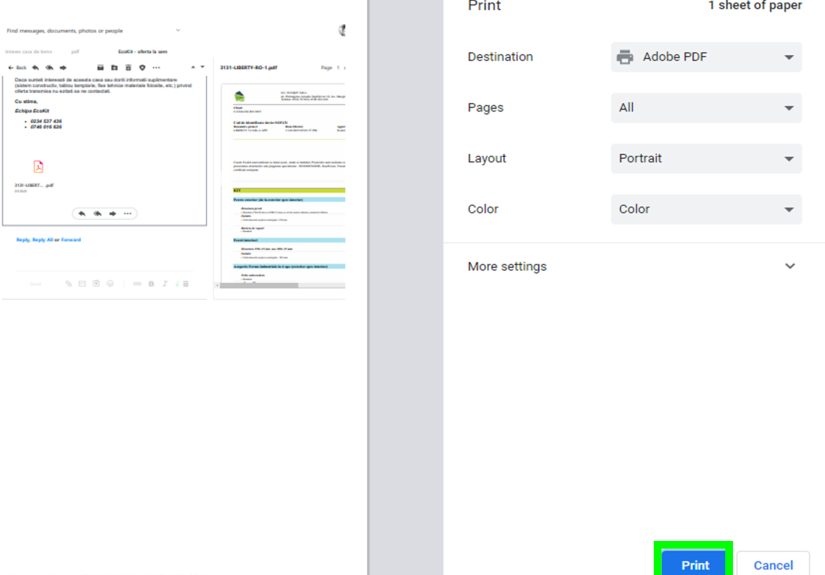
- Open the email that contains the PDF attachment.
- Click the attachment to open its preview.
- Look for a printer icon or a Print option in the preview window.
- Select your printer, choose your copies and page range, then print.
In Gmail, this often works smoothly when the PDF opens in preview. In Outlook on the web, you may be able to preview the attachment and print from there as well. On some services, the email itself has a print button, but that prints the message body, not always the attached PDF. That distinction matters. A lot.
If you print and end up with a beautifully formatted copy of the email but not the actual attachment, do not panic. You did not break anything. You simply printed the wrong layer of the onion. Open the PDF itself first, then print from the PDF view.
When This Method Works Best
This method is ideal when you need speed. Maybe your manager sent a meeting packet, your child’s school emailed a permission slip, or you just need a boarding document on paper before sprinting out the door with one shoe half on. If the preview opens clearly and your printer is already set up, direct printing is the quickest path from inbox to paper tray.
Its Biggest Limitation
The catch is control. Preview printing is not always great for changing advanced settings. You may have fewer options for scaling, duplex printing, paper size, and layout. If the PDF is cropped, tiny, or acting dramatic, the preview route may not be the best choice.
Also, some email clients only print attachments cleanly when they are opened in their full app. Outlook users in particular may notice that attachment behavior changes depending on whether they are using classic Outlook, the new Outlook, or Outlook on the web. In some cases, opening the attachment normally gives you more control than using a quick print feature.
Method 2: Download the PDF First, Then Print It From a PDF App
If Method 1 is the speed demon, Method 2 is the grown-up in the room. Downloading the PDF first and printing it from a proper PDF viewer is the most reliable approach on desktops and laptops, and often the best option when the document matters.
How to Do It
- Open the email and download the PDF attachment.
- Save it to your Downloads folder, desktop, or another easy-to-find location.
- Open the file in a PDF app such as Adobe Acrobat Reader or your device’s default PDF viewer.
- Choose Print, or use Ctrl + P on Windows or Command + P on Mac.
- Select your printer and adjust settings like page range, copies, color, orientation, and scale.
- Print the document.
This method gives you the most control over the final result. If you need to print only pages 2 through 4, switch to grayscale, use landscape orientation, or make the document fit neatly on letter-size paper, a PDF viewer is usually the best place to do it.
Why This Method Is Often Better
Let’s say someone emails you a lease agreement, a multipage invoice, or a tax form. These are not documents you want to print casually and hope for the best. Downloading first lets you confirm the file is correct, zoom in to inspect it, and choose proper settings before paper starts flying.
It also helps if your email preview is clunky. Some browsers and email platforms are fine for looking at a PDF but not especially good at printing one. A dedicated PDF app can be more stable and more accurate, especially for complex layouts, forms, and documents with embedded fonts.
Good Examples of When to Use It
This is the right method when:
- You need only certain pages.
- You want to print double-sided.
- The preview version looks cropped or blurry.
- You need the option to choose another printer.
- You are printing something important and want fewer surprises.
If the PDF Refuses to Print
This is where people usually start blaming the printer, the laptop, the moon cycle, and maybe one coworker named Brian. But most printing problems come down to a few common issues.
First, reopen the PDF in a different app. If it will not print from a browser preview, try Acrobat Reader. Second, check that your printer is online and selected correctly. Third, confirm your drivers and PDF app are up to date. And if the output is blank or faint, review paper settings, ink or toner levels, and maintenance needs before declaring war on office equipment.
In other words, Method 2 is not only the most reliable way to print a PDF email attachment. It is also the easiest way to troubleshoot when things go sideways.
Method 3: Print the PDF From Your Phone or Tablet
Sometimes the attachment lands on your phone first, and your laptop is nowhere nearby. Maybe you are in the kitchen, the carpool line, a hotel room, or pretending to relax on the couch before a “quick print task” ambushes your evening. Mobile printing can absolutely work, and it is much better now than it used to be.
Printing From an iPhone or iPad
If you use an Apple device, AirPrint is usually the easiest solution. Open the email attachment, tap the Share icon, choose Print, select an AirPrint-enabled printer, adjust settings, and print. As long as your iPhone or iPad and the printer are on the same Wi-Fi network, the process is usually smooth and driver-free.
This is excellent for everyday documents like return labels, event tickets, school forms, receipts, and PDFs from Apple Mail or Gmail on iPhone. If the print option is missing in the email app, open the PDF first, then use the share menu from the PDF viewer instead of the email message itself.
Printing From an Android Phone or Tablet
On Android, the basic idea is the same: open the PDF, tap the menu or share option, choose Print, pick a printer, and print. Many Android devices support mobile printing through a built-in print service, and many compatible printers work through Mopria-powered printing.
If your email app is not showing a print option, do not assume the document is cursed. Open the PDF in another app such as Chrome, Drive, or Acrobat Reader. Many Android apps can hand the file off to the system print dialog, where you can set copies, paper size, color, and more.
When Mobile Printing Is the Best Choice
Mobile printing is ideal when convenience beats precision. If you just need one quick copy and your printer is nearby, your phone may be faster than booting up a computer. It is also handy for last-minute errands: printing a signed form before school, a shipping label before the post office closes, or a doctor’s intake PDF while sitting in the parking lot wondering how adulthood got so administrative.
A Bonus Option for Some Smart Printers
Some modern printers support email-to-print features, which let you send a file to a dedicated printer email address. That is more of a specialty trick than an everyday method, but it can be useful in offices or shared environments where direct mobile setup is inconvenient.
Common Problems and How to Fix Them
You Printed the Email, Not the Attachment
This happens all the time. The fix is simple: open the PDF attachment itself and print from that file, not from the email message window.
The Attachment Will Not Download
Try a different browser, disable a stubborn extension, or clear cache and cookies. Also remember that some senders apply restrictions to attachments, which may affect downloading or printing in certain cases.
The Wrong Printer Keeps Getting Used
Quick print features sometimes send attachments to your default printer automatically. If you want a different printer, open the PDF normally and use the standard print dialog instead of a shortcut option.
The PDF Prints Blank or Looks Wrong
Check printer supplies, paper type, scaling, orientation, and page size. If the printer handles regular pages fine but the PDF still misbehaves, reopen the file in another PDF viewer and try again.
There Is No Print Button on Mobile
Open the PDF in another app. On iPhone, try the share sheet from the PDF itself. On Android, open it in a print-friendly app and use the system print dialog.
Which Method Should You Choose?
If you want the short version, here it is:
- Use Method 1 when you want the fastest route and the preview looks fine.
- Use Method 2 when the document matters, the layout is important, or you need more print settings.
- Use Method 3 when you are on a phone or tablet and need a quick wireless print.
For most important documents, Method 2 is the safest bet. It gives you better control and fewer surprises. For casual one-page attachments, Method 1 is often enough. For everyday life on the move, Method 3 is the modern convenience play.
Real-World Experiences With Printing a PDF Email Attachment
One of the most common real-life experiences with printing a PDF email attachment is the classic “I only need one page” situation that somehow turns into a whole event. Someone receives a four-page PDF in an email, clicks the print icon too fast, and accidentally prints the entire thread, the attachment, and sometimes a bonus cover page from a preview window. Suddenly a simple school permission slip has turned into a small forest tragedy.
Another very relatable moment happens in workplaces. A team member emails a PDF invoice or contract and says, “Can you print this for the meeting?” Sounds easy. But if the attachment opens in a browser preview instead of Acrobat, the formatting may look slightly off. The margins feel weird. The bottom text looks suspiciously close to being chopped off. That is usually when experienced office people quietly switch to downloading the file first. They have seen things.
At home, printing from a phone is where many people either feel like tech geniuses or suddenly age 14 years in five minutes. When AirPrint or Android printing works, it feels magical. Tap, print, done. When it does not, people often discover that the phone is on guest Wi-Fi, the printer is on the main network, and the two devices are basically living separate lives under the same roof.
Parents run into this with forms all the time. A teacher emails a PDF at 8:43 p.m. with a reminder that it needs to be signed and returned tomorrow. Nobody wants to email the file to a laptop, hunt through folders, and stage a midnight scavenger hunt. Printing directly from the phone becomes the hero move. It is not glamorous, but neither is realizing you are out of printer paper while standing in pajamas next to a blinking inkjet.
Travel is another big one. People often receive hotel confirmations, e-tickets, visa paperwork, or itinerary PDFs by email. Even though many places accept digital copies now, some travelers still prefer paper backups because battery life is not a personality trait you can trust. In those moments, downloading the PDF and printing from a computer is usually the most reassuring option. It lets you check every page and avoid the horror of discovering at the airport that page two never printed.
Then there is the emotional experience of printing something official, like medical paperwork or legal documents. Nobody wants to guess whether the signature line printed correctly. Nobody wants the form shrunk to 82 percent for mysterious reasons. That is where using a PDF app, checking paper size, and previewing before printing can save a lot of frustration.
The biggest lesson from real-world experience is simple: the easiest method is not always the best one. If speed matters, print from preview. If accuracy matters, download first. If convenience matters, use your phone. The trick is knowing that you actually have options, which is comforting when the printer starts making sounds that suggest it is considering early retirement.
Final Thoughts
Printing a PDF email attachment does not have to be complicated. Once you know the three basic methods, the job becomes much more predictable. You can print directly from the email preview for speed, download the PDF and print from a proper viewer for control, or use your phone or tablet for wireless convenience.
The best method depends on the moment. Quick document? Preview it and print. Important file? Download it first. Only have your phone? Mobile printing has come a long way. And if something goes wrong, the fix is usually less dramatic than it feels in the moment.
So the next time a PDF arrives in your inbox and needs to become a real sheet of paper, you will know exactly what to do. No guessing. No frantic clicking. No arguing with the printer like it is a coworker who missed the memo.