Table of Contents >> Show >> Hide
- First, Know What “Delete” Means on Spotify
- How to Remove Songs from Your Own Spotify Playlist
- How to Delete Songs from Liked Songs and Your Library
- How to Remove Downloaded Songs Without Removing Them from Spotify
- What to Do If It Is Not Your Playlist
- How to Delete an Entire Playlist on Spotify
- Common Spotify Cleanup Problems and How to Fix Them
- Best Practices for a Cleaner Spotify Library
- Real-World Experiences: What Cleaning Up Spotify Actually Feels Like
- Conclusion
Spotify makes it wonderfully easy to add music and slightly less easy to clean up after your past self. One minute you are building the perfect “Sunday coffee” playlist. The next, it contains workout remixes, a breakup ballad, and a song you only saved because someone on TikTok made it sound life-changing. Now it is time for a cleanup.
If you have been searching for how to delete songs from Spotify, the first thing to know is that “delete” means different things inside the app. You can remove a song from a playlist, remove it from your Liked Songs, unsave it from your library, hide it from certain playlists, or remove downloaded copies from your device. What you cannot do as a regular listener is erase a song from Spotify’s full catalog. That kind of takedown is for labels, distributors, or rights holders, not someone trying to undo a questionable late-night playlist decision.
This guide walks through the cleanest ways to remove songs from Spotify on mobile and desktop, explains the difference between your playlists and your library, and shows you what to do when Spotify keeps hanging on to tracks like an emotionally unavailable ex.
First, Know What “Delete” Means on Spotify
Before you start tapping the three-dot menu like it owes you money, here is the quick breakdown:
Remove a song from a playlist
This only removes the track from that specific playlist. It does not remove the song from your Liked Songs, your albums, or any other playlist where it appears.
Remove a song from Liked Songs or Your Library
This means the track is no longer saved in your personal collection. It may still exist in playlists you created earlier, because Spotify treats playlists and saved items a little differently.
Remove downloads
This deletes the offline copy from your device, which is useful if Spotify is gobbling storage. The song or playlist can still remain in your account.
Hide a song
This is handy when you are listening to a Spotify-made or someone else’s playlist that you cannot edit. Hiding a track tells Spotify to skip it there, but it does not erase the song everywhere else.
Exclude a track from your Taste Profile
This is the newer, smarter option for anyone who is tired of one random song poisoning recommendations. Excluding a track reduces its impact on your recommendations and personalized playlists without making the song unplayable.
In other words, Spotify offers several kinds of “goodbye,” and choosing the right one saves time and confusion.
How to Remove Songs from Your Own Spotify Playlist
If the playlist belongs to you, this is the easiest cleanup job. You have full control, which is rare in life and delightful in music apps.
On mobile
- Open Spotify and go to Your Library.
- Open the playlist you want to edit.
- Find the song you want gone.
- Tap the three-dot menu next to the track.
- Choose Remove from this playlist.
That is it. No dramatic farewell speech required.
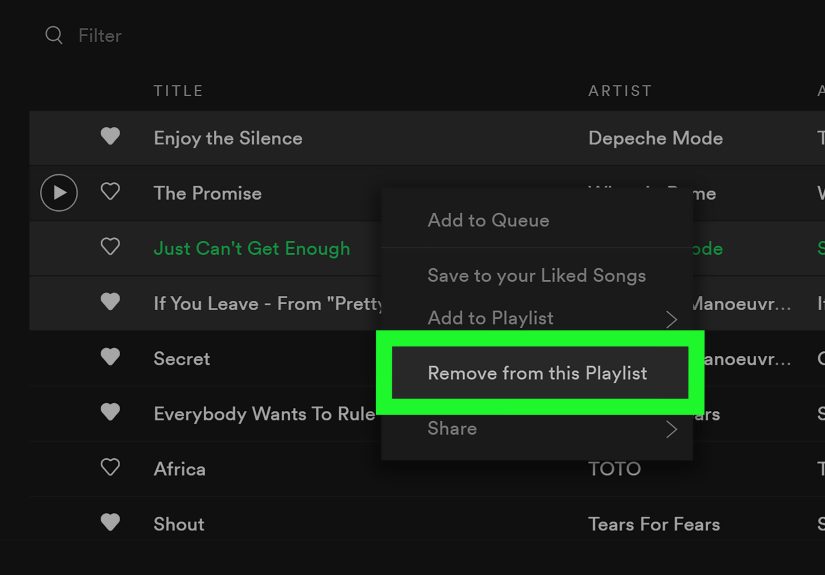
On desktop
- Open the Spotify desktop app.
- Select the playlist from the sidebar.
- Right-click the song, or click the three-dot menu next to it.
- Select Remove from this playlist.
If you are doing a bigger cleanup, desktop is often faster because you can work with multiple tracks more comfortably. It is the difference between trimming a hedge with garden shears and trying to manicure it with nail scissors.
A useful example
Let’s say you made a “Road Trip 2025” playlist and added 120 songs. A month later, you realize 20 of them were impulse adds, including six versions of the same pop hit and one ten-minute ambient thunderstorm track that made everyone in the car think the sky was falling. Removing those songs from the playlist does not affect your library or other playlists. It simply cleans up that one travel mix.
How to Delete Songs from Liked Songs and Your Library
Your Liked Songs section works like a built-in collection inside Spotify. This is where tracks go when you tap the add or save button. If you want to clean up your Spotify library, this is the section to target.
On mobile: remove songs one by one
- Open Spotify.
- Tap Your Library.
- Open Liked Songs.
- Tap the three-dot menu next to the song you want to remove.
- Tap Remove from this playlist or the equivalent remove option shown in your app version.
Yes, it is a little repetitive. No, your thumb will not write you a thank-you note.
On desktop: the faster cleanup method
If your Liked Songs section has turned into a digital garage stuffed with old favorites, random discoveries, and accidental taps, use desktop.
- Open the Spotify desktop app.
- Go to Liked Songs.
- Select the songs you want to remove.
- Right-click and choose Remove from your Liked Songs.
For a serious cleanup, you can select multiple tracks at once. On Windows, use Ctrl + A to select all. On Mac, use Cmd + A. You can also use Shift-click or command-based multi-select behavior for smaller batches.
Important library rules to remember
Spotify does not treat every save the same way. Saving a song does not automatically save the album or artist. Saving an album or artist does not automatically save every song from that album. This matters because some users remove a track from Liked Songs and then wonder why it still seems connected to an album they saved earlier. In Spotify land, those are separate relationships.
What if you want a fresh start?
If your Liked Songs are beyond repair, you can use desktop to remove large batches or everything, then rebuild from scratch. A safer move is to first turn your current Liked Songs into a separate playlist, especially if you think you might later regret your ruthless editing phase. Future You is often less brave than Present You.
How to Remove Downloaded Songs Without Removing Them from Spotify
Sometimes the issue is not the song itself. It is your storage. If your phone is groaning under the weight of downloaded playlists, you do not need to remove songs from your account entirely.
To remove downloads from a playlist or album
- Open Your Library.
- Open the downloaded playlist or album.
- Tap the green download arrow.
- Select Remove if prompted.
To remove all downloads on mobile
- Tap your profile picture.
- Go to Settings and privacy.
- Tap Data-saving and offline.
- Choose Remove all downloads.
This is a great option when you want to keep your playlists and saved songs intact but free up device space. Think of it as decluttering the closet without donating the clothes.
What to Do If It Is Not Your Playlist
Here is where many people get stuck: you open a Spotify-made mix, someone else’s playlist, or a collaborative list where you do not have editing rights, and one song absolutely must go.
In that case, you usually have three choices.
Option 1: Hide the song
If the playlist is created by Spotify or another user and you cannot edit it, use Hide song if the option appears. Spotify will skip that track in the playlist for you, while leaving the playlist intact for everyone else.
Option 2: Exclude it from your Taste Profile
If the song keeps polluting your recommendations, choose Exclude from your Taste Profile. This is especially useful when a child hijacks your account with cartoon songs, a roommate plays gym EDM through your speakers, or you accidentally loop one guilty-pleasure track for three days and now Spotify thinks it knows you better than you know yourself.
Option 3: Copy the playlist into your own version
If you want total control, create your own playlist and add the tracks you actually want. Spotify also lets you save versions of playlists by adding all tracks to another playlist. It is a little manual, but it is often the cleanest long-term fix.
How to Delete an Entire Playlist on Spotify
Sometimes the songs are not the problem. The whole playlist is a mess. Maybe it was a phase. Maybe it was a situationship soundtrack. Maybe it was called “Summer Vibes Final FINAL Real One” and now it embarrasses you.
To delete a playlist
- Open the playlist.
- Tap or click the three-dot menu under the playlist title.
- Select Delete playlist.
- Confirm the deletion.
Deleted the wrong one? Do not panic. Spotify gives you a recovery window.
How to recover a deleted playlist
- Go to your Spotify account page in a browser.
- Open Recover playlists.
- Find the deleted playlist.
- Click Restore.
Spotify currently lets you recover deleted playlists within 90 days. So yes, you can absolutely have a dramatic decluttering moment and still walk it back later. Spotify has seen things. Spotify understands.
Common Spotify Cleanup Problems and How to Fix Them
The song disappeared from one playlist but still shows up elsewhere
That is normal. Removing a track from one playlist does not remove it from your library, Liked Songs, or other playlists.
I removed a song, but Spotify still recommends similar tracks
Use Exclude from your Taste Profile for the song or playlist. If Smart Shuffle is also feeding extra recommendations into your session, disable it in playback settings.
I cannot remove a song from a playlist
You probably do not own the playlist or lack edit permissions. Hide the song instead, or create your own version of the playlist.
I want to delete a song from Spotify entirely
Listeners cannot remove songs from Spotify’s global catalog. Artists and rights holders must go through a distributor, label, or formal takedown route.
My app labels look slightly different
That happens. Spotify changes wording and interface details from time to time, and iPhone, Android, desktop, and web can look a little different. The core path is usually the same: open the track or playlist, tap the three-dot menu, then choose the remove, hide, or delete option that fits your goal.
Best Practices for a Cleaner Spotify Library
Deleting songs from Spotify gets easier when you stop treating every playlist like an attic. A few habits help:
- Do a monthly cleanup of Liked Songs so it stays useful.
- Create specific playlists instead of dumping everything into one giant mix.
- Use Hide song for playlists you cannot edit.
- Use Exclude from your Taste Profile when a track is not bad, just wrong for your algorithm.
- Remove downloads regularly if storage is tight.
- Before deleting a playlist forever, consider copying it or remembering that Spotify offers recovery for a limited time.
A well-managed Spotify library is easier to browse, easier to share, and far less likely to betray your mood with a random novelty song in front of friends.
Real-World Experiences: What Cleaning Up Spotify Actually Feels Like
Here is the funny thing about learning how to delete songs from Spotify: the technical steps are simple, but the experience is surprisingly personal. Most people are not just removing files. They are editing memories, habits, moods, and old versions of themselves.
For example, a lot of users start by trying to clean one playlist and end up realizing their entire library tells the story of every passing phase. There is the productivity era with instrumental piano. The gym era with aggressive beats and absolutely no mercy. The week when everyone suddenly loved indie folk. The breakup season, which apparently required seventeen sad songs and one power ballad that was somehow both tragic and motivational. Deleting songs from Spotify often becomes less of a housekeeping task and more of a “wow, I was really going through it” moment.
Another common experience is frustration with Liked Songs. People save tracks quickly because Spotify makes it easy, but they do not always come back to organize them. Months later, the collection feels chaotic. A user might love the convenience of saving everything in the moment, then feel overwhelmed when browsing the library later. That is why desktop cleanup tends to feel oddly satisfying. Selecting a large batch of songs and removing them is like cleaning out a junk drawer and finally finding the scissors.
There is also a practical side. Some users only realize how many downloaded playlists they have when their phone storage starts waving a white flag. Removing downloads without deleting the music from the account feels like the grown-up, responsible version of Spotify management. It is not dramatic, but it is effective.
Then there is the recommendation problem. Many listeners are not trying to remove a song because they hate it. They are trying to stop Spotify from acting as if one weird listening session defines their entire personality. Maybe they played children’s songs for a niece, white noise for sleep, or holiday music in October for reasons no one needs to unpack right now. Features like Hide song and Exclude from your Taste Profile feel helpful because they match the way people actually use music apps: sometimes a song belongs in the moment, but not in your long-term identity.
And yes, deleting playlists can be emotional too. People make playlists for trips, relationships, jobs, seasons, and milestones. Even when a playlist is no longer useful, hitting delete can feel bigger than expected. That recovery option exists for a reason. Spotify clearly knows that users sometimes clean first and think later.
The best experience usually comes from treating Spotify like an active space rather than a storage bin. When listeners remove songs from playlists, trim down Liked Songs, manage downloads, and keep recommendations under control, the app becomes more enjoyable. Search gets easier. Playlists make more sense. Your algorithm stops acting like your whole personality is based on one ironic listen to a novelty track at 1 a.m.
So yes, deleting songs from Spotify is a technical task. But it is also part digital decluttering, part mood management, and part character development. Which is a lot for one little three-dot menu, but here we are.
Conclusion
If you want to delete songs from Spotify, the right method depends on what you are really trying to do. Remove a track from a playlist if you are cleaning up a mix. Remove it from Liked Songs if you want it out of your library. Remove downloads if you need storage back. Hide a song if you cannot edit the playlist. Exclude it from your Taste Profile if your recommendations have gone off the rails.
Once you understand those differences, Spotify becomes much easier to manage. And once your library is cleaned up, your playlists start making sense again, your recommendations get less weird, and your account stops looking like it was curated by five different people sharing one phone on too little sleep.